# Qnap faq.....read me first!
**URL:** https://forums.plex.tv/t/qnap-faq-read-me-first/109942
**Category:** Tips, Tricks & How-Tos
**Tags:** server-qnap, tipstricks
**Created:** [July 31, 2015, 8:24pm UTC](https://forums.plex.tv/t/qnap-faq-read-me-first/109942 "2015-07-31T20:24:19Z")
**Posts on this page:** 7
**Page:** 1
### Author:  [@dane22](https://forums.plex.tv/u/dane22)
#### Post date: [July 31, 2015, 8:24pm UTC](https://forums.plex.tv/t/qnap-faq-read-me-first/109942/1 "2015-07-31T20:24:19Z")
# Welcome to Plex QNAP FAQ:
## This post will try and answer some common questions related to the combination of QNAP and Plex Media Server
For more general Tips & Tricks, see [this](https://forums.plex.tv/c/general-discussions/tips-tricks-how-tos/ "this")
First of all, we urge you to look @ our support site on the [NAS Guide page](https://support.plex.tv/hc/en-us/sections/200286217-NAS-Devices "AS Guide page")
## Questions:
- [Q01: I installed the latest version, or?](#Q1)
- [Q02: Which version do I need, Intel or Arm?](#Q2)
- [Q03: You say Arm CPU, but is all Arm devices supported?](#Q3)
- [Q04: Will my QNAP be powerful enough to support client X?](#Q4)
- [Q05: How do I install a downloaded QPKG from Plex?](#Q5)
- [Q06: Do I have to uninstall before installing a new version?](#Q6)
- [Q07: How do a do a complete reinstall of Plex on my QNAP](#Q7)
- [Q08: How do I find the installed version of Plex Media Server?](#Q8)
- [Q09: How do I find out what model of QNAP I’m running?](#Q9)
- [Q10: How do I find the QNAP firmware I’m running?](#Q10)
- [Q11: Where is the Plex install directory](#Q11)
- [Q12: How do I get to the logs directory?](#Q12)
- [Q13: How do I connect to my QNAP with SSH?](#Q13)
- [Q14: Where should I put my medias?](#Q14)
- [Q15: Adding a plug-in from a Windows workstation](#Q15)
- [Q16: I have a problem with plex.tv, where I can connect to it, but not the reverse](#Q16)
- [Q17: My media are located on a remote NAS or something else, but regardless, I need to run some script during every restart of my QNAP](#Q17)
- [Q18: Making it easy for the future](#Q18)
- [Q19: Adding your own certificate to Plex Media Server](#Q19)
- [Q20: Upgrading QTS from 32 bit to 64 bit](#Q20)
- [Q21: I got more than one network interface on my QNAP](#Q21)
- [Q22: Which IP Address should my QNAP have](#Q22)
- [Q23: Can not claim Plex Media Server](#Q23)
- [Q24: I have connected my QNAP to another router and now Plex clients can’t access it](#Q24)
- [Q25: Quick access to the internal Library Directory](#Q25)
- [Q26: How to restart PMS from commandline](#Q26)
- [Q27: How to update PMS from commandline (SSH)](#Q27)
- [Q28: How to use the PlexData share](https://forums.plex.tv/t/109942/5)
- [Q29: How to bypass iHD driver](https://forums.plex.tv/t/109942/6)
- [Q30: How to reclaim QNAP Plex server](https://forums.plex.tv/t/qnap-faq-read-me-first/109942/7)
- [Q31: HW HDR Tone Mapping on QTS/QuTS](https://forums.plex.tv/t/qnap-faq-read-me-first/109942/8)
- [Q32: (Re-)Claiming a QNAP based Plex Media Server](https://forums.plex.tv/t/claiming-a-qnap-plex-media-server/806674)
- [Q33: Move PlexMediaServer to a different DataVol (volume)](https://forums.plex.tv/t/qnap-faq-read-me-first/109942/9)
- [Announcement regarding QNAP MultiMedia Software](https://forums.plex.tv/t/qnap-faq-read-me-first/109942/10)
## Q1: I installed the latest version, or?
If so, then make sure you didn’t do it from QNAP App-Center, since the version held on the QNAP App-Store is almost always behind the latest release
We suggest you visit [http://plex.tv/download](https://www.plex.tv/media-server-downloads/?cat=nas&plat=qnap) instead
[Back to top](#top)
## Q2: Which version do I need, Intel or Arm?
It all depends on the processor that your QNAP is running…If Intel or AMD, then go for the Intel one, but if ARM, go for the ARM one.
And to check what version you got, visit [http://www.qnap.com/i/en/product/](http://www.qnap.com/i/en/product/) and select your product. Then click on specifications, and look @ the top under CPU. Also note, that if running Intel, and using QTS 4.3 or above, that you need the 64bit version of PMS
[Back to top](#top)
## Q3: You say Arm CPU, but is all Arm devices supported?
Sadly no,
X-19 devices (most Marvel devices) are no longer developed, but still functional, and the last available version is V0.9.16.6.
X31 devices are fully supported, and developed.
X31Plus devices are fully supported, and developed.
Look [here](https://support.plex.tv/hc/en-us/articles/218212517 "here")
[Back to top](#top)
## Q4: Will my QNAP be powerful enough to support client X?
Look [here](https://docs.google.com/spreadsheets/d/1MfYoJkiwSqCXg8cm5-Ac4oOLPRtCkgUxU0jdj3tmMPc/edit#gid=314388488 "here")
And note, that different clients have different demands, so look up the specs for your client OS, since Plex relies on that. Without native OS support, the Plex Client has to depend on the Plex Server to transcode the media
[Back to top](#top)
## Q5: How do I install a downloaded QPKG from Plex?
When logging into QNAP Admin interface, select the QNAP App-Center, and then Manual install.
You can find a guide [here](https://www.qnap.com/en/how-to/knowledge-base/article/how-to-install-qnap-applications-qpkg-files-manually "here"), that shows how to install .qpkg’s manually.
[Back to top](#top)
## Q6: Do I have to uninstall before installing a new version?
Nope, and a bad idea…If you do so, all your information will be lost…Instead, and recommended, simply install on top of the old one
[Back to top](#top)
## Q7: How do I do a complete reinstall of Plex on my QNAP
In QNAP Admin Interface, select the App-Center, and then hit more/remove. After it’s done, install again. (Note that all your Metadata etc. will be gone)
[Back to top](#top)
## Q8: How do I find the installed version of Plex Media Server?
Simply launch the QNAP admin interface, and look in the App Center. It’s written on the icon for Plex
[Back to top](#top)
## Q9: How do I find out what model of QNAP I’m running?
QNAP Admin Interface. Select “Control Panel”/“System Information”. Look @ the summary page
[Back to top](#top)
## Q10: How do I find the QNAP firmware I’m running?
Same as above
[Back to top](#top)
## Q11: Where is the Plex install directory
Since this depends on your harddrive setup, do this:
Connect to the console of QNAP (SSH, look below), and type:
`getcfg -f /etc/config/qpkg.conf PlexMediaServer Install_path`
[Back to top](#top)
## Q12: How do I get to the logs directory?
Look at the Q11 above, and to the path returned, add /Library/Plex Media Server/Logs
To access it, use either SSH if on some kinda Linux, or WinSCP/Putty if on Windows.
( Hint…Also look @ [Q18](#Q18) as well as the easy on here: [Q25](#Q25)
[Back to top](#top)
## Q13: How do I connect to my QNAP with SSH?
Depends on your OS:
- Windows older than V10→ Use [Putty.exe](http://the.earth.li/~sgtatham/putty/latest/x86/putty.exe "Putty.exe")
- Mac and Linux & Windows 10 and above→ In a terminal, type ssh admin@“INSERT IP ADDRESS OF QNAP”
[Back to top](#top)
## Q14: Where should I put my medias?
It’s not important, as long as you DO NOT use the default shares from QNAP, like “Multimedia” etc, since they also are used with some QNAP bundled applications, that creates files and directories, that confuse the Plex scanners. If you however decide to go with that directory, we urge you to look for hidden directories and files in it, and add an exclusion for those by using PlexIgnore functionallity.
And to create a shared folder just for Plex Medias, follow [this guide](https://docs.qnap.com/operating-system/qts/5.2.x/en-us/creating-a-shared-folder-961E8DD8.html "this guide") and remember to grant full rights to your self, so you can add new items there.
[Back to top](#top)
## Q15: Adding a plug-in from a Windows workstation
If running WinSCP then make sure that you have enabled to show hidden files and folders (Ctrl-Alt-H). Also make sure, that you connect using SFTP!
Then the path should be like what’s found in [Q11](#Q11), but add the following to the path: “/Library/Plex Media Server/Plug-ins”
After adding a plug-in, you’ll have to disable/enable your PMS from the QNAP Web-Interface
As an alternative, you could also install ~~[this one](http://forums.plex.tv/discussion/234641 "this one")~~, which create an admin Share on your QNAP, pointing to the Library directory
[Back to top](#top)
## Q16: I have a problem with [plex.tv](http://plex.tv), where I can connect to it, but not the reverse,
First of all, you need to make sure, that port forwarding is enabled on your router/firewall. See [Troubleshooting Remote Access](https://support.plex.tv/hc/en-us/articles/200931138-Troubleshooting-Remote-Access "Troubleshooting Remote Access")
Also make sure, that [jumbo frames](http://docs.qnap.com/nas/4.2.2/cat2/en/network.htm#physicalint "jumbo frames") is not enabled, since this would break [plex.tv](http://plex.tv) communications. It must be set to 1500
[Back to top](#top)
## Q17: My media are located on a remote NAS or something else, but regardless, I need to run some script during every restart of my QNAP
This is a bit more complicated, if not used to Linux, so here’s the guide:
- Log into your QNAP device using SSH or Telnet, and if on Windows use WinSCP ( See [Q15](#Q15))
- Create a directory named : /share/MD0\_DATA/.qpkg/autorun
\*\* (Note that MD0\_DATA might have to be replaced with something else…See Q11, and look in the path returned)
- Now we need to edit the file controlling all the installed QPKG’s
- Edit the file named: /etc/config/qpkg.conf (Use WinSCP if on Windows, or VI if in an SSH
Add the following:
> [autorun]
> Name = autorun
> Version = 0.1
> Author = Plex Community
> Date = 2015-06-09
> Shell = /share/MD0\_DATA/.qpkg/autorun/autorun.sh
> Install\_Path = /share/MD0\_DATA/.qpkg/autorun
> Enable = TRUE
(And in above, again might have to replace “MD0\_DATA” with something like “CACHEDEV1\_DATA”
- Now create a file named: /share/MD0\_DATA/.qpkg/autorun/autorun.sh
Make sure, that the first line in this file is: #!/bin/sh
Make sure, that the autorun.sh file just created, has executable rights:
In WinSCP, right-click and select properties
In SSH:
`chmod +x /share/MD0_DATA/.qpkg/autorun/autorun.sh`
Now add the rest of your script after the first line to the autorun.sh file
Reboot and test
[Back to top](#top)
## Q18: Making it easy for the future
If you want fast access to like logs and plugin’s directory in the future, then it might be a good idea to create a share for this, so in the QNAP admin interface, select the shared folders
To do it the easy way, [look here](http://forums.plex.tv/discussion/234641 "look here")
To do it manually, read ahead:
In QTS Control Panel, select `Privilege - Shared Folder`

Then create a new share, by pressing the `Create` button
Enter a valid name, like `Plex Internal Library` and in the field named “Enter Path Manually”, enter the path from Q11
[Back to top](#top)
## Q19: Adding your own certificate to Plex Media Server
This answer comes from the gifted @bcjenkins that wrote up a howto, with screenshots and everything.
You can find it here:
[QTS4.2 and before](https://forums.plex.tv/t/164789 "QTS4.2 and before")
[QTS4.3](https://forums.plex.tv/t/177178 "QTS4.3")
Thanks mate for this
[Back to top](#top)
## Q20: Upgrading QTS from 32 bit to 64 bit
If your QNAP is going to be upgraded from QTS 4.2.x towards QTS 4.3.x, then note the following:
1. Do **NOT** reformat the drives. It’s a simple upgrade
2. Do **NOT** uninstall the existing version of PMS. Doing so will make you lose all metadata, users and so on
3. Upgrade QTS on to of the old one, and reboot
4. After the reboot, PMS will fail, since the old 32 bit version can’t run on a 64 bit OS, but ignore that
5. Download and install the 64 bit version of PMS from Plex
6. Install on top of the old one
7. Done
On rare occasions QTS upgrade changes file/folder permissions used by PMS, and PMS becomes unusable. On such cases:
8. Identify the path where Plex libraries are installed (see [Q11](#Q11))
9. Stop PMS and reboot the NAS
10. take a backup of `/share/CACHEDEV1_DATA/.qpkg/PlexMediaServer/Library/Plex Media Server` (supposing that `/share/CACHEDEV1_DATA/.qpkg/PlexMediaServer` is the path obtained previously). Optionally delete the `Plug-in Support` sub-folder (sometimes it gets corrupted too) but in this case you will have to reparametrize Agents
11. Remove Plex Media Server and delete the `/share/CACHEDEV1_DATA/.qpkg/PlexMediaServer` folder manually
12. install PMS manually using PlexMediaServer\_1.7.5.4035-313f93718\_x86\_64.qpkg (or later)
13. Stop PMS and replace the newly created `/share/CACHEDEV1_DATA/.qpkg/PlexMediaServer/Library/Plex Media Server` folder by your backup
[Back to top](#top)
## Q21: I got more than one network interface on my QNAP
If your QNAP is equipped with more than one Network Interface you can use more than one if, and only if, you enable trunking.
1. If you have a switch in front of it supporting LACP/802.3ad → Read [here](https://www.qnap.com/en/tutorial/con_show.php?op=showone&cid=216 "here") for more info
2. If your switch does not supports LACP then you can enable port trunking with `balance-alb` or `balance-tlb`
If simply adding a second interface, and assigning a separate IP address to that, you **will** run into problems sooner or later.
[Back to top](#top)
## Q22: Which IP Address should my QNAP have
Servers need fixed (or reserved) IP addresses. To avoid a clash with any other server on the internet, you _MUST_ use what is known as Private Address Space. According to RFC 1918 these are:
10.0.0.0 – 10.255.255.255
172.16.0.0 – 172.31.255.255
192.168.0.0 – 192.168.255.255
You will not be able to perform initial parametrization if you use another IP range because PMS “thinks” that you are trying to access remotely, therefore disabling initial setup.
[Back to top](#top)
## Q23: Can not claim Plex Media Server
If this is a first install, and after the install, you click on the Plex icon in the QNAP App-Center, in order to open the Plex Media Sever (PMS) page, you **will** fail due to the fact, that it tries to access PMS using the secure HTTPS protocol.
Sadly, unless claimed, PMS will only respond to pure HTTP calls, until claimed, and as such, simply remove the `s` from `https://...`
After claiming the PMS, all will work nicely
[Back to top](#top)
## Q24: I have connected my QNAP to another router and now Plex clients can’t access it
When you connect your QNAP to another router (your ISP supplied a new one, you have acquired a new router, etc.), please review the IP parameters of QNAP’s network interfaces. Replacing routers often implies that LAN now uses a different IP range, and when you use fixed IP’s for QNAP (as you should), you may have to change not only its IP address, but also its gateway and DNS. Failure to do so may lead to impredictable results.
If you are “cascading” routers (connecting QNAP to the LAN port of a router whose WAN port is connected to the LAN port of another router) you may have created a double-NAT situation, and in this case it’s necessary to make a [non-trivial setup](https://support.plex.tv/hc/en-us/articles/200931138-Troubleshooting-Remote-Access "non-trivial setup") to activate remote connections.
[Back to top](#top)
## Q25: Quick access to the internal Library Directory
If you want a quick way to access the internal Plex Library directory, where logs reside, as well as 3.Party tools/plugins can be installed in, look here: [https://forums.plex.tv/t/160211](https://forums.plex.tv/t/160211)
[Back to top](#top)
## Q26: How to restart PMS from commandline
Type the following in an SSH command prompt:
`/etc/init.d/plex.sh restart`
[Back to top](#top)
## Q27: How to update PMS from commandline (SSH)
Please take a look at this [trick](https://forums.plex.tv/t/howto-update-pms-on-qnap-using-ssh/485831)
[Back to top](#top)
* * *
If you have some additions to this FAQ, feel free to PM either me, or some other Ninja, and we’ll look into it
Best Regards
The Ninja Team
---
### Author:  [@ChuckPa](https://forums.plex.tv/u/ChuckPa)
#### Post date: [August 28, 2020, 11:06pm UTC](https://forums.plex.tv/t/qnap-faq-read-me-first/109942/5 "2020-08-28T23:06:21Z")
## Q28: How to use the PlexData share
The PlexData share, available in PMS 1.19.5 and above, can be used in multiple ways, like:
1. Obtain log files to post in the forum when Plex misbehaves
2. Add hidden preferences to your Plex configuration (Preferences.xml)
3. Backup / Restore your entire Plex installation
Use of the PlexData share is completely optional. It is a diagnostic and support mechanism. It has no active interaction with PMS itself. PMS is completely unaware of this mechanism and independent.
### Setting up and administering the PlexData share
Before the PlexData share can be accessed and used in FileStation, you (the administrator), must
1. Create the “PlexData” share using **Control Panel - Shared Folders**. You may place this share on any storage volume you wish.
2. Assign access permissions using the Shared Folders tool (Control Panel - Shared Folders). This is a required step because every system is different. Presuming any ‘default’ access rights would not be in the best interest of all users.
3. If you have an existing shared folder named “PlexData” and do not wish to use this feature, it can be disabled: Create an empty file `"${QPKG_DIR}/Library/Plex Media Server/.disablePlexDataSymlink"` and restart PMS. (QPKG\_DIR) is wherever QTS installed PMS. The path name typically looks like: `/share/CACHEDEV1_DATA/.qpkg/PlexMediaServer`.
4. Restart Plex one time. This initial start/stop cycle populates the linkage in the PlexData shared folder.
### Obtaining Log Files
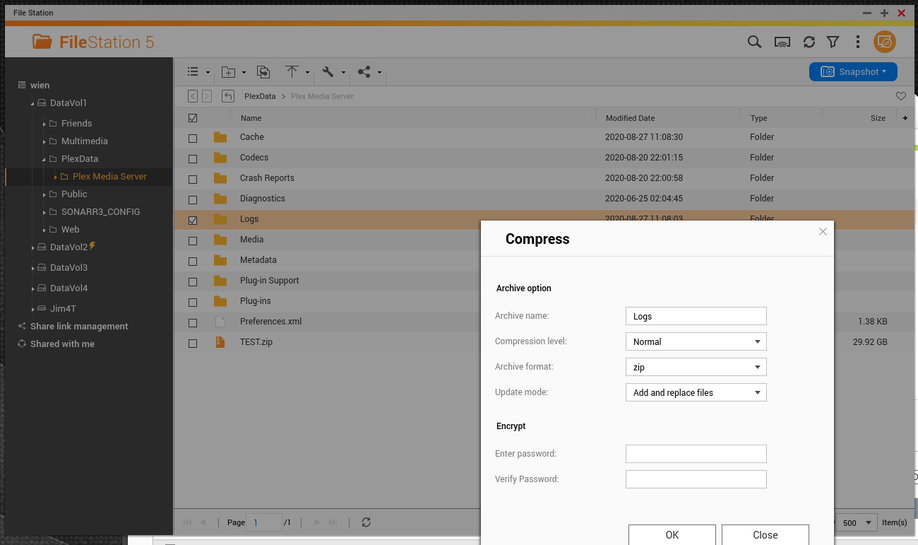
Zipping the log files to post in the forum is as simple as:
1. Open the PlexData share
2. Click the link to go into “ **Plex Media Server** ”
3. Right-Click “ **Logs** ”
4. Compress to the ZIP file
5. When complete, download to your computer and upload to the forum.
### Backing up your Plex metadata
Backing up your Plex metadata is very easy.
1. Stop Plex
2. Open FileStation
3. Click into PlexData
4. Click into “ **Plex Media Server** ”
5. Click the top selection box to select everything
6. Right click anywhere in the selected block and “Compress”
6a. **Change the name from `Cache` to the name you want.** (By default, QTS uses the name of the first entry found as the backup name.)

7. When complete, COPY/MOVE the ZIP file to a safe place.
## Restoring a backup of your Plex metadata
Restoring the backup of your Plex metadata is as easy as it was making the backup
with one additional step
1. Stop Plex
2. Open the PlexData share
3. Click the link and go into “ **Plex Media Server** ”
4. Delete everything
5. Copy your backup ZIP into the now-empty “ **Plex Media Server** ” directory
6. Right-click on your backup file and “Extract Here”
7. After the extraction is complete (several minutes), you should see your full Plex Media Server directory back as it was. (You will not see any interim progress until after it completes and FileStation refreshes. This is how QNAP works)
[Back to top](#top)
---
### Author:  [@ChuckPa](https://forums.plex.tv/u/ChuckPa)
#### Post date: [August 30, 2020, 4:42pm UTC](https://forums.plex.tv/t/qnap-faq-read-me-first/109942/6 "2020-08-30T16:42:20Z")
### Q29: How to bypass iHD driver
This FAQ How-To is of interest to those who:
1. Have an Intel J4xxx CPU as well as some J5xxx CPUs
2. Have unwatchable (breaking up) image quality using HW transcoding on J3xxx CPUs as compared to SW transcoding when using very LOW BIT RATE videos.
The issue is a known problem with the Intel HD media driver (iHD\_drv\_video.so) on those J4xxx CPUs.
The problem has been identified and a solution has been found.
For those of you who are using the PlexData share, this is an easy task.
1. Install the QNAP “Text Editor” app in App Center
2. Stop Plex in App Center.
3. In FileStation, navigate to the **PlexData** share, click **“Plex Media Server”** to access your actual configuration files.
4. Right-click **Preferences.xml** and “Open with Text Editor”
5. Go to the end of the second line,
6. Add the text `VaapiDriver="i965"` to match this image.
7. Save the file
8. Start PMS.
[Back to top](#top)
---
### Author:  [@ChuckPa](https://forums.plex.tv/u/ChuckPa)
#### Post date: [November 26, 2021, 5:43pm UTC](https://forums.plex.tv/t/qnap-faq-read-me-first/109942/7 "2021-11-26T17:43:45Z")
### Q30: How to reset ownership and reclaim your Plex server on QNAP
1. Create a shared folder, named “PlexData” (exact capitalization)
2. Restart Plex
3. Let it run for 30 seconds then stop it
4. Install the QNAP “Text Editor” app from App Center if not already installed
5. Using FileStation, Open PlexData → `Plex Media Server` (click into it)
6. Right-click `Preferences.xml` → Open in Text Editor
7. Carefully remove the `PreferenceName="Value"` pairs for
- PlexOnlineUsername
- PlexOnlineToken
- PlexOnlineMail
- PlexOnlineHome (This might not exist . OK if it doesn’t)
1. SAVE the file
2. Start Plex
3. Open [http://ip.addr.of.QNAP:32400/web](http://ip.addr.of.QNAP:32400/web) from your computer
4. The server will now be in the state for you to CLAIM it again.
Please reach out if you have any difficulties.
[Back to top](#top)
---
### Author:  [@ChuckPa](https://forums.plex.tv/u/ChuckPa)
#### Post date: [March 23, 2022, 5:49pm UTC](https://forums.plex.tv/t/qnap-faq-read-me-first/109942/8 "2022-03-23T17:49:38Z")
## Q31: HW Transcoding & HDR tone mapping in QTS/QuTS
#### _EDIT: PMS 1.29.2 and above contain native HDR tone mapping support_
This FAQ is obsolete and has been redacted.
[Back to top](#top)
---
### Author:  [@ChuckPa](https://forums.plex.tv/u/ChuckPa)
#### Post date: [April 26, 2025, 4:35am UTC](https://forums.plex.tv/t/qnap-faq-read-me-first/109942/9 "2025-04-26T04:35:58Z")
## Q33: How to move PMS to a different Data Volume.
On QNAP systems with more than one storage volume (DataVol1, DataVol2, … ),
you can move PMS to any of the volumes you want.
Step 1: Open Control Panel
Step 2: Click the DownArrow next to Open
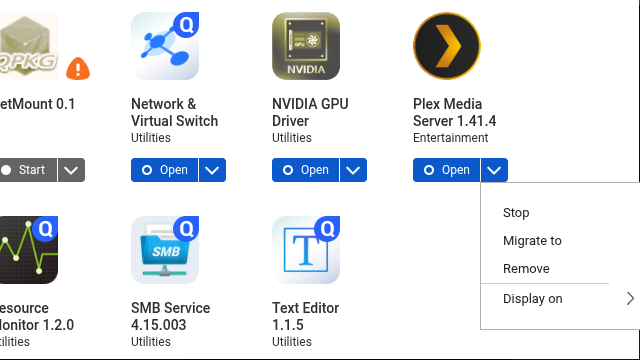
1. Click “Migrate to”
2. QTS will now show you where PMS is installed and a list of new possible location.
3. Highlight the Volume you want and click “Migrate”
4. QTS will ask you to confirm what you are about to do
5. Click “OK” and let QTS move PMS to the new Volume.
- Depending on how much data you have to move, it can take anywhere from 1 to several minutes.
1. When migration is complete, QTS will restart PMS.
[Back to top](#top)
---
### Author:  [@ChuckPa](https://forums.plex.tv/u/ChuckPa)
#### Post date: [September 17, 2017, 11:48pm UTC](https://forums.plex.tv/t/qnap-faq-read-me-first/109942/10 "2017-09-17T23:48:51Z")
This announcement is due to a major bug introduced by QNAP’s CodexPack vers 4.5.0 and how it disrupts normal PMS operation.
For those who are using the Multimedia library, introduction of CodexPack 4.5.0 breaks all access to your media in PMS.
Your normal media access, which was defined through Multimedia is disrupted by the CodexPack incorrectly and inappropriately injects itself into that path internal to the Multimedia share mechanism.
Your previous path to ‘Movies’, which previously was in `/share/CACHEDEV1_DATA/Multimedia` gets altered.
After installation of 4.5.0, your path now looks like `/share/CACHEDEV1_DATA/.qpkg/CodexPack/mnt/share/CACHEDEV1_DATA/Multimedia` which does not work because PMS does not know of that path.
It is understood CodexPack is required to use HD\_Station and other QNAP apps.
To remove your PMS installation from this problem and prevent any future involvement with it, it is strongly suggested to access the shares directly.
Example:
- Previously shares `animated`, `horror`, `scifi`, and `comedy` as part of `Multimedia/Movies`
- PMS was accessing them through `/share/Multimedia/Movies`.
- In `Libraries -> Edit`, for each Library section, add each share directly into the list of folders for PMS: `/share/animated`, `/share/horror` , `/share/scifi`, and `/share/comedy`
- Do NOT remove the 'Multimedia` entrie(s) at this time
- Allow PMS to scan your media and find it again. This happens automatically after Editing a Library section
- PMS will show a duplicate (`2`) for each item as it finds it again. This is expected and desired.
- After scanning is complete, verify all media has been found. Resolve any missing items
- Return to `Libraries -> Edit` for each section and remove (`x`) the `Multimedia` based folder definitions
- As PMS scans the section one final time, observe the `2` being removed.
- The watched status and metadata will be intact for any items not previously lost by the installation of CodexPack 4.5.0
**The TL;DR is**
**Only use** `/share/ShareName` **(from the left pane) or** `/share/PoolName/ShareName` **(using two-step left/right panes) in Plex. Let Multimedia and CodexPack do what it wants to. Keep PMS free and clear of it.**
Addendum:
**If QNAP tech supports attempts to assert PMS is corrupt, refute, do not accept, the answer. it is 100% CodexPack failure, not PMS.**
**Update: 19-Sept-2017**
Telephone conversation with QNAP tech support (California, USA) confirms
1. Use `/share/ShareName` or `/share/PoolName/ShareName` (e.g. `/share/CACHEDEV1_DATA/ShareName`) as they both go to the same place.
2. If you experience this difficulty with `CodexPack` and `Multimedia`, send in a **HelpDesk** ticket about it.