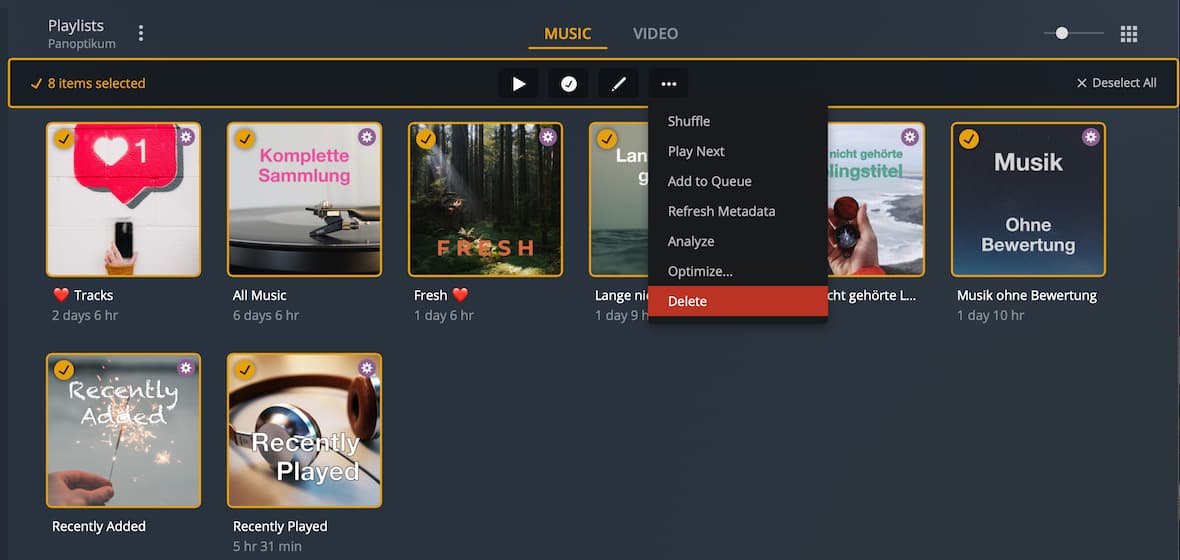
While trying to get my itunes playlists into plex, I ended up with multiple copies of them. Now I have > 100 playlists. Is there a way to delete them all. Very tedious deleting one at a time!
Plus in the future when I change tracks in my itunes playlists and have plex re-read them, I want to first delete all of the exist ones.
I tried a couple of ideas from places like reddit but they didn’t work for me.
Thanks.
Are you looking at the playlists tab of an individual library or the main Playlists entry in the sidebar? Plexamp is simply showing the playlists of your server – same as Plex Web… so those should be the same.
Ah when I click on playlists on the left pane I only see a few. When I click on music in the left pane and then playlists on the top tab bar I see them all. Thanks!
Um, sorry for being a noob but I don’t see how to multi-select them. Holding the left button of the mouse down while moving over the playlists highlights them but doesn’t give me the view you show…
Hover your mouse over the 1st item. This will highlight the item and show a little circle in the top-left corner. Clicking this circle starts with the multi-selection.
You can then either pick more items one-by-one or hold down the Shift key and select the last item to select a range of items.
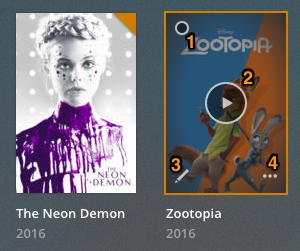
Depending on what you’re viewing, you might see a movie poster; photo; music album or artist; or a TV show, season, or episode. You can click on the item to open it or hover over the item to see additional options.
In most (but not all) cases, you will be able to:
Multi-select items (you can then perform actions on the set of items)
Immediately play the item
Edit the item
Open additional options
Using the … button, you’ll see more actions available for the item. The available actions can vary based on the type of item as well as settings you’ve selected.