well i have check dated permissions owners groups the only difference is the mount
Please,
If you’re using this for media – you don’t.
You’re way overthinking it.
Let me write this up for you and show you.
use the gnome disk utility and mount a btrfs drive by-partlabel not uuid not label but partlabel
i had them by uuid and it worked its when i went to partlabel plex could not see them.
well kodi will not see volume 9 also it has to be something with being mounted by-partlabel so now i am thinking is is a os problem. I should give this to debian.
1. Find the drive (/dev/sdc in this case )
chuck@ubuntu:~$ sudo bash
root@ubuntu:/home/chuck# parted -l
Model: VMware, VMware Virtual S (scsi)
Disk /dev/sda: 68.7GB
Sector size (logical/physical): 512B/512B
Partition Table: msdos
Disk Flags:

Number  Start   End     Size    Type      File system  Flags
 1      1049kB  538MB   537MB   primary   fat32        boot
 2      539MB   68.7GB  68.2GB  extended
 5      539MB   68.7GB  68.2GB  logical   ext4


Model: VMware, VMware Virtual S (scsi)
Disk /dev/sdb: 68.7GB
Sector size (logical/physical): 512B/512B
Partition Table: gpt
Disk Flags:

Number  Start   End     Size    File system  Name  Flags
 1      1049kB  68.7GB  68.7GB  btrfs        btr


Error: /dev/sdc: unrecognised disk label
Model: VMware, VMware Virtual S (scsi)
Disk /dev/sdc: 21.5GB
Sector size (logical/physical): 512B/512B
Partition Table: unknown
Disk Flags:
2. We want /dev/sdc (our second USB drive)
root@ubuntu:/home/chuck#
root@ubuntu:/home/chuck# parted /dev/sdc
GNU Parted 3.3
Using /dev/sdc
Welcome to GNU Parted! Type 'help' to view a list of commands.
(parted) mklabel gpt
(parted) p
Model: VMware, VMware Virtual S (scsi)
Disk /dev/sdc: 21.5GB
Sector size (logical/physical): 512B/512B
Partition Table: gpt
Disk Flags:

Number  Start  End  Size  File system  Name  Flags

(parted) mkpart
Partition name?  []? btr
File system type?  [ext2]? btrfs
Start? 1
End? -1
(parted) p
Model: VMware, VMware Virtual S (scsi)
Disk /dev/sdc: 21.5GB
Sector size (logical/physical): 512B/512B
Partition Table: gpt
Disk Flags:

Number  Start   End     Size    File system  Name  Flags
 1      1049kB  21.5GB  21.5GB  btrfs        btr

(parted)
Information: You may need to update /etc/fstab.
3. Format the partition to btrfs
root@ubuntu:/home/chuck# mkfs -t btrfs -L BUTTERBALL /dev/sdc1
btrfs-progs v5.4.1
See http://btrfs.wiki.kernel.org for more information.

Label:              BUTTERBALL
UUID:               af3cf87b-eccc-4fdc-8f77-a802a0256ad5
Node size:          16384
Sector size:        4096
Filesystem size:    20.00GiB
Block group profiles:
  Data:             single            8.00MiB
  Metadata:         DUP             256.00MiB
  System:           DUP               8.00MiB
SSD detected:       no
Incompat features:  extref, skinny-metadata
Checksum:           crc32c
Number of devices:  1
Devices:
   ID        SIZE  PATH
    1    20.00GiB  /dev/sdc1

root@ubuntu:/home/chuck#
4. Make the mount point and mount it first time
root@ubuntu:/home/chuck# mkdir /butterball
root@ubuntu:/home/chuck# chmod 755 /butterball
root@ubuntu:/home/chuck# mount /dev/sdc1 /butterball
root@ubuntu:/home/chuck# chmod 755 /butterball
5. Verify it is there
root@ubuntu:/home/chuck# df -h | grep -v loop | grep -v tmpfs
Filesystem                            Size  Used Avail Use% Mounted on
udev                                  1.9G     0  1.9G   0% /dev
/dev/sda5                              63G   14G   46G  23% /
/dev/sda1                             511M  4.0K  511M   1% /boot/efi
192.168.0.20:/mnt/vol/media/animated  110T   52T   58T  48% /animated
/dev/sdc1                              20G  3.6M   20G   1% /butterball
root@ubuntu:/home/chuck#
6. Get the UUID or filesystem LABEL for /etc/fstab
root@ubuntu:/home/chuck# blkid /dev/sdc1
/dev/sdc1: LABEL="BUTTERBALL" UUID="af3cf87b-eccc-4fdc-8f77-a802a0256ad5" UUID_SUB="4be7ea87-1051-4676-bb66-5a76c67e4ea6" TYPE="btrfs" PARTLABEL="btr" PARTUUID="1e0f17f2-78d8-4626-9bc7-973a8bfc6c3f"
root@ubuntu:/home/chuck#
[chuck@lizum ~.2001]$
7. Entry for /etc/fstab
UUID=af3cf87b-eccc-4fdc-8f77-a802a0256ad5 /butterball btrfs defaults,auto,rw 0 0
If the filesystem label is unique (always tricky to manage)
LABEL=BUTTERBALL /butterball btrfs defaults,auto,rw 0 0
Now , to address your points.
For Plex, normal POSIX permissions are all you need.
- You own the files
- Plex reads the files
Playing with partition labels to mount a USB is painful. Avoid it. Filesystem label (at most) if they are guaranteed unique. UUID is always unique.
Too much fuss and you’ll end up getting caught in the automounter.
The automounter grabs EVERYTHING it touches and claims EXCLUSIVE access to your UID/GID – which blocks Plex from seeing it.
What I show you above works for everything
change the fstab to be
/dev/disk/by-label/butterball /mnt/butterball btrfs defaults,auto,rw 0 0
make sure to reboot or do a unmount and mount
standby, I will spin up a VM of this.
Am I reading this correctly?
Debian 12 -
Debian 12 Testing has upgraded the GNOME packages to the current 40 versions and will probably as a stable version in mid-2023, as long as you the previous release them release cycle want to follow. Here is a short video on Debian 12 Testing with GNOME 40:
Mid 2023 ?
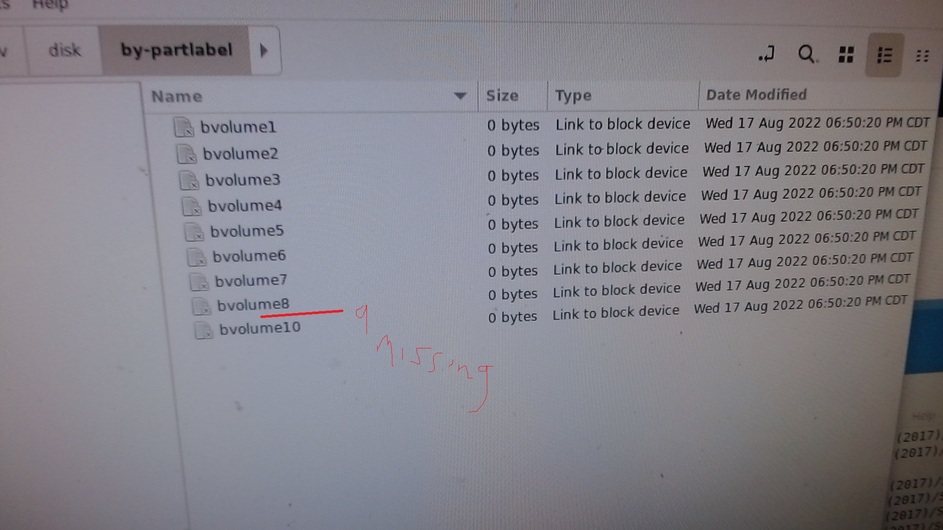


Look at /mnt/bvolume7 and /mnt/bvolume9
Are the permissions set as 755 ?
I think the problem is something in the os I need to report this to debian.
ubuntu should have the same problem as it is still using debian 11 with some driver updates to make it like 12
most likely. (another reason to never use beta for production)
I am almost done with my Debian 11.4 for you and it’s flawless –
All the same commands , just as with ubuntu
lol I got forced I dont like ubuntu and debian would not support video on a celeron gen 11 CPU with debian 11 so i had to change everything to 12.
the problem existed before i changed though i just was not aware what the problem was then. i just know files were not showing up that i added to plex. I reinstalled plex a few times i reloaded the libraries nothing would make those files show up.
i originally had them mounted by uuid and change to label to make it easier to edit then i seen the problem clearly.
if you use the method I show, which has worked for everyone, you will be fine.
Translation – STAY AWAY from ‘GNOME DISKS’ utility. It’s a train wreck looking for a place to derail.
This is written to be NTFS and ext4 centric but BTRFS works just fine with it.
(ANY file system which the kernel supports will work)
What you gain by the method I show (UUID mount) is the USB’s can be moved around and the kernel will always mount them back to where they belong. No muss - no fuss.
I wish you the best of luck.
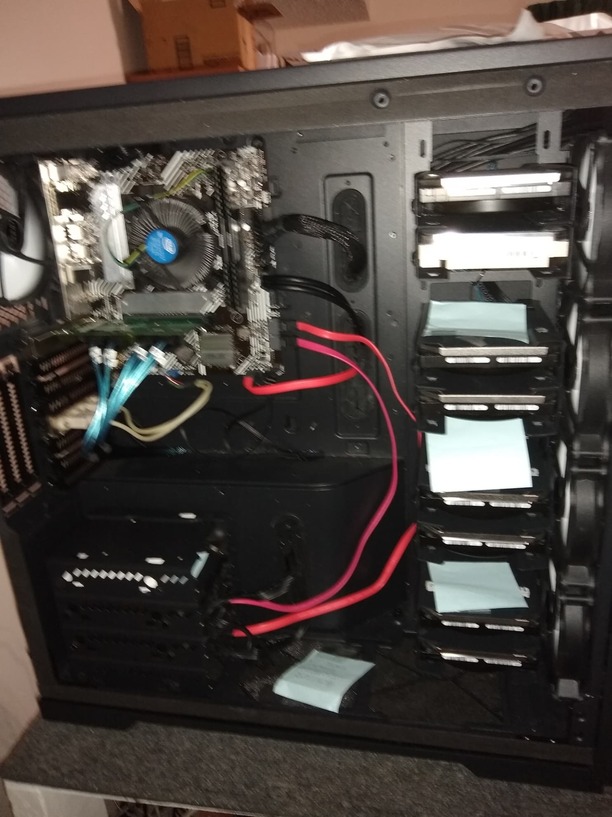
disks works good with btrfs i have gave them feedback and they have fixed it a lot.
