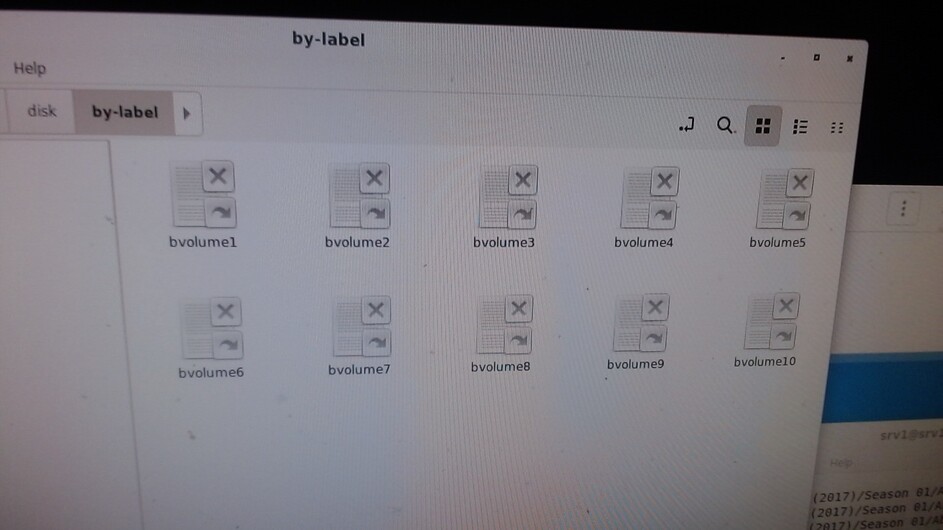
I have ten drives, 8 are gpt partitions with btrfs data, and 2 are btrfs volumes.
The problem is that plex will not see any files on the btrfs volumes. Every other app I have sees them just fine. All drives are the same permissions and owner and group.
Plex only sees data on drives listed under the/dev/disk/part label. It will not see the data under /def/disk/by-label
All drives have the same permissions; all folders, all directories, and all mount points are root. The only difference is that the two drives have btrfs, and 8 are GPT. All eight can be seen; I can aim plex at /mnt/volume 9 or volume10, which are the btrfs drive, and it will not see any files or folders.
This is all on Debian 12, an alpha version or mabie beta. Also every other app on the machine sees the files just fine.
I’m in the process of making the drives gpt and copying the files over I know that will make it work the problem is something in how plex is accessing the drives it does not matter if i aim plex at the merged volume created with mergerfs or the individual drives it will not see any files on the 2 that were partition with btrfs mkfs.btrfs -L mylabel /dev/disk
So you don’t even know if the OS is working correctly?
I will put very little effort into beta OS support. I have been badly burned more times than I can count.
Can you show me your partition tables ?
Also need to know where you’re mounting it / /etc/fstab record for it.
This shows the partition on 9 I already converted 10 to gpt you can see that 9 does not show up on one of the volume label folders were 10 does. before i converted 10 it also did not show the folder were 9 is missing seems to be the one that plex is using so if a drive is btrfs without gpt ples never sees it.
I spent a few months figuring this out. It has been driving me crazy why I added files but never seen them in plex. I think I had the same problem while on Debian 10 and 11 but cannot verify that as I am on 12 now. i only found out as I had created a new btrfs empty volume and added 1 folder with 1 file and plex would not see it.
you might be able to btrfs format a thumb drive to test this. make sure to use gparted and remove all partitions first then create the partition with mkfs.btris…
Rule of thumb – Don’t overthink it
Subvolumes within the volume are painful.
If it’s of help:
$ sudo bash         <- get root shell
# parted -l         <- list the drives  (how I found /dev/sdb)
# parted /dev/sdb   <- this drive
  mklabel gpt       <-  make a gpt label on /dev/sdb
  mkpart            <-  Start 1, End -1 (whole partition)
# mkfs -t btrfs -L btr /dev/sdb1
# mkdir /butter
# chmod 755 /butter    <- sets the mount point permissions
# mount /dev/sdb1 /butter
# chmod 755 /butter    <- sets the filesystem internal permissions
how did you create the btrfs i used gparted and made sure no partition existed then use disks and did create a partition other, then btrfs it only allows 1 volume label and not a partition label
i am pretty sure it has to do with plex the problem started in debian 10 files were disappearing i knew i added but i never bothered to trace it unill debian 12 i added another new drive and partitioned it all btrfs also and files were disappearing on it also. then i found the files were there just plex was not seeing them I verified all the folders partitions users group etc are same between working and non working drives.
you have to relise also ubuntu is not debian and things work different. debian 12 they have merged btrfs tools into btrfs and merferfs tools into mergerfs that is one difference. but the problem started back in 10 so it should be noticed on ubuntu.
the other thing is the mount in fstab needs to be created with disks so it is
/dev/disk/by-label/bvolume9 /mnt/volume9 auto nosuid,nodev,nofail,noaattime,autodefrag,compress 0 0
ok more clear the btrfs parted drives can only be mounted /dev/disk/by-partlabel since btrfs has no volume label i thin
GPT DRIVES can be mounted /dev/disk/by-label these plex will see