I am using the tip page but get stuck on part D every time. I enter the /etc/fstab line but from there I get instructions and no way to enter the command line as instructed.
There’s quite a number of posts in the Linux tips & tricks. Would you mind pointing out which one you’re referring to?
Also I’m not really sure what the problem is – can you share some more details on what you’re aiming for, what steps you’ve taken and where you get stuck?
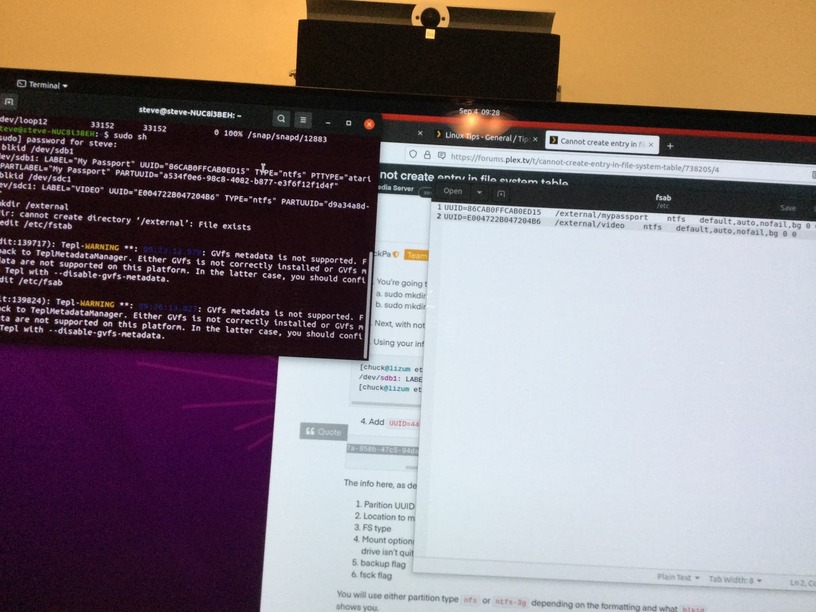
I am adding 2 external NTFS-formatted discs.
I first identified the discs I want to add in graphical disc manager.
Command df.
/dev/sdb1 (My Passport) and
/dev/sdc1 (VIDEO).
Then I go to root.
Then I create location where I will graft everything into Linux.
I call it external.
The hard drives are”my passport” and “video”.
Then I get Block IDs.
I see UUID for each harddrive
Here is where I get lost. I am trying to create in the file system where to mount each time the system boots.
If I enter vi /etc/fstab I get “a static file system information”. Then I see “use blkid to print the universally unique identifier for a device…”
Then more info

ok… some of those editors are a bit weird (don’t tell anybody I said that  ).
).
Basically what you see on the screen is the content of the fstab configuration file – down to the lines starting w/ ~ that indicate there’s no more content. In order to edit the file, you need to switch into editing mode.
-
as
/etc/fstabis a system file you cannot edit it with your regular user. Instead you need to tell the system you want to do that with admin privileges:
sudo vi /etc/fstab
This will ask for your account password (and will only work if you’re also an admin on that system. -
You cannot simply write in the file; instead you need to tell
viif/where you want to edit it. There’s a lot of guides describing how to edit files usingvi, e.g. Basic vi Commands
-
You’re going to need two places under
/external; one for each HDD
a. sudo mkdir /external/passport
b. sudo mkdir /external/video -
Next, with nothing mounted: chmod -R 755 /external
-
Using your info, follow what I do here:
[chuck@lizum etc.507]$ sudo blkid /dev/sdb1
/dev/sdb1: LABEL="6t" UUID="446c8f7a-858b-47c5-94da-5fd8da44a18f" BLOCK_SIZE="4096" TYPE="ext4" PARTUUID="ce59470a-769b-4057-bc93-5b1a23156ade"
[chuck@lizum etc.508]$
- Add
UUID=446c8f7a-858b-47c5-94da-5fd8da44a18fand fill out the rest of the line:
UUID=446c8f7a-858b-47c5-94da-5fd8da44a18f /external/disk1 ext4 default,auto,nofail,bg 0 0
The info here, as described in the manual (man fstab) is
- Parition UUID to mount
- Location to mount at
- FS type
- Mount options (auto = at boot, nofail = don’t stop startup if a problem, background if the drive isn’t quite ready)
- backup flag
- fsck flag
You will use either partition type nfs or ntfs-3g depending on the formatting and what blkid shows you.
PS: You can have a bit easier way with it:
sudo gedit /etc/fstab
^^ graphical editor.

I downloaded and installed Gedi but don’t know what to do with it.
Open the app from the command line using the command posted by chuckpa above in order to make your edits to /etc/fstab.
I am too much of a newbie to understand the next step. I would be willing to invite remote access to complete the process.
Didn’t you mean gedit ?
(Gnome graphical editor)
sudo gedit /etc/fstab
In my How-To
[root@lizum chuck]# vi /etc/fstab  (or use whatever text editor is available / favorite  and add the following lines, using your information)

# Addtions for external and internal drives
# Mount Media-3 (ext4)  at /disks/media3 for Plex
UUID=50f1a141-bc8a-48ba-9b29-8a7bee8043e9 /disks/media3  ext4  defaults,auto,rw,nofail 0 1

# Mount Chuck-2T (NTFS) at /disks/chuck2t for Plex
UUID=56EA5848EA582691                     /disks/chuck2t ntfs  defaults,auto,rw,nofail 0 1

# Mount /dev/sda1 directly  READ-ONLY,  and use the device name because it will never change
/dev/sda1                                 /disks/c       ntfs  defaults,auto,ro,nofail 0 1
vi can be replaced with gedit.
Make certain you are root (notice the # prompt) or use sudo
Chuck, can you PM me?
