[How To] Pre-encode to avoid Transcoding (using VidCoder Presets)

It all depends on the Network Buffer size on the client’s device.

Give this a read and anything @OttoKerner mentions about Network Buffer and Deep Analysis. And this thread too.

Remember, the Network Buffer allows for these fluctuations, and Plex’s Deep Analysis scans the file to see how the file will perform based on different sized buffers, (worst) 5/10/25/50/75/100/250/500MB (best).

Also, give the preset a go and test for yourself :slight_smile: You might be suprised that it works.

Posts #19 and #21 of this thread are also helpful in understanding bitrate and vbv.

  • Removed Intel QSV presets from original post (quality was too low for my liking)
  • x264 “Fast” presets added to original post (as a comprimise to removing Intel QSV)

Here is an in-depth comparison of an original Bluray remux and the 20Mbps and 8Mbps presets at different CQ settings. Hope this helps.


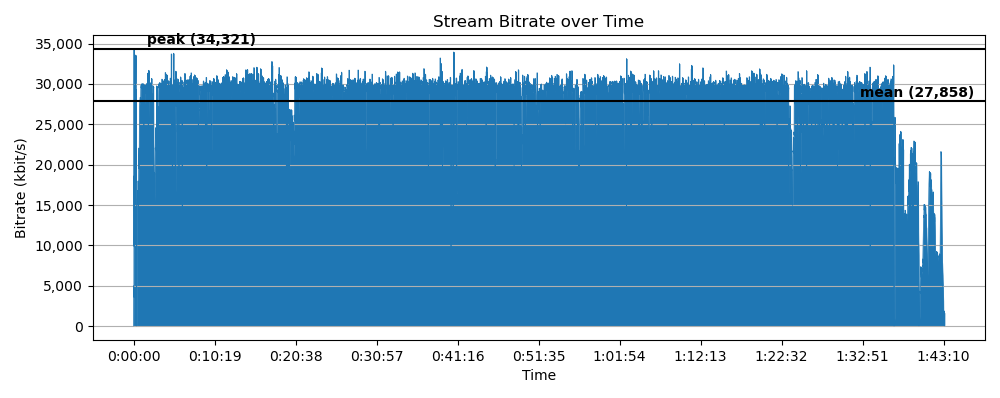
Original Bluray Remux 1080p + AAC (Video Bitrate = Peak: 34321 / Mean 27858)
Plex Deep Analysis results:
Entire MKV file requiredBandwidths="29774,29666,29495,29295,29202,29154,29064,29064"
Video stream only requiredBandwidths="29613,29505,29334,29135,29041,28993,28903,28903"
AAC stream only requiredBandwidths="161,161,161,161,161,161,161,161"


20Mbps CQ1 1080p + AAC (Video Bitrate = Peak: 33308 / Mean 17892)
Plex Deep Analysis results:
Entire MP4 file requiredBandwidths="18294,18245,18204,18200,18200,18200,18200,18200"
Video stream only requiredBandwidths="18133,18085,18043,18040,18040,18040,18040,18040"
AAC stream only requiredBandwidths="161,161,161,161,161,161,161,161"
Worst case = 18294
18924 + 5% = 19209
19209 < 20000 = No Transcoding! Plex will Direct Play with no buffering @ 20Mbps :slight_smile:


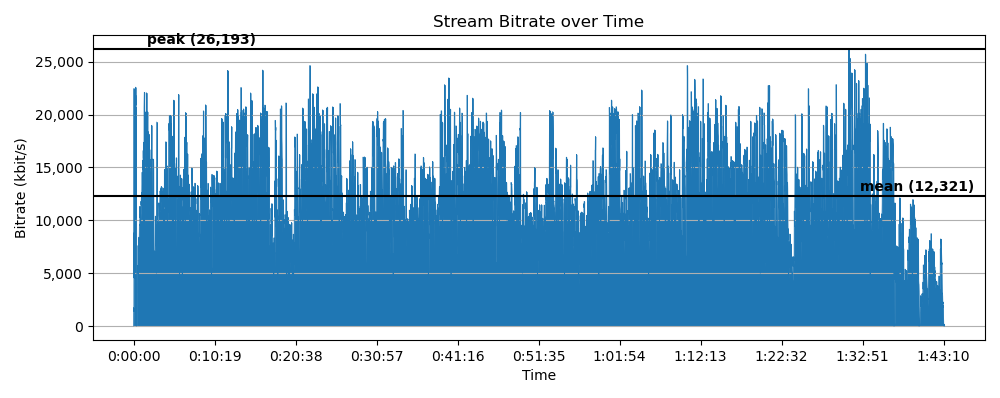
20Mbps CQ16 1080p + AAC (Video Bitrate = Peak: 26193 / Mean 12321)
Plex Deep Analysis results:
Entire MP4 file requiredBandwidths="18074,17605,16654,15348,14310,13910,13261,13261"
Video stream only requiredBandwidths="17913,17443,16493,15187,14149,13749,13102,13102"
AAC stream only requiredBandwidths="161,161,161,161,161,161,161,161"
Worst case = 17913
17913 + 5% = 18809
18809 < 20000 = No Transcoding! Plex will Direct Play with no buffering @ 20Mbps :slight_smile:


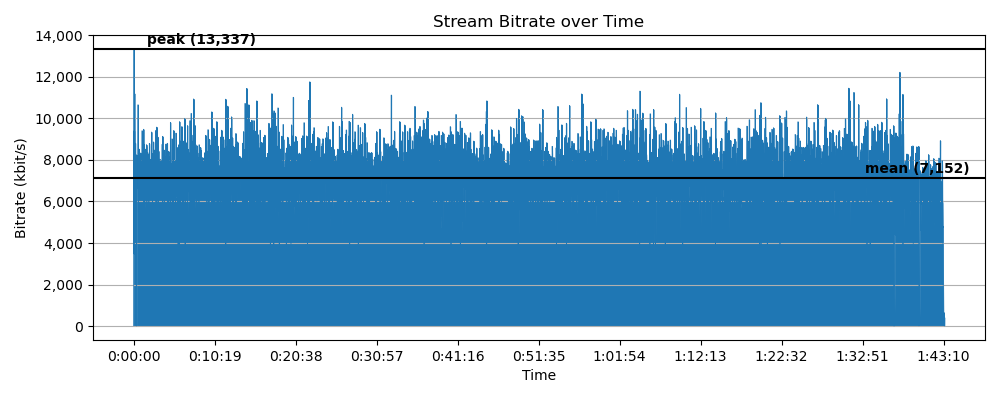
8Mbps CQ1 1080p + AAC (Video Bitrate = Peak: 13337 / Mean 7152)
Plex Deep Analysis results:
Entire MP4 file requiredBandwidths="7475,7424,7376,7376,7376,7376,7376,7376"
Video stream only requiredBandwidths="7315,7263,7216,7216,7216,7216,7216,7216"
AAC stream only requiredBandwidths="161,161,161,161,161,161,161,161"
Worst case = 7475
7475 + 5% = 7849
7849 < 8000 = No Transcoding! Plex will Direct Play with no buffering @ 8Mbps :slight_smile:


8Mbps CQ16 1080p + AAC (Video Bitrate = Peak: 13244 / Mean 6962)
Plex Deep Analysis results:
Entire MP4 file requiredBandwidths="7470,7406,7294,7294,7294,7294,7294,7294"
Video stream only requiredBandwidths="7309,7245,7133,7133,7133,7133,7133,7133"
AAC stream only requiredBandwidths="161,161,161,161,161,161,161,161"
Worst case = 7470
7470 + 5% = 7844
7844 < 8000 = No Transcoding! Plex will Direct Play with no buffering @ 8Mbps :slight_smile:


I used to use BitrateViewer to draw my bitrate graphs, but it would run into problems with some files (either erroring out, or showing 2 x the framerate/bitrate).
I have since discovered a new reliable app PlotBitrate (uses Python3 and ffprobe), which drew the bitrate graphs shown above.
1 Like

@PlexyChip, you’re a rockstar. These topics came up in another thread. I started doing research, and then found that you had already collected all of the best Plex forum links and other references on the web. I was amused to see you found the same plotbitrate and plotframes tools.

Did you notice this? The x264 devs recommend this CRF+VBV approach when creating media for constrained bitrate delivery:

Something that I would like to reiterate is that ABR mode makes no attempt to control peak bitrate, only file size. A common misconception is that ABR bitrate is more predictable or better suited for streaming, but this is not so. ABR produces files with similar peaks and bitrate distribution as CRF.

Here are some additional graphs, because I made them already.

Blu-ray TV episode, 1920x800

Here is the original. The Blu-ray was clearly encoded with bit-stuffing to keep a minimum of 10mbit/s:


Comparison of peak bitrates in CRF and ABR:

Unconstrained, both CRF and ABR produce files with significant bitrate spikes. They share the same general shape, as well as peak and mean bitrates.

CRF 20, vbv-maxrate:none vbv-bufsize:none

ABR 2469, vbv-maxrate:none vbv-bufsize:none

In a bandwidth or buffer-constrained environment, ABR doesn’t perform better than CRF.

Strangely, ABR uses more and more bits from about 0:11:44 to the end, where there is a significant spike. I think it is panicking and using more bits to hit the requested file size and overall bit-rate.


Comparison of CRF and ABR with vbv-maxrate enabled

VBV can effectively mitigate bitrate spikes.

In both CRF+VBV and ABR+VBV modes, high bitrate excursions are prevented. Because bitrate is limited during busy scenes, quality is also limited.

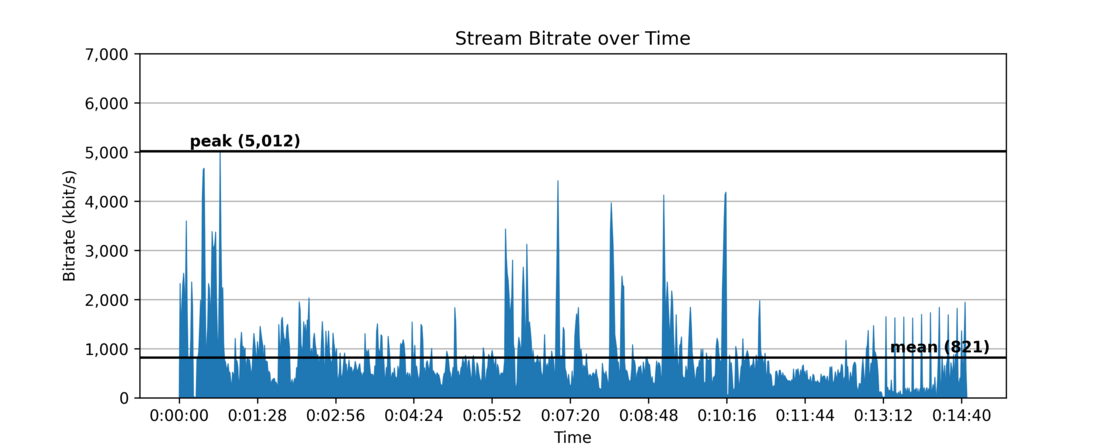
In CRF+VBV mode, portions of the video below the VBV bitrate threshold are not impacted. This is visible in the credits, starting at 0:13:12. The requested image quality was achieved at a lower bitrate.

Because bits were only removed from the peaks, the overall file size is now smaller.

CRF 16, vbv-maxrate:5000 vbv-bufsize:10000, peak 8837


In ABR+VBV mode, additional bits are now allocated where they are unnecessary. This is done by ABR to satisfy the overall average bitrate and file-size target. This is particularly visible in the section of credits after 0:13:12. The file stays the same size in total.

ABR 5000, vbv-maxrate:5000 vbv-bufsize:10000, peak 11,293

Don’t use ABR unless you are targeting a specific file size for a reason. Probably don’t use ABR+VBV mode ever.


Comparison of vbv-bufsize impact:

Here are some additional comparisons, showing the impact of different vbv-bufsize settings.

CRF 20, vbv-maxrate: 3000, vbv-bufsize: 1000. Size: 189MB. This is too aggressive.

CRF 20, vbv-maxrate: 3000, vbv-bufsize: 3000. Size: 232MB. I believe maxrate=bufsize is what @PlexyChip tested.

CRF 20, vbv-maxrate: 3000, vbv-bufsize: 6000. Size: 246MB.

CRF 20, vbv-maxrate: 3000, vbv-bufsize: 12000. Size: 254MB. While this gives more room for bitrate spikes (and thus quality), it could also cause Deep Analysis to decide the file was too big.

CRF 20, vbv-maxrate: none, vbv-bufsize: none. Size: 273MB. Not constrained.

A few additional thoughts.

I think there’s a very important question missing in the “Before starting” section. Do I REALLY have to do any of this?

I was interested in learning about this when I became aware of some problematic files. I’m impressed with @PlexyChip’s research and homework.

But in most cases I think the answer should be no. Plex’s Optimized Versions work pretty well. Many people are satisfied with transcoding on the fly. Bandwidth is going up, and device buffers are pretty big.

  • Constraining bitrate can only reduce quality. Don’t constrain peak bitrate when creating archival copies of media. Instead use CRF, specify a high quality, and expect your files to be different sizes - they have different amounts of action, after all.

  • Re-encoding can only reduce quality. I wouldn’t discard my 2nd-generation files after creating 3rd-generation files with streaming constraints.

(I also wouldn’t re-encode h264 to h265. I didn’t throw out my records when I copied them to tape. And I never copied tapes to CD.)

A great time to consider VBV and use @PlexyChip’s presets is when you are creating an archival copy from disk in the first place. Create any necessary “streaming optimized” versions at that time. This is exactly what Netflix and others do - all copies are encoded from the highest quality source available.

Interstellar has the most significant difference between “average” and “peak” bitrate of any movie I have found yet. For slow scenes with dialogue, Interstellar uses a shorter aspect ratio with fewer pixels. Action scenes use a taller aspect ratio with more pixels.

This was not my encoding of Interstellar. It’s somebody else’s ABR 2500 encoding (again demonstrating that ABR doesn’t produce “smooth” files suitable for streaming).

Check out the spike at 1:07:36! This is the water & wave scene in “IMAX” aspect ratio. That’s a big mountain of bits.

(Removed incorrect statement about how deep analysis functions.)

You could stream this encoding of Interstellar with 3mbits if you had huge buffers:

requiredBandwidths=“7424,6345,4911,4175,3609,3114,3089,3089”

I suspect that if you used the CRF+VBV method to constrain this file to 3mbits (while leaving it at 1080p) quality would suffer in that scene.

No. It probes indeed the whole file. Which makes it necessary to read the file from start to finish.
(Which is the reason why some people with cloud storage disable it.)

1 Like

Really? Thank you very much.

I thought I saw it doing less I/O than that. I was obviously mistaken. I see it reading entire files now, and the logs also make it clear that all frames are parsed.

I was probably confusing myself before, perhaps because math is hard or because of filesystem caching.

That gives me a thought. The option to perform Deep Analysis immediately on file addition might mean “free I/O” for many people.

That’s when a file is most likely to be “nearby” - it was just copied, created, downloaded. It might still be in memory or on local “fast” storage.

For anybody wondering, Plex’s “Optimized Version” settings use CRF and do set maxrate and bufsize to twice maxrate.

From a few different settings:
-crf:0 22 -maxrate:0 198k -bufsize:0 396k
-crf:0 21 -maxrate:0 720k -bufsize:0 1440k
-crf:0 19 -maxrate:0 1500k -bufsize:0 3000k

That reassures me that my understanding of these parameters is at least on the right track. :slight_smile:

One more I thought was interesting. Same source file, and no vbv control here, just h265 vs. h264.

Obviously the h265 is dramatically smaller, the average bitrate is smaller, and the peaks are smaller.

What’s interesting is how much peakier it is. It still spends almost as many bits during the peaks, but way fewer during the slower scenes.

H265, CRF22, vbv-maxrate: none, vbv-bufsize: none. Size: 110MB.

H264, CRF22, vbv-maxrate: none, vbv-bufsize: none. Size: 230MB.

(CRF22 for H265 and CRF22 for H264 don’t equate to the same visual quality. Don’t take this as a recommendation for encoder settings. It’s the shape of the curves that I wanted to share.)

It may simply be due to the fact that the x.264 encoder has been highly optimized during its development, while the corresponding H.265 encoder is simply too new.

And if you are looking at an encode done by hardware, all bets are off anyway :wink:

1 Like

No hardware here. x264 vs. x265 in software, slowly.

I agree that the x264 encoder is among the best H.264 encoders available. In bake-off comparisons x265 is a “good” H.265 encoder but it doesn’t have the same lead.

I don’t think this is a glitch or anomaly. It’s reasonable for H265 to be relatively more efficient during slower scenes. They really worked on inter-frame compression, which is most effective in slower scenes. It uses more techniques for comparing adjacent frames. For cuts and busier scenes, it still has to use enough bits to describe the whole frame.

I think burstiness is desirable in a video codec, if you think about it upside down. No matter what, it’s going to take more bits to describe the busy scenes. What’s impressive is being able to use fewer bits in the quiet & slow scenes.

Hi @Volts. Thanks for the accolade, and additional testing and information.
Sorry, but I have my notifications turned off and haven’t checked back on this thread in a while.

Personally, I use the presets that I posted when I rip my Blu-rays to disk.

I and my remote users only speak/read English, so I don’t need to muck around with multiple language audio streams and multiple language subtitles, so I do the following:

- Movie does NOT contain needed subtitles:
I remux a full quality copy (with MakeMKV) for my home theatre (archive) in MKV
I encode an 8Mbps-Custom AAC+AC3 copy for my lower powered/remote devices, etc in MP4

- Movie DOES contain needed subtitles:
I burn the subtitles into the following two files:
I encode a 20Mbps-Custom AAC+DTS copy for my home theatre (archive) in MP4
I encode an 8Mbps-Custom AAC+AC3 copy for my lower powered/remote devices, etc in MP4

This means I never ever have to worry about subtitles again.
I don’t have to worry if I have them turned on/off, whether I chose the correct ones, whether my device can decode them, etc. I just hit play and it works every time.

Yes, I might lose a bit of quality re-enoding a Blu-ray to MP4, but personally, I’d rather lose a couple of bits of quality, rather than mucking around with subtitles half way through a movie.

The above suits me well and results in no transcoding.
Whether or not this works for everyone, each can decide.


Also, my remote users (two lots of parents) used to have ADSL ~12Mbps down, so I used to encode to 4Mbps 720p.

But now both have upgraded to Fibre ~100Mbps down, so I have started to encode to 8Mbps 1080p.

Why do I not use 20Mbps preset for remote users now that their internet is fast?

  1. Because some lower powered devices cant handle that bitrate.

  2. This is personal use case.
    I often go on holiday way out in the middle of nowhere, has power, but no internet. I copy all my 8Mbps MP4s to a portable HDD and use a simple media player hooked up to the TV while on holiday. 20Mbps fills the portable HDD too quickly.
    Side note: If you like the sound of the above, encode at 4Mbps 720p and most files will be under 4GB. Format your portable HDD to FAT32 using GUIFormat and now you don’t even need a media player, just a TV that accepts USB, as all will be compatible with FAT32 and Profile 4.0


Also, yes I agree, internet is getting faster and device buffers are getting bigger.
But AC3, DTS, defintely DTS-HD and higher audio, as well as PGS, ASS subtitles etc, result in transcoding if you device can’t decode it.
So it’s not all about internet speed and device buffers - compatibility is a major point to use these presets.

Thanks for the chat.

1 Like

Agreed - I’m certainly not saying you shouldn’t be doing this. You’ve got a deep understanding of your use case, demand higher quality audio, and subtitles are just a PITA.

There are definitely different groups. Some folks just want to see something, anything, and that will make them happy. Other people want to turn all of the dials up to 11.

I deeply respect that you have done the math and have reasons for your settings.

Have you ever looked at tdarr? I wonder if it would fit in with your workflow.

I haven’t no, never came across it. II will take a look and see, thanks.

May I ask what you used to inspect Plex’s Optimized versions?
I would like to examine the encoder settings more closely to confirm a few assumptions I made.

Watch out because there’s a bug right now; if Settings → Transcoder → Disable video stream transcoding is enabled, Optimized Versions still get created, but with the wrong settings.

Quality chosen for Sync and Optimizer ignored - #4 by Volts


I’m not aware of anything so convenient as a file or table of built-in presets or transcoding settings.

The commands get logged to the Plex Media Server.log, or you can see the Plex Transcoder processes while an Optimization job is running.

If I remember correctly the easiest thing to do was to search for “inProgress”. That was the name of a working directory for Optimization jobs, and I didn’t see it used by anything else. You could also just look for “Plex Transcoder” and weed out the false positives. Or you can look for the filenames that you’re optimizing.

Decoding ffmpeg command-line options is always fun times.

Jul 29, 2020 01:37:34.184 [0x814ee2800] DEBUG - Job running: EAE_ROOT='/tmp/pms-7f4cc394-ac89-4a17-bedd-779b4ed14ac7/EasyAudioEncoder' FFMPEG_EXTERNAL_LIBS='/usr/local/plexdata/Plex\ Media\ Server/Codecs/5f603a2-3204-freebsd-x86_64/' XDG_CACHE_HOME='/usr/local/plexdata/Plex Media Server/Cache' XDG_DATA_HOME='/usr/local/share/plexmediaserver/Resources' X_PLEX_TOKEN='xxxxxxxxxxxxxxxxxxxx' '/usr/local/share/PlexMediaServer-1.20.0.3133-fede5bdc7/Plex Transcoder' '-codec:0' 'h264' '-analyzeduration' '20000000' '-probesize' '20000000' '-i' '/path/to/source/file.mkv' '-filter_complex' '[0:0]scale=w=570:h=320[0];[0]format=pix_fmts=yuv420p|nv12[1]' '-map' '[1]' '-codec:0' 'libx264' '-crf:0' '21' '-maxrate:0' '596k' '-bufsize:0' '1192k' '-r:0' '23.975999999999999' '-preset:0' 'faster' '-level:0' '4.0' '-x264opts:0' 'subme=2:me_range=4:rc_lookahead=10:me=dia:no_chroma_me:8x8dct=0:partitions=none' '-map' '0:1' '-metadata:s:1' 'language=eng' '-codec:1' 'copy' '-copypriorss:1' '0' '-f' 'mp4' '-map_metadata' '-1' '-map_chapters' '-1' '-movflags' '+faststart' '/path/to/source/.inProgress/S01E12.mp4.6953' '-map' '0:2' '-metadata:s:0' 'language=eng' '-codec:0' 'copy' '-f' 'srt' '/path/to/source/Plex Versions/Custom_ Universal TV 6953/xxxxx/.inProgress/S01E12.mp4.6953.528011.sidecar' '-y' '-nostats' '-loglevel' 'quiet' '-loglevel_plex' 'error' '-progressurl' 'http://127.0.0.1:32400/video/:/transcode/session/0ac6893f-240c-4f32-bd98-a8518498f073/ce18372d-3650-4352-8d16-9c9bdfcc7e9a/progress'

Thanks for the above, Plex Media Server.log works of course.

But, I was trying to examine an Optimized Version using MediaInfo, but I couldn’t see the encoder settings.
Turns out I had mistakenly left NVENC turned on (Settings → Transcode → Use hardware acceleration when available enabled).
Switching this off and examining the Optimized Version encoder settings with MediaInfo, I can now see the encoder settings (it’s been a few year haha).

I now remember why I don’t use Optimizes Versions.
Their settings are all over the show. I will detail this later when I have more time.

Thanks, I’m interested to hear. Inconsistency between adjacent settings?

I find the encoding info that x264 embeds to be infuriating. What’s logged is almost, but not quite, the same as what would be needed to call x264 again with the same settings.

I found another amazing bitrate & frame analysis/visualization tool.

https://lulebo.github.io/

Runs in your browser, so it’s a great test of your javascript performance and how much memory you have. But once it’s complete, it’s much faster for navigating the graphs.