I’m new to the game here. I recently set up a NAS and I’m working on ripping my DVD/Bluray collection so that we can easily stream movies and TV shows on one of our FireTV sticks. So far I’ve ripped a few using MakeMKV and ended up with files in the 4-6 GB range which is what I expected. Then I found another step that told me to run those files through Handbrake to convert them to M4V, which gives me a file about 8 times smaller.
Both MKV and M4V formats seem to work just fine through Plex so this leads me to the question of do I leave them in the larger MKV files or do I spend the extra time converting them?
Like I said, I’m still new to this so I don’t understand much of the lingo yet but any advice would be appreciated. Thank you all!
mkv and m4v are containers. if either or both play on your players, then you don’t need to change from one to the other. some players only like certain containers (ie apple products tend to like only m4v)
they are like zip versus rar. the data inside can be the same, just a different compression algorithm and program.
makemkv doesn’t do any conversion/compression, so those you rip are essentially the same quality as the original disk, and can take up large amounts of space.
handbrake compresses the video down to a lesser quality and lesser size. it can also create mkv or m4v, so that is a choice as above.
whether its worth using handbrake to compress depends entirely on YOU and how much you value keeping the original unmodified rip, versus how much disk space you want to use, versus how good your eyes are.
if you want to keep max quality, then don’t use handbrake, leave the files as the original rip.
if you want to save space but give up quality, then use handbrake and find a quality setting that looks best to you while also saving your space.
the makemkv is like a flac file (lossless)
using handbrake is like making an mp3 (lossy) from a flac file. you can have high quality mp3 with larger size, or low quality with a smaller size.
only you can decide what balance is acceptable to you.
feel free to experiment with handbrake, there are plenty of guides and recommendations on what settings to start with or use for different purposes.
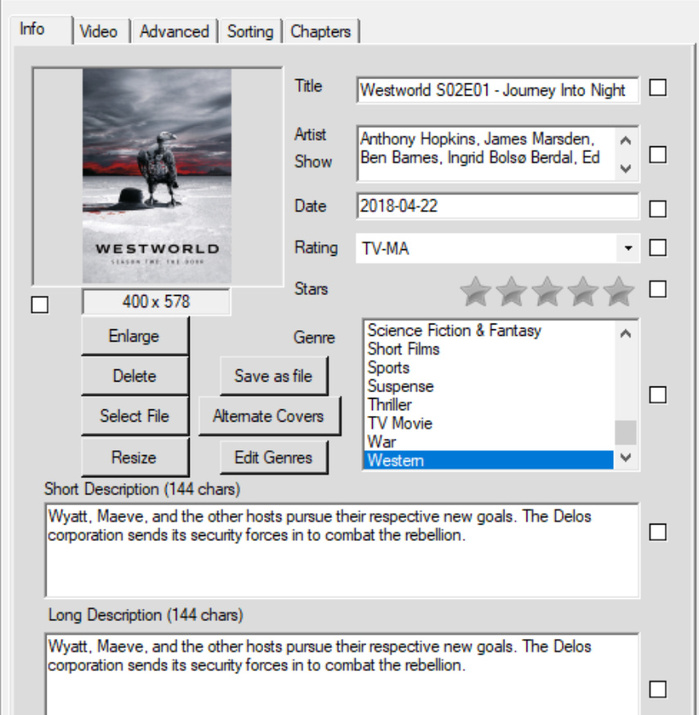
Other than the size advantage, I’ve also found that I can easily modify the metadata of the M4V files using MetaZ, but can’t with MKV files. Plex seems to give my MKV files weird posters and backgrounds, they tend to be screenshots of the actual movie rather than the nice movie posters. Is this just something weird Plex does or should I be doing something different? Or is there a better program to modify the metadata of MKV files?
Make sure you follow Plex naming and organization guidelines. That will ensure Plex downloads the correct posters, etc information. Read the Plex Support, Your Media, Naming & Organizing articles.
I use MKV container for everything. I use filebot to rename the files to plex format, I use MetaX to update meta data, and I use MKVtoolNIX GUI to do tasks like - add / remove subtitles, tag language to audio and subtitles, tag forced subtitles as forced, remove audio tracks I don’t want to keep etc. plex uses the correct poster etc for way more than 99% of files when I use the correct folder stucture, file name etc.
One other thing to note on MKV vs MP4/M4V, is restrictions on content.
The MP4/M4V container is more restrictive than MKV when it comes to audio. No dts, dts-HD, or TrueHD.
So, if you want to play that Atmos soundtrack from the blu-ray rip then you’ll need to have a MKV container. The same with the lossless dts-HD or dts:X track.
MP4/M4V is also more restrictive for subtitles - text only, no image based subtitles such as VOBSUB (from DVDs) or PGS (from Blu-rays). If you use MP4/M4V and want subtitles from a Blu-ray rip, you’ll have to find a place to download them (opensubtitles.org is hit and miss on quality) or convert them yourself with SubtitleEdit or similar s/w.
The MKV container does not support as much metadata as the MP4 container. With MKV you can add names to the video/audio/subtitle tracks, flag which are default, forced, etc, but not much more.
Unlike the MP4 container, MKV does not support adding release dates, season/episode numbers, etc. That is one reason why following Plex’s naming/organization guidelines are important. It helps Plex to download the correct info from various databases on the Internet (and also means you don’t have to worry about configuring all that metadata yourself).
Check out MKVToolNix. Load a MKV file into the Header Editor. You’ll see what fields exist and can be configured.
Going back to your OP & regarding file size…
You can always configure Handbrake to generate a MKV file if desired. It will still compress the video. You can passthrough the desired audio & subtitle tracks unmodified. If there is something that Handbrake will not passthrough (maybe dts:X & TrueHD+Atmos?), you can use the Multiplexer function in MKVToolNix to mux it back into the file.
One last comment in this seemingly random stream of info…
You mentioned MetaZ & M4V, so guessing you’re using a Mac. If so, check out Subler. It is a really nice Mac only tool for adding/deleting tracks to MP4/M4V files. It can also download posters & other metadata.
You’ll probably end up with a mix of MP4 & MKV files in your various libraries. Subler is a nice tool for working with MP4s.
Though, they can be much harder to edit/manipulate.
More info here.
Hmm… MKV files support all sorts of metadata. In fact, I think it supports even more but this is all moot because as of right now, Plex doesn’t see/use any metadata from MKV files. So if you add the metadata then you are doing so for your own satisfaction .
Anyway, my rule on the matter is MP4 if there is nothing special about them(no multitracks, multisubs - forced tracks, etc)
All others get MKV.
EDIT: What’s up with this forum. It’s timming out and I’m getting notifications from stuff I got days/weeks ago…
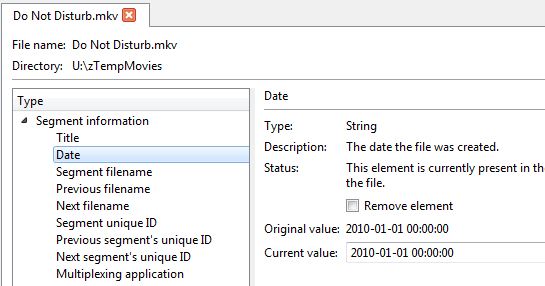
I have found that Plex will use the info from the Segment Information>Date tag in the mkv header, for the Originally Available field. I add the release date of songs in my music videos, which I have set up in an Other Videos library. Sometimes I have to run the Analyze feature manually though before it will pull the date into the Plex metadata for the video.
@bradbart948
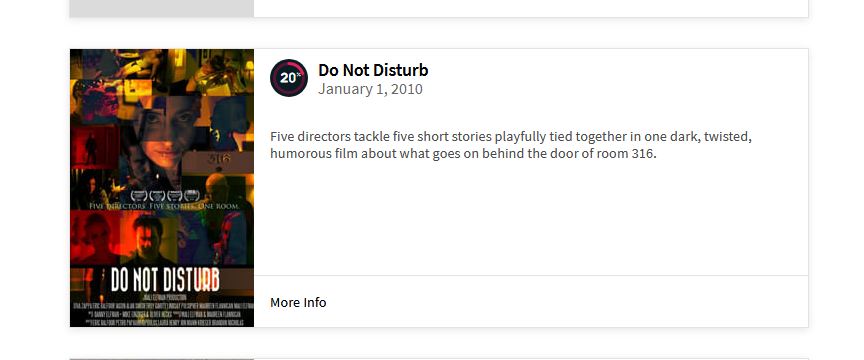
Perhaps I should of been more specific in my previous comment. While this may be true for TYPE other videos. Plex will not use said metadata to match content online.
Case in point.
I use Subler now when needed. But it does not allow me to get to some of the deeper metadata fields shown in MediaInfo. Is there a tool out there that would? Handler name … for example.