Enhanced Video Player on Apple TV 4K creating buffering issues

In desperation to fix this friggen EVP iOS issue for my entire household I’ve reformatted my windows 10 PMS server to be Windows 2019. So now I’m running Windows Server 2019 and the latest PMS beta, and I still have the blasted 10-20s delay when playing any video files (x265 takes twice as long to play). Everything is direct play once it does play, eventually. We have an internal 1000Mbs LAN and the files are stored on a SSD on the PMS server, there’s literally no reason for a delay. When I swap to the “old video player” everything plays and skips around instantly on my iOS devices.

Here’s the results from my new Windows 2019 Server PMS install:

PS C:\Windows\system32> Get-NetTCPSetting | ft -AutoSize

SettingName      CongestionProvider MinRto(ms) InitialRto(ms) CwndRestart DelayedAckTimeout DelayedAckFrequency AutoTuningLevelEffective
-----------      ------------------ ---------- -------------- ----------- ----------------- ------------------- ------------------------
Automatic
InternetCustom   CUBIC                     300           3000 False                      40                   2 Local
DatacenterCustom CUBIC                     300           3000 False                      10                   2 Local
Compat           NewReno                   300           3000 False                     200                   2 Local
Datacenter       CUBIC                     300           3000 False                      10                   2 Local
Internet         CUBIC                     300           3000 False                      40                   2 Local

And here are my active devices, all iOS devices STILL have the delay.

PS C:\Windows\system32> Get-NetTCPConnection -LocalPort 32400

LocalAddress                        LocalPort RemoteAddress                       RemotePort State       AppliedSetting OwningProcess
------------                        --------- -------------                       ---------- -----       -------------- -------------
192.168.47.247                      32400     192.168.47.102                      59744      Established Datacenter     3148
192.168.47.247                      32400     192.168.47.102                      53647      Established Datacenter     3148
192.168.47.247                      32400     73.##.##.##                         59746      Established Datacenter     3148
192.168.47.247                      32400     192.168.47.110                      55812      Established Datacenter     3148
192.168.47.247                      32400     192.168.47.102                      59762      Established Internet       3148
192.168.47.247                      32400     192.168.47.102                      59761      Established Internet       3148
192.168.47.247                      32400     192.168.47.102                      59751      Established Datacenter     3148
192.168.47.247                      32400     99.##.##.##                         51779      Established Internet       3148
192.168.47.247                      32400     192.168.47.102                      59763      Established Internet       3148
192.168.47.247                      32400     45..##.##.##                        55780      TimeWait                   0
192.168.47.247                      32400     192.168.47.102                      59741      Established Datacenter     3148
192.168.47.247                      32400     71.##.##.##                         52744      Established Internet       3148
192.168.47.247                      32400     192.168.47.102                      59749      Established Datacenter     3148
192.168.47.247                      32400     192.168.47.102                      59743      Established Datacenter     3148
192.168.47.247                      32400     73..##.##.##                        59742      Established Datacenter     3148
192.168.47.247                      32400     192.168.47.110                      55786      Established Datacenter     3148
127.0.0.1                           32400     127.0.0.1                           49767      TimeWait                   0
127.0.0.1                           32400     127.0.0.1                           49751      TimeWait                   0
127.0.0.1                           32400     127.0.0.1                           49734      TimeWait                   0
127.0.0.1                           32400     127.0.0.1                           49692      TimeWait                   0
127.0.0.1                           32400     127.0.0.1                           49691      TimeWait                   0
127.0.0.1                           32400     127.0.0.1                           49829      TimeWait                   0
127.0.0.1                           32400     127.0.0.1                           49828      TimeWait                   0
127.0.0.1                           32400     127.0.0.1                           49707      TimeWait                   0
127.0.0.1                           32400     127.0.0.1                           49736      TimeWait                   0
127.0.0.1                           32400     127.0.0.1                           49747      TimeWait                   0
127.0.0.1                           32400     127.0.0.1                           49757      TimeWait                   0
127.0.0.1                           32400     127.0.0.1                           49827      TimeWait                   0
127.0.0.1                           32400     127.0.0.1                           49756      TimeWait                   0
127.0.0.1                           32400     127.0.0.1                           49737      TimeWait                   0
127.0.0.1                           32400     127.0.0.1                           49733      TimeWait                   0
127.0.0.1                           32400     127.0.0.1                           49732      TimeWait                   0
127.0.0.1                           32400     127.0.0.1                           49708      TimeWait                   0
0.0.0.0                             32400     0.0.0.0                             0          Listen                     3148

Now that you’re on 2019, did you already apply the Set-NetTCPSetting commands that @cursedZeroX identified? And reboot?

In your output, all of the profiles have MinRtoMs set to 300, which is the changed value that fixed the issue for some people.

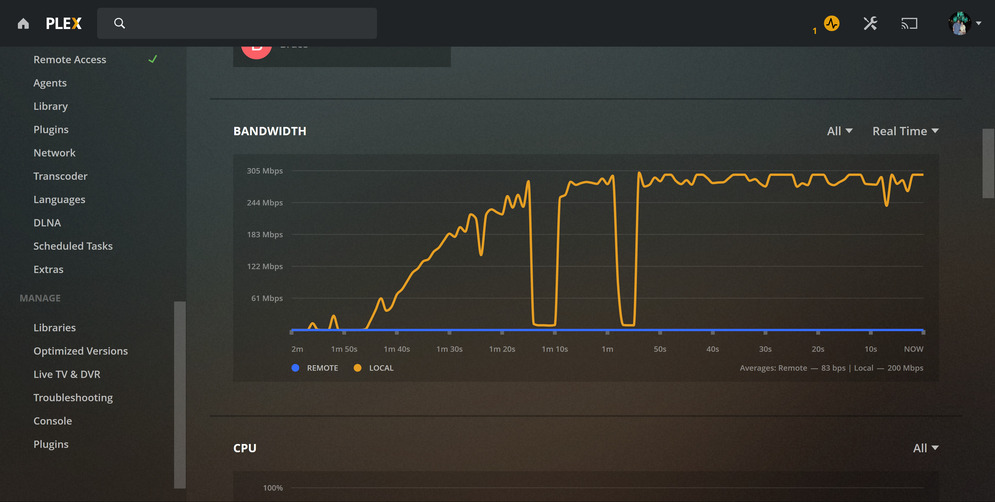
Just to confirm, do you see the same bandwidth pattern as @fcappizzo in the original post? Full bursts, then nothing, then full bursts?

Hi, I just wanted to thank coursedZeroX from my heart.
Some time ago I sold my old upgraded PLEX SERVER ReadyNAS PRO 6 (Debian based)
I decided to use a Windows Server 2019 that I knew very well and had a license for.

And as everybody else here struck problems.

Now solved - thank you :grinning::+1:

1 Like

I finally sorted out my slowness issue. IPv6.

With IPv6 turned on for my network the Enhanced player chokes on loading any videos, 10-20s delay on every video play and skip. Normal player is fine. IPv6 setting on the PLEX server seemed to make no change, on or off.

I tested this by setting a manual IPv4 IP on my Apple TV 4k which resolved the issue. Then I disabled IPv6 on my router, which was working and tested for everything else. Now with IPv6 disabled all Apple TV’s are playing video with the Enhanced Player instantly, like it used to befure the EP went live and the slowness issue started for me.

So long story short, if you have this weird 10-20 delay on every video play with just the enhanced player enabled, try disabling IPv6 on your router or set a manual IPv4 IP on your device to bypass the delay.

1 Like

This fixed my issue after switching to Server 2019. Thank you so much!

Sorry to post this question on this thread as it is not related to Windows Server. I have the same issue with Windows 10 Pro, with the same value of MinToMs of 20.

SettingName      CongestionProvider MinRto(ms) InitialRto(ms) CwndRestart DelayedAckTimeout DelayedAckFrequency AutoTun
                                                                                                                ingLeve
                                                                                                                lEffect
                                                                                                                ive
-----------      ------------------ ---------- -------------- ----------- ----------------- ------------------- -------
Automatic
InternetCustom   CUBIC                     300           1000 False                      40                   2 Local
DatacenterCustom CUBIC                      20           1000 False                      10                   2 Local
Compat           NewReno                   300           1000 False                     200                   2 Local
Datacenter       CUBIC                      20           1000 False                      10                   2 Local
Internet         CUBIC                     300           1000 False                      40                   2 Localre

If I try the fix from cursedZeroX, since I am running Win10 Pro, I get the message: Property MinRto is read-only.

Set-NetTCPSetting : Property MinRto is read-only
At line:1 char:1
+ Set-NetTCPSetting -SettingName "Datacenter" -MinRtoMs 300
+ ~~~~~~~~~~~~~~~~~~~~~~~~~~~~~~~~~~~~~~~~~~~~~~~~~~~~~~~~~
    + CategoryInfo          : InvalidArgument: (MSFT_NetTCPSett...ystemName = ""):ROOT/StandardCimv2/MSFT_NetTCPSettin
   g) [Set-NetTCPSetting], CimException
    + FullyQualifiedErrorId : Windows System Error 87,Set-NetTCPSetting

Does anyone have any advice on what can be done instead or point me into a thread for windows 10 Pro?

Thank you in advance

Just a thought, but are you running PowerShell as an Administrator? If not, try that. If you are running as an admin, I’m not sure how to work around that limitation.

I believe this is a Microsoft limitation for “Client” operating systems. :man_facepalming:

Docs/evidence:

Set-NetTCPSetting (NetTCPIP) | Microsoft Learn

  1. You cannot modify the NetTCPsetting on Client Operating systems(Windows 7, 8.1 and 10) as they are Read-Only.

Set-NetTCPSetting still incomplete code in windows 10? - The Fast Ring (Insider Previews) - Neowin

I’m unsure if you can configure the Custom/InternetCustom settings instead. I may be able to test later.

2 Likes

Thank you for your replies.

@fcapizzo: Yes, I am running as an admin.

@Volts: Thank you for the documentation (links) that you posted. It confirms the limitation in the Win10 client. I would be forever grateful if you discover a working solution for the Win10 clients.

Thank you in advance!

For Windows 10 Pro, I’m seeing two things -

First, I think it may use the Internet setting for all connections, local and remote… See the output of Get-NetTCPConnection to confirm.

Second, the Internet setting already has a MinRto(ms) of 300ms by default.

I think that means the change identified by @cursedZeroX for Windows Server editions isn’t relevant or necessary for Windows 10 and Desktop editions. If you’re experiencing similar symptoms, it’s worth troubleshooting fresh.

1 Like

Ok. Thank you for your time and efforts!

Regards
Ricardo

I’ve been having stutters on my Apple TV since the beginning. I’ve tried every remedy for this but nothing has fixed it. Honestly have gotten sick of the devs ignoring this.

Same. The new player on the Apple TV is loaded with bugs. Mine stutters constantly. But my Roku and XBOX have no such stutter, plugged into the same switch sitting 1 foot apart. Turn off the new player and stutter is gone. But then I have all kinds of compatibility problems requiring tons of transcoding. Not a good option either.

1 Like

Try this… disable IPv6 on your network. Oddly enough this fixed my Apple TV enhanced player issues. With IPv6 enabled on the LAN (and server support for IPv6 disabled even) the player stuttered and performed very badly. With IPv6 disabled on the router level the Apple TV enhanced player issues for me all instantly went away. Not sure why it works, but try it!

The new player and the old player both have random stutters for me. Infuse is definitely better but doesn’t have multi user support.

I have tried every solution out there and nothing has worked. Roku doesn’t seem to have any of these issues

My router has had IPV6 disabled from the beginning. Still has this ridiculous issue.

when I try the power shell I get this

Set-NetTCPSetting : Property MinRto is read-only

Which OS are you using, and what is that value currently set to?

It’s read-only on many OSes. It’s also set OK on many.

windows 10 pro latest updates installed, any clue what I can do?

when I hit play its buffers for 8 minutes at sometimes 586 mbps. once it actually plays it drops to 30