If /dev/sdf1 is always sdf1 then ok. Usually, as 6th item down, it’s a floating device (USB, etc). UUID mount is usually best for these.
When you have time this evening, I am around to assist.
We can complete your migration and finish the task.
I’m working on this now. I’ll have to take a break for dinner in a bit though. I’ll post an update soon.
I’m confused at this point.
umount /run/media/chuck/Media-3
umount /run/media/chuck/Chuck2T
Where did /run come from?
How does the command syntax work when there is a space in the current mount point?
Ex. /media/USERNAME/Plex Library
Thanks.
On Fedora, Fedora puts media under /run. This results in /run/media
On Ubuntu, Ubuntu puts media directly under /. This results in /media.
That’s all.
The structure should be the same /media/USERNAME/DiskLabel , correct?
This is what happened. As I mentioned, the space in the label is pre-existing. I’m happy to change it, but unsure how.
# umount /media/eckomega/Plex Library
umount: /media/eckomega/Plex: no mount point specified.
umount: Library: no mount point specified.
This may have done something but there was no output.
# umount /media/eckomega/"Plex Library"
EDIT: I think I’ve got the command syntax figured out. The Plex SSD is now mounted at /plex. I’m going to finish and reboot and provide an update.
The guide says to mount c now but this is what I receive when running the mount command.
mount: /c: /dev/sdf1 already mounted on /.
There was no umount command to unmount that one and that would essentially freeze the computer since it’s the OS drive, right?
And should I /ls all 3 directories created since they’re not in a single directory?
EDIT:
Also, as of now before the reboot, Plex isn’t seeing /c /plex /drobo. It see’s bin, boot, and all the others, but not the added locations. Will these show up after the reboot? Did I mess up the permissions?
EDIT2: I realized that I had not taken ownership of /drobo so that is happening now. Is it normal for it to take a while if there is a lot of files to change ownership of?
ChuckPA Hopefully we can make some progress on this today since it seems like we’re so close.
The computer froze due to the blank screen bug in ubuntu so I had to reboot. Hopefully disabling blank screen will fix that issue.
The Plex SSD mounted to /plex but drobo did not mount at all and seems to be unable to mount.
The OS SSD mounted to / instead of /c.
Below is a picture of the current drive/mount status’.
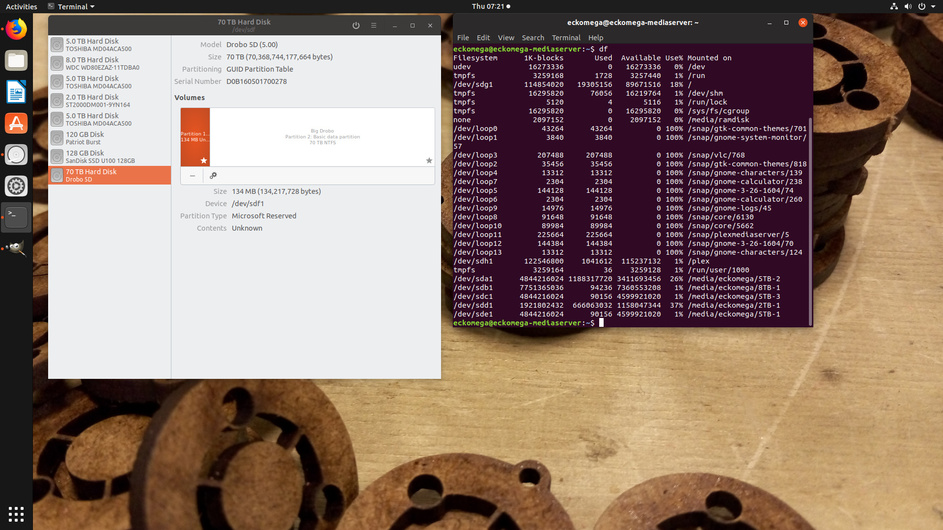
Here is the current fstab additions. I made the edit to the OS drive line to reflect the correct filesystem, ext4.
# Addtions for external and internal drives
#
# Big Drobo
UUID=06C8EE5EC8EE4C0D      /drobo                  ntfs  defaults,auto,rw,nofail 0 1

# Mount Plex SSD
UUID=29cf6d21-ed8f-456c-aac1-a8c9790b9b77 /plex    ext4  defaults,auto,rw,nofail 0 1

# Mount /dev/sda1 directly  READ-ONLY,  and use the device name because it will never change
/dev/sdf1                  /c                      ext4  defaults,auto,ro,nofail 0 1
The Linux kernel, regardless of actual partition, always mounts as /
My goal is to mount your Windows partition as /c. This will be done as
Would you mind posting up your exiting /etc/fstab so I can verify how the result looks?
(recovery of a failed fstab is messy)
Just so we’re clear, I do not have a Windows partition. This is why I was confused about the /ssd/c in the guide. I’m sorry if I was unclear about that and has caused confusion. The only ntfs formatted drive is the Drobo. No Windows drive present. The OS SSD runs Ubuntu 18.10 with ext4 file system and the Plex SSD is formatted to ext4 also. I have other drives but I should be able to deal with them just fine after this is fixed. I wanted to wait so the fstab would be as clean as possible during this process.
Here is the entire /etc/fstab in it’s current state.
# /etc/fstab: static file system information.
#
# Use 'blkid' to print the universally unique identifier for a
# device; this may be used with UUID= as a more robust way to name devices
# that works even if disks are added and removed. See fstab(5).
#
# <file system> <mount point>   <type>  <options>       <dump>  <pass>
# / was on /dev/sda1 during installation
UUID=e666b939-3433-4f72-b8b2-8b5d82098afa /               ext4    errors=remount-ro 0       1
/swapfile                                 none            swap    sw              0       0
none /media/ramdisk tmpfs nodev,nosuid,noexec,nodiratime,size=2048M 0 0
#
# Lines to add for Plex use
#
# Addtions for external and internal drives
#
# Big Drobo
UUID=06C8EE5EC8EE4C0D      /drobo                  ntfs  defaults,auto,rw,nofail 0 1

# Mount Plex SSD
UUID=29cf6d21-ed8f-456c-aac1-a8c9790b9b77 /plex    ext4  defaults,auto,rw,nofail 0 1

# Mount /dev/sdf1 directly  READ-ONLY,  and use the device name because it will never change
/dev/sdf1                  /c                      ext4  defaults,auto,ro,nofail 0 1
That’s what confused me. I am sorry. Most migrations from Windows keep the Windows partition around for a while as a dual boot. After they have extracted all they need, they reformat the Windows partition and make it fully Linux.
Since you don’t have Windows on the machine, feel totally free to skip that step entirely with /c
Back to your migration now,
I would like to know what form your existing Plex metadata is in and where did it originate?
Regarding the drobo, this is simply a partition selection error. The screenshot you posted shows the main storage to be sdf2 (partition 2). We simply need to adjust for it.
sudo blkid /dev/sdf2
now substitute that UUID into your /etc/fstab for the existing one on the /drobo line.
Taking the drobo one step at a time and completing it,
sudo sh

# create the /drobo directory
mkdir /drobo

# set unmounted permissions to satisfy Linux
chmod 755 /drobo

# Test mount the Drobo. This verifies the entry in /etc/fstab is correct.  There should be no errors.
mount /drobo

# verify you can see the top level directory
ls -la /drobo
If there are any errors, please copy paste here and we will resolve.
It works! It’s mounted to /drobo.
I just double-checked and Plex is not yet able to see the drive. I took a screenshot but the upload function isn’t working on the site. Here is a link to the screenshot.
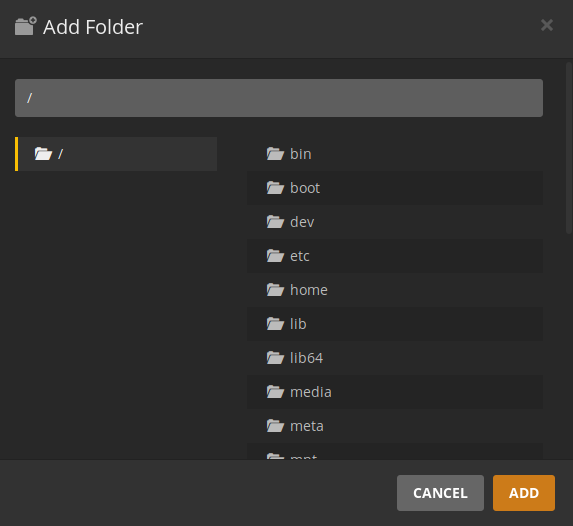
If Plex can’t see /drobo , we have a bit of adjusting to do.
sudo chmod 755 / /drobo # Let everyone see the root directory (including Plex)
Then go back and try to add it again.
Result.
eckomega@eckomega-mediaserver:~$ >sudo chmod 755 / /drobo
chmod: changing permissions of ‘/’: Operation not permitted
GOOD, it knows what it sees.
sudu sh
cd /drobo
ls -la
I am interested in seeing the first two lines . and …
total 548
drwxrwxrwx 1 root root 16384 Jan 8 22:16 .
drwxr-xr-x 28 root root 4096 Jan 9 17:21 …
Ok… so everything should be visible now.
If PMS still isn’t seeing it, it’s because it cached it (unexpected).
Restart PMS and try again.
Stopped and started PMS. Still can’t view /drobo. Screenshot would look the same as before. Should I reboot? I haven’t done that yet.
If it matters, it also can’t see /plex.
EDIT: I rebooted and the drobo did not mount upon boot. Mounted manually with sudo sh mount /drobo. Plex is still not able to view /drobo.
please check your PM
To all following here:
We resolved the issue.
SNAP is a container. As such, it has the same root-isolating properties as a VM or a Docker container.
This was the root cause of the problem.
Once we removed the container installation and installed on the root host, PMS was running normally, customized as desired, within 10 minutes.
