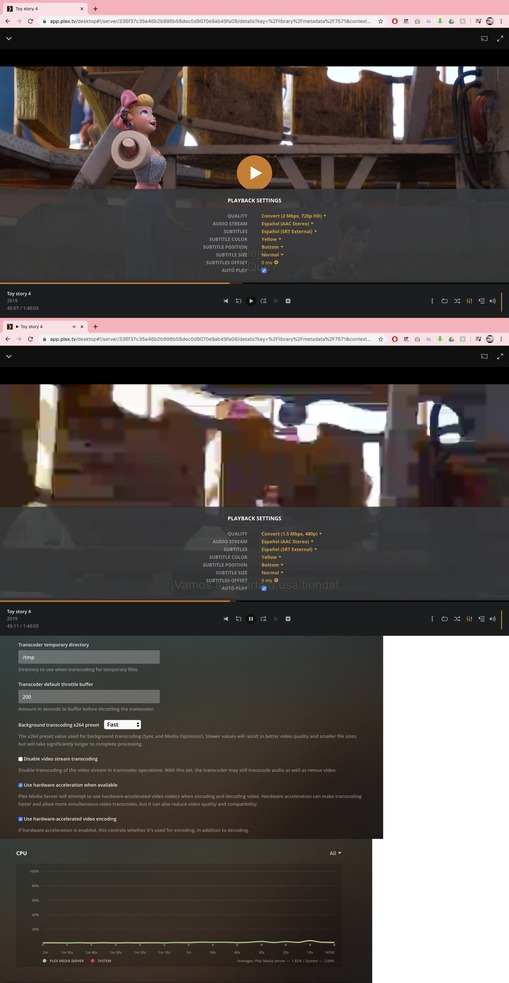
Server Version#: 1.18.6.2368
when I have both options enable I get very choppy videos with artifacts. This is very notorious when video is transcoded to a very low quality or relatively low bit rate. If I only keep one enable the problem disappears but my CPU usage get really high. Specifically if I only enable hw-accelerated video encoding it doesn’t make any difference if I just disable it. in contrast if I enable hw acceleration when available it reduces the CPU usage by half.
With both enable together I only use 1/4 of my CPU at most but I get does artifacts. I wonder if it is normal or do I have a problem with my drivers.
To clarify, this is only when transcoding, when set in original quality everything is fine.
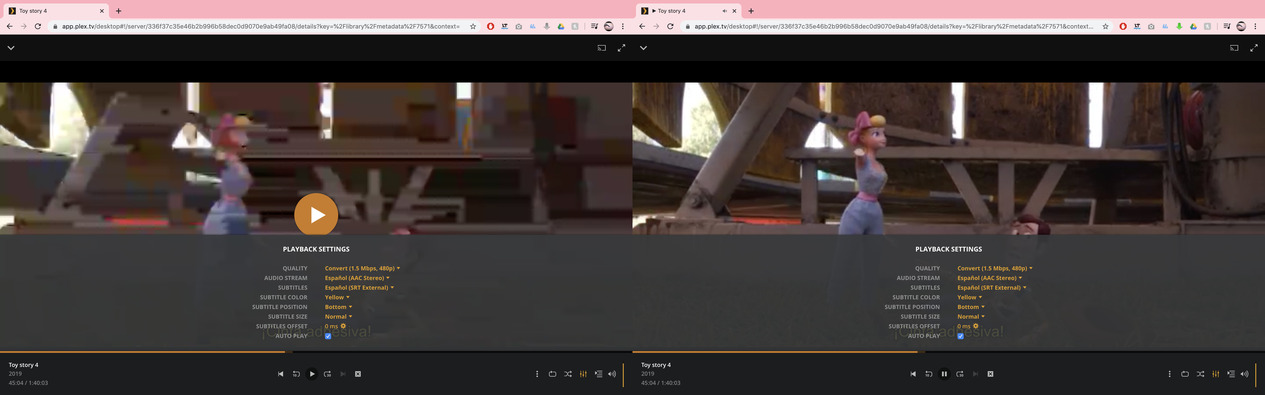
Here is a link of what I see
My CPU is an Intel® Core™ i5-2410M CPU @ 2.30GHz
gpu info: 2nd Generation Core Processor Family Integrated Graphics Controller
linux kernel: 4.15.0-76-generic
Ubuntu version : Ubuntu 18.04.4 LTS
I’m new to plex and to the forum and English is not my first language so sorry in advance
When you have low input bit rate, especially on the older generation hardware (the -2xxx series) it will come out choppy. The silicon wasn’t as sophisticated as it is now.
If you give it a higher bitrate (4 Mbps or above), you’ll see the problems vanish.
If you do the math, 1280 x 720 (a full image) requires 1,382,400 pixels. Using normal RGB (8 bit color) you get 1,382,400 * 24 bits = 33,177,600 which is 31 Mbps for a full image.
You see, it’s already lost 90% of the bits required to make a nice full image. To reduce further is going to result in bad images.
The newer chips are better at interpolating some of those missing bits but they are still gone.
This is how it is with hardware and low input bitrate.
Hi, thanks for the quick response, I get the fact that the interpolation in older machines isn’t very good but I’m a bit confused by the difference in why hw acceleration enable (both options) works so different in low bit rate. What I’m intrigued is what is it doing differently, so I get that choppy footage in comparison with letting everything constant and making all the transcoding mostly in cpu (disabling both) or only enabling “hardware acceleration when available” (reducing cpu consumption by half aprox in comparison with the former one), which gives me a much better video interpolation but at the cost of a much higher cpu utilization.
I attached 3 photos, 2 of them are screenshots in different situations including cpu utilization, and the other one is a side by side comparison, to see more clearly the difference in interpolation which at low bit rate is very high.
Reading the forum, I found this post from another user that gave me a little of insight to my question, when talking about the difference between software and hw transcoding, and why if I disable HW encoding the cropping issues disappear.
and in adittion to that, from plex articles you can find this and I quote
“The output quality of video may be lower, appearing slightly more blurry or blocky. This is especially true and more noticeable when streaming at resolutions below 720p or when using lower bit rate source material. (Hardware-accelerated video encoders are faster, but lower-quality than software encoders.)” . And also “When hardware-accelerated encoding is not available, Plex Media Server will automatically use normal software encoding. Exact capabilities will depend on what you’re using for the hardware-accelerated encoding (e.g. Intel Quick Sync Video vs an NVIDIA GPU).”
I did give a quick read to this article before posting my question because I was looking for the difference between the two toggles buttons and didn’t find it (even though it was there), so I apologize for not reading more thoroughly.
I will leave this as the answer for anyone who had the same doubt as me
I had the exact same problem and I appreciate you posting the answer. This solution also works for me and I wanted to clearly post it in case someone else has a similar problem.
I am able to solve the terrible quality, choppy video, and pictures with artifacts when I uncheck Use hardware acceleration when available from the Settings --> Transcoder page.