If you want to keep it simple, stick with “Constant Quality”.
tl;dr CQ is “one-pass” but it tries to distribute all of your precious bits intelligently. So, let’s say, a scene with very little movement would require fewer bits than the lobby scene from the Matrix.
IMO unless you really need to have predictable filesizes (like trying to, let’s say, fit a film on a single CD) then 2-pass isn’t really better/worth it.
In terms of the filters… that’s personal taste. I don’t really like a lot of deblocking/sharpening, so I disable it almost entirely. But, then again, there are some folks who really hate film grain and love DNR. YMMV.
For a DVD source I’d use RF 20-22. For a Blu-ray source RF 22.
If you set cropping to all zeroes, you’re going to encoding a lot of wasted “black bars” areas. IMO there’s not really a good reason for that.
I think Juice wasn’t telling you not to use the cropping. Just to double-check that auto-crop hasn’t chopped off part of your movie.
If you click on the summary area you can see how it looks. For me I’ve only seen HandBrake really overcrop on a handful of extremely dark (as in color palette) films. Usually it’s pretty spot-on.
My recommendation:
Start with a lower quality preset for your first try (as in your first try using Handbrake. Not with each DVD).
If it’s a DVD from the USA, use “Very Fast 480p30”. If it’s a DVD with a framerate of 25, use “Very Fast 576p25”.
This will give you some reasonable defaults.
Under dimensions, I’d stick with “Auto Crop”. It will try and crop out the black bars and save you some bits.
For “Storage Geometry” I just check “optimal for source”, and leave Anamorphic on “Automatic”.
Here’s a screenshot of those settings when I loaded the DVD “Hard Boiled” into the Handbrake preset “Very Fast 576p25”.

Click over on Summary and you can see if Handbrake was over-zealous with cropping:
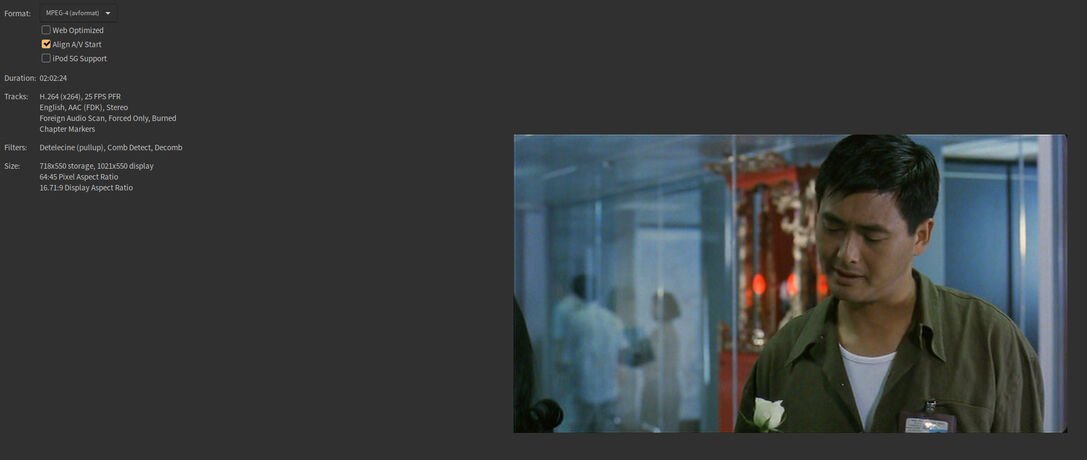
If you want to compare, uncheck “Auto Crop”, zero out the dimensions, and click back over to Summary:

Like I said, HB usually does a good job.
For filters, on a Blu-ray I’d toggle everything off but some DVDs can be interlaced (shudder). You can leave it on Default and unless it detects those things it won’t apply the filter. I leave deblocking off here.

If you really, really want to you can tweak some of the video settings. I still recommend keeping the defaults just so you have a reference of how the quality/image has changed once you monkey with the settings.
The only exception being set Framerate to “Same as source”. A “PAL” DVD is going to be 25fps and an “NTSC” DVD is going to be 29.97/30fps.
If you want, lower RF down to 20 (lower number = theoretically higher quality). But lowering the slider also increases how long it will take to encode in an exponential way. Going below that, for me personally, I’d have to sit squinting inches at my monitor with both sources side-by-side to notice differences. Sitting ten feet away on my couch it would essentially be impossible for me.

You know how in a movie someone will be flipping a lightswitch and they don’t know what it does, but then the neighbor’s TV keeps turning off and on? That’s kind of what is going on here. Each setting is enabling flags/switches for the x264 codec that will be applied when you encode your video.
So when you make a change, it alters the settings in the hopes of giving you an endproduct with perceived higher quality results.
