Ubuntu 24.04 & HW transcoding

Please forgive my lack of ProxMox understanding – just got it and still learning.

  1. Setup PMS using the tteck script for PMS.
  2. I forget the step but enabled NFS (privileged?) and mounted media inside the container.
  3. Think (not certain) the tteck script did the HW passthrough for me.
  4. N100 AlderLake-N is working

For you:

  1. ls -la /dev/dri – confirm the devices are there and take note of which groups own the hardware nodes (usually ‘video’ and ‘render’)

  2. groups plex – see if it’s a member of those groups

  3. When Plex starts, it will look for the hardware.

  4. In your logs, it’s not detecting the passthrough -OR- plex doesn’t have permissions to the /dev/dri nodes by group membership

Sep 04, 2024 18:32:29.383 [126155812252472] DEBUG - [Req#367/Transcode] Starting a transcode session 37thqdk7kjmyj6gwyjg8jtkc at offset -1.0 (state=3)
Sep 04, 2024 18:32:29.383 [126155812252472] DEBUG - [Req#367/Transcode] TPU: hardware transcoding: enabled, but no hardware decode accelerator found
Sep 04, 2024 18:32:29.383 [126155812252472] INFO - [Req#367/Transcode] CodecManager: starting EAE at "/tmp/pms-6965dbce-863e-4ee8-8569-747e7c9d6cfb/EasyAudioEncoder"
Sep 04, 2024 18:32:29.383 [126155812252472] DEBUG - [Req#367/Transcode/JobRunner] Job running: "/var/lib/plexmediaserver/Library/Application Support/Plex Media Server/Codecs/EasyAudioEncoder-8f4ca5ead7783c54a4930420-linux-x86_64/EasyAudioEncoder/EasyAudioEncoder"
Sep 04, 2024 18:32:29.383 [126155812252472] DEBUG - [Req#367/Transcode/JobRunner] In directory: "/tmp/pms-6965dbce-863e-4ee8-8569-747e7c9d6cfb/EasyAudioEncoder"
Sep 04, 2024 18:32:29.383 [126155812252472] DEBUG - [Req#367/Transcode/JobRunner] Jobs: Starting child process with pid 4461
Sep 04, 2024 18:32:29.384 [126155812252472] DEBUG - [Req#367/Transcode] [Universal] Using local file path instead of URL: /data/TV-Shows/HD-TV-Shows/Futurama (1999) [imdb-tt0149460]/Futurama (1999) - S09E01 - The One Amigo [DSNP WEBDL-1080p][EAC3 5.1][h264]-FLUX.mkv
Sep 04, 2024 18:32:29.384 [126155812252472] DEBUG - [Req#367/Transcode] TPU: hardware transcoding: final decoder: , final encoder: 
Sep 04, 2024 18:32:29.384 [126155812252472] DEBUG - [Req#367/Transcode/JobRunner] Job running: EAE_ROOT=/tmp/pms-6965dbce-863e-4ee8-8569-747e7c9d6cfb/EasyAudioEncoder FFMPEG_EXTERNAL_LIBS='/var/lib/plexmediaserver/Library/Application\ Support/Plex\ Media\ Server/Codecs/7592546-570471557d92948f58893deb-linux-x86_64/' X_PLEX_TOKEN=xxxxxxxxxxxxxxxxxxxxxxxxxxxxxxxxxxxxxxxxxx 
No worries, I’m still pretty new to ProxMox too. I just had no idea when I bought the SEi12 how new the later Intel GPUs were to the Linux kernel.

For me I configured the SMB mount in Proxmox then mounted it in the container. I didn’t want to deal with the permission issues between media management apps on Synology and the media server apps on the Beelink, so I made it easy by just doing SMB. Less performant, but no permission squashing needed.

tteck does configure the HW passthrough, including installing Intel drivers and adding the plex user to video & render groups.

Just checked the permissions:

    ~ ❯ ls -la /dev/dri                                    with root@plex at   20:00:27
total 0
drwxr-xr-x 2 root root         80 Sep  4 15:08 .
drwxr-xr-x 8 root root        520 Sep  4 15:08 ..
crw-rw---- 1 root video  226,   0 Sep  4 15:08 card0
crw-rw---- 1 root render 226, 128 Sep  4 15:08 renderD128
    ~ ❯ groups plex                                                                     with root@plex at   20:00:37
plex : plex video render lxc_shares

lxc_shares is the SMB mount group.

Edit: oh, one thing I didn’t mention: from prior experience with testing HW transcoding, I did turn off subtitles so that wouldn’t cause any burn-in issues. That may be an old issue now, but figured it was worth testing.

strong recommendation – Use NFS; It’s Linux native. Do not use SMB; It doesn’t talk well from Linux → Linux.

You’ll get better performance and far easier to mount/use.

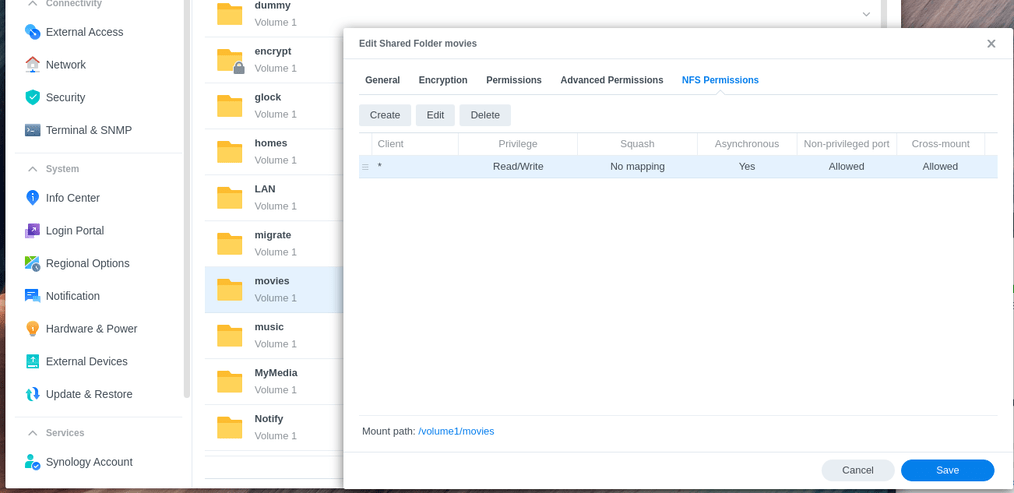
Yeah, but thanks to Synology’s inflexible NFS permissions and how LXC permissions map to the host, my only option with NFS are to map all users to admin and make a mess of my NAS’s file permissions and decrease my filesystem security.

SMB lets me map a user in the mounting config, which NFS no longer allows you to do. Besides, the Beelink SEi12 only has a gigabit port. I doubt many performance issues with SMB will exceed the limitations of that 1Gbit port lol. I usually only have about 2-4 concurrent users anyways.

Mounting is already done, no issue there. It’s already in my fstab and works just fine.

I don’t mind if it’s a bad take using SMB on Linux, it’s what works for me with the software setup I’ve got.

For future ref:

  1. On Synology, you always specify the full path.
    – create the NFS export rule

  2. Mount the shared folder on the Linux host

  3. Map (pass) the shared folder into the LXC.

I’m probably an exception to the rule but it takes me about a minute per share.

1 Like

That read/write permission, whoooooo :slight_smile: have mine set only from Allowed IP list and read only (yeah, security is my hobby :smiley: )

If anybody use Linux purely, not proxmox, best option to connect is via autofs, it manages reconnect if connection is lost etc, so pretty cool from my point of view, can write some quick manual but there are plenty on internet, just one small thing… if you use mount, you must explicitly ask for ls of mountpoint, only then the autofs mount it, id does that on request, not on boot

I’m perfectly well aware how to set up NFS on Synology. The problem I have with NFS is my files are owned by 1035:100 (custom-user:users) on the Synology share.

I mount that on Proxmox. It shows 1035:users as expected. I then add it as a mountpoint in the LXC. Because of how unprivileged LXC permissions work, it’s basically the UID/GID +10000. So when I look at it in the LXC:

    ~ ❯ ls -lha /test-data                                                              with root@plex at   06:42:30
total 4.0K
drwxrwxrwx  1 nobody nogroup  200 Sep  4 21:35  .
drwxr-xr-x 20 root   root    4.0K Sep  5 06:42  ..
drwxrwxrwx  1 nobody nogroup 3.1K Sep  3 20:26  Audiobooks

It is now owned by nobody:nogroup, because it can’t find an ID to map to.

LXCs complicate permissions because they are not an exact match inside and outside of the container, especially if you’re doing this unprivileged.

The only way I’ve found to do NFS shares with unprivileged LXC’s is to do permission squashing on the NFS, which then makes it owned by admin:users regardless of who makes the change from the client side.

Edit: @bckp wait, autofs not fstab? I thought fstab was the preferred method for auto-mounting…though I see your point about reconnecting, that would be useful.

Edit 2: Oh, a quick google shows me that fstab with systemd automount has mostly replaced autofs, which thankfully I already have set as one of my options.

1 Like

FWIW, for my proxmox setup I mount the shares in the host os using fstab systemd automount, then use mount-points in the LXC configs (mp0: …) to pass them to paths in various LXCs (and mapping userids to the UID for the mounted share for unprivileged containers). This has been working really well and seems very resilient to nas outages etc.

Note that tteks helper script will correctly setup LXC hardware passthrough for Intel iGPU, but if you have a secondary GPU (nvidia, intel ARC, amd), you will need to configure that yourself after setting up the LXC with the script. Also, while not strictly necessary for plex, I also install a few other runtimes in both the host and container for Intel GPU: intel-opencl-icd, intel-media-va-driver-non-free (intel-media-va-driver is fine if you don’t want to use the non-free repo) and I install vainfo and clinfo and nvtop (which works for both nvidia and intel gpu usage) for validation testing.

For my normal LXD/LXC systems, I do the same method. Very reliable.

Only issue i’m encountering is the speedtest-cli is showing abysmal network performance (less than 100 Mbps). Everything else is running 900 Mbps plus.

Have you come across a guide on this strategy you could share?

Well, not sure where you find this information, but i prefer autofs, simple becouse it mount on demand, and not during boot time, but after system is started… i have more then one drive mounted this way, but not everytime i need to access all drives, autofs mount them when needed, so i have less opened connections to NAS and less network traffic and connection (barely noticable, like drop in ocean, but even ocean is a lot of drops)

I belive if network drive is not available during boot time (power outage lets say) then machine refuse to boot, but with autofs this is not an issue…

Boot time of my NUC is by miles faster then my DS1522+

I haven’t found a single guide that covered everything I wanted to do, but I have a whole folder of links I’ve used to learn from. Here are a couple I’ve found helpful in this area, however don’t follow blindly – learn from the examples and build your own plan:

Using systemd automount with fstab:

Unprivileged LXC bind mount and idmap config:

1 Like

If I may add?

I don’t know proxmox enough but in Ubuntu with lxd/lxc,

adding local directory /nas/media as /media in the container:

lxc config device add plexserver Media disk source=/nas/media path=/media

The object in the config is “Media”, real path = /nas/media, inside the container path = /media

There’s another step to map the UID followed by GID (but think you all have that?)

(This is why I’ve not used proxmox before. I’ve stayed in basic lxc/lxd)

Thanks for that info, I didn’t know about lxc.idmap and I managed to get the IDs mapped into the LXC’s…then when I switched to an NFS mount, the mountpoint became inaccessible. No clue why and it’s roadblocked me.
After working on it for the past 3 hours…yeah I’m going back to SMB for now. It was fun when I accidentally broke SSH access to the LXC though.

If you don’t want to edit the lxc conf file, you can do the same in proxmox with the pct tool:

pct set {vmid} -mp0 /nas/media,mp=/media

Personally, I haven’t found a performance difference in my setup between cifs and nfs in proxmox (and I have a 10gb connection between my server and my nas), so in my opinion there is nothing wrong with sticking with cifs if it is working for you.

2 Likes

@millercentral

Thank you! That was it! I knew it was a one-liner to add without editing the config. I couldn’t remember it (a lot of other new config changes here recently – biggest of which is netplan + ovs w/ bond on my main server)

Not sure whether I missed it earlier, and this discussion is probably getting off topic, but if you’re running Ubuntu bare metal, why do you use LXC rather than Docker?

I use LXC/LXD because I need to support entire distros.
( multiple versions of Ubuntu, Debian, Redhat, Fedora )

Docker is not designed nor remotely capable.

Docker was created to provide an artificial environment for an application to run on a host where no native package existed.

What docker’s become is so far out of bounds — :see_no_evil:

I use the right tool for the job :slight_smile:

Docker containers virtualize one application.
LXC containers virtualize one OS (takes less than 1GB of HDD space) .
VM 's virtualize the hardware

I get the whole OS in LXC without all the overhead (losses) of a VM

when I jump into the shell of a container, I have the entire operating system at my disposal.

Creating one is as simple as:

lxc launch ubuntu:20.04  ub20       (launch a ubuntu 20.04 lxc named 'ub20')
lxc launch ubuntu:22.04  ub22
lxc launch ubuntu:24.04  ub24

Each takes about 15-20 seconds to create and launch

looking at the library, I have 363 containers and VMs at my disposal

[chuck@glockner ~.2003]$ lxc image list images: | grep -v '\+' | wc -l
363
[chuck@glockner ~.2004]$

On my workstation ,

|               |         | 172.17.0.1 (docker0)   |                                               |                 |           |
+---------------+---------+------------------------+-----------------------------------------------+-----------------+-----------+
| TESTBOX       | RUNNING | 192.168.0.237 (eth0)   | XXXXXXXXXXXXXXXXXXXXXXXXXXXXXXXXXXXX (eth0)   | CONTAINER       | 0         |
+---------------+---------+------------------------+-----------------------------------------------+-----------------+-----------+
| lxd-dashboard | RUNNING | 192.168.0.14 (eth0)    | XXXXXXXXXXXXXXXXXXXXXXXXXXXXXXXXXXXX (eth0)   | CONTAINER       | 0         |
+---------------+---------+------------------------+-----------------------------------------------+-----------------+-----------+
| nvidia-test   | RUNNING | 192.168.0.243 (eth0)   | XXXXXXXXXXXXXXXXXXXXXXXXXXXXXXXXXXXX (eth0)   | CONTAINER       | 0         |
+---------------+---------+------------------------+-----------------------------------------------+-----------------+-----------+
| omada         | RUNNING | 192.168.0.250 (eth0)   | XXXXXXXXXXXXXXXXXXXXXXXXXXXXXXXXXXXX (eth0)   | CONTAINER       | 0         |
+---------------+---------+------------------------+-----------------------------------------------+-----------------+-----------+
| plexdev       | RUNNING | 192.168.2.3 (eth0)     |                                               | CONTAINER       | 0         |
+---------------+---------+------------------------+-----------------------------------------------+-----------------+-----------+
| ub24          | RUNNING | 192.168.0.228 (enp5s0) | XXXXXXXXXXXXXXXXXXXXXXXXXXXXXXXXXXXX (enp5s0) | VIRTUAL-MACHINE | 0         |
+---------------+---------+------------------------+-----------------------------------------------+-----------------+-----------+
[chuck@lizum ~.2004]$

Yes, this is WAY off topic. I’ll move to PM with you if you wish.

1 Like

Finally figured out my issue thanks to a Reddit post. My Preferences.xml still had VaapiDriver=“i965” from when it was running on Synology. I switched it to “iHD” and bam, it works. smh :man_facepalming:

1 Like

To add to @Lumilias

For most cases VaapiDriver="i965" is now detrimental.

The work done on the transcoder since February now allows it to select the correct driver for the CPU meaning it will select iHD or i965 as is appropriate

1 Like
