Server Version#: Plex Web 4.30.2 on Synology DS414 running DSM 6.2.3-25426
Player Version#: LG B9 2019 TV Plex app, latest firmware
I have Plex media server running on a DS414 (ARM-based). I also have a DLNA-server running (Synology’s Media Server).
My 4k LG B9 TV can play anything from Media Server though its built in DLNA app. In its Plex app, however, it says my NAS isn’t powerful enough to transcode when I try to play 4k files (typically .mkv). 1080p files (typically mp4) play fine.
I get that my ARM based Synology isn’t powerful enough to transcode, but I don’t understand why these files, that play fine on the very same TV through the DLNA-app, would need transcoding in the Plex app?
I read that thread, TeknoJunkie, but still couldn’t make sense of this. Too much of a newbie I guess.
What I want to do is simple (I hope); I only want to watch Plex on my 4k tv, no need for remote access, wathcing on phones or any of that. Based on your replies I gather that to do this, I will need a NAS that can transcode audio and/or transcode to add subtitles.
Will a new Synology NAS (like the ds218+) be able to do this smoothly? As I understand it, no NAS can provide truly smooth 4k transcoding, but my scenario (where audio and subs are the issues, not resolution and HDR) sounds like it might be less taxing?
When using Plex, the goal should always be to direct play or direct stream your content. Transcoding should be kept to a minimum, and HDR material should never be transcoded. To meet that goal, you may have to choose alternate audio or subtitle tracks, depending on the capabilities of your Plex clients and server.
Problem 1: The Plex webOS app is very limited. It does not handle subtitles well (reference earlier post). Enabling subtitles often results in a video transcode.
Problem 2: Transcoded HDR video looks bad. Plex transcodes all video to H.264 SDR (standard dynamic range). Plex does not translate HDR colors to SDR colors when transcoding (aka tonemapping). The resulting video generally looks quite poor, with washed out colors.
Problem 3: Transcoding 4K video is compute intensive. Without a Plex Pass you’ll need something in the neighborhood of an i9-9900 CPU. With a Plex Pass transcoding 4K is still a struggle on low power systems. A DS218+ won’t cut it. Reference Plex NAS Compatibility List.
Problem 4: Transcoding 1080p on a Synology NAS w/o a Plex Pass is still difficult. The NAS will still struggle, especially with higher bit-rate video.
So, what it boils down to when using the Plex webOS app (no matter what kind of server you use):
When watching HDR material of any resolution:
Never enable PGS/VOBSUB subtitles.
Never enable SRT subtitles when using TrueHD audio.
SRT subtitles are OK when using AAC/AC3/EAC3/dts/dts-HD audio.
TrueHD audio is best avoided. It will always transcode which will force a video transcode if subtitles are enabled.
When watching non-HDR material (Blu-ray rips, DVD rips, home movies, etc)
Enabling subtitles may force a video transcode. Make sure your server can handle the load.
TrueHD audio is best avoided. It will always transcode which will force a video transcode if subtitles are enabled.
Regarding where to run Plex Media Server:
A DS 218+ with a Plex Pass will work fine as long as you do not transcode 4K video. The GPU embedded in the Celeron CPU can technically transcode 4K. In the real works it just isn’t strong enough. Edit/Clarification: The DS 218+ has a Celeron J3355. The embedded GPU cannot decode H.265 10-bit video, i.e. HDR10 video. It can decode H.265 8-bit video.
A DS 718+/918+/1019+ with a Plex Pass can handle a 4K transcode. It may not always be smooth, but it will work. The GPU in these units is slightly stronger than in the DS 218+, and can better handle transcoding 4K media. Edit/Clarification: These models have a Celeron J3455 CPU. The embedded GPU can decode H.265 10-bit video, unlike the J3355.
Another alternative is to run Plex on a Windows PC, Linux PC, or Mac. Leave the media on your DS414 and mount the appropriate shares on the PC/Mac. If you are going to transcode 4K, you’ll still want a Plex Pass. You’ll also want a 7th Gen or later Intel CPU or appropriate Nvidia GPU.
Yeah it seems like they don’t want to support WebOS anymore because its too expensive/ time consuming or something and few people use it. More than 2 years (that I know of), and still the same problems with subtitles (and TrueHD). Subtitles shouldn’t dictate if a video transcodes. They simply wont fix them. As non-native English speaker I use subtitles. I am very disappointed and forced to search for another service to host my media.
They Released a new WebOS app. It needs alot of testing to find issues. Maybe these things have been fixed.
Back to the original request, I think it’s perfectly reasonable (especially on hardware that can’t properly handle a transcode, like a lot of Synology hardware) to allow a setting that never attempts to transcode, or at least not live. I’ve had too many painful attempts to watch a movie, only to have it stutter every few seconds.
It would be a way better experience to get a warning that the client isn’t able to play the available subtitles and/or audio. If it’s an issue with subtitles, an option to download alternate subtitles that are supported would be a far superior way to handle this.
Easy - disable the transcoder - Server/Settings/Transcoder (oddly enough).
Caveat:
If the item won’t play on whatever you’re trying to play it on - you won’t see anything - but that’ll tell you to watch something else.
The Transcoder is a necessary element of a Happy Plexer - unless you want to create media (using an encoder of your own - like Handbrake) that will Direct Play on all your stuff… many people find the Transcoder easier - if their server has the horsepower to transcode. If it doesn’t, disable the transcoder and watch what plays.
Have you verified that the Plex app on your TV is configured to try to play the media directly? The TV might be asking for a transcoded copy unnecessarily.
Look in the settings. For “Local” or “Home” Playback it should be set to “Maximum” or “Original” quality. Direct Play and Direct Stream should be enabled.
In the TV’s Plex app, do you see any indication if the server is Local or Remote?
Easy - disable the transcoder - Server/Settings/Transcoder (oddly enough).
Thanks for this, I don’t recall seeing this the last time I was poking around in the transcoder settings. I will point out that the option says “Disable video stream transcoding” and includes this warning “With this set, the transcoder may still transcode audio as well as remux video.”
Understood about some media not being able to play, but I would prefer the media not play at all (and ideally, warn me before I start) rather than pretend it’s going to play, but then spend more time buffering than actually playing, which is painful to watch.
@Volts thanks for the input. Most media plays fine, even 4K, so it’s definitely certain files. Typically it’s an issue with subtitles, though I have run into the odd file with an audio encode my gear couldn’t handle.
In this case you may have some success with ‘Adjust Automatically’/‘Auto Quality’ - or whatever else Plex is calling it across a bunch of Plex Apps… make no mistake that can be painful too - when your eyeballs bleed as the quality drops lower and lower - hopefully to a level you can at least watch the item, instead of the spinning orb of death. In order for Auto to work the stream must start in transcode.
It’s a Hail Mary, but it may do something you might like… beats a total black out…
Another option is to find out why the stream is transcoding - or wanting to - and do something about it. Like convert a compatible audio track into slot one, while maintaining the original track in slot two - coupled with the replacement of VOB/PGS/Image Based Subtitles with UTF-8 text based srt subs you may find here: https://subscene.com/
Instead of the issues transcoding involves - if horsepower is a problem - something easy and quick may get that item in Direct Play so you can watch it.
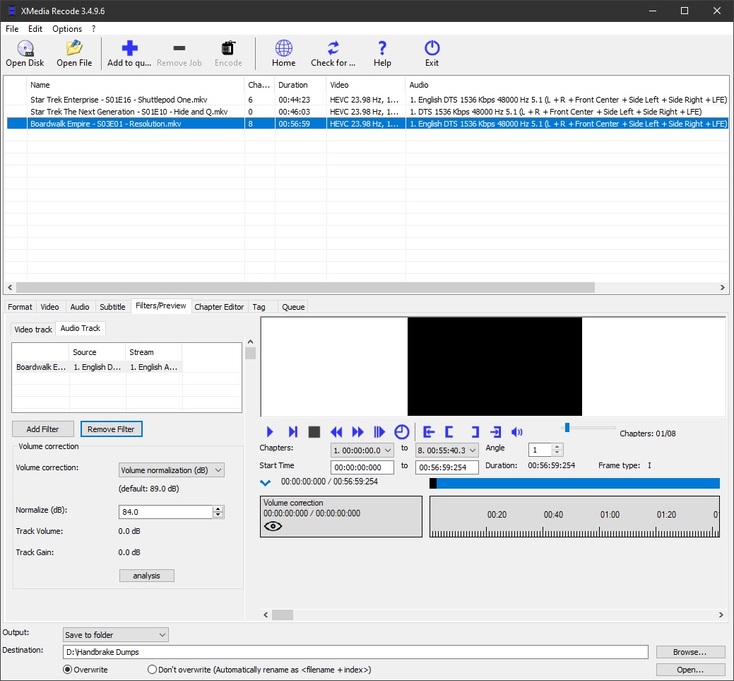
Xmedia Recode is a wonderful thing:
Remux to the same or different container…
Copy Video - zero quality loss
Convert Audio - a compatible track in slot one <— while ‘normalizing’ audio ( )
Copy that same audio track to slot two - so you’ll always have it to select - if something changes at some point.
While muxing in those srt subs and muxing out those evil image based subs.
… and all ^that^ only takes moments - not hours…
Today?
XR has saved my life… um… 18 times - and it’s not even lunchtime yet…:
 )
)