Hi, I guess this question has been answered before. But I can not see it.
I am using a basic QNAP 251 NAS mostly as a multimedia source. It channels through a LAN system into a new LG OLED TV. Where I am using Plex as the client.
Everything works really well.
But - as indicated above - 2160 4K HDR films simply do not work. Buffering all the time with little flow in the film.
Now I do know, my NAS is not capable of transcoding. But then transcoding should not be necessary anyway. After all my TV is capable of 4K and I believe almost all Codecs. So is it a setting issue or really an issue of my NAS simply being to unperformant?
Hi, you can play 4K titles with your LG but there are a few exceptions using the Plex app.
Avoid HD-MA 7.1 audio titles or just use the DLNA function with LG SmartShare with those.
HD-MA 5.1 will play through Plex so check if you already have a alternative audio or use software to convert.
Also check out the 4K compatibility support pages from plex
FYI, my B7 OLED direct plays dts-HD MA 7.1 audio. The Plex app pulls out the dts 5.1 core and passes it via HDMI-ARC to my receiver. Not sure what happens if you’re using the TV speakers or optical audio out.
First you need to find out exactly what the plex server is doing when your video is buffering, you can find this @ Plex Web > settings > status dashboard
this will indicate if the video or audio is transcoding and whether subtitles are enabled.
As already posted previously, current smart tvs do not generally support the HD audio, so you must use a dolby digital or dts 5.1 or stereo audio track.
Some subtitles also can cause transcoding, so make sure NONE is selected for subtitles.
Check the PMS Dashboard during playback (Plex Web -> Activity -> Dashboard). Make sure you are not inadvertently transcoding the video or audio.
Be aware of the influence of subtitles
Enabling image based subtitles - PGS or VOBSUB - forces a video transcode. The Plex SmartTV app cannot direct play either format.
SRT subtitles will direct play. However…
If the audio is transcoding and SRT subtitles are enabled, the video will also transcode. Plex does this to keep the video, audio, and subtitles in sync with each other.
Choose audio that direct plays when possible
Because of the aforementioned problems with subtitles and to avoid the (albeit small) CPU hit from transcoding audio, choose an audio track that direct plays whenever possible.
The TV should direct play AAC, AC3, EAC3, and dts audio with 5.1 or fewer channels.
dts-HD MA 5.1 and 7.1 audio will also direct play. The app extracts and uses the dts 5.1 core, ignoring the HD part.
TrueHD audio will transcode on PMS to AAC audio, as the TV does not support the TrueHD codec. Choose the AC3 audio track instead of TrueHD if possible (as part of the Blu-ray standard, movies released on Blu-ray with TrueHD audio must also include an AC3 version of the audio).
It might be the network…
The Ethernet port on the TV is 100 Mbps.
5 GHz, 802.11ac WiFi might provide a better connection, if there is a strong signal at the TV
4K HDR rips/remuxes may exceed 100 Mbps. The bitrate shown by Plex’s Get Info, MediaInfo, etc is an average. Movies will burst to higher rates during playback.
If the video and audio are direct playing and you’re still experiencing buffering, then check the network.
If TV is hardwired, try via WiFi if possible. If on WiFi, try via wired Ethernet if possible.
If you’ve a strong 5 GHz WiFi signal at the TV, it might provide a faster connection than wired Ethernet. By its nature, WiFi is prone to signal fades, interference, and other things that can affect signal quality. The only way to know if WiFi is better than a wired connect is to try it.
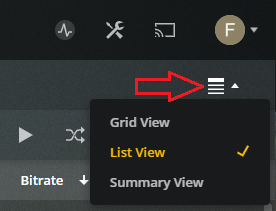
Also, play multiple movies at various bitrates. See if buffering happens even when playing movies with relatively low bitrates. An easy way to see the average bitrate for a movie is to view the library in List View in Plex Web. You can enable a column for bitrate.