Automatically scan and remove 'unavailable' files not working?

Server Version#: 1.43.0.10492
Player Version#: 4.158.0

I’m having trouble when trying to automatically scan for and remove unavailable files. I’ve seen similar messages on the forums, but haven’t yet found a solution to my issue.

Background: I’ve been using Musicbrainz Picard to correct/improve the tagging of a large number of old music files. This has included the automatic renaming of exact matches, so that they’re following the Plex naming conventions. As part of this process, I’ve also thinned out some old music files I no longer wish to keep. This issue is affecting both kept albums (eg where a subfolder was previously not named within Plex naming conventions) but now does, and deleted albums/songs (where the files don’t exist at all on my server).

Although some tracks/albums are no longer present, they are still showing up in Plex (but marked as ‘Unavailable’). I can go into the info for individual ‘unavailable’ tracks (or ‘unavailable’ albums) and click on ‘Delete’ within Plex. This will work. However, I’d like to be able to automatically do this across all items, and don’t seem to be able to. Hopefully someone can please help me! I don’t want to have to hunt down every single ‘unavailable’ album in order to fix this.

I have tried (on multiple occasions!) each of the following:

  • Empty trash
  • Scan library files
  • Optimise database
  • Clean bundles

I have done the above manual scans with the following both turned on and off:

  • Scan my library automatically
  • Run a partial scan when changes are detected
  • Include music libraries in automatic updates
  • Empty trash automatically after every scan
  • Allow media deletion

I have ‘Scan my library periodically - Daily’ turned on too.

I have stopped and restarted my Plex server.

All the above processes seem to be working as intended (eg new media is being detected), except that unavailable files are still showing within Plex.

Server permissions are read/write. Within the folders on my NAS drive, I have also manually emptied the recycle bins.

In some cases, there are artist folders that are now completely empty apart from an image. If I delete these (unnecessary) folders, I still have the same issue. In some cases (eg renamed album), no such folder exists. Yet still those ‘unavailable’ albums/tracks are still showing within Plex.

Could someone please suggest the exact process I should follow to scan my library and automatically remove all undetected/unavailable files? Whilst I’m pretty sure I’ve tried everything multiple times, I’d like to be completely sure I’ve done the right thing from start to finish!

If after that, it’s still a bug, I’d appreciate any pointers that anyone may have. Thank you.
Edit your library
go to the “Add Folders” tab
verify that ALL folder locations listed on there are

  • still existent
  • not completely empty
  • still accessible to Plex server at the moment of the library scan

All three conditions must be met, in order for Plex to remove unavailable items after scan + empty trash.

If the above doesn’t help, your database might be damaged. Use https://github.com/ChuckPa/DBRepair

Thanks Otto.

There’s only one folder location there - ‘Music’, which contains all music, sorted by artist. It’s there, not completely empty, and is accessible to the Plex server.

I’ll have a look at the DB Repair to see if it’ll help. Thanks.

I’ve run the DB Repair (using the ‘automatic’) setting. It completed its process successfully, but am still having the same issue.

Since running the DB Repair, I have also re-done the following:

  • Empty trash
  • Scan library files
  • Refresh all metadata
  • Clean bundles
  • Optimise database
  • DB Repair ‘vacuum’ function
  • Manually creating a missing subfolder and running ‘Scan library files’
  • Manually adding any file into the newly created missing subfolder and running ‘Scan library files’.

However, there are still plenty of ‘unavailable’ items. As mentioned in the first post, I can manually click on ‘delete’ within Plex, which works. However, it’s impractical to check through every item in my server manually and check if it’s there or not. I’m hoping that there’s some automatic way to do it!

My music library searches one folder only (and by association, its subfolders): /volume1/music/

There are a number of subfolders that no longer exist. However, I can’t seem to get Plex to treat those albums/tracks as no longer in existence.

Is there something that I’ve missed, eg in the DB Repair documentation, something else I should be doing, or is there a bug that needs to be reported? Thanks for any help you can give!

The only idea I have left would be to scrap the music library section and recreate it from scratch.

Thanks anyway, Otto.

I’m unkeen on scrapping it and recreating it from scratch, as I presume that would remove all ratings of the unaffected files.

It would indeed.

Weird idea: if you set your music library view mode to Tracks,
then open the filter dropdown (the one which normally says ‘All’) and engage the Source filter. Do you see any media sources listed there, or is it just empty?

If I click on ‘Source’ it says ‘No options’.

If I click on ‘Folder location’ it (rightly?) shows only /volume1/music.

In that list of all my tracks, some of them are unavailable tracks (but that’s only apparent if I click on the 3 dots next to the track and then on ‘Get Info’.

Are there actually 2 file paths shown on some tracks?

Could we have a copy of your server logs please.

With a little luck, they may shed some light on the issue.

Plex Media Server Logs_2026-02-20_18-25-22.zip (1.5 MB)

Here you go. Thanks for looking.

Not that I’ve seen.

Thanks for the logs.

From your logs:

Feb 19, 2026 19:02:44.166 [1109402480] ERROR - [Req#a0ba] [Notify] Failed to add watch for "/volume1/music/Pet Shop Boys" (28: No space left on device)
Feb 19, 2026 19:02:44.186 [1109402480] ERROR - [Req#a0ba] [Notify] Failed to add watch for "/volume1/music/Pet Shop Boys/Pandemonium" (28: No space left on device)
Feb 19, 2026 19:02:44.203 [1109402480] ERROR - [Req#a0ba] [Notify] Failed to add watch for "/volume1/music/Pet Shop Boys/Tracks" (28: No space left on device)
Feb 19, 2026 19:02:44.220 [1109402480] ERROR - [Req#a0ba] [Notify] Failed to add watch for "/volume1/music/Pet Shop Boys/Please _ Further Listening 1984–1986" (28: No space left on device)
Feb 19, 2026 19:02:44.230 [1109402480] ERROR - [Req#a0ba] [Notify] Failed to add watch for "/volume1/music/Pet Shop Boys/Format_ B‐sides and Bonus Tracks (1996–2009)" (28: No space left on device)

These errors indicate a problem with your iNotify table. You have too may folders for Synology/Plex to monitor.

Read through this article and correct your iNotify table.

Note: I see a lot of other issues as well, but we will deal with those after you have taken care of the issue above.

Thanks trumpy81. I’ve tried that (12,000 folders, so the calculation said to allow for 65,536), but still no luck.

After doing it, I ran through the usual round of ‘Scan library files’ etc. I also re-ran the DBRepair process in case that worked better now after your latest suggestion.

I’d appreciate any other suggestions you have. Let me know if you need more up-to-date server logs. Thanks for your ongoing help.

Did you reboot the Synology NAS after performing FAQ 16?

That is a Linux limitation. The NAS must be restarted for it to take effect. Also, you may have to reapply it after DSM updates.

I did reboot - but thanks for checking!

Restart PMS

Wait 3 minutes

Download Logs and attach please

EDIT: Chuck beat me to it. But you need to re-enable debug level logs.


Let’s see if the log files show anything.

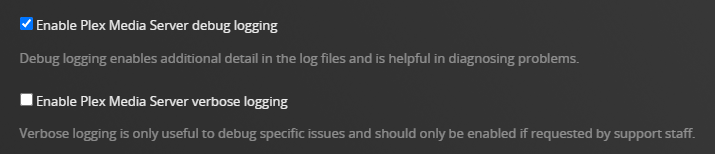
  1. Re-enable debug level server log files (default). Do not enable verbose logs.
    Settings → server_name → General + Show Advanced.

  2. Settings → Server → Library, enable Scan my library automatically.
    This adds additional information to the log files.

  3. Stop Plex Media Server and wait 30 seconds for the server to settle.

  4. Start Plex Media Server

  5. Wait three minutes for it to start and log the startup sequence.

  6. Re-create the problem (browse a library, play a file, etc.).

  7. Pull & post the server log files.

Thanks! I’ve just gone through all those steps. Here are the latest server logs.

Plex Media Server Logs_2026-02-21_01-25-10.zip (1.3 MB)

Ah, I see that the script didn’t work properly:

”Standard output/error:
sed: couldn’t open temporary file /etc/sedYeUSNA: Permission denied
sed: couldn’t open temporary file /etc.defaults/sedpvAsaA: Permission denied
/bin/bash: line 3: /etc/synoinfo.conf: Permission denied
/bin/bash: line 4: /etc.defaults/synoinfo.conf: Permission denied”

I’ll try and get it to work, then retry! (I missed the step to run the script as ‘root’). It’s run now, so I’ll restart and report back tomorrow!
