Hello everyone! I’m new in the Plex community and I have a question for you. Thank you in advance and sorry for the trouble.
My new home is quite large, so I have two routers. The first one, which is installed in the living room, was provided by the internet company, and the second one is a TP-LINK AC1900, that I bought to extend the wifi coverage on the other side of the house and also to use it as a Switch and connect my work computer (which serves as the Plex server as well). Between both routers I have a CAT7 ethernet cable connecting them.
The issue that I’m having is that the TV and any wifi device that is closer to the first router (which gives out IPs like 192.168.1.xxx) cannot connect properly to the Plex Server which is connected to the other router with an IP like 192.168.0.xxx).
For instance, if I try and watch something on my phone and I’m close to the office router, as it has a 192.168.0.xxx and is connected through the same router as the Plex server, it plays everything fine and high quality in local mode; but if that same phone or other device is closer to the other router, it thinks it’s an outside network, and plays it a very low quality (through Relay) or doesn’t even play it.
How can I fix this? Let me know if you need me to provide you with any logs.
In your case, set it to 192.168.0.0/255.255.255.0,192.168.1.0/255.255.255.0. Note that there are no spaces in that string. If you add any spaces it will result in a parsing error and it won’t work as expected. It’s not strictly necessary to include the local network on which the Plex server lives, but I like to be explicit.
This setting tells your server which networks it should always treat as local, thereby causing it to not apply any bandwidth restrictions.
[Edit]
And I just remembered that this is a Plex Pass-only feature, so you won’t have access to it (unless your forum tag is just missing for some reason).
So I’ve been experimentin with the solutions and none of them seem to be working properly.
For your solution (philipsw), I’ve bought a Plex Pass but even after I add those lines to make sure both LAN networks are allowed, I still have the same problem. When the phone/tablet/whatever, is near the router where the Plex server is (the AC1900), it’s fine and it plays through LAN perfectly; but when I’m on the other router (the internet company one), it shows the menu with the movies and TV shows available but the movie won’t even start. Could you let me know if there’s anything else that I need to change in the configuration? What about using WAN as LAN? Or those other settings. Maybe something I need to set up in the tablet? I see there’s and Advanced feature to allow “Manual connections”.
For your solution, (FordGuy61), I’m not sure why, but if I set the router to operate in Access Point mode, instead of Router mode, I get a lot of internet disconnections. I even returned the router to Amazon and replaced it with a new one, but I get a lot of 10-second disconnections (both in the wired and wireless devices). Maybe I get one 10-second disconnection every 1 or 2 minutes, not sure why. Any thoughts on how I could fix that? It doesn’t make any sense that the router works perfectly in Router Mode but it gets all these disconnections in Access Point Mode.
Power off the main router, the AP mode router, and any devices attached to the AP mode router. Power on the main router. Wait for it to fully boot. Then power on the AP mode router. Wait for it to fully boot. Then power on any devices wired to the AP mode router.
Note: If any devices connected to the AP mode router have static IP addresses they may (will) need reconfiguring, as they’re now on a new subnet. The subnet that was used when the TP-LINK was in router mode no longer exists (192.168.0.x vs 192.168.1.x).
Second thought: Connection from AP to main router.
For the router in AP mode, where is the Ethernet cable back to the main router connected?
The TP-LINK documentation I saw online shows connecting the cable to the WAN port on the AP mode router.
Many other manufacturers say to use a LAN port instead.
You might try moving the cable from the WAN port to a LAN port (or visa-versa).
You could try enabling “Treat WAN IP as LAN Bandwidth,” but it has a pretty limited application. It’s more for mitigating DNS rebinding issues where traffic is NAT-hairpinned through your edge router.
I think FordGuy61’s suggestion is a better one at this point. It would be best if you were able to configure your network as one flat address space.
Hint: there is an alternative firmware available for the TP-LINK AC1900 from the DD-WRT project. It allows you to put the device into AP mode (and much more).
Some updates. Fordguy, I tried your first thought about first switching on the main router, then the second router in AP mode and then the wired devices, and it works for 10-15 minutes, but as soon as one device (either wired or wireless) disconnects from any of the two routers or switches from being connected to one router to the other one; the TP-Link router starts getting those disconnects. It kinda looks as you said as an IP conflict or something like that, because the main router has internet always, it’s only the second one that gets disconnects.
For your second thought; I tried connecting the ethernet cable that comes from the main router to the second one to one of the LAN ports instead of the WAN one, but it still shows the same issue in AP mode.
What’s the advantage of the DD-WRT firmware, OttoKerner? Because this router already has an AP mode, not sure if the one DD-WRT would be the same or will get rid of those disconnections.
Any thoughts? I mean, now that I have PlexPass, is there a way to keep the TP-Link router in Router Mode (the mode that works properly, basically), but do some kind or routing IP addresses on the main router so that the devices connected to it know where they have to go to find the Plex server?
Although yeah, as you say, if the AP mode worked fine, it would all be much easier.
Well, the AP mode in DD-WRT works as it should, for instance.
If you still have warranty on the device you should wait though. Because putting a different firmware on it will void warranty.
Of course, DD-WRT provides more features and has more things to fiddle with, so you’ll need to read HowTo’s and manuals to get it “right”.
Otherwise you can bring it into a non-working state.
Right, yeah, maybe it’s better to find a solution without changing the router’s firmware.
What about using the TP-Link router in Router Mode (the mode that works properly, basically; and everything stays on the same network), but doing some kind or routing IP addresses on the main router so that the devices connected to it know where they have to go to find the Plex server?
Catch-22: this will probably require you to switch to dd-wrt as well, because the standard firmware doesn’t allow you to add routes manually.
(Totally my assumption. I didn’t read the manual of this router. But I have never seen a standard firmware of a “home” router which allowed things like this.)
It is my understanding that you must add the special route to the other router. In order for them to go around the NAT (which is still activated, due to it being still in “router” mode ).
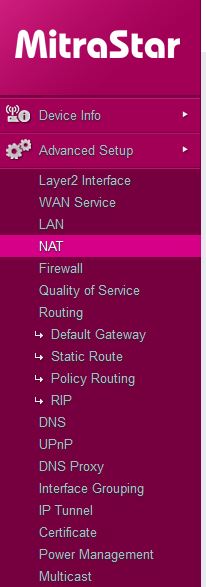
Oh, ok. The secondary router also has routing capabilities (the TP-Link one). But I’m not sure what I need to set on the gateway and on the destination. Any thoughts? I’m attaching a screen capture.
Do you have a Windows PC you can connect to the tp-link router, either wired or wirelessly? If so, what is the output of the following when run from the command line: tracert x.x.x.x
Where x.x.x.x is the IP address of your Plex Media Server. Your PMS is on the 192.168.1.0/24 network, right?
It doesn’t have to be a Windows PC. If you have a Mac or Linux PC you can use traceroute x.x.x.x instead.
The Windows PC that I have connected (wired) to the TP-LInk router is where the Plex Media Server is. So I guess the Plex Media Server has the same IP as my computer, correct?
In that case it’s 192.168.0.102
Just to clarify, all the ip addresses for the main router are 192.168.1.xxx and for the TP-Link router are 192.168.0.xxx (so as my computer/PMS is connected to the secondary router, the TP-Link, it’s a 192.168.0.xxx address.
Sorry, I had the situation reversed. The idea is to do the tracert from the network where the clients are having issues back to the server. Just to make sure it has a good route.
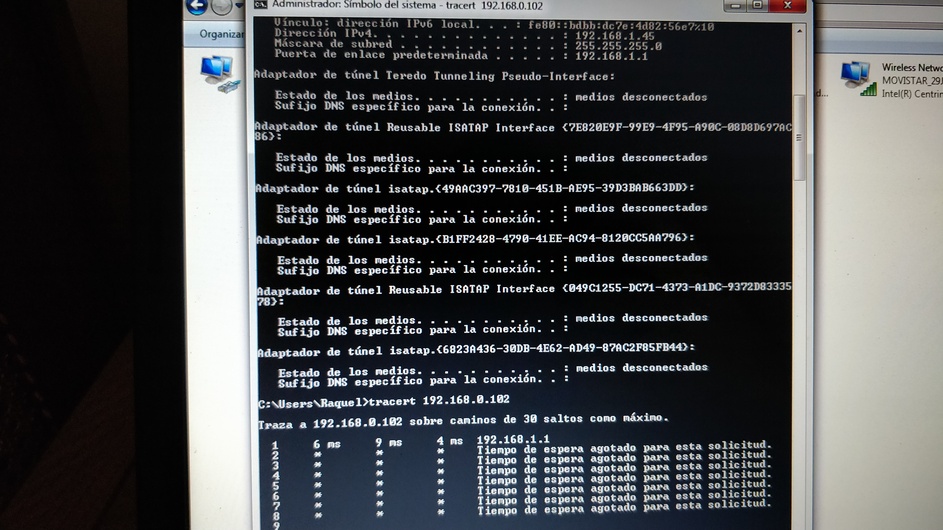
Ok, so I just tried the tracert from a device (with IP: 192.168.1.45) connected to the main router (IP: 192.168.1.1) and trying to make it connect to the computer with the Plex Server (IP: 192.168.0.102); and as you can see the first jump it connects to is its router, but then it just gives out “waiting time expired for this query” results, so it’s not able to connect.
I guess the goal would be to “route” or redirect any connections to 192.168.0.xxx make them go to 192.168.1.41 (which is the IP the TP-Link is assigned in the main router), and from there to 192.168.0.102.
What do you guys think? Thank you for all your help! I’m including a screen capture too.
In fact, if I do a tracert from the secondary router (where the Plex is), to a computer connected on the other router, it works OK. But if I do the tracert from the main router (192.168.1.1) to the secondary router (192.168.0.1), the tracert gets lost.