Server Version#: 1.23.3.4707 (Windows 10)
Player Version#: 8.19.1.26306 (Shield TV 2019 Pro 8.2.3)
After the update from 8.18.2 today, my Continue Watching row disappears as it opens. I can get it back sometimes by clearing the cache or closing/reopening, and reordering my hubs, but it disappears most times and isn’t consistent at all.
This is not an issue on my Android phone or my Sony Bravia TV (all have the same player version).
Edit: Selecting any other library, then going back home also gets it to show back up.
I am experiencing the same issue. I see the Continue Watching section momentarily upon start up, then it disappears. After going into a library and then back to Home, the Continue Watching section usually returns.
It’s less frequent, but still happening in 8.21.1. This happened after the recent UI update (the official one, not the experimental one you can opt into). Prior to that change this wasn’t an issue.
I’ve been experiencing this same thing on all of my Nvidia Shields (2019 and 2017), and I’ve tried everything that I know of to get “Continue Watching” back on the Home Screen. Initially, it shows up for a couple of seconds and then disappears. I’m using 8.21.2.27212. This is really frustrating as I only have one eye and it’s difficult to see as it is. When the “Continue Watching” is gone, I have to search through all of my media to find what I want to finish watching.
This is still an issue and has gotten a lot worse since the new update that forces use of the new UI. If you set it back to the Classic it happens almost every time you go to a different library and then back to Home.
Sometimes it will stay in Home after going to a different library but most of the time it disappears a second after you select Home.
I’m getting this now with a Fire TV Stick 4K using 8.22.0.27533.
The Continue Watching/On Deck either never shows up, or is briefly visible on the Home Screen for like a second and then it just disappears. I can still go to the TV library and see it under the Recommended tab. If I force kill the app and then open it fresh it will usually show up again, but I don’t know why it’s disappearing in the first place.
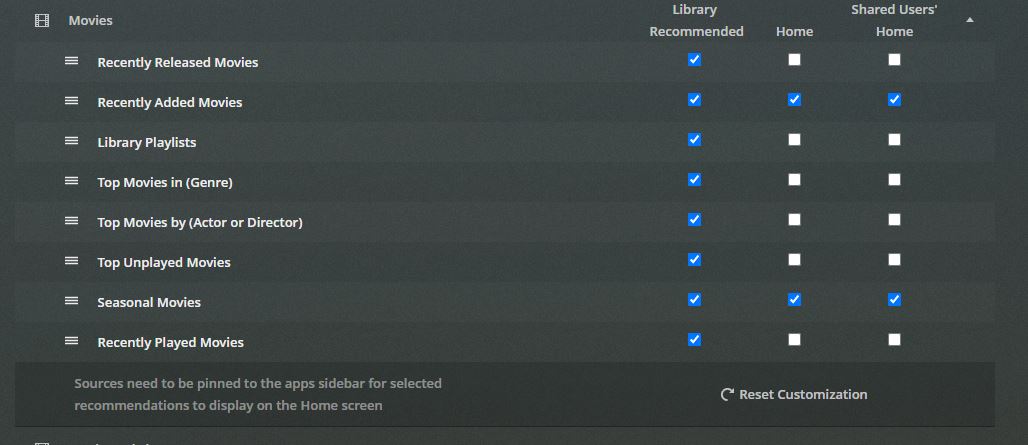
Neither of those have any settings related to Continue Watching/Up Next/On Deck/etc, so I’m not sure if it’s fixable from there.
Also, I should mention that I’ve never once changed any of those settings, it’s only the client that’s changed when being switched to the new interface. The Plex Windows app still shows all of those things fine on the Home tab, it’s only on my Fire Stick that they go missing, so I don’t think it’s a server side setting.
Editing to add: If I scroll down on the Home screen I can see Recently Added Movies and Recently Added TV Shows for both of those libraries, so I don’t think they’re excluded in any way.
This worked for me sometimes in my tests today. I would try it a few times and then just give up and force quit if they didn’t show up or kept disappearing.