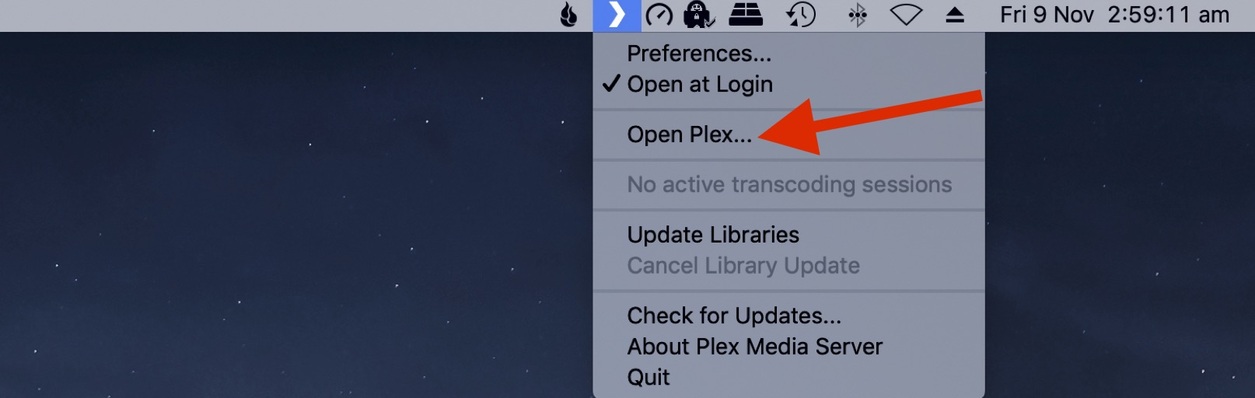
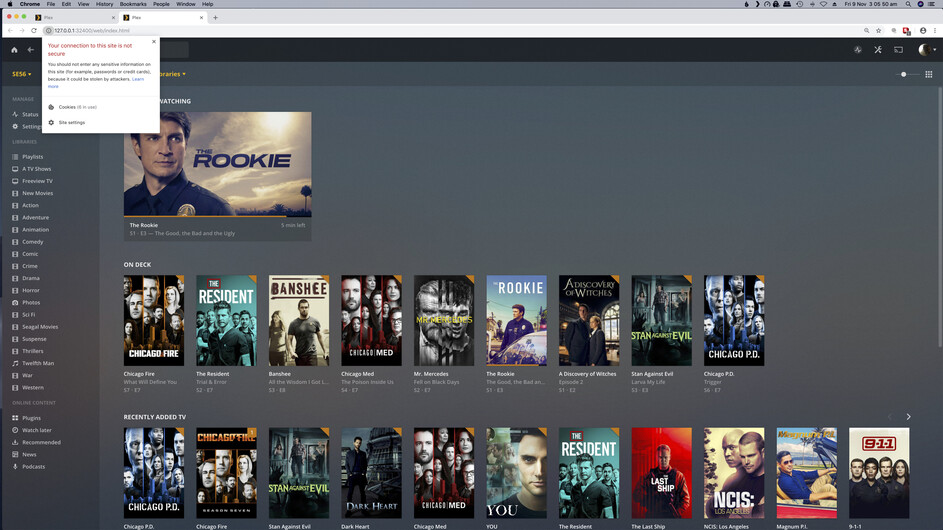
The link from the dock or the tray icon defaults to the “local” web app. Which, as the name implies, is hosted at the localhost.
There is no way to get a cryptographic certificate for localhost or the equivalent 127.0.0.1 address. It wouldn’t make sense, because this address is not unique for a certain computer, but is valid on every computer.
Therefore the web app can only be loaded unsecurely from this address into the web browser.
But this is not an issue. Your web browser is running on the very same machine where the “web site” is hosted. If you are concerned about the data getting intercepted or manipulated on their way from your local hard disk to your local browser, you have much bigger problems.
And as I said, the web browser complaining about an unsecured web site affects only the initial loading of the web app.
All of the communication between the web app and your Plex server(s) ist still encrypted, as long as you see the green padlock beside the server name.
If you rather want to load the web app in a secure way, save a bookmark to the “hosted” web app and use only this. https://app.plex.tv/desktop#
My conclusion is that I had become custom to opening my Plex Web app via the Plex PMS for MacOS UI as mentioned. Including a Default Browser set with Plex.TV as a homepage. In this case I use Chrome and my go to Browser is Firefox Quantum for everyday use. By Adding Chrome to dock firstly and now entering via Chrome Icon there is no need for plex menu or Plex in dock as PMS is set to launch at login.