Help enable Hardware Transcoding on QNAP 453Be - Not working!

Server Version#: 1.18.5.2309
Player Version#: n/a

ISSUE: I am not able to enable hardware transcoding when streaming fro any of my media player. I am using docker within my QNAP (not using QNAP’s ContainerStation)

This is my docker-compose.yml file

version: '2'
services:
  plex:
    container_name: plexinc-qplex
    image: plexinc/pms-docker
    restart: unless-stopped
    devices:
      - /dev/dri:/dev/dri
    ports:
      - 32400:32400/tcp
      - 3005:3005/tcp
      - 8324:8324/tcp
      - 32469:32469/tcp
      - 32900:1900/udp
      - 32410:32410/udp
      - 32412:32412/udp
      - 32413:32413/udp
      - 32414:32414/udp
    environment:
      - TZ="America/New_York"
      - PLEX_CLAIM=<myclaim>
      - ADVERTISE_IP=http://<myIP>:32400/
      - HOME="/config"
      - VERSION="latest"
    hostname: QPLEX
    volumes:
      - /share/Container/docker_configs/plex/qplex:/config
      - /share/Container/docker_configs/plex/qplex/temp:/transcode
      - /share/MEDIA:/data/media:ro

My CPU : Intel(R) Celeron(R) CPU J3455 @ 1.50GHz

/dev/dri details:

[quser@QNAS ~]$ ls /dev/dri
by-path/  card0  renderD128
[quser@QNAS ~]$ ls -la /dev/dri
total 0
drwxr-xr-x  3 admin administrators      100 2020-01-31 22:34 ./
drwxr-xr-x 15 admin administrators    20680 2020-01-31 22:47 ../
drwxr-xr-x  2 admin administrators       80 2020-01-31 22:34 by-path/
crw-------  1 admin administrators 226,   0 2020-01-31 22:34 card0
crw-------  1 admin administrators 226, 128 2020-01-31 22:34 renderD128

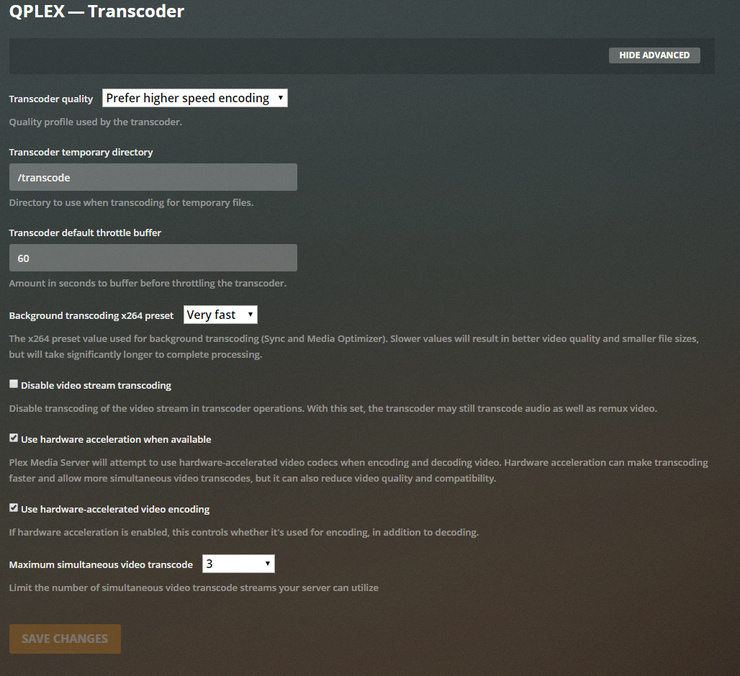
I have enabled hardware transcoding on thru UI:

When playing a video, i see CPU spike up w/o (hw) in transcode

What am I missing?

Is there any reason you wouldn’t just use Plex from the Qnap store? Using hardware transcoding is pretty straightforward via that method.

I had to go to crazytown a bit to get this to work.

What seems to be happening is that the Plex Docker image is supposed to check a few permissions, and those checks don’t seem to occur when creating a container on a Qnap NAS:

The user within the container is “Plex”.

Plex is supposed to be a member of the group “video”.

The directory (within the container) /dev/dri is owned by “root”, but should also be accessible to the group “video”. Which would then the Plex user access.

Instead, Plex isn’t in the video group, and the video group has no control over the /dev/dri directory. Maybe it’s because of how ownership of the actual directory outside the container works, where Qnap permissions tend to be all or nothing.

Because it’s Docker, changes to permissions you make within the container get blown away if you restart the container.

Even if I manually used chown/groupadd on the directories, I couldn’t figure out how to restart Plex without restarting the container ( and wiping said changes out.)

Ultimately I had to:

  1. While logged in as my regular Qnap user, create a shared folder via FileStation named “plexdocker”.
    Make sure it has the subfolder structure “/dev/dri” within it, for a full path of “/share/plexdocker/dev/dri”.
    While you’re at it, go ahead and create a folder named “config” within the “plexdocker” share as well.
  2. Now we have a directory structure of “/share/plexdocker/dev/dri” and “/share/plexdocker/config”.
    The folders are owned by my user “cecoates” and the group “everyone” (uid=1000 and gid=100)
    Screenshot_2020-02-03 TS-453be(1)

  3. SSH into Qnap as an admin, so you can run some commands via CLI.
  4. Copy the drivers from /dev/dri to /share/plexdocker/dev/dri:
cp -R /dev/dri /share/plexdocker/dev
  1. Change ownership of the new items:
 chown -R 1000:100 /share/plexdocker/dev/dri
  1. In FileStation, you should now see two files, one named “card0” and one named “renderD128” in the /share/plexdocker/dev/dri directory.
  2. Create a folder named “diditwork” in the /share/plexdocker/dev/dri directory.
  3. Qnap’s ContainerStation docs are out of date. But using “Create” in latest versions of ContainerStation is the same as using Docker Compose. Except it has a built-in YAML validator, which is pretty helpful.
    You can keep using Docker via CLI if you want, but I used ContainerStation for these steps.
  4. Open ContainerStation, click “Create”, then “Create Application”.
  5. Paste your Docker Compose data into the “YAML” field. This is my Docker Compose, slightly modified from yours:
version: '2.4'
services:
  plex:
    image: plexinc/pms-docker
    hostname: QPLEX
    networks:
      - plexnet
    restart: unless-stopped
    devices:
      - /dev/dri:/dev/dri
    ports:
      - 32410:32400/tcp
      - 3015:3005/tcp
      - 8334:8324/tcp
      - 32479:32469/tcp
      - 1910:1900/udp
      - 32420:32410/udp
      - 32432:32412/udp
      - 32443:32413/udp
      - 32454:32414/udp
      - 33410:33410
    environment:
      - TZ="America/Chicago"
      - PLEX_CLAIM=claim-yourclaimIDgoeshere
      - ADVERTISE_IP=http://yournasIPgoeshere:32410/
      - PLEX_UID=1000
      - PLEX_GID=100
    volumes:
      - /share/Multimedia:/data/media/Multimedia:ro
      - /share/Movies:/data/media/Movies:ro
      - /share/plexdocker/dev/dri:/dev/dri
      - /share/plexdocker/config:/config

networks:
    plexnet:

  1. The PLEX_UID and PLEX_GID values are to make sure the Plex user within the container gets assigned the same UID and GID values that already exist outside of the container, in the NAS filesystem.
    1000=the UID of my user, and 100=the GID of the group “everyone”.
  2. Enter an all lowercase name where it says “Application name”. Don’t use any funky characters.
  3. Click “Validate YAML” to make it’s formatted correctly, then click “Apply”.
    If the “Apply” button remains greyed out it means either the YAML didn’t validate OR you’ve used non-standard or uppercase characters in your application name.
    If the spacing of even a single line is off, it won’t validate.
  4. Wait for the “application” to be created. It’s creating the Docker volumes, pulling the Docker image, applying your env variables, etc.
  5. The reason my port mapping is slightly different is because I already have Plex installed. Trying to use those same ports would conflict with my Qnap Store version, and the container would never properly start.
    If you haven’t installed the Qnap Store version of Plex you can stick with 32400:32400 /1900:1900, and instead of using “networks: plexnet” in your compose file you can use “network_mode: host” like in the OP example.
  6. Click the “Terminal” icon. Then type /bin/sh into the popup box.
  7. Via the Terminal within the container, type in: ls -l /dev/dri
  8. You should see something like this:

    Which is a good sign, because it proves that the /dev/dri mapped to the container is the one from the plexdocker share created earlier.
    The ownerships also mean that the “Plex” user should have full access.
  9. Click the “open link” icon to open the web UI.
    If you don’t see a link icon, then manually type your NAS IP plus the Plex port into your browser.
  10. You’ll go through the initial steps of setting up a new Plex server, and your media folder (mine were /share/Multimedia and /share/Movies, but yours can be anything) should now be visible under the “Media” directory:
  11. Don’t forget to go to Settings->Transcoder, so you can enable the Hardware Transcoding settings:
  12. Select a video from your library, and play it.
  13. To check if HW transcoding is working, manually choose a quality to stream. It doesn’t matter what you choose as long as it’s not the original/native quality.
  14. Minimize the video (there’s a small dropdown arrow in the top left) and open the dashboard.

After ALL that, if everything worked (I repeated my steps again from scratch a few times, just to be sure it wasn’t a fluke), this is what you should now see:

Further proof (I am running other things in containers, so YMMV in how much CPU whatever you’re transcoding still uses):

Before I got HW transcoding working in the container, my CPU was at 99% when transcoding anything.

You can also now check the “config” folder within “plexdocker”. It should have filled up with configuration files as the container was being setup for the first time:

That means you won’t lose your config data if you delete the Docker container (at least in my experiments, I highly advise backing the folder up somewhere else anyway).

It also means you have easy access to the Plug-ins directory if you want to install something like WebTools.

1 Like

The you-didn’t-already-install-Plex-via-the-Qnap-Store version of the compose file would be something more like:

version: '2.4'
services:
  plex:
    image: plexinc/pms-docker
    network_mode: host
    restart: unless-stopped
    devices:
      - /dev/dri:/dev/dri
    ports:
      - 32400:32400/tcp
      - 3005:3005/tcp
      - 8324:8324/tcp
      - 32469:32469/tcp
      - 1900:1900/udp
      - 32410:32410/udp
      - 32412:32412/udp
      - 32413:32413/udp
      - 32414:32414/udp
      - 33410:33410
    environment:
      - TZ="America/Chicago"
      - PLEX_CLAIM=claim-yourclaimIDgoeshere
      - ADVERTISE_IP=http://yournasIPgoeshere:32410/
      - PLEX_UID=1000
      - PLEX_GID=100
    volumes:
      - /share/Multimedia:/data/media/Multimedia:ro
      - /share/Movies:/data/media/Movies:ro
      - /share/plexdocker/dev/dri:/dev/dri
      - /share/plexdocker/config:/config

So the more streamlined steps, sans explanation, would be:

  1. Create a shared folder via FileStation named “plexdocker”.
    Create a subfolder structure of “/dev/dri” within it, for a full path of “/share/plexdocker/dev/dri”.
    Create a subfolder named “config”, for a full path of “share/plexdocker/config”.
  2. SSH into your NAS as an admin.
  3. Copy the drivers from /dev/dri to /share/plexdocker/dev/dri:
cp -R /dev/dri /share/plexdocker/dev
  1. Change ownership of the new items:
 chown -R 1000:100 /share/plexdocker/dev/dri
  1. Open ContainerStation. Click “Create”, then “Create Application”.
  2. Paste the Docker Compose data from the example into the “YAML:” field.
    Name the application something like “plexdocker”.
  3. Click “Validate YAML” to check the formatting. If it passes, click “Create”.
  4. Once the container is created and the Plex server has started, click on the “open link” icon displayed next to the Docker image name.
    Or manually type in your NAS ip and Plex port into your browser, such as: 192.168.1.25:32400.
  5. Finish setting up the Plex server. Add your libraries, then open the “Settings->Transcoder” area to make sure the Hardware Transcoding options are enabled.
  6. Play a video from your library. Choose a quality/bitrate that forces Plex to transcode it (higher or lower than the original bitrate, it doesn’t matter which.)

Once the video starts playing at the manually selected bitrate, you should now be able to view the details in the Plex dashboard. If everything worked, it’ll now say “Transcode (hw)”.

Customize the volumes as needed. Replace /share/Multimedia with whatever directory you keep your media in on the NAS:

/share/nameofyourmediadirectory:/data/media/nameofyourmediadirectory:ro

These should be self-explanatory:

      - TZ="America/Chicago"
      - PLEX_CLAIM=claim-yourclaimIDgoeshere
      - ADVERTISE_IP=http://yournasIPgoeshere:32410/

Lastly, the PLEX_UID of 1000 assumes that you’re not just using the admin user on your Qnap NAS:

      - PLEX_UID=1000
      - PLEX_GID=100

1000 should be the UID assigned to the first account you create (but the second account on the NAS itself, since the admin account already existed) .

You may need to double-check your UID via CLI while SSHed into your NAS.

id yourusername

and then update the chown steps/compose file accordingly.

1 Like

Seems like there has to be an easier fix. A lot of people use Docker in QNAP for Plex and I do not recall hundreds of threads having this issue or describing a fix like this which seems VERY complicated!

And they’re using hardware transcoding? I was just trying to figure it out for myself for giggles, but if someone knows an easier way I’m all ears!

Part of the reason I went through the above extremes was because I didn’t want to change the permissions of the actual files on the Qnap end, because I wasn’t sure what effect that would have on other applications.

There’s a ruleset within the container that is supposed to check the permissions/add the user “Plex” to the video group, but it doesn’t seem to work for the Qnap setup. If it was able to actually check the permissions of the /dev/dri directory, add the video group to it, and then add the Plex user to the video group, then it would probably work “out of the box”. But understanding why it didn’t work is outside my level of expertise.

Sorry I was not impugning your work, in fact I am seriously impressed. I am just confused how this is not a bigger issue given what it took for you to derive a solution. Yes I would expect most do use HW encoding

I didn’t take it that way! I really meant if there’s an easier solution I’m super curious.

I tried searching the forums/Reddit/etc. and didn’t find anyone with a different solution that worked for me. It’s an interesting problem.

As an sidenote performance seems about identical, which I didn’t expect. I guess I thought the container would take more “overhead” so to speak.

Also, in the above scenario while I’m creating “volumes” for the Plex config those volumes aren’t permanent. You can access them your NAS’s filesystem, while the container exists. But if you delete the container without doing that first the config data would go “poof” too.

You can create volumes manually and then mount them as “external” volumes, but that seemed like even more to explain if you haven’t experimented with Docker.

I was skeptical at first, but I’m sold on user a Docker container instead of the Qnap Store app.

Tweaked my Docker Compose a bit so now the entire config directory gets mapped to a folder in FileStation.

Removed the line about defining a volume for the transcode directory. If you don’t do it manually, it’ll be created automatically within the container.

I’m going to run the Docker Plex alongside my Qnap Store Plex for awhile just to be safe, but so far so good.

1 Like

@cecoates Thank you for your help so far. I’ve followed your steps and got it working. This works! Kudos to you for figuring this out. I do have couple questions (probably due to my lack of depth in linux and docker)

  1. Creating a copy of /dev/dri seems like it can be avoided if we can, somehow do a “post-container-create-before-plex-starts” to achieve that. I think it can be achieved in a docker file. Not sure how to achieve that in docker-compose.
    1a. It also begs the question, about needing to this at all. (may be it’s a QNAP-non-container-station-solution)
  2. getting named volumes working. I really like the idea of having a well known plex volumes so it’s easy to reuse across multiple containers. However, I am not sure on how to achieve that… i.e. not have docker create that volume but use an existing one.

Also, thanks for the tip on Container Station create… I like it at least as an editor+validtator.

For reference, here’s my docker-compose file:

version: '2'
services:
  plex:
    container_name: qplex
    image: plexinc/pms-docker
    restart: unless-stopped
    network_mode: bridge
    devices:
      - /dev/dri:/dev/dri
    ports:
      - 32400:32400/tcp
      - 3005:3005/tcp
      - 8324:8324/tcp
      - 32469:32469/tcp
      - 32900:1900/udp
      - 32410:32410/udp
      - 32412:32412/udp
      - 32413:32413/udp
      - 32414:32414/udp
    environment:
      - TZ="America/New_York"
      - PLEX_CLAIM=<myclaim>
      - ADVERTISE_IP=http://<myIP>:32400/
      - HOME="/config"
      - VERSION="latest"
      - PLEX_UID=1001
      - PLEX_GID=1000
    hostname: QPLEX
    volumes:
      - /share/Container/docker_configs/plex/qplex:/config
      - /share/Container/docker_configs/plex/qplex/transcode/temp:/transcode
      - /share/MEDIA:/data/media:ro
      - /share/Container/docker_configs/plex/hw_transcode_workaround/dev/dri:/dev/dri

Some notes on the above:

  • I created a user plexuser and a plexgroup
  • plexuser has readonly access to media
  • I did chown -R plexuser:plexgroup to /plex/hw_transcode_workaround/dev/dri

what does your latest docker compose look like? … Did you use named volumes for config?

I think that’s technically what these rules:

# cat /etc/cont-init.d/45-plex-hw-transcode*                                                                                                                                                                                                                           
#!/usr/bin/with-contenv bash                                                                                                                                                                                                                                           
                                                                                                                                                                                                                                                                       
# Check to make sure the devices exists.  If not, exit as there is nothing for us to do                                                                                                                                                                                
if [ ! -e /dev/dri ] && [ ! -e /dev/dvb ]; then                                                                                                                                                                                                                        
        exit 0                                                                                                                                                                                                                                                         
fi                                                                                                                                                                                                                                                                     
                                                                                                                                                                                                                                                                       
FILES=$(find /dev/dri /dev/dvb -type c -print 2>/dev/null)                                                                                                                                                                                                             
GROUP_COUNT=1                                                                                                                                                                                                                                                          
                                                                                                                                                                                                                                                                       
for i in $FILES                                                                                                                                                                                                                                                        
do                                                                                                                                                                                                                                                                     
    # Get the group ID for the dri or dvb device.                                                                                                                                                                                                                      
    DEVICE_GID=$(stat -c '%g' "$i")                                                                                                                                                                                                                                    
    # Get the group name (if it exists)                                                                                                                                                                                                                                
    CURRENT_GROUP=$(getent group "${DEVICE_GID}" | awk -F: '{print $1}')                                                                                                                                                                                               
                                                                                                                                                                                                                                                                       
    # If it doesn't exist, create a new group name and assign it to the device GID                                                                                                                                                                                     
    if [ -z "${CURRENT_GROUP}" ]; then                                                                                                                                                                                                                                 
      CURRENT_GROUP=video${GROUP_COUNT}                                                                                                                                                                                                                                
      groupadd -g "${DEVICE_GID}" "${CURRENT_GROUP}"                                                                                                                                                                                                                   
    fi                                                                                                                                                                                                                                                                 
                                                                                                                                                                                                                                                                       
    # If plex user isn't part of this group, add them                                                                                                                                                                                                                  
    if [ ! $(getent group "${CURRENT_GROUP}" | grep &>/dev/null plex) ]; then                                                                                                                                                                                          
      usermod -a -G "${CURRENT_GROUP}" plex                                                                                                                                                                                                                            
    fi                                                                                                                                                                                                                                                                 
                                                                                                                                                                                                                                                                       
    GROUP_COUNT=$(($GROUP_COUNT + 1))                                                                                                                                                                                                                                  
done                           

Are supposed to be doing. I’m not sure why it doesn’t work, but my guess is that it’s Qnap specific.

The reason I went with making a copy of /dev/dri is that I didn’t want to blindly change the permissions on the Qnap filesystem without knowing possible side effects. But I think theoretically you could just chown the “real” /dev/dri directory and save a few steps.

Qnap runs everything as an admin, and the Docker container runs things as a more limited user named Plex (which makes more sense, honestly), so I’d guess that doesn’t help.

Tweaking the above script to be Qnap specific is a bit out of my area of expertise, though.

It depends what you mean by named volumes.

Let’s say you had this at the end of your Docker compose file:

    volumes:
      - config:/config
      - transcode:/transcode
      - mymedia:/data/media

volumes:
    config:
    transcode:
    mymedia:

You’d be telling Docker to create three volumes. One named “config”, one named “transcode”, and one named “mymedia”.

If you wanted to access the files, you could create a Shared Folder or SSH into the NAS under:

/share/Container/container-station-data/lib/docker/volumes

And access the files there. However, those are still linked to the container itself. Delete the container, and they go “poof”.

You can also create “external volumes” that survive the container, so to speak.

That would look like:

    volumes:
      - plexinc-qplex_config:/config
      - plexinc-qplex_transcode:/transcode
      - plexinc-qplex_mymedia:/data/media

volumes:
    config:
      external: true
    transcode:
      external: true
    mymedia:
      external: true

But the part that trips me up is that for an external volume, you have to manually create them first. In my mind it would be more intuitive if Docker created them if they didn’t exist, but used them if they already did, but that’s not how it works.

So via SSH you’d run something like:

docker volume create --name=plexinc-qplex_config && docker volume create --name=plexinc-qplex_transcode && docker volume create --name=plexinc-qplex_mymedia

THEN when you used “external: true” in your compose file it would use those volumes. And they’ll remain in the Docker volumes folder unless you “prune” them either via CLI or in the ContainerStation via the “Volumes” tab.

I added the container name in the second example because that’s something Docker does automatically when you create volumes in the compose file, so I just got used to doing it that way.

Theoretically if you didn’t want to manually create the volumes via CLI, you could first create the container with a compose file that has:

    volumes:
      - config:/config
      - transcode:/transcode
      - mymedia:/data/media

volumes:
    config:
    transcode:
    mymedia:

Then, stop the container. Edit the compose file in ContainerStation (that’s another neat feature, you can add/remove/tweak lines of the compose file without having to recreate the entire thing). Then replace it with:

    volumes:
      - plexinc-qplex_config:/config
      - plexinc-qplex_transcode:/transcode
      - plexinc-qplex_mymedia:/data/media

volumes:
    plexinc-qplex_config:
      external: true
    plexinc-qplex_transcode:
      external: true
    plexinc-qplex_mymedia:
      external: true

Really though, for this particular Docker image you don’t really need to define any volumes. In my last revision of my Docker file this:

    volumes:
      - /share/Multimedia:/data/media/Multimedia:ro
      - /share/Movies:/data/media/Movies:ro
      - /share/plexdocker/dev/dri:/dev/dri
      - /share/plexdocker/config:/config

“Mounts”/maps folders from the NAS to folders that exist within the container. The first two being my media folders, and the second two being folders I pre-setup via FileStation. One for the drivers and one for all the config data.

One reason not to do it that way is permissions, but since I created those folders with my Qnap user, and then applied the same UID/GID to the Plex user within the Docker container:

      - PLEX_UID=1000
      - PLEX_GID=100

It all seems to work out. There are situations where you might not want to do that. In the docs they mention:

If you bind-mount into a non-empty directory on the container, the directory’s existing contents are obscured by the bind mount. This can be beneficial, such as when you want to test a new version of your application without building a new image. However, it can also be surprising and this behavior differs from that of docker volumes.

In this case it works with the config folder because as the container is being created it’ll add the “Plex Media Server” directory and files. But there are situations where if you tried to do that and your “source” folder wasn’t setup correctly you’d have suddenly just created an empty directory within the container where configuration files it needs should be.
That makes sense, I think. I’m the only user of my NAS, so I don’t mind just using my own account and then applying that UID/GID to the Plex user within the container.

One thing you might want to consider is moving the folders you’re mounting/mapping outside of the Container folder. That folder is something Qnap itself manages/creates by default, so I’ve sometimes had trouble deleting/moving/changing permissions of things I create within it.

My latest “draft” of the compose file is the one I edited in my previous posts, but it’s this:

version: '2.4'
services:
  plex:
    image: plexinc/pms-docker
    network_mode: host
    restart: unless-stopped
    devices:
      - /dev/dri:/dev/dri
    ports:
      - 32400:32400/tcp
      - 3005:3005/tcp
      - 8324:8324/tcp
      - 32469:32469/tcp
      - 1900:1900/udp
      - 32410:32410/udp
      - 32412:32412/udp
      - 32413:32413/udp
      - 32414:32414/udp
      - 33410:33410
    environment:
      - TZ="America/Chicago"
      - PLEX_CLAIM=claim-yourclaimIDgoeshere
      - ADVERTISE_IP=http://yournasIPgoeshere:32410/
      - PLEX_UID=1000
      - PLEX_GID=100
    volumes:
      - /share/Multimedia:/data/media/Multimedia:ro
      - /share/Movies:/data/media/Movies:ro
      - /share/plexdocker/dev/dri:/dev/dri
      - /share/plexdocker/config:/config

Using the network mode “host” means that Qnap is going to treat it as if it were a specific device on your network. It’ll get a MAC address, and you could even theoretically assign it a static IP via your router using that MAC address.

Since I was already running Plex, I mapped different ports and created a network within Docker itself, “plexnet” (I think this would be a bridge network, but I’m not positive):

    networks:
      - plexnet

Theoretically you could even get different containers to communicate with each other, but still not outside of the Docker environment itself, as long as you made sure each container was part of the same network.

The above is my interpretation of how different Docker features work, so I could be misinterpreting the docs. And Docker Swarms still confuse me when I try and coceptualize them.

But Docker Compose v2.4 is kind of neat because you can utilize certain features like limited the CPU and memory a container can use (after v3 you can only do that in “swarm mode” I think)

You can also learn a bit about what’s going on with host/bridge/networks in your Docker containers by opening the Virtual Switch app on the Qnap NAS. It maps out the different connections, so you can see how with a bridge network the containers all get assigned their own subnet/IPs within the container, or with host you’ll pretty much just see a straight line from your router’s DHCP to the container itself.

1 Like

This topic was automatically closed 90 days after the last reply. New replies are no longer allowed.
