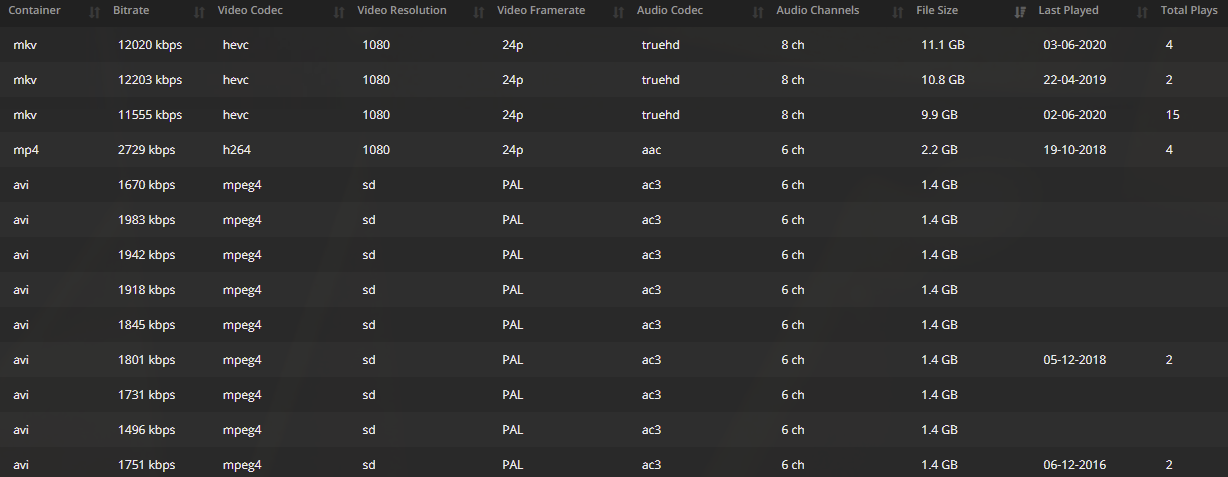
Yeah I am using MediaInfo, but I have hundreds of folders and thousands of files, and getting a single extract is the easiest thing for me.
I have AVI files that are in a FMP4 format which seem to play well, and play to my family via direct play as well, but AVI’s that are XVID or DIVX just refuse to play.
I would like to transcode all AVIs to MKVs using Handbrake, but I have about 600 files to transcode, and I’m worried about putting my laptop under that sort of high temperatures for so long. Using Handbrake puts my core temps up to about 95C and encoding that many files would take many days straight.
I could re-download them in a different format if it exists but I struggle to find those alternatives sometimes, especially if it’s an old show.
Great, I’ll give that a go. The WebTools does create a CSV extract with the information I require, so that’s working fine, but I’ll check this out as well.
Does anyone have any advice for re-encoding XVID/DIVX AVI files, or HEVC MKV files into AVC MKV without absolutely killing my laptop using handbrake?
That’s a major topic in itself… And I mean MAJOR !! lol
However not many people would recommend converting from HEVC back to AVC, as HEVC (or H.265 / x265) is significantly more efficient in every way.
That basically means this…
A 5 Mbps x265 movie will be roughly half the size of the equivalent x264 movie, but will still be the same quality as a 10 Mbps x265 movie .
Or to put it another way, with x265, you will get the same quality at roughly half the bitrate and filesize. That includes the bandwidth used for transport via Plex.
However, my Plex serves my TV and my family members TV. While my TV is fine and is new enough to cope with HEVC and AVI/XVID/DIVX files, my family members TV is not. It’s a slightly old Hisense TV, and the manual says it doesn’t support DIVX, XVID or HEVC files, and evidence has shown that to be the case.
Plex does transcode them on the fly, but there is too much buffering to be watchable. I’m not sure if that’s their internet speed issue, or what. But, what I do know, is that HEVC/AVI buffers for them, and AVC MKV files don’t, even 1080p large files. They all play using direct play and it’s absolutely perfect for them.
While I’d love to have a library of just HEVC files for the efficiency reasons you mention, the primary point of the Plex server is to serve both TV’s, and for that reason, AVC MKV seems to be the way to go.
90% of my library is already in that format, so it’s just the question of what to do with the other 10%, and I fear my only option is to re-encode them using Handbrake and just accept that it’ll make my laptop run hot for some time, and hope there won’t be damage caused by that. Or re-download them in the required format, which is tricky for some things.
Before you decide and set it all in stone, I might suggest you have a look around at alternative Plex players / clients, that do support x265 and don’t break the bank.
I am aware that it’s “nice” and “convenient” to use the built in Plex app directly on the TV itself, but that might not actually be the best way to go in the long run.
It would definitely be worth at least taking a look at some of the newer Roku sticks, or Amazon Firestick, as they are not that expensive.
Although if budget in not actually a major concern, the Nvidia Shield is still the king of the clients.
Without knowing the spec of your Laptop which is hosting your Plex Server, I am going to take a guess that perhaps it might not have the guts to transcode the x265 files, and that might be why it’s buffering.
Anyways, the reason I tend to advocate the use of x265 is obviously for all the reasons I have previously stated, but also should you start getting a REALLY sizable collection, disk space will start to become an issue… Hence x265 - Same quality at half the bitrate and half the file size.
My Plex is installed on a Synology NAS, and it’s a reasonably lower-spec model, so maybe the transcoding bottleneck is at that Synology end. I’ve researched, and a better Synology, with a better processor, would be pretty expensive, especially as I need a 4bay minimum.
My collection is around 16Tb in size at the moment.
You’re absolutely right, by the way. Getting x265 files would be better, and probably lower file size with better or equivalent quality, and would give me a lot of benefit.
And potentially I could look into other apps or solutions for playing Plex on the TV.
I guess the solution I have at the moment, which is using my current Synology box, using the TV apps, and just re-encoding files to be x264 is “free”. It requires no extra expense from me. I still have hard drive space available, I have around 8Tb free so it’s not an immediate problem.
I do need a longer term solution though, maybe in a year or two, when I inevitably burn through the 8Tb remaining.
Re-encoding will indeed smash the processor on your laptop, and depending on how much content you choose to re-encode, running any computer flat out for any amount of time will end up costing you in electricity.
Anyways, the goal for all of us is the ability to Direct Play where possible, as that requires no real power and will always ensure you get the best quality possible.
First I think The HDMI sticks are the best way to go for this plus there have many other perks to them…
But if you wish to convert with Handbrake and keep your laptop cool(er) you can use windows affinity to limit the load (but it will increase time and thus power consumption). You will need to experiment a bit for find your ‘perfect’ balance…
There are two ways to do this A; will take a bit longer but you can make a shortcut so it’s automatic every time… …B; is quick but you need to do it every time.
A;
Open Calculator
Switch to Programmer
Switch HEX
Switch to ”bit toggling keypad”
Toggle CPU ON/OFF 0=don’t use 1=use (Note Hyperthreading Doubles CPU #)
Use this value in a CMD or in shortcut as shown next
Do a test in command prompt
C:\Users\TMC>start /low/affinity aaa notepad
Proced to B;
B; open “Task Mannager”
select “Details” tab
find notepad and right-click then select “Set affinity”
i think you can figure out the rest…