Thanks for all the information. I use /root/.cifscredentials in /etc/fstab file. Is this still alright?
you can place the CIFS credentials file anywhere you like.
my machine is only accessed by myself. I can leave it in /etc. (no need to be TS-SCI-Crypto secure haha)
Thanks very much. Will try all this.
As supplemental information:
- When dealing with Synology or QNAP, which has native NFS support.
- Use NFS mounts on Linux. Introducing CIFS is a square peg in a round hole which causes multiple problems (single-username restriction is the most obvious)
I’m having issues with creating /NAS/DiskStation. Says directory doesn’t exist. Also not sure what to enter in fstab file for nfs. Everything I’ve tried so far doesn’t work.
Got directory created, but it doesn’t like leaving out the // in the ip address of the nas in fstab. I get mount.cifs: bad UNC when I try and mount.
here is from the Linux side:
Do not use UNC paths. This isn’t Windows.
sudo bash

# Make the top level directory
mkdir  /diskstation

# Now create as many as are needed to match those shares to be mounted
mkdir /diskstation/movies

# set 755 permissions for all of the mount point directories
chmod -R 755 /diskstation
Go to the Syno:
- Control Panel - File Services - Verify NFS and NFS v4 are enabled.
- Control Panel - Users - Create a NFS user
plex(all lower case - it will never log in. This allows access)
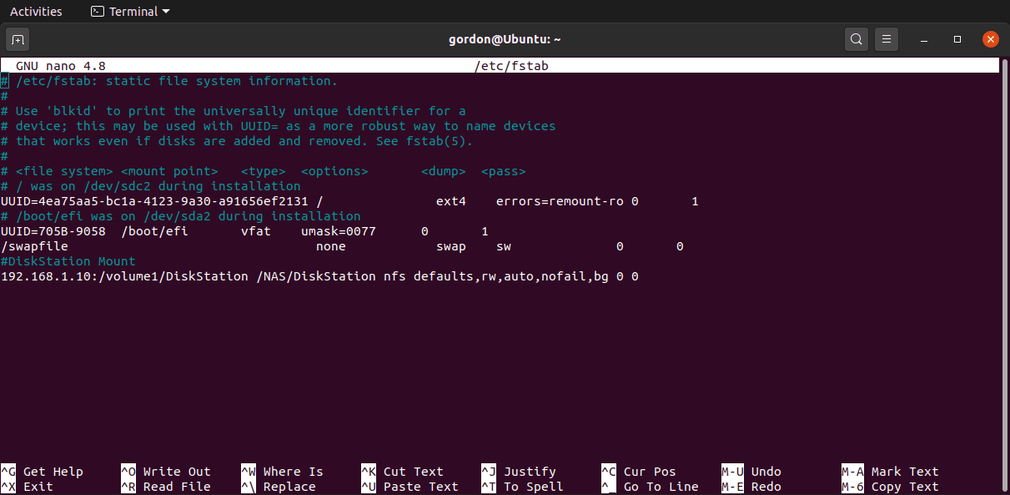
The /etc/fstab:
Now match the share name (again case sensitive)
ip.addr.of.syno:/Movies /diskstation/movies nfs defaults,rw,auto,nofail,bg 0 0
Test the mount:
mount /diskstation/movies
ls /diskstation/movies
If there were no errors and content is visible, you’re done.
If no mount errors but no content - fix the permission on the Syno.
If you get a Helper error, install package apt install nfs-common
I completely fail to understand how a linux distro refuses to include the NFS client in the default package 
1 Like
got the contents to show via ls. Not seeing it mounted on the sidebar though. Will this automount on startup?
@eaDir is showing in all the folders now. Why is that?
-
@eaDir is created by Synology Indexing service. You can turn that off. I have a scheduled task, which runs as
roottofind /volume* -name @eaDir -exec rm -rf {} \; -
If you added
autoto the/etc/fstabcommands as I showed, it will automount.
Be aware, Ubuntu mounts are aggressive / broken.
I have this hand-crafted service which takes care of it. By the time I log in, everything is running fine.
[chuck@lizum ~.503]$ cat /etc/systemd/system/chuck-nfs.service
#  Chuck's fix for broken Ubuntu NFS mounts

[Unit]
Description=Mount NFS partitions after system boot
After=network-online.target

[Install]
WantedBy=multi-user.target


[Service]

Type=oneshot
ExecStart=/bin/sh -c 'sleep 10 ; mount -a ; exit 0'
User=root
Group=root
[chuck@lizum ~.504]$
The root cause here is that network mounts (NFS & CIFS) run BEFORE the network adapter is ready (has an IP address and route table entry). It has nothing to do with NFS.

If I may?
This is linux. Get used to doing things from the command line.
- Close everything which is using that directory. Stop Plex too.
- From the command line:
sudo umount -f /media/diskstation
If it complains it’s still in use - reboot (the easiest way to regain control plus your /etc/fstab will not fail system startup)
Linux is strict on permissions and which users can perform which operations. This is a difficult concept for most who try using Linux.
Ok, that’s unmounted but what now? How do I get the new mount point mounted?
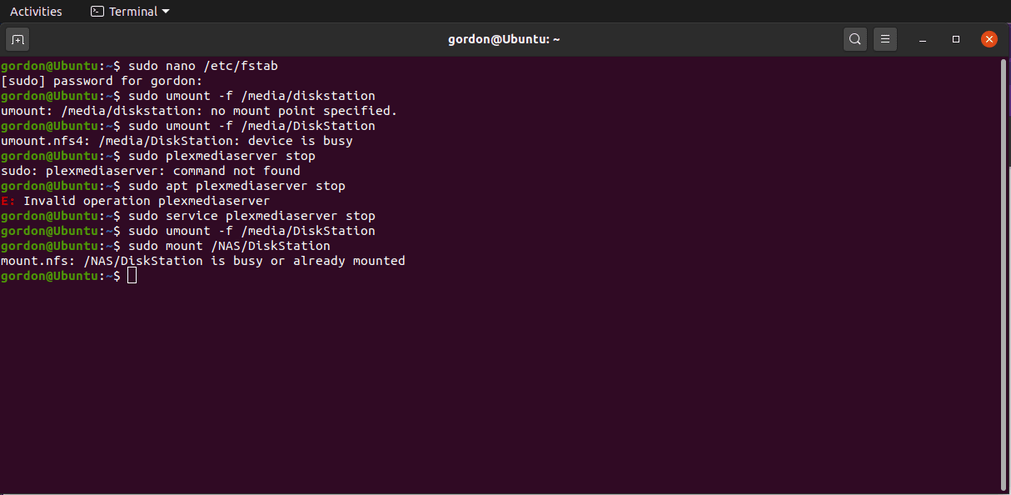
sudo umount -f /NAS/DiskStation
to unmount the partition
if it refuses to cooperate, restart
Also, if you have a terminal window open with the current directory sitting on /NAS/DiskStation, that will hang it up as well.
problem. I used chmod command while nas was mounted and now my movies and some shows have disappeared on the nas. any way to get everything back?
chmod wont destroy. anything so I fear there might be something else going on.
To open up all perms you can do this
sudo chmod 777 /directory/*
If you want to recursively include subdirectories add -R
The movies folder and things have gone from my nas. Any way to recover them? Lost a lot otherwise.
Outside of explicitly deleting, or disk crash etc, stuff generally wont disappear.
To discover everything that’s on there try doing a simple find
find /directory
If it’s real big you might want to sort everything
find /directory | sort
My disk space have freed up significantly, so I do think things have been deleted
