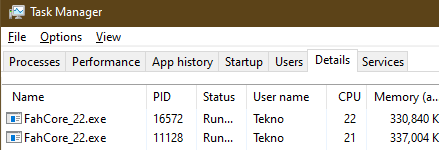
All similar threads are dead/locked. Apparently this has been an issue for years now but I am just noticing it myself. I have Python (PlexScriptHost.exe) running 10 times and eating up A LOT of resources. How do I resolve this? (Many thanks in advance)
Server Version#: Version 1.21.1.3876
Player Version#: Version 4.47.3
I can no longer attach the zip of my logs. The forums give me an error: “Sorry, the file you are trying to upload is not authorized (authorized extensions: jpg, jpeg, png, gif).”
I don’t know if the issue is recreated at the moment. I just know it frequently had many (6-10) instances of Python listed in my Task Manager on most days. Right now there is only 1. When I created this thread there was 10. Plex Media Server Logs_2021-01-08_14-32-52.zip (1.9 MB)
I’m not seeing any errors or obvious problems in the current log, but if there weren’t any stuck processes when you took the log, that isn’t really surprising.
While waiting for the problem to manifest, I would suggest you open windows task manager (right click windows task bar > task manager) and add the path & command line columns.
This will let you see the processes on task manager, what the path is for the executable, and what the command line is trying to do with that process.
This should help identify what the processes are stuck on.
open task manager, expand details if necessary, select details tab:
right click one of the column headers (ie ‘name’ or whatever) and select columns
in the columns dialog, scroll down and select the image path name and command line options, then press OK
now the columns are added, you can scroll over, if necessary, and expand the column widths so you can see more info. (you can also mouse over the field to see the whole thing).
now whenever you find stuck processes, you can easily see exactly where the process/exe is stored, and what the command line is to see what process is doing what.