Server Version#: DSM 7.4.1-90080
Player Version#:1.43.4.10903-720010903
Plex Crash Uploader.1.log (764 Bytes)
Plex Crash Uploader.log (640 Bytes)
Plex Crash Uploader.5.log (764 Bytes)
Plex Crash Uploader.4.log (640 Bytes)
Plex Crash Uploader.3.log (763 Bytes)
Plex Crash Uploader.2.log (640 Bytes)
The crash uploader logs only show if a crash report has been uploaded to plex.tv successfully or not, they do not have any other relevant information in them.
Try uploading your Media Server logs instead.
Open Plex Settings > Troubleshooting > click on Download Logs and post the resultant .zip file here.
That said, quite often, damaged or poorly encoded media files can cause the server to crash.
Check your media files carefully.
The Plex analysis logs can sometimes help to locate damaged/poorly encoded files.
The log files do not show any crashes. They show orderly shutdowns of the Plex server.
Can you provide more details about what is happening?
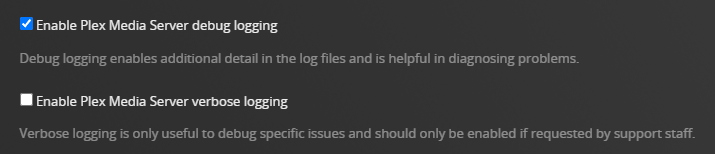
Also, please turn off verbose logging. It adds a lot of information to the files and makes them more difficult to read.
Settings → server_name → General + Show Advanced.
Then restart Plex Media Server (required when changing to lower logging level).
I think the issue isn’t crashes, but rather the server’s “claim” status. A few days ago, I disconnected it and re-claimed it; it worked fine for a while without disconnecting, but now it has disconnected again.
What is not working? Can you not login, not stream, not stream remotely, etc.?
To check claim status, go to Settings → server_name → General. It will state whether or not the server is claimed.
You can also point a browser at the IP address of the server: http://10.100.102.71:32400/identity. You should see one line of XML containing claimed = "0" (unclaimed) or claimed="1" (claimed).
Suddenly, I just lose access to the server, and I have to power-cycle it via the NAS to get it to reappear (this is on the internal network).
Sometimes I leave the Plex window open while the server is running, and then—after a while—I refresh the page; this is the message that appears (I’ve translated it into English).
I’ve figured out when this happens: it occurs when I open Plex on my computer—the Plex instance on the NAS disconnects.
If that is in fact the case, then you most likely have a network conflict in your settings somewhere.
Double check your network settings and make sure your PC and NAS are using different IP Addresses and that you are accessing each server with the correct IP Address for that server.
Don’t forget, you must select which server you wish to work with in Plex/Web > Settings.
Note: I have 3 servers
Diskstation = DS1815+
Plexstation = DS1813+
ROGStrix = PC
In the example above, Plexstation is the selected server as depicted by the orange tick and the name beside General.
Click on the server name (top left) then select the server you wish to work with.
In my setup, both have different private IPs but share the same public IP and port. As you can see, Remote Access doesn’t work for either—or, at times, it works intermittently, but only for ‘mynas’. Furthermore, enabling Remote Access on both simultaneously can sometimes cause the Plex instance on the NAS to stop working.
Double check your port forward rules in your router settings.
Each server should be using different external port numbers and those numbers should be in the range of 49152 to 65535.
Numbers in that range have the least amount of traffic on them.
Only the internal port numbers should be the same, 32400.
Do not use host names when addressing Plex either. Always use the IP Address.
On my router, there is only one port for the NAS, where the external port and the internal port are identical.
Then you need to change that.
External Port number should be any number between 49152 to 65535
Internal Port Number should be 32400
The same applies to your PC, but use a different external port number than the one you used for the NAS.
In Plex Settings > Remote Access > Manually specify public port use the same external port number here and click on apply and then click on save changes.
Make sure you have selected the correct server though.