Well can you offer any options? He was the second guy I talked to because the first guy didn’t know his ass from his elbow. when I go storage manager > volume > action… the add disk is greyed out. or on the storage pool action, its not even there as an option. but they Synology sees the drive no problem
remux is done, I’m gonna try out
Here is SHR. I can ADD storage to either one any way I want. Now, because it’s a 4 bay and all 4 slots have been used, my only option is to add bigger drives but it will do it
This is expandable by increasing the size of any ONE drive in either volume.
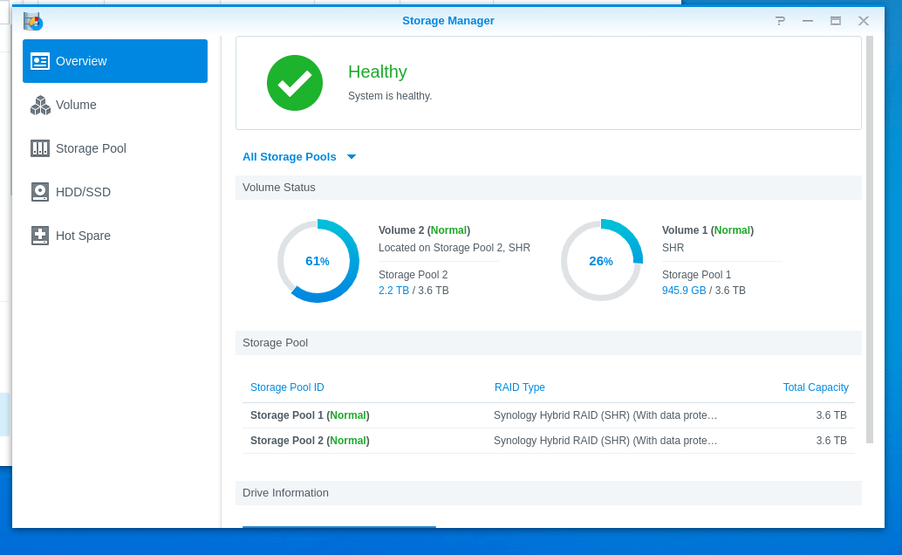

This is RAID-5
This is fixed in size until such time as ALL drives are bigger. That’s the key.
With RAID-5 you get ( Number-of-drives - 1) * size-of-smallest-drive.
When all drives are the same size (all bigger), you then get the BIG STEP up to expand into the space added by ALL the drives.


Which do you have ?
Ill get some screen shote and show you what I’m seeing.
in the mean time, the file still skipped. And I made crazy, but it appeared the picture quality wasn’t as good, not was the audio. is that possible?
Its definitely better, it only gave me the buffer wheel once, but did stutter once or twice too.
should I try it on my laptop?
heres the logPlex Media Server Logs_2020-05-21_20-25-32.zip (1.8 MB)
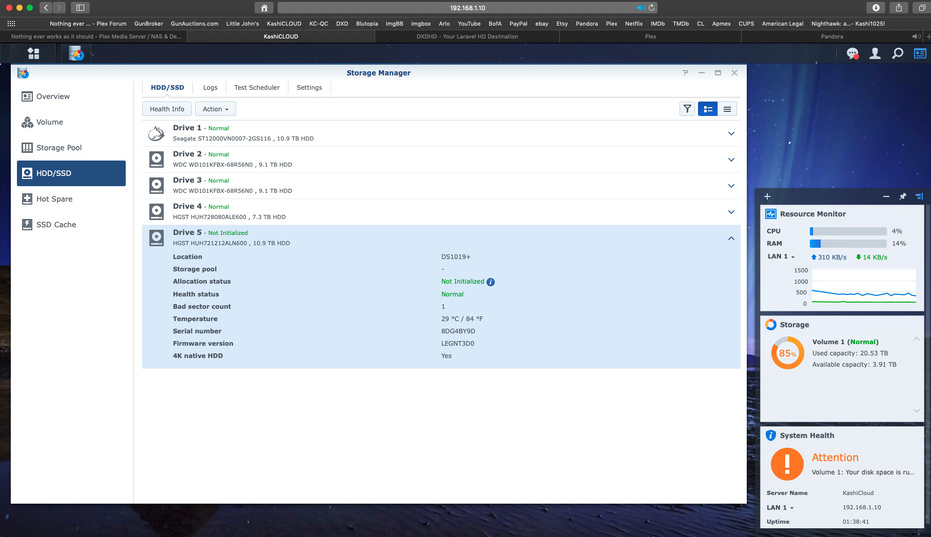
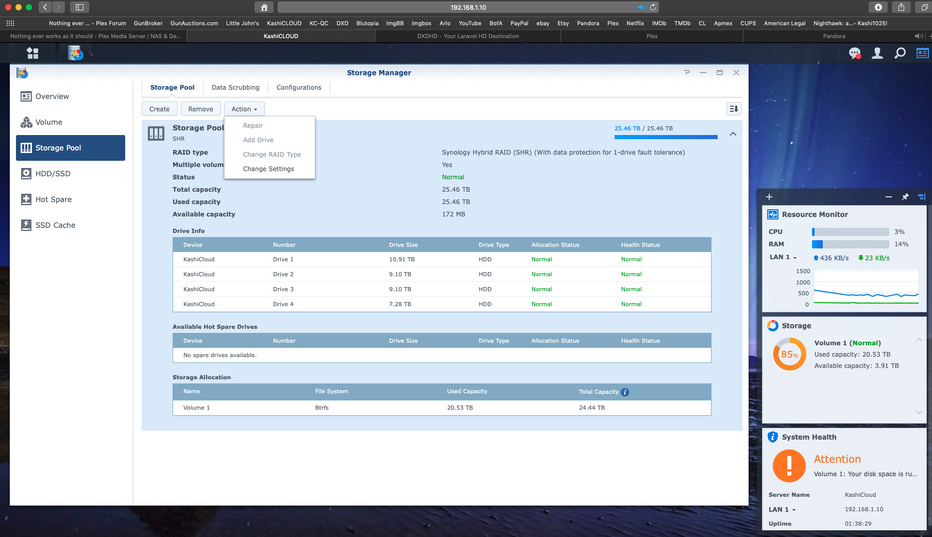


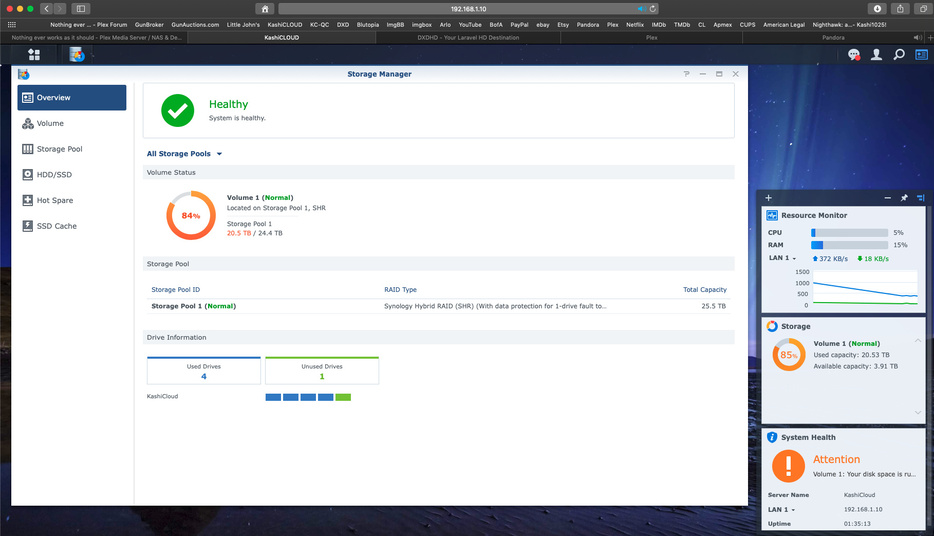
You have 4 of the 5 slots used. Correct?
What is the drive you want to put in the 5th slot? Make & Model number?
Thats correct, its an HGST Ultrastar 12tb.
Ultrastar He12 Model HUH721212ALN600
Manufacturer Part# 0F30141
UPC Code: 783555172247
Condition: Factory New
- Product Type: Hard Drive
- Storage Capacity: 12 TB
- Drive Interface: SATA
- Spindle Speed (rpm): 7200
- Buffer: 256 MB
| ### HGST 0F30141 Specifications | ||
|---|---|---|
| — | — | |
| HGST Hard Drive 0F30141 3.5 inch 12TB ES 72000RPM 256MB SATA |
the first guy from Synology said it was uncaopatible, but ive got another HGST 8tb in there already ant it works fine. The second guy I talked to said that even if its not on the compatibility list, if the DSM see the drive and know its name and shows the specs, then its compatible. The first guy even had me remove all 4 drive mometarity, and install DSM on the single new drive. He said if DSM installs on it, it’s compatible. Well it did just fine. heres a photo of Bothe my HGST Drives. the 8tb is in there already and the 12tb is what im adding

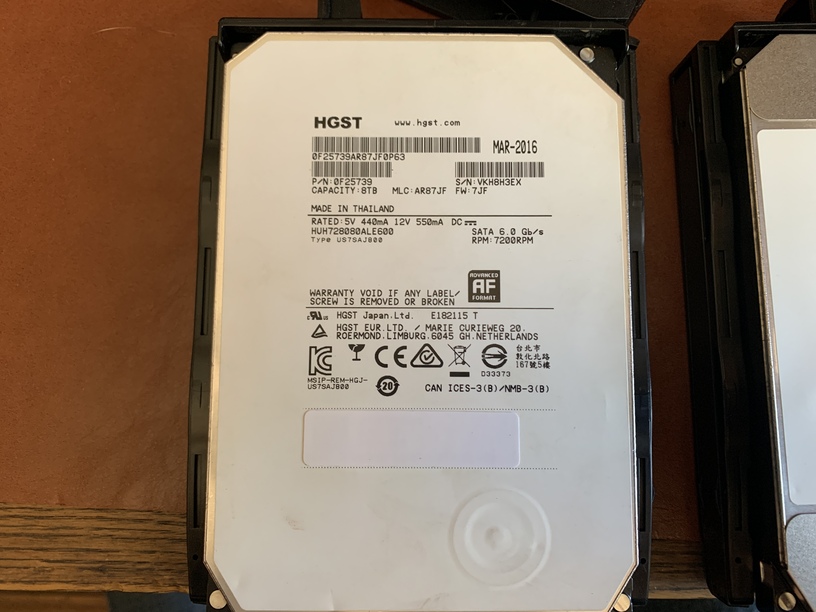

NAS model? I’m going to get their compatibility guide
its actually not a new drive as it was listed on Ebay , and I shows 1132 hours and one bad sector, so im in a spat with the seller at the moment.
1019+
its is what the first guy wanted me to do. ::
Please follow these instructions. This procedure will wipe your current DSM install and packages but will retain your data:
- Shut down the system.
- Remove all the hard drives & SSDs from the system.
- Find a spare hard drive or SSD of any size that you do not mind completely erasing the data and insert it into the system drive bay 1.
- Use Synology Assistant (available in the Download Center on http://download.synology.com/) to install the DSM onto this spare drive. DO NOT CREATE VOLUME AFTER INSTALLATION. If a volume was created during installation please remove it before proceeding to the next step.
-
When the DSM is fully running on the spare drive and you are able to log in and connect through the web interface, shutdown the NAS.
- Physically install all of the original drives back into the NAS except for the drive bay where the spare drive is located. Make sure to leave the spare drive in drive bay 1 as this holds the DSM installation.
- Boot up the NAS and verify that you can see your data, including iSCSI LUNs if you had any. The volume status at this point will be “Degraded”.
- (optional) Repair the volume under Storage Manager > Storage Pool > Repair and select Disk 1. It will need to erase this drive in order to add it back to the RAID.
he called it a hot plug recovery
12 TB is compatible . They don’t list the the ALN but do list the ALE (same drive)
As for the bad sector? Yeah. that’s a problem. It should not have any defects at this point and may be why it’s not on the list ?
what else do you have to add?
FYI: I always buy NEW drives to avoid this kind of problem.
yea I’m returning it. do you like HGST (now WD) or do you think the Synology runs better with the Seagates? IMO Seagate’s have been junk. and the MBRF or whatever its called is way low compared to the HGST
At the moment I only have an old 6tb HGST I found on set. it runs but has 8 bad sectors. and a 1tb WD green that I use as a second hard backup of my important files of site.
WD / HGST all the way here.
WD Red Pro drives. Period.
HGST’s top of the line became Red Pro.
I have 12-15 drives here with 30,000+ hours on
Here’s one in the DS1815+

I think Seagate has a contract or marketing thing with Synology. It what they recommend, but I think its just because seagate pays them
ok my two 10 tb drive in the SHR are red pros
any more drives, even an 8TB you can add?
nope, I’m going tone ordering a new one and can see what happens when it gets here.
WD Red Pro will slide right in.
- Install the drive.
- Add the drive to the volume
- Extend the space to use what was added
Might take 36-48 hours to reshape (what RAID volumes do when you change the physical layout)
Yea I read about the sechaoing taking forever.
FML, the red pro 12 tb is $430. The gold is one $360. it seems weird that the enterprise version is cheaper then the NAS version. even if it is a pro
