Better, cheaper, and easier to fight a “I copied my own disks” case, than a “I acquired these illegally via usenet and torrent” case. You know? I mean, I don’t admonish anyone for acquiring their movies how they wish to acquire them, that’s on them, I just choose to acquire mine in a manner that gives me piece of mind and an easier out if stuff hits the fan. I got a lot to lose, and I am not going to let $0.20/movie be the barrier that causes me to lose it all…
I don’t need every movie top quality just my favs, Star Wars, Blade Runner series, and a few others. The rest i’m not concerned about but i don’t have a BR drive on my computer so i can’t rip my BR for personal use. That may be worth getting, a BR player and rip the few movies I want to rip for my personal home use.
Steve,
I have this same question. I have about 112 movies on my PLEX Server (brought over from my old XBMC box). They are all .MKV (file type frim MediaInfo) shows them as AVC files. Some of them are quite large - as I used Handbrake (purchased version) to rip my DVDs and BRs to the old XBMC box and had it set to the ‘best quality’ setting.
I would like to make them smaller, and convert them to H.265 (HEVC). I played with a program last night which converted 5 minutes of one of them - took about 58 minutes on Core i3 3.8GHz CPU with 16GB RAM). No supplemental video card - just what the Core i3 has.
I set it to maintain the 6-channel audio and changed nothing else. I did watch the video once completed - it sounded the same as the other one (.MKV file) and looked the same. But given that it was only 5 minutes - I was not able to really compare apples to apples for file size.
MediaInfo did show it was HEVC as opposed to AVC.
So my questions to the group are:
-
Anyone recommend this conversion?
-
I have another Windows 10 PC with a Core i7 CPU and 16GB RAM I can use, and also a MOJAVE MAC with Core i5 and 16GB RAM - which would be better?
-
Anyone have suggestions of a good app (not unwilling to buy one), but not looking to buy 3. LOL
Thanks in Advance,
bh
But sometimes he agrees with someone and he can’t be right while the person he agrees with is wrong. That is simply impossible, or maybe not so simply.
You are wasting your time with HEVC and DVD encodes.
-
your machine, as you found out, will take FOREVER to do anything - 3 times FOREVER to do anything with HEVC.
-
Did you find out how many devices connected to your Plexiverse cough up a hair-ball on HEVC?
-
Better go do that.
-
if you have the ‘Paid’ Version of Handbrake - make sure you have the very latest version - 'cause it’s free and has some excellent improvements.
Use these settings (Exactly), make small DVD files - you probably can’t distinguish from the orignals - and enjoy life a little (DVD Settings are in the second section down the page a bit).
Test some files, the speed of the encode, how they look on your displays and see if that’ll work for you.
Practice your HEVC skills for when you get 4K and really need them.
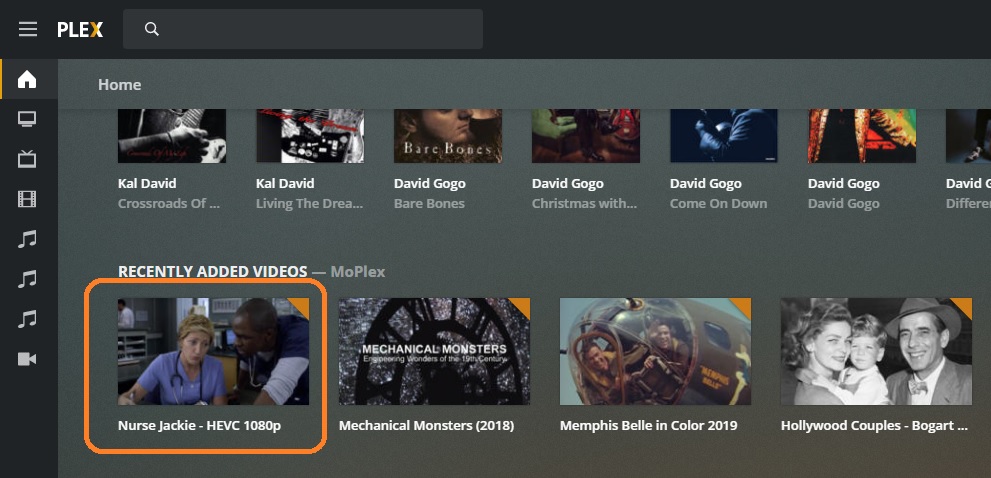
Easy - by making a ‘Preview’ of an HEVC encode (240 seconds is a good test file), dropping it in an ‘Other Videos’ Library and testing it on all your possible devices.
Like this test - I keep around for testing things like this:
this type of information is not really helpful unless you include the rest of the cpu identifier.
like i3-8100, or i7-3770
8100 is way better than 3770
there are like NINE different generations going back to 2008, so i7 by itself is meaningless.
I believe that says all that needs saying.
It’ll be MUCH faster with my settings - AVC - and a ‘reasonable’ bit rate.
It’ll still be slow - but not HEVC slow.
not really, because newer intels can make use of quicksync to speed up encoding.
but if he doesn’t have one with quicksync, that doesn’t help him.
I have never encoded more than a ‘test’ with HEVC and have never used Hardware in my life, but every piece of documentation I read tells me Hardware is inferior to Software when using Handbrake in every conceivable way.
That’s what I read.
I haven’t tested the theory.
that could be, or maybe newer hardware does better.
either way, it would be up to the individual user to determine if they can stomach any trade off between speed and quality.
what looks good enough to you or me, may not be the same, or for anyone else.
in any case, I am not disagreeing that HEVC takes longer than x264/avc.
also whether the space savings is worth the conversion quality loss, is also up to the user.
That is a fact, Jack.
I think ‘good’ 480p is fine.
It might make somebody else hurl.
Beauty is in the eye of the beholder.
Previews are very telling if used.
Both of these are Windows 10 Pro with 16GB RAM
Core i3-4370 - This is my PLEX Server
Core i7-3770 - This is my personal workstation.
This is my MAC - running Mojave with 16GB RAM
Core i5-3475S
Ok so none of those have support for hw encoding hevc, so it the cpu itself will be used and it will take a long time for each video that you decide to convert to hevc.
Thank You… One of the other reasons I used HandBrake when I ripped all my DVDs and BRs - it allowed me to get rid of (by changing the dimensions of the videos) to get rid of the blasted BLACK BARS at the top and bottom. Took some trial and error - but once I got what I wanted, I used my old server 16-core 3.4GHz with 48GB RAM and 12TB HDD space to perform my conversions/ripping. It had 3 DVD/BR drives and I could do 3 at a time.
Still took me months to do all of my movies, but I was happy with the results. Now I just want to (if possible) make them smaller than 9.8 to 16GB on the HDD.
bh
Is there a chart someplace for the CPUs which do support it.
I have parts to build another PC - but never got around to it, with an AMD X6 1045T CPU and 16GB RAM.
for quick sync support for intel cpus, you would need at least a 6000 series cpu for hevc 8bit, or 7000 series cpu for hevc 10bit.
newer nvidia gpu’s also support hw decoding/encoding.
Video Encode and Decode GPU Support Matrix | NVIDIA Developer
essentially 10 series or newer.
Ideally, you want to work again from the discs.
After you strip out the raw elements with MakeMKV.
However - since you have what amounts to a placebo copy (bit rates far beyond original) - your stuff ain’t gonna be bad to work with.
The point is - if you lower the bit rates of your encodes - to just above where you start seeing any difference - the 264 encodes you do on ‘Your Strongest Horse’ are going to move along more quickly than they did previously.
Try my settings first - adjust as necessary.
When working from the original files do make sure to de-interlace any material requiring it. Yadif Default with no detection is fine.
Do try this filter - especially if de-interlacing as it will soften the image a little:
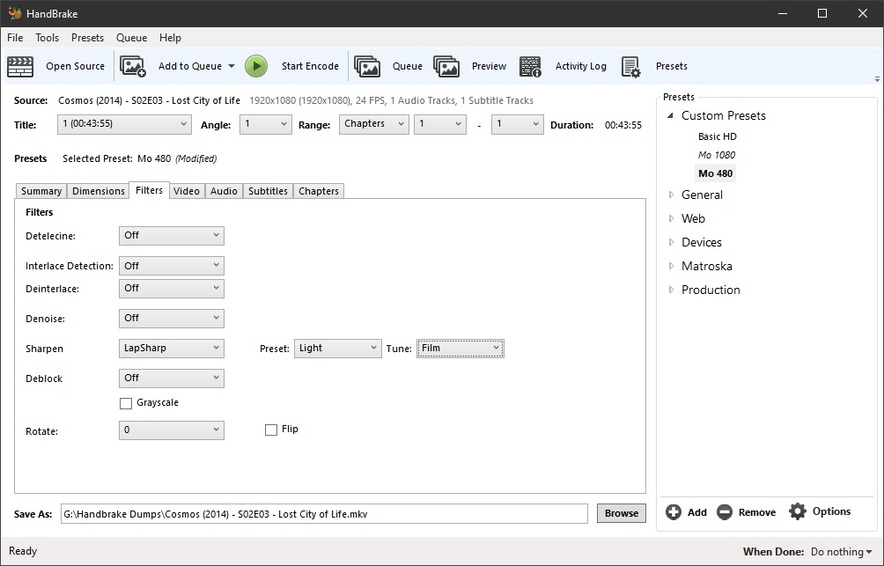
I change the tune from Film to Animation as required and it does magical things you can’t quite put your finger on - and that’s what you want:

(make sure your material doesn’t look like that when you’re done, but it’s hilarious, right?)
(what is not hilarious is that adding filters adds time to the encode - how much depends on your horsepower. Some filters are necessary - some are worth the time they require - both I’ve mentioned have those attributes)
Maybe I look a building a new system with a Core i5-9600k. Reasonably priced, and I am sure thet are some decent motherboards out there to support it which have M.2 onboard controllers and SSDs. - that CPU also supports the DDR3/1333 RAM which I already have in the existing system (16GB worth)
I really do not want a SEP VID CARD -I prefer to have everything onboard. Not wanting to build a GAMING system - as I do not play them. But like a robust system which can handle intensive tasks and do multiple things simultaneously.
Update - I converted one of my files over night last night. The .MKV file was 14.9 GB (16,023,757,533 bytes) in size as an AVC file.
The new file is 5.52 GB (5,929,660,466 bytes) almost 1/3 the size.
So far it plays just fine with the PLEX APP on my Windows 10 Pro computer (my personal computer). Still yet to try it on PLEX App on my FireStick or the PLEX app installed on my SAMSUNG TV. But I plan on that later today.
Here are the settings that I used - much of them yours:


I still need to test out the SUBTITLES - as all of my RIPs I am looking at converting - have Subtitles burned in them.
I want to thank you for your assistance. I am planning on queuing up about 4 movies at a time, and let them run through HandBrake and convert them.
The converson of this one movie I have done ran about 5h41m - no too bad to free up that much space.
bh
Turn off all filters for HD material unless it’s interlaced. If so, de-interlace and add a light or medium Lapsharp, but test first.
Use NO Anamorphic for HD material. Ever. Under no circumstances.
Do the Turbo First Pass. Tick that box next to Average bit rate and set it to 2650kbps <—if ur gonna use HEVC - let’s use it.
Select AC3 Passthrough.
Delete the one you made - make a 240 Second Preview with those settings and take a good look at it - while it’s in an Other Videos Library.
Ur gonna find out you don’t need as much bit rate as you think you do - especially for animations. And under no circumstances use the Animation Tune for a Movie.
Put MediaInfo on that thing and let’s see a MediaInfo report on the original - like this one:
General
Unique ID                                : 223467920223912771295250770477807533488 (0xA81E5B1D5EFF499B32FD35FEC9FB7DB0)
Complete name                            : D:\Handbrake Dumps\Brockmire - S04E01 - Favorable Matchup.mkv
Format                                   : Matroska
Format version                           : Version 4
File size                                : 222 MiB
Duration                                 : 21 min 35 s
Overall bit rate                         : 1 438 kb/s
Encoded date                             : UTC 2020-03-20 17:10:03
Writing application                      : Lavf58.26.100
Writing library                          : Lavf58.26.100
ErrorDetectionType                       : Per level 1

Video
ID                                       : 1
Format                                   : AVC
Format/Info                              : Advanced Video Codec
Format profile                           : High@L4.1
Format settings                          : CABAC / 4 Ref Frames
Format settings, CABAC                   : Yes
Format settings, Reference frames        : 4 frames
Codec ID                                 : V_MPEG4/ISO/AVC
Duration                                 : 21 min 35 s
Bit rate                                 : 1 050 kb/s
Width                                    : 720 pixels
Height                                   : 480 pixels
Display aspect ratio                     : 16:9
Frame rate mode                          : Constant
Frame rate                               : 23.976 (24000/1001) FPS
Color space                              : YUV
Chroma subsampling                       : 4:2:0
Bit depth                                : 8 bits
Scan type                                : Progressive
Bits/(Pixel*Frame)                       : 0.127
Stream size                              : 158 MiB (71%)
Writing library                          : x264 core 157 r2935 545de2f
Encoding settings                        : cabac=1 / ref=3 / deblock=1:0:0 / analyse=0x3:0x113 / me=hex / subme=7 / psy=1 / psy_rd=1.00:0.00 / mixed_ref=1 / me_range=16 / chroma_me=1 / trellis=1 / 8x8dct=1 / cqm=0 / deadzone=21,11 / fast_pskip=1 / chroma_qp_offset=-2 / threads=12 / lookahead_threads=2 / sliced_threads=0 / nr=0 / decimate=1 / interlaced=0 / bluray_compat=0 / constrained_intra=0 / bframes=3 / b_pyramid=2 / b_adapt=1 / b_bias=0 / direct=1 / weightb=1 / open_gop=0 / weightp=2 / keyint=240 / keyint_min=24 / scenecut=40 / intra_refresh=0 / rc_lookahead=40 / rc=2pass / mbtree=1 / bitrate=1050 / ratetol=1.0 / qcomp=0.60 / qpmin=0 / qpmax=69 / qpstep=4 / cplxblur=20.0 / qblur=0.5 / vbv_maxrate=62500 / vbv_bufsize=78125 / nal_hrd=none / filler=0 / ip_ratio=1.40 / aq=1:1.00
Language                                 : English
Default                                  : Yes
Forced                                   : No
Color range                              : Limited
Color primaries                          : BT.709
Transfer characteristics                 : BT.709
Matrix coefficients                      : BT.709

Audio
ID                                       : 2
Format                                   : AC-3
Format/Info                              : Audio Coding 3
Commercial name                          : Dolby Digital
Codec ID                                 : A_AC3
Duration                                 : 21 min 35 s
Bit rate mode                            : Constant
Bit rate                                 : 384 kb/s
Channel(s)                               : 2 channels
Channel layout                           : L R
Sampling rate                            : 48.0 kHz
Frame rate                               : 31.250 FPS (1536 SPF)
Bit depth                                : 16 bits
Compression mode                         : Lossy
Delay relative to video                  : 3 ms
Stream size                              : 59.3 MiB (27%)
Title                                    : Stereo
Writing library                          : Lavc58.46.100 ac3_fixed
Language                                 : English
Service kind                             : Complete Main
Default                                  : Yes
Forced                                   : No

Text
ID                                       : 3
Format                                   : UTF-8
Codec ID                                 : S_TEXT/UTF8
Codec ID/Info                            : UTF-8 Plain Text
Duration                                 : 21 min 30 s
Language                                 : English
Default                                  : No
Forced                                   : No
https://mediaarea.net/en/MediaInfo/Download
The subs you can copy through - but they’re gonna be ASS subs.
You have been warned.
Those 240 Second Previews REALLY come in handy - unless you enjoy those 8 hour encodes to find out you totally blew it…

