New to Plex, to start I’m trying to make our computer stored photos and screenshots available on our Roku.
Question: Is there a way to keep photos organized into a folder structure? As it seems now, for example, I added 4 folders of computer photos each with approximately 100 photos. All 400 photos are added to the library but they’re not organized or kept in separate folders. Instead of browsing a folder at a time all photos are shown together in the library. This makes it also impossible to find, as another example, my son’s wedding pictures from 2015 that are grouped into a separate folder on the computer. We have thousands of photos - having a list of folders (Wedding, Vacation 2019, Birthday 2010, etc.) that we can pick from to view would be the first step, not a library of icons representing all 5,000 or so photos.
Do I need to create a “library” for each group/folder of photos? Not sure the limitations of Plex regarding libraries or if this even make sense.
Anyone?
Which viewing mode are you using? In Plex Web, when viewing a Photo library, there’s a bar at the top with choices of “Recommended,” “Timeline,” “Library,” and “Playlists” (Playlists only appears if you’ve created one.
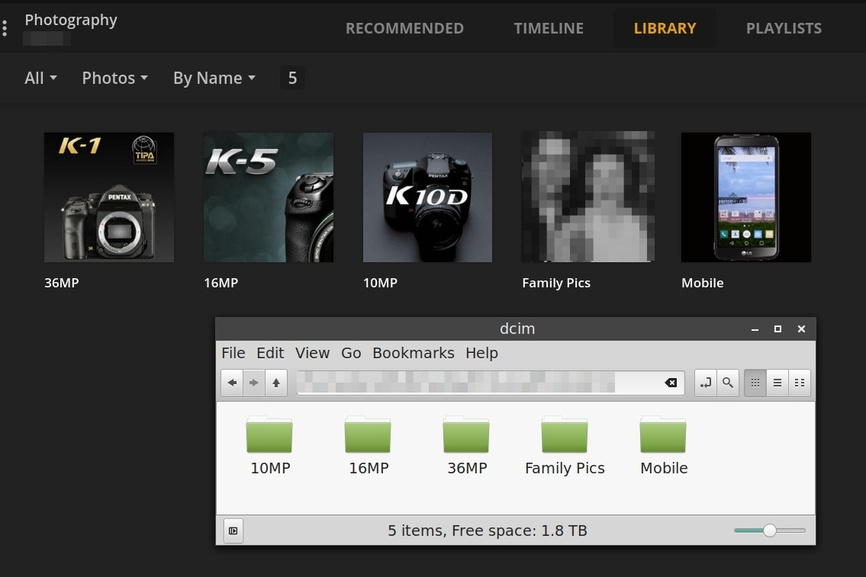
If you select the “Library” tab, the library will mirror your folder structure, as shown below.
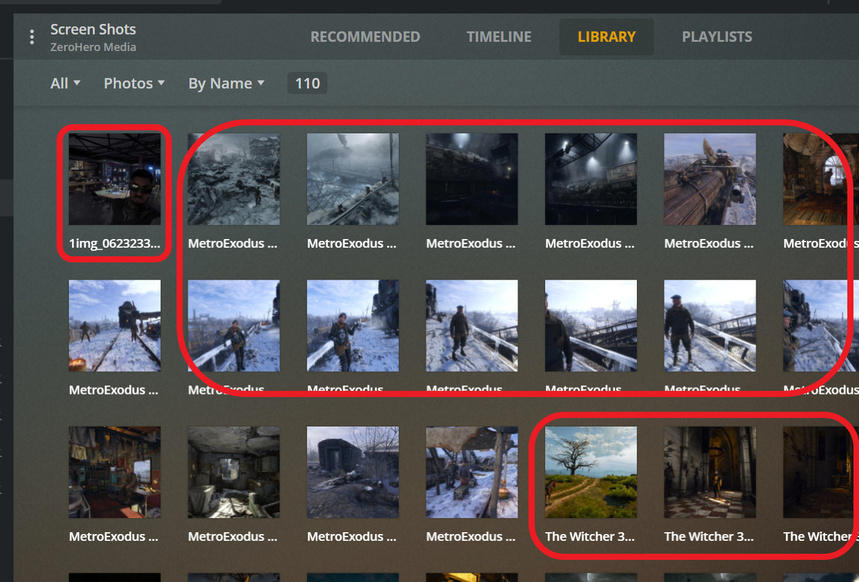
Thanks for the response. What you have indicated is what I was hoping for but I’ve played with most all of the settings and I don’t get any folders - only pictures. The screenshot I attached is showing my screenshots from 3 different folders. Whenever I add a folder to a library it adds icons for all of the pictures of the folder to one big list (110 screenshots in my example). What am I doing wrong? Could it be that I’m using the free version at this point?
Can you Edit the library, go to the Add Folders page, and screenshot that?
A screenshot of the folder structure on your storage drive would help, too.
I also just tried reinstalling Plex server (v4.30.2), to start with a fresh DB, but with the same results. After reinstalling I didn’t do a scan, just created a library and added 3 folders of screenshots.
Okay, that’s what I suspected. Remove all those paths from the library and make it
D:\Screenshots
Then run the Scan Library Files command again.