Hi All,
Experiencing issues with playback that’s a show-stopper for a lot of content for me.
What I’ve seen:
sometimes i’ll see weird pixelation occur (taking up whole screen)
sometimes i’ll see screen turn almost entirely green and also pixelate
Sometimes audio will either outpace video, or lag behind it severely
Often, video playback still just stop after a few seconds & quit out to the main Plex screen
Environment:
- Version 1.27.0.5897
- PMS is running off a 2018 Mac Mini (MacOS: Monterey 12.3.1).
- Hardware: 3.2Ghz 6-core i7, 16GB RAM 2667MHz DDR4 & Intel UHD Graphics 630 1536 MB
- Storage: 2-Bay QNAP DAS with two 6TB Drives (thse were installed April 2022, replacing 4TB Drives). Iron Wolf drives at 7200RPM’s
- Player Version#: Roku Version 7 Build 11 (have also seen this issue on playback on other hardware)
Note:
- Used “blackmagic disk speed test” and tested the drives. R/W seems fine and consistent (no wildly different results)
I’ve attached verbose enabled logs (i can attach non-verbose logs if needed)
Plex Media Server Logs_2022-06-17_12-37-02.zip (2.8 MB)
. For reference: attempted playback of Brooklyn Nine-Nine on June 17th at 12:30PM Mountain Time (video playback quit out after a few seconds).
I don’t see any clues/indicators in the logs as to why that happened.
Any ideas as to why this is happening?
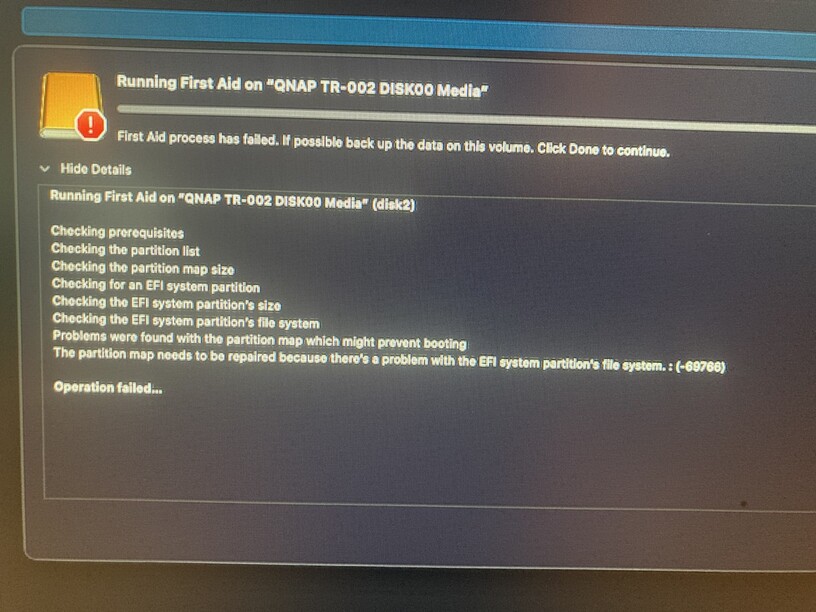
Attached screenshot shows Disk Utility Analysis on the DAS drives on MacOS, but not sure if that’s applicable
“Topic will close after three months of ignoring you”
Is there a file that is consistently problematic? Can you play it with something like VLC? If it doesn’t work in either, I’d say your disc problem might be an indicator.
I’d try copying problematic files to another USB drive. See if they copy correctly. Then add this drive to Plex and see if you can play from it. That should give you a better indicator of where the problem is.
Good luck,
Chris
Is there a file that is consistently problematic?
- Have a few files that are consistently problematic (so I can always go back to these same ones for testing). For further testing today it was Brooklyn Nine-Nine Season 4 Episode 4 & Under The Banner of Heaven Season 1 Episode 5 (though overwhelming majority of content added since April HDD switch has issues)
Can you play it with something like VLC?
- Tried this, and also seeing issues (usually playback via VLC can overlook other issues). Note: If the file is on the MacOS itself, playing via VLC has been fine (course that’s when file is not residing on external HDD. This helps point to the HDD’s in the DAS).
I’d try copying problematic files to another USB drive. See if they copy correctly. Then add this drive to Plex and see if you can play from it:
- Tried this out with Brooklyn Nine-Nine Season 4 Episode 4 , and got “Playback has stopped due to multiple playback errors” instead (in googling around this is seemingly from a metadata scan in progress? Still got this after letting MetaData finish scanning)
- The other USB drive i’ve tried out for this did not get the same MacOS disc utility results as the Drives in the DAS.
If it were me, I’d focus on the DAS box and see if I could find a problem there. Easiest thing to try first would be a different USB Cable. They can vary wildly. I’ve got a Mediasonic DAS box on my Plex server and they specifically recommended a USB A to C cable for it.
Good Luck
Chris
Definitely seems like something with the DAS box/unit.
It does use a USB A to C cable, i’ll try swapping it out and see if that’s got any impact (if not, then that rules out the cable).
Did swap out cables here (for this DAS it is a USB A to C cable) and get the same playback issues.
Seemingly, it’s not the cable.
Seems like you’ve isolated it to the DAS/DAS Drives. I feel your pain. Spent the weekend rebuilding my Plex server as it’s main SSD went bad. Was a looooooong weekend.
Good Luck,
Chris
what do you get for output when you use terminal and type diskutil list
Here’s what I get:
diskutil list
/dev/disk0 (internal, physical):
#: TYPE NAME SIZE IDENTIFIER
0: GUID_partition_scheme *251.0 GB disk0
1: EFI EFI 314.6 MB disk0s1
2: Apple_APFS Container disk1 250.7 GB disk0s2
/dev/disk1 (synthesized):
#: TYPE NAME SIZE IDENTIFIER
0: APFS Container Scheme - +250.7 GB disk1
Physical Store disk0s2
1: APFS Volume Macintosh HD 15.2 GB disk1s1
2: APFS Snapshot com.apple.os.update-… 15.2 GB disk1s1s1
3: APFS Volume Macintosh HD - Data 76.2 GB disk1s2
4: APFS Volume Preboot 762.6 MB disk1s3
5: APFS Volume Recovery 1.1 GB disk1s4
6: APFS Volume VM 1.1 GB disk1s5
/dev/disk2 (external, physical):
#: TYPE NAME SIZE IDENTIFIER
0: GUID_partition_scheme *6.0 TB disk2
1: EFI EFI 209.7 MB disk2s1
2: Apple_APFS Container disk3 6.0 TB disk2s2
/dev/disk3 (synthesized):
#: TYPE NAME SIZE IDENTIFIER
0: APFS Container Scheme - +6.0 TB disk3
Physical Store disk2s2
1: APFS Volume QNAP Raid Storage 4.5 TB disk3s1
diskutil list output
$ diskutil list
/dev/disk0 (internal, physical):
#:                     TYPE  NAME                             SIZE       IDENTIFIER
0:    GUID_partition_scheme                                 *251.0 GB    disk0
1:                      EFI  EFI                             314.6 MB    disk0s1
2:               Apple_APFS  Container disk1                 250.7 GB    disk0s2

/dev/disk1 (synthesized):
#:                     TYPE  NAME                             SIZE       IDENTIFIER
0:    APFS Container Scheme  -                              +250.7 GB    disk1
                             Physical Store disk0s2
1:              APFS Volume  Macintosh HD                     15.2 GB    disk1s1
2:            APFS Snapshot  com.apple.os.update-             15.2 GB    disk1s1s1
3:              APFS Volume  Macintosh HD - Data              76.2 GB    disk1s2
4:              APFS Volume  Preboot                         762.6 MB    disk1s3
5:              APFS Volume  Recovery                          1.1 GB    disk1s4
6:              APFS Volume  VM                                1.1 GB    disk1s5

/dev/disk2 (external, physical):
#:                     TYPE  NAME                             SIZE       IDENTIFIER
0:    GUID_partition_scheme                                   *6.0 TB    disk2
1:                      EFI  EFI                             209.7 MB    disk2s1
2:               Apple_APFS  Container disk3                   6.0 TB    disk2s2

/dev/disk3 (synthesized):
#:                     TYPE  NAME                             SIZE       IDENTIFIER
0:    APFS Container Scheme  -                                +6.0 TB    disk3
                             Physical Store disk2s2
1:              APFS Volume  QNAP Raid Storage                 4.5 TB    disk3s1
According to your diskutil output,
your external drive has an EFI partition at /dev/disk2s1
EFI partitions are FAT filesystems that can be repaired sometimes
sudo fsck_msdos disk2s1
would do that in theory.
You would see macOS using the raw device:
** /dev/rdisk2s1
** Phase 1 - Preparing FAT
** Phase 2 - Checking Directories
** Phase 3 - Checking for Orphan Clusters
0 files, 201632 KiB free (403265 clusters)
The EFI partition is automatically created by macOS when you create an APFS partition. The EFI partition is designed and used to help a BIOS boot a computer. On external drives that aren’t used to boot a computer, the EFI partition is left empty. The EFI partition is not needed on external non-bootable drives. The EFI partition can be removed from non-bootable external drives.
macOS can delete the EFI partition.
diskutil eraseVolume "Free Space" MyOldEFI disk2s1
and it’s happy to do it without using sudo, but I’m an administrator on my machine. Is any of this safe? Well I just tried verified that all the commands work and that my USB drive and data on it are okay.
caveat - backup your data and investigate what I’ve written.
Thank you!
I’ll give this a shot (however I’ll back up data first just to be a bit cautious)