Still looking good with just 15.5 and the automounter configured. Not using the conf file.
3-4 days and libraries are holding the numbers and also media files are opening up much faster now.
After my most recent update to my mac (15.5), I’ve noticed my movies folder reverts back to the default page in finder, and then Plex trashcans half of my movies. I have added the NSMB.conf file in hopes this behavior reverts back to what I had before, I could just leave the finder windows open and it worked fine.
No success here, unfortunately (Mac mini M2 Pro, Synology DS423+ running DSM 7.2.2).
I do see a small “improvement”, though: before, I had a constant number of ~950 movies missing - now it’s down to ~370.
I had to restore the nsmb.conf file.
Are you using Automounter?
I’m still not using nsmb.conf (since the 15.5 update) and just running the latest version of Automounter. Seems to be working fine for me.
Seems my open folder reverts back and away from my movie folder, but it doesn’t trash can the files now that I have added the NSMB.conf file. I will continue to monitor my situation.
I also have auto mounter.
I haven’t been using Automounter so far, but perhaps I should give it a try.
I have found a configuration that completely removes the SMB issue between Macs with Sequoia and Synology NAS. I have been testing it and, finally, it works!
You hace to put the following int the /etc/nsmb.conf file:
[default]
streams=yes
soft=yes
signing_required=yes
dir_cache_off=no
protocol_vers_map=6
port445=no_netbios
notify_off=yes
mc_prefer_wired=yes
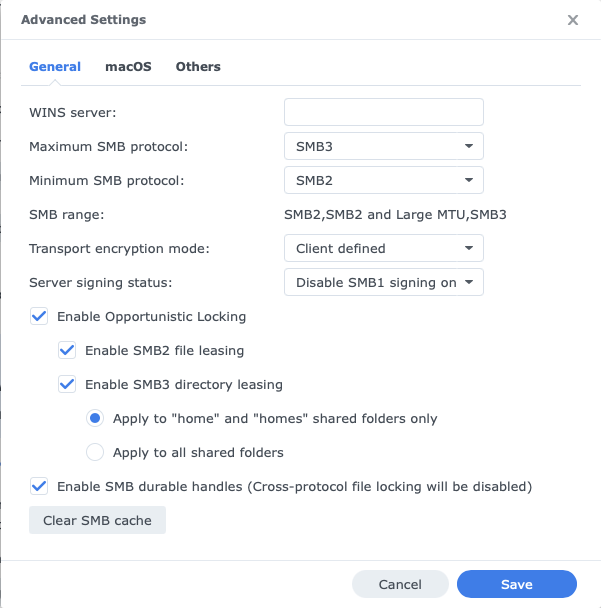
In the Synology NAS, you have to put these values in the advanced settings of SMB:

No disconnections, no trashed items, stable connection (with Automounter).
It simply works!
Thanks for the report. Other than the Synology changes, it looks like your configuration has two differences from the version that many of us have been using for some time. signing_required and dir_cache_off. Because dir_cache_off seems to be one of the primary reasons for the instability, perhaps your Synology settings offset that issue. If I have some time, I’ll try your settings with the trashing script that I’ve been using to reproduce the issue (and the same script I’ve included in my Apple bug submission).
My configuration forces SMBv3 with packet signing enabled. I think that’s what solved the problem.
FWIW, protocol_vers_map=6 allows the client to negotiate either a SMB2 or SMB3 connection. A value of 4 would limit it to SMB3 only.
Hey this worked for me 17 days ago and then today, it stopped after i rebooted my Mac Mini. I deleted the old CONF file that you posted, recreated it and now it doesnt work.
If i delete the CONF file, automounter sees the Synology drive, but PLex doesnt recognize over 330 movies.
Then if i recreate the CONF file, Automounter says “URLs with the type “smb:” are not supported.”
Im at a complete loss now on how to get it working again using Anyware’s awesome fix.
I might add, that i suck at terminal and coding, so i have to have CHATGPT help me.
I just tried this and although it didnt stop automounter from working like in the past, it still is not allowing my PLEX server to see over 300 movies.
I also dont have a Enable SMB3 Directory leasing option to check in the advanced setting in synology.
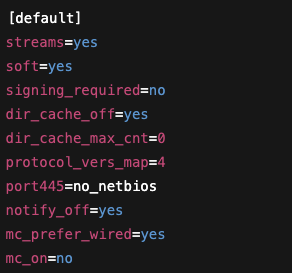
My actual /etc/nsmb.conf:
[default]
signing_required=no
streams=yes
soft=yes
dir_cache_off=no
protocol_vers_map=6
port445=no_netbios
notify_off=yes
mc_prefer_wired=yes
My Synology configuration:
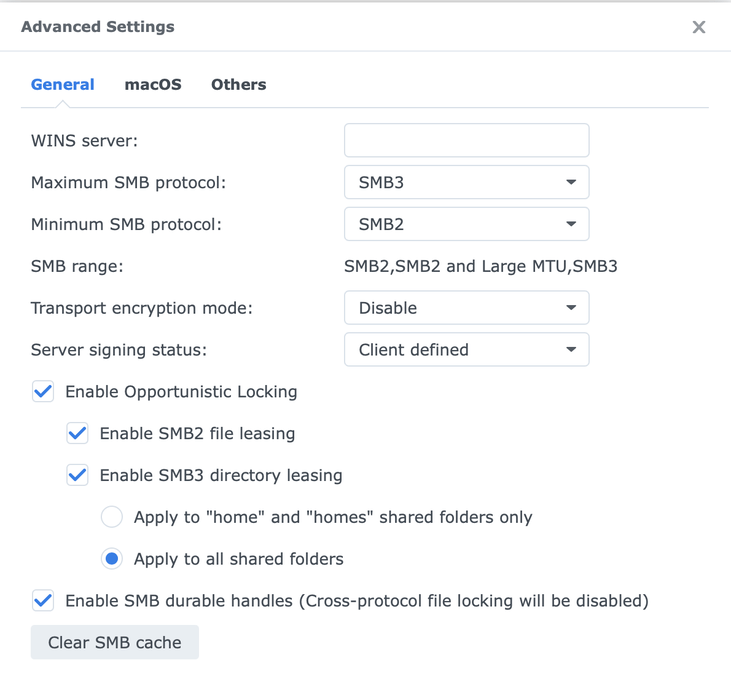
Without packet signing. For me is rock solid, 3078 movies in library and 527 TV shows. For me is working without any issues.
Any suggestions on how to fix this on my end? I will literally pay you to help me as a consultant. I’m barely staying above the water trying to and fix stuff like this.

After seeing these configuration screenshots, I gave it another try at my end, removed the tweaked nsmb.conf (once again) and enabled the SMB3 directory leasing option - and that seems to have solved the issue, here. Three days without anything moved to the trash (No AutoMounter).

I confirm that: Empty nsmb.conf, and SMB3 directory leasing enabled seems to work fine! I use AutoMounter.
I think MacOS 15.5 + SMB3 directory leasing resolved the issue.

I see a variety of recent recommendations in this thread that may or may not work for each user. As we’ve learned, it’s difficult to reproduce this issue reliably, especially given our varying hardware and software configurations.
I’ve mentioned my “thrashing” script before, and it’s the same script that I submitted to Apple to reproduce the problem. It’s also the same script I used to determine the underlying issue (at least in my case) that resulted in the nsmb.conf file I’ve shared here. Many of us have been running for months with this workaround in place and have experienced no issues. For some reason, others haven’t had the same luck.
I realized that I never shared the script, and I thought it might be useful for those who know just a little bit about programming to see if their settings truly make a difference. The script creates and deletes its own test files in a folder of your choosing, and unless you know what you’re doing, don’t just run it for fun.
The instructions to run the script are in the script itself. You can find the issue that I filed with Apple along with smb_thrash.py in this GitHub repository: GitHub - mikeswanson/AppleSequoiaSMBIssue: Apple Feedback description and "thrashing" script to reproduce macOS Sequoia SMB-related issues
In my experience, if the script can run for its full 60-minute duration and not report an error, it’s highly likely that the current configuration is reliable. For configurations that don’t work, they typically fail within that time frame. To be sure, I always perform two runs, because I haven’t seen anything that doesn’t work survive two rounds of tests.
I’ve run literally hundreds of tests across a wide variety of configurations, but again, as we’ve learned, it seems that different people experience different results. So, I hope that this script can be useful to those of you who want to validate that your setup will work for the long term.
