I’ve not found any documentation stating what photo formats are supported for the Plex photo library. For instance, JPG and MP4 appear to be supported, but what about earlier formats like 3GP (video from 3G mobiles)? If not supported, do these have to be converted - ideally losslessly? Is there a definitive list somewhere?
I’m not a control freak and, not being a purist, compression doesn’t bother me, so, is there a compelling reason to use Plex Photos over Google Photos? Just one in my case…
Plex Photos on Android TV would appear to circumvent this issue.
Apart from backups, I’ve not taken a rigorous approach to managing my photos and videos to date. So in preparing a photo library for Plex, I decided to address this shortcoming.
I created a directory and filename structure on a disk to hold my photos and exposed that structure to Plex Photos. I’ve had numerous happy-snap digital cameras and smartphones over the years, so it was logical to me to add photos to this structure on a per camera basis making sure, where necessary, I corrected metadata along the way (using ExifTool if anyone is interested; not for the faint-hearted though).
So what prompted this topic?
Relevant to this topic is this image from the glossy spiel at https://www.plex.tv/your-media/photos-videos/:

Plex Photos appeared to accept anything I threw at it, that is, until I looked more closely. The devil is in the detail. There were issues with photo and video rotation, and a broken timeline. A search on this forum revealed that I was not the only one seeing these issues. There are many posts referring to each of these issues.
Timeline
I’m now using this thread as a blog of my experiences with Plex Photos, focussed on the timeline. The issues refer to Plex Media Server - v 1.18.3.2129. I’m hoping my observations will help the Plex devs in isolating some of the timeline issues and coming up with fixes in future releases of PMS.
Photos on the timeline
I noticed that Plex appears to work better with images (specifically JPG), however, it struggles with video. Having said that, there appears to be a boundary issue where Plex gets confused as to which date photos should appear under on the timeline when photos are taken close to and across the midnight boundary.
Videos on the timeline
MP4 appears to be okay, but some other formats don’t fare so well. This is what I’ve identified so far.
MPG - Generally found on older cameras. These appear at the top of the timeline. A workaround is to manually alter the Originally Available date.

AVI - These break the timeline. The symptoms are a merging of photos from ‘nearby’ dates to sit under a single date. Short of removing the AVIs from the library (not a practical solution), I haven’t found a workaround for this.
So a workaround for both MPG and AVI is to convert the video to MP4 (rotating any videos in the process) and then reset the date metatags. I used TEncoder and ExifTool to achieve these objectives…
Well, as long as I work with JPG and MP4 only (avoiding MPG and AVI), the timeline is rock solid. I still experience boundary issues described earlier.
I spoke too soon. I’m still working with MP4 only and avoiding other video formats just to be able minimise the number of variables in order to isolate issues. The timeline is buggy. The best I’ve been able to do is plot a path that avoids the majority of the issues. This is what I’ve found.
If I put MP4s aside for the moment and focus only on JPGs, I can pretty much ensure (except for the boundary issue described earlier) photos map correctly on the timeline. However, the process is somewhat tedious. Consider a month of photos. If there are lots of photos, I’m assured of success if, I start at the beginning of the month, drop a day’s worth of photos into Plex, refresh, check the timeline and repeat until I reach the end of the month. If I dump a month’s worth of photos in, the timeline tends to break. Dropping in several days worth of photos sometimes works and sometimes doesn’t. Dumping one day’s worth of photos seems to be optimal. When there aren’t that many photos in the month, dumping a month’s worth of photos is worth a try.
I then repeat the process with the MP4s. I’ve achieved reasonable success with MP4s using this approach with two exceptions.
- Sticky MP4

A single MP4 in a day’s worth of JPGs insisted on attaching itself to the beginning of the next day on the timeline. I could place the MP4 optimally on the timeline if I changed the metadata time to 18:00.

- Joiner MP4
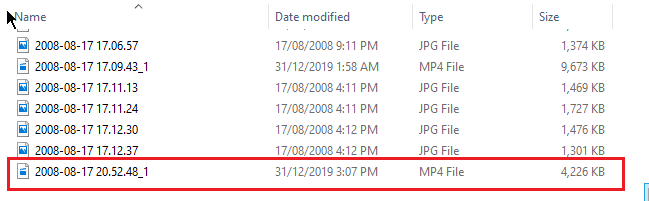
This offending MP4 caused that day’s worth of images (MP4 and JPG) to append to the next day on the timeline. The offending MP4 itself would disappear from view on the timeline. It appeared to act solely to join the two days worth of images without itself appearing in the combined set of photos.
Notice. from the image, that it is quite ‘far away’ in time from the previous image. If I brought it ‘nearer’ to the previous image by altering the metadata time, the issue completely went away - the day merge did not occur and the MP4 appeared in the correct place on the timeline.

3GP - A video format for 3G phones. I found in general that this format played well with Plex Photos. The only real issue was with video rotation when necessary. 3GP is not compatible with TEncoder. I used XMedia Recode to (losslessly) convert 3GP to MP4 and then rotate the resulting file in TEncoder. This worked well.
Note that metadata dates have to be restored before the rotated files are reinserted into the Plex photo library. I used ExifTool to do this.
JPG rotation
Windows 10 File Explorer does at admiral job of this.
Video rotation
TEncoder works well, but is slow. It is available as a portable app. 3GP video has to be converted first as it is not compatible as an input with TEncoder.
Video conversion
XMedia Recode works well and is fast. It is available as a portable app.
Rotation Steps (JPG and video)
- Move the files to rotate out of the Plex photo library.
- Refresh the library.
- Rotate the moved files, converting video first if required.
- Video only - Restore the metadata time (from the filename) on the rotated files.
- Insert the rotated files back into the library.
- Refresh the library.
MOV - This video format worked well with Plex Photos. It can be rotated directly in TEncoder without conversion first.
Another Sticky MP4 (see above). That’s the second occurrence in about 8,400 processed images (photos+videos). Because it happens so infrequently, it’s difficult to establish a pattern.

This pair of MP4s really wanted to stick to the next day on the timeline. Bizarrely, in order to get them to stick to the current day on the timeline, I had to set the internal time of each to close to midnight on the previous day. e.g.

1 Jan 1900 Another pattern is emerging. If I add a month’s worth of JPGs into the Plex library and refresh, there’s a good chance that I will find one (sometimes two) days worth of photos under the date 1 Jan 1900. This issue has been reported elsewhere on the forum.
What’s interesting about this issue is that it is an all-or-none event i.e. every photo for a day appears under 1 Jan 1900. It’s never just a few photos for the day appearing under the correct day and the rest under 1 Jan 1900. The other interesting observation is that the affected dates tend to be towards the end of the month.
The workaround for this issue is to move the photos for the affected days out of the Plex library, refresh, move the photos back and refresh again.
For those interested…
The directory structure I chose for the Plex library is hierarchical with year at the top, then months under the year and finally days under each month (specifically /yyyy/yyyy-mm/yyyy-mm-dd/). This structure facilitated troubleshooting. It made it easy to home in on days that were troublesome or to quickly locate a photo that was causing issues.
For naming individual photos, I adopted the format yyyy-mm-dd hh.mm.ss. This aligns to the format Plex camera upload uses.
Bulk photo renaming and photo relocation under the directory structure was achieved using ExifTool. As I’ve indicated earlier, this tool is not for the faint-hearted. It’s command-line driven. If you choose to use it, refer to the ExifTool forum for assistance.
Sidebar: While it may not seem entirely necessary, a good reason to convert MPG and AVI video to MP4 is that ExifTool is unable to alter metadata on the former.
MTS - The file extension for AVCHD video. MTS does not play well with Plex. MTS video appears on top on the timeline suggesting that Plex isn’t correctly reading MTS metadata time. While playable, a thumnail isn’t present. MTS files tend to be really large as well. ExifTool isn’t able to alter metadata on MTS video.
To workaround these issues, I converted the MTS files to the friendlier MP4 format. The size of the the resulting MP4 is around 10% of the MTS file size. XMedia Recode does a solid job of the conversion. However, the process is slow. Metadata time has to be reset before the MP4s are inserted back into the Plex library.
To avoid interlacing issues, it’s important to copy rather than convert video. The resulting file will not reduce in size much, but the video quality will be retained. The other bonus is that XMedia Recode operates quickly in this mode.
I’m beginning to suspect that the 1 Jan 1900 bug is symptomatic of some other underlying issue. This is what makes me think so:
I dumped a month’s worth of JPGs into the Plex Photo library and did a refresh. The 1 Jan 1900 bug appeared within the timeline. This issue, when it arises, doesn’t necessarily appear at the top of the timeline. In this instance, it appeared within the month of photos that I’d added.
When I investigated more closely, I noticed that two consecutive dates were affected. I removed the photos for those dates from the library and then did a refresh. I then added the photos for each of those dates back, one day at a time, and doing a refresh after each add. This time both days photos were merged under a single date. It turns out that I had hit the boundary issue described early on in this thread. Here’s the offending day.

Notice how the filename times (set from EXIF DateTimeOriginal) are close to midnight. Interestingly, if I add the previous day’s photos first, refresh, and then add the above photos, both days photos appear on the timeline against the date April 22, 2011. If I do it the other way around, adding the above photos first, and then the previous days photos, both sets of photos appear on the timeline against April 23, 2109.
The other key point is that, in this instance, the 1 Jan 1900 bug was actually symptomatic of the boundary issue bug.
PMS Version#: 1.18.3.2129
Well, 13,000+ images (photos + videos) on, I’m at the end of my Plex Photo library journey. I’m sure there will be users with a six-digit number of images. I’m just not a passionate and enthusiastic photo taker. In fact those 13,000+ images were taken over a period of around 13 years, or around 1,000 images per year, so I’m really a low-end camera user. Still, I’m really pleased to have consolidated those images in a Plex Photo library and made those images readily available from any Plex enabled device.
Without a doubt, compared to music, TV shows, live TV and movies, Plex Photos has been the most challenging to get working from a content perspective. Unlike the former (music, shows, movies have naming convention guides; live TV has a tuner compatibility guide) there’s really not a lot of guidance provided with Plex Photos. I think there’s room for something to be set up here. For instance, even Google provides a guide Google Photos - Back up Photos and Videos on what camera formats are supported.
Timeline Issues arising from Adding Content
Some of these have been reported in other posts. The ones I came across are summarised below. Details can be found elsewhere in this thread.
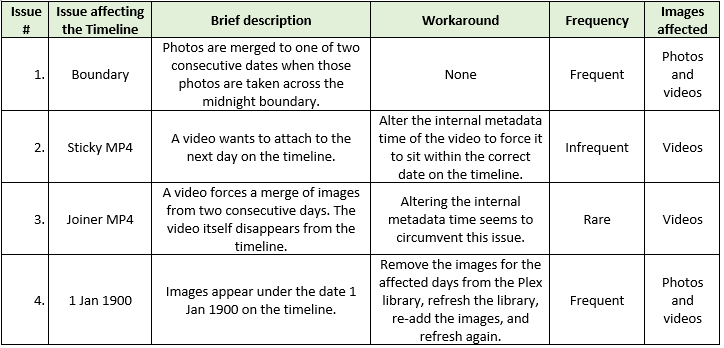
Timeline Issues arising from the Image Format
Contrary to the statement in Plex Photos & Videos that Plex Photos is compatible with any format (this is probably true for the Plex Photo Library component only), the Plex Photo Timeline appears to be sensitive to the image format used. My observations are summarised below.
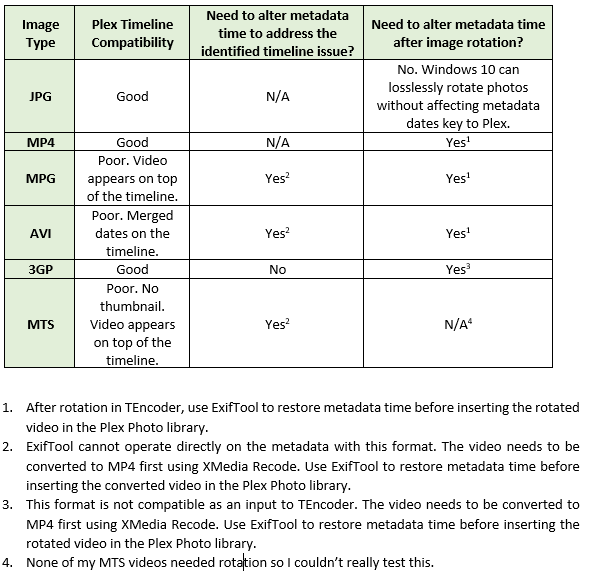
Useful Tools
Tabled below are the tools I found useful when working with content for the Plex Photo library. These did the job for me, but I’m sure there are other equivalent tools that will work. I basically chose these as they are all (excluding Windows 10) available as portable apps. Several of these are included in the Portable Apps suite if you’re familiar with that. The remainder can be added to that suite.
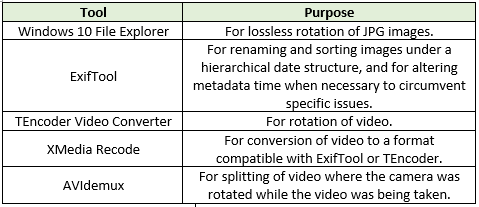
Plex Photo - Server and Client Issues
In the course of adding content to the Plex Photo library, I came across several application issues in the Plex Photos module both in the Plex server web UI and several clients that I use. Some of these have already been identified by other forum users. Links are provided below.
PMS Issues:
Android Client Issues:
https://forums.plex.tv/t/plex-photos-android-mobile-timeline-slider-missing/518497/3
https://forums.plex.tv/t/plex-photos-android-tv-timeline-slider-issue/518519/2
Closing Comments
Plex has the potential to be a great platform for showcasing home photos and videos on any supported client and wherever you are in the world at the time. However, don’t expect to dump all those photos into a Plex library and expect Plex to sort them out for you like it seems to magically do (most of the time) for music, shows and movies. There’s a lot to be said for a structured approach to cataloguing and naming your images on the disk. This will aid in troubleshooting and addressing issues that arise from time to time.
Sir, your work is awe inspiring. Please get a job with Plex.
Hi,
I’m at the start of this Plex journey for Photos etc.
460GB / 98K Files - currently across nested folders - 776 Folders.
I reviewed Plex documentation and online:
https://www.howtogeek.com/313321/how-to-store-and-view-your-photo-collection-in-plex-media-server/
I’ve decided to rename/restructure the folders to be have a more Flat structure.
Naming Folder Format:
YYYY-MM-DD [optional descriptive name] title
I was thinking I had to rename the photos too as per the following:
File Naming Format:
YYYY-MM-DD hh-mm-ss [optional descriptive name] title
Are there any recommendations or feedback on the above?
Or would it better to use another tool? I see KODI has also been recommended online:
https://www.dpreview.com/forums/post/62314396
Thanks
That’s a lot of photos and videos! I only had to deal with 13K of images. Since I posted this thread, I believe the 1 Jan 1900 issue has been resolved. I haven’t tested it myself though. If it has, it will make your job considerably easier. In the intervening months, a number of other issues have also been resolved, which make using Plex photos a much more pleasant experience.
When dealing with such large numbers, restructuring and renaming can become a hassle unless you use the right tool. I’ve tried dozens of tools in this area with varying degress of success. I’ve only found one tool in my arsenal that truly fits the bill, but it is a CLI tool and not a graphical tool, so you need to be comfortable working with the command line if you choose to use it. The tool is ExifTool. Because of its power, you can easily destroy your collection so if you decide to use it, work on a copy of your collection rather than the actual collection.
If interested, check out ExifTool by Phil Harvey and join the ExifTool forum. Without the assistance of the very helpful ExifTool community (including Phil Harvey), I would have struggled getting off the ground with ExifTool.
As an example of ExifTool’s power, assuming I had 98K of photos and videos in the current directory root (i.e. including any subdirectories), the following command will move images of any format (with a valid DateTimeOriginal tag) to a specified output directory root and, in the process, rename images to ‘yyyy-mm-dd hh-mm-ss’ and sort them into folders ‘yyyy-mm-dd’. All this with a single command!
exiftool -r -P -d "I:/Output/%Y-%m-%d/%Y-%m-%d %H-%M-%S%%-c.%%e" "-FileName<DateTimeOriginal" .
Like I said in my original post, this tool is not for the faint-hearted.
That’s fine. The main reason I settled on a hierarchical folder structure of yyyy/yyyy-mm/yyyy-mm-dd/ is that it facilitated troubleshooting. I found it much quicker to home in on an issue in a day’s worth of photos using this hierarchical structure. It’s going to be a little slower doing this with the flat structure you’ve proposed e.g. scrolling through the root directory.
The only reason I settled on yyyy-mm-dd hh.mm.ss is that this is the format used for Plex camera upload, but this is neither here or there. I don’t have particularly strong views on this.
Whether you use KODI or Plex, the message is the same ‘Make sure your images are well organised’. Failure to do so will result in a less than ideal experience whether it’s KODI, Plex or something else. The closest thing to a hands-off experience that I’ve come across is Google Photos, but with its caveats, is a product that seems to target happy snappers and not more serious photographers or those less serious happy snappers, like me, who are looking for a more structured experience.
Thank you for your comments and feedback - much appreciated.
My collection has probably grown over a decade across different devices and ranging file sizes including DSLR/RAW/JPEG and different video files etc.
I had a Google Pixel phone before and so was backing up in both areas - local for historical/editing and Google Drive for nightly online/regular backups. Since the changes that Google brought in, I upgraded to another device outside of Google and now continue to backup directly to local - i.e. no longer using Google Drive/Photos.
Renaming Files: I’ll check out the tool you mentioned. Currently, I plan to do this move in batches, to make sure things are working as expected etc.
I also want to have some sort of Event/Description in a Folder name, so for that reason I may not be able to run a single command across the whole collection.
The current tool I’ve used and working well:
https://www.bulkrenameutility.co.uk/
- Is it “okay” to store short video clips alongside photos for the same event in the Plex Photo Library?
Also, I have events that “spill” over into the next day - do I need to separate out these photos into their own specific yyyy-mm-dd folders too?
E.g. Event ABC
YYYY-MM-01 HH-MM-SS Event ABC YYYY
YYYY-MM-02 HH-MM-SS Event ABC YYYY
Thanks
