I posted about this almost 3 years ago, but didn’t get any response:
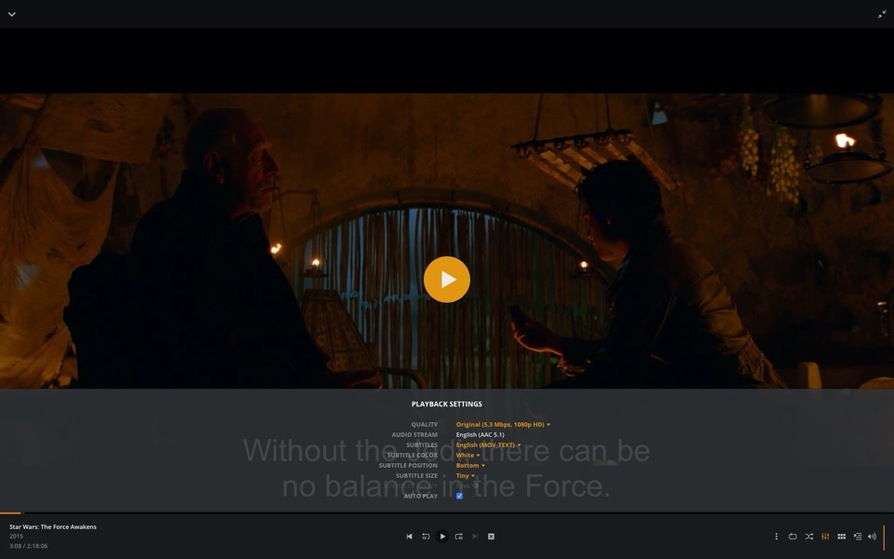
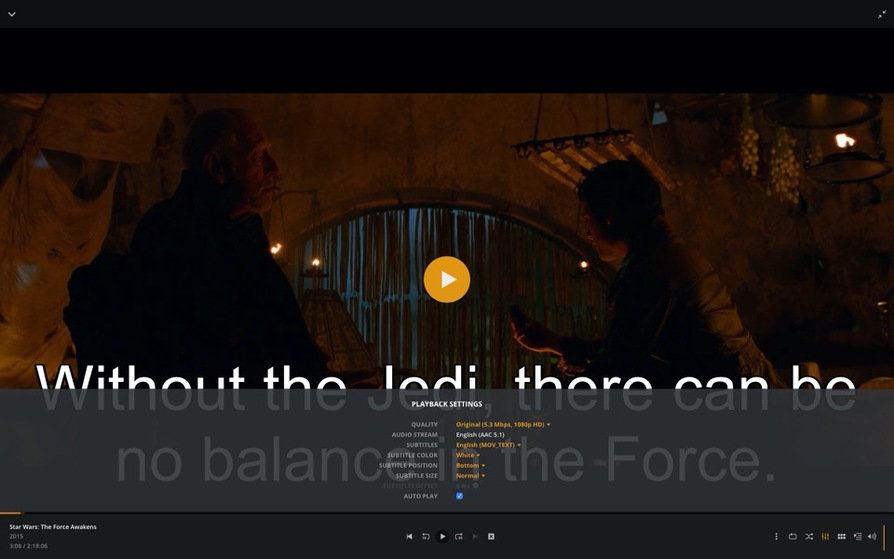
See that post for details and screenshots - but in a nutshell: The subtitle display in the web client is far too large, in all cases. Even choosing “Tiny” as the selected size in Settings, results in a subtitle display which is far too distracting, and overpowers the video. This behavior does not seem to impact the dedicated mobile apps (their subtitle font display is in-line with other players), but is easily repeatable via the web viewer - on every computer, every browser I’ve tried. As such, I’m incredibly surprised that this outright bug seems to have been present for so long.
Is there any way to specify the actual font size used for these relative ‘size’ indications - via manual modification of the Plex settings? Else, is there (hopefully) a fix already in-work for this (significant) issue, on the developers’ schedule?
Great questions, @Volts - thanks (again) for the response!
Almost all my subtitles are .srt format, embedded within .m4v (or .mp4) containers. (I don’t like having separate files; I tend to keep all content “together” within the single media file, for ease of transfer).
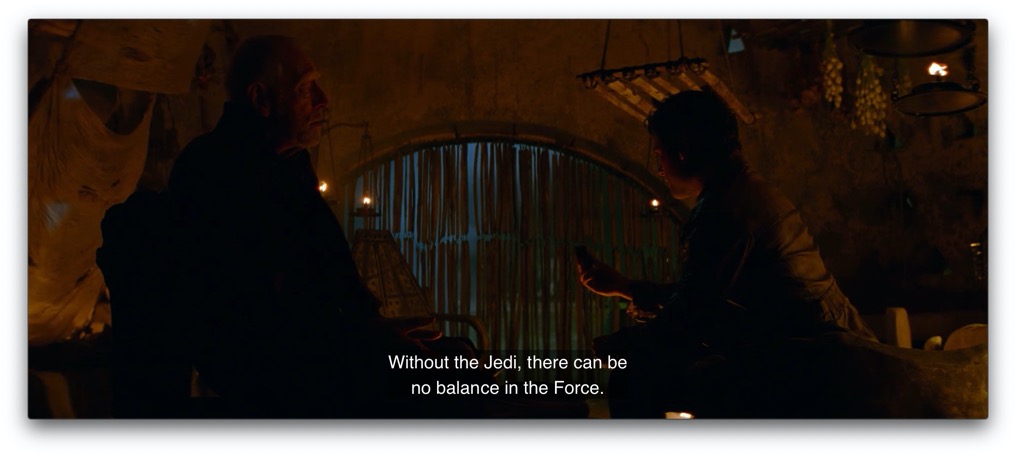
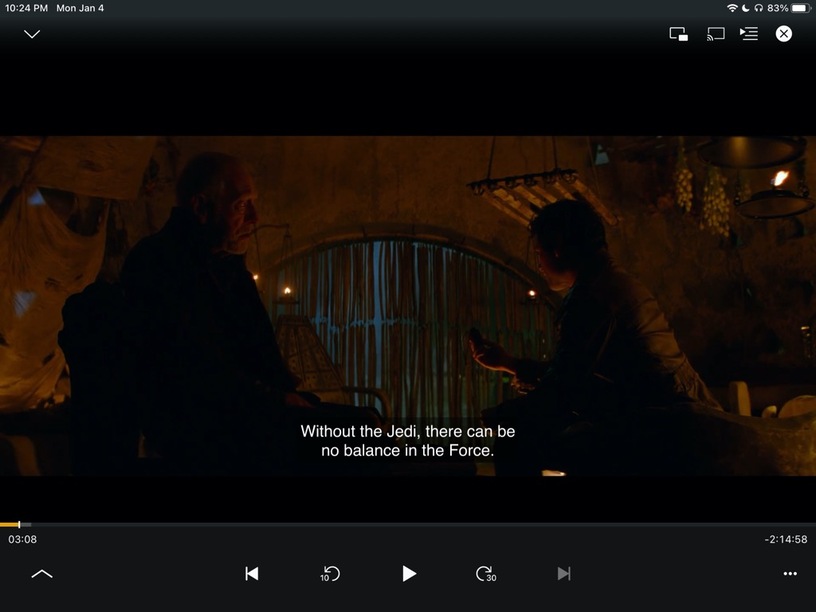
See additional screenshots below - and note that natively viewing the file within QuickTime Player or VLC from the desktop, these subtitles look fine. Even viewing within the Plex app on an iPad, shows them as expected. In all of these cases, the subtitle size seems to roughly match the display I’d see in a dedicated Blu-ray player.
But, even the “Tiny” option in a Plex web player view has them at 2x-3x this size - and the “Normal” option is perhaps 5x-6x this “standard” size. I’ve tried this on several Mac desktops, running both Mojave and Catalina, under Safari and Brave - with no change to behavior. It was rather interesting to me that both browsers look so similar, and seem to display the text nearly identically (Brave might actually display slightly larger). As such, this issue does not appear to be a rendering engine concern (i.e. WebKit and Blink behave the same).
So, this issue certainly seems to be localized to just the Plex web player - as it displays in all rendering engines I’ve tried. I’d love to discover why this behavior is so different than every other Plex implementation out there.
The display of subtitles here, seems to match QuickTime Player, VLC, the iPad app, etc. In other words: Exactly what would be expected, with no change to subtitle size. See new screenshots below.
So, again, this certainly appears to be a Plex web player issue. The especially-damning evidence of this, would be a comparison of screenshots “7b” vs. “3b” (from above): The same options are set in each of these Plex implementations, but Plex renders the subtitle size completely differently in each case.
Is there anyone on the development side, who can comment on this? Again, clearly a bug in the web player - as it is the sole example rendering subtitles in sizes which are ludicrously large, compared to every other implementation out there.
This has been a problem for literally years, and it would be nice to get some movement toward actually addressing it. I’d like to know if there is already a bug tracking this issue, its identifier (for traceability purposes), and the expected timeframe for a fix.
I’m running Windows 10 and using Chrome and I just tested how subtitles look in the web player (SRT, muxed in with the MKV) and the text size was fine. Going based on your screenshots, normal looks like how normal should display. I also installed Brave and checked that out and saw the correct results.
I’m wondering if this is some kind of issue related to something within the Mac eco system and the browsers as if it was a browser issue, one would think you would see the issue across platforms (though I realize that is not necessarily true).
I was going to ask about if you have some kind of zoom enabled OS wide (for Windows 10 as an example it gives a recommended zoom, 150% in my experience, as the high DPI displays tend make the 100% “normal” zoom seem really small for some people text wise). With that 150% zoom though, I have seen applications that cannot properly handle that and either all or certain objects within some apps will not scale properly (some things might be overly large while others are still really small).
Doesn’t really give you an answer but it does give another data point.
Are you using a zoom factor for your display (in the display settings of Windows)?
I have a hunch that the ST sizes in the web app are only correct when this zoom is set to 100%.
First off: Thanks for the input, all - @Volts , @shark2k , @OttoKerner . I do appreciate the responses. Apologies for my belated reply.
Unfortunately, though, I don’t have much else to speak of, regarding clues toward a solution. To reiterate:
Subtitles in the “Normal” display within web browsers on the Mac seems to be 5x-6x the size of subtitles in every other client. Even the “Tiny” option is far too large, and the “Normal” option or beyond, ludicrously so (see images above).
The Subtitles being viewed are embedded .srt files, within .m4v/.mp4 containers.
The issue is apparent on both HiDPI displays as well as standard displays (e.g. a MBPro’s built in 3072 x 1920 display, or a 26" monitor set to 1920 x 1200)
The behavior remains even when scaling resolution of the display, or size of the browser window within that viewport.
No system-wide “zoom” option is in effect.
Issue occurs on all web browsers I’ve tried - Safari (using Webkit engine), Firefox (using Gecko), Brave (using Blink).
Again, on other Plex clients - iPhone, iPad, AppleTV, the Mac desktop client, etc. - everything appears correct - so it does not seem that it’s an issue inherent in the video file or embedded .srt inclusion, but rather with how the web client itself handles this display.
This seems it might be a Mac-only issue - especially since others seem to indicate no such problems on Windows - but I have no way of comparing behaviors under another desktop OS. Still, I would hope the Plex dev’s might have insights into some way of further diagnosing, addressing, and resolving it. It’s incredibly annoying to have essentially no way to view such subtitles via the web client, without obscuring a large portion of the image itself.
Please keep those ideas coming, though! I’d love to discover that there is some obscure setting which was mistakenly set, which would have an impact on this behavior. But having it behave this way on every browser I’ve tried, on every computer, on every different macOS version, seems to point to something else being the culprit.