Some time in the past, I added a parameter to .plexignore to exclude .DNG files from Photography libraries.
I have my camera set to create both .DNG and .JPG files. With the .plexignore in place, Plex correctly creates galleries with names matching the storage folder name (“20170704 - Fireworks” for example). That folder name is good for my on-disk organization, but it isn’t what I want Plex to show, so in Plex I change the name of the gallery to “Fourth of July Fireworks.”
Later I decide I want .DNG files included in Plex, so I removed that statement from .plexignore. I initiated “Scan Library Files” to update everything, expecting the “Fourth of July Fireworks” gallery to now include both .JPG and .DNG files.
What actually happens, though, is this: Plex leaves the renamed gallery alone, containing all .JPG files, and creates a new gallery, with the default name, containing the .DNG files.
So now, rather than having one library containing both .JPG and .DNG files, I have two galleries, one (manually renamed) with .JPG files, and a new (default-named) gallery with all .DNG files.
Plex Dancing the folder corrects the problem, but I don’t think this is the proper way for Plex to operate in this situation.
I’ve had a folder on the hard drive where I put photos that I’ve finished processing in Lightroom. The folder’s name is “000 Processed Photos.” The “000” is so it appears first in my file explorer.
In Plex, my Photo library is pointed to the parent of that folder (…/dcim/000 Processed Photos), which also includes other folders containing my entire collection. Plex originally cataloged the folder as “000 Processed Photos,” which was fine, at first.
Recently I decided I wanted the gallery in its current position, but without the “000”, so I edited the library and removed the “000” from the Title field, but left it in the Sort Title (the folder name on the hard drive did not change):
Yesterday I added some new photos to the “…/dcim/000 Processed Photos” folder. When Plex scanned these files, it created a NEW gallery named “000 Processed Photos,” rather than adding them to the existing one.
So, steps:
Change the title of an existing photo folder in Plex.
In Plex, edit the “000 Processed Photos” gallery and remove the “000” from the Title, so the Title is just “Processed Photos.”
Add any new image to the “000 Processed Photos” folder on the storage drive.
Tell Plex to Scan Library Files.
Result:
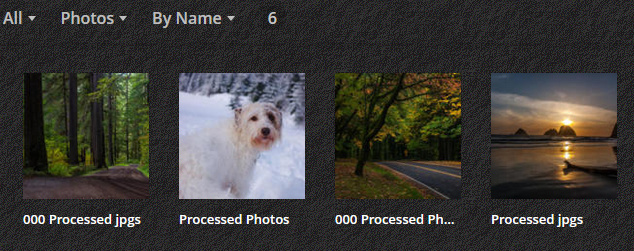
After the scan is complete, this is what I see in Plex:
The “000 Processed Photos” gallery has the new image added in step 2. The “Processed Photos” gallery has the rest of the images in the same folder on the storage drive.