Server Version#: 1.20.1.3252
Player Version#: Web 4.34.4
Hello. I’m using PMS on windows and having trouble connecting remotely, on any client app.
I’m using the auto configuration process for plex remote access, and it says “fully excessive outside my network”.
But every single time I try to access it remotely (tried via browser and iOS app on new iPhone, with LTE and WIFI) - the icon changes to “partially accessible” and then to “not accessible at all”.
I’m a little baffled here - any ideas? I’d like to avoid manual port forwarding if possible - at least until I understand why the auto seems to work but then doesn’t.
Why?
The result is not different to an automatically established port forwarding – but this forwarding won’t get removed by the router after a few hours, because it assumes it won’t be needed anymore, if it’s not used for a few hours.
@OttoKerner the above was the end of my quote describing why.
Plex offers an auto setup, which is great. Before I jump to the more complex and manual operation - I’d like to fully rule out the auto option and understand what the limitation is that is requiring a manual setup
What I don’t understand is why I cannot reproduce this at all when I’m in a closer geographic location to my PMS.
When I’m within a mile or two, whether wifi, LTE, and even with a VPN - it works fine.
The minute I leave, and then try - the remote access availability instantly degrades. Is there a plex security setting relating to the geographic location of the incoming IP or something?
Restarting the server or clicking ‘Retry’ will re-create the portforwarding automatically.
It might be simply the time which passed between starting the server (or clicking ‘retry’ in the Plex web app) and when you attempt to use the server remotely.
As I mentioned above: the router might remove the automatically created portforwarding after a while, when it deems it is not used
Maybe there are also other factors in play. Your server might be going into hibernation after a while as well. While it may wake up when you “ping” it from within your local network with a plex client. But this doesn’t work remotely.
Thank you. But that’s the thing - I can’t even retry it when this happen. I click retry once, then it goes unreachable.
Scenario:
Plex works fine from any client app, on any network, when I try it geographically near my PMS, whether it’s been 2 mins or 2 days since the last use.
The minute I drive about 10-20 miles away - bam. Movies don’t load on the client app.
I log into the settings page via a browser, and see “partially accessible outside network”. When I left the house - it was “fully”.
I click retry, and the server goes totally unreachable. I get the “server unreachable” message and cannot change any settings.
When I return home, usually I need to bounce the server for it to return to normal.
Hmm, it could the local ping. Any way to prevent server hibernation?
And thinking of all non-standard settings I used - I do believe I’m forcing secure connections. Could any step in the remote chain be considered insecure? And maybe I’m getting locked out or something?
If your media storage is on a different computer or NAS device, disable standby/hibernation there as well.
Make absolutely sure that your router doesn’t go into power saving mode when you’re out of house. Some detect your presence by the WiFi signal of your mobile and switch their power consumption accordingly.
Give your server machine a static private IP. Whether you simply set it manually in the properties of the network adapter in Windows
or by doing a “DHCP address reservation” in the router doesn’t matter much.
Tell your router not to shut down the internet connection after a while.
Thank you for the information. Responding to each:
Oh, yes. Windows hibernation settings. Yes, I already have it set to never go to sleep or turn the screen off.
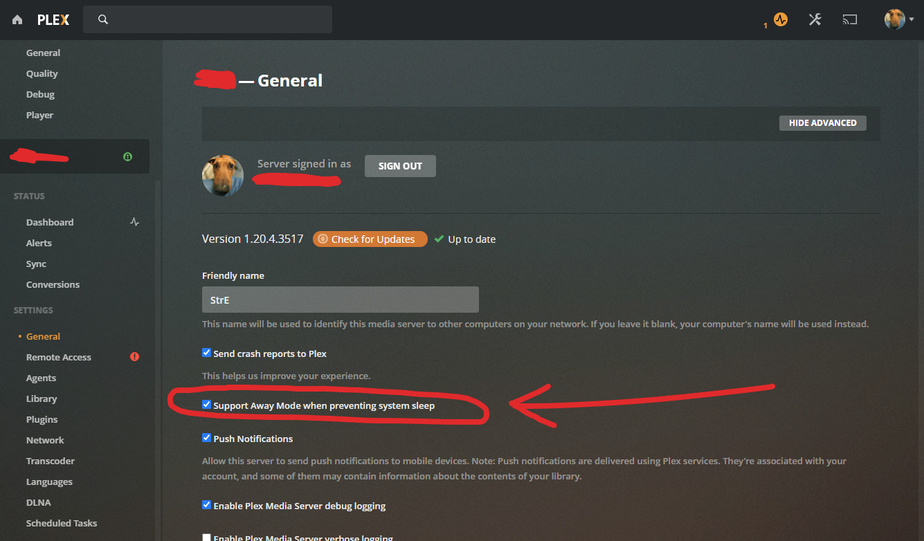
Yes plex away mode setting. is currently enabled
Hmm, why not use wifi to connect PMS and router? My speeds are excellent (100 Mbps up/down) on 5 GHz (fairly uncontested). I like the cable free nature of wifi.
I’m not sure of my network adapter settings on Windows - I will check.
No NAS involved - media and server sits on an external drive connection directly. I assume I need to make sure there are no power throttling on this too though?
I will have to review my router settings. I have the standard US Verizon FiOS flagship router as of 2017. It might be getting a little dated though.
Static private IP on the server machine. I will need to check into this.
Lots of good info and things to check. I will do so and note if any seems to be the issue. Thank you.
The thing with WiFi is that there are no guarantees that the speed will be equally high at all times. Short interference bursts will occur when other electrical devices are switched on in the vicinity.
Long term speeds can drop if other devices join the wireless network or the neighbour deploys or extends his wireless network.
And most WiFi interfaces will go into power saving no matter what you pick in the device settings.
Your router is required by law to perform a frequency scan to search for radar signals, so it can stay away from these frequencies. While it is doing that, it must pause regular operation.
There are many reasons why you rather want to to stay away from wireless. Particularly for server applications.
Not to mention that 100 mbps are not that much, if you consider that it has to share this bandwidth with all the other wireless devices in your network, if they have to transfer data at the same time as the server.
The default bandwith in a wired Ethernet connection is nowadays 1000 mbps, full duplex (which means sending and receiving data at the same time, at full speed in both directions. Wireless can almost never do that).
I see. Yes I understand wifi stability will never be exactly the same as wired - but I think the differences are marginal for most applications. I occasionally do gaming on the same machine, over wifi, and have never had any response time or stability issues - although that is not quite the same use case as a sever environment.
Interesting bit about the wifi interface and power savings - that could be it. I drove home with my cell phone wifi OFF, and when I pulled within a quarter mile I tested the remote server access over LTE. No change - still dead. When I turned back on wifi, and my cell device connected - boom. Server now reachable and able to re-configure for full remote access. Turn off my wifi on my cell, try to connect over LTE - and yes - still able to connect (probably because the device was “woken” by the wifi connection).
So - you’re right. SOMETHING is hibernating when my main device (cell) is not connected to the local wifi network for X minutes. I do have several other wifi devices that are connected - but it seems to be keying in on my cell signal.
Regarding speed - I can absolutely get 1K Mbps up and down over wifi in my area - if pay for it. I’m a remote software engineer in the day time and a tech junkie at night - and never came close to my 100 Mbps cap. My plan maxes out at 100 Mbps whether it is wired or wifi.
The hibernating aspect is something I can dig into. I’ll report back if I find any smoking gun. Thank you.
The remark about the speed was more geared towards local access. Imagine a “big screen” client in your home, which wants a high bandwidth for optimum picture quality.
If you have both server and clients (and maybe even the NAS which stores the media files) all connected wirelessly, they need to share the available WiFi bandwidth. That’d be still no issue for a GbE wired connection, but a wireless network may come to its limits.
Regarding the speed comment:
Oh I see. Yes for sure - agreed. As I get the PMS/environment configured better, use it more, and potentially share with family - I could definitely near 100.
@OttoKerner your info got me thinking in the right direction. Thank you.
So first - I found how to consistently reproduce it (a challenge before) :
Main cell phone connected to same wifi as PMS.
Confirm PMS accessible on client cell phone
Turn off cell phone Wifi, use LTE
Confirm PMS accessible on client cell phone
Wait 5-30 minutes (I didnt narrow down the exact time) - then confirm PMS “NOT” accessible on client cell phone. It shows either an indirect connection or unreachable server. Movies don’t play, and depending on the client - either give a CPU error, or bandwidth error, or just never load.
Turn back on cell phone wifi. Let it connect to network again.
Confirm PMS accessible on client cell phone, using WIFI and LTE (LTE because device was woken)
And so I began poking around in the router, and looking at all of the options. So many options. So I looked up the name of my router in plex forums (Verizon FiOS Quantum Gateway) and found a post that specified the problematic setting.
It’s “Advanced->Universal Plug And Play->uncheck ‘‘Enable Automatic Cleanup of Old Unused UPnP Services’’->Apply”
Worked instantly. No need to switch back to wifi to “wake” the connection anymore. This had been a puzzle for a couple weeks so Im very happy to have this resolved. Thank you.
If you use other software which creates these automatic port forwardings (e.g. online gaming, file sharing), this will then also keep those port forwardings indefinitely.
I am still of the opinion that a manual port forwarding for Plex is the better way. Because then you can keep the cleanup setting activated, so it can care about the other things which are not Plex.
@OttoKerner I agree needing to turn off this setting does make manual port forwarding more attractive. But I still think the administrative overhead of needing a static IP to do the manual port forwarding makes it less advantageous for me.
For me personally, I’d probably want to use a DHCP reservation to get a static IP. That means I have to poke around in the router again. And I need to a make a reservation for both the wifi and ethernet connections - since I tend to switch back and forth depending on what I’m doing on that PC (I still use it as an alternate home PC for various applications)
Now each of those reservations becomes a potential error entry point for me, and also something I need to manage whenever I make major changes to the PC. It could affect all my applications and other systems - for which a dynamic IP might be safer and simpler.
And as opposed to the other option - which based on my understanding has the potential to just leave a bunch of garbage port forwarding rules, to real and non-real IDs, on the router. I don’t really see any harm in that honestly.
As I missing something? Is there some danger to the latter? It seems to me like if you are someone who wants granular control and doesn’t mind the additional administrative overhead and user-error risk - go for a manual port forwarding. But for all other non-power users or folks that just want to use Plex remotely with as minimal changes as possible to their whole setup - uPNP with this auto garbage collection off seems safe and easy (if maybe slightly inefficient).
This is problematic, because you need to restart the server after each switching of connection type, or it won’t be accessible.
And with “secure connections”, it is not just the IP which needs to get switched, but also the domain name and the associated certificate. The updated domain name can take quite a while until it has propagated down through the DNS system to potential client networks and apps.
Better would be to use just one connection type (wired preferably) and stick to it.
Keeping in mind that was only part of why I preferred the uPNP though - but yes in general I agree.
But wiring permanently isn’t an option at the moment for my current living space (very old building that I would need to either get re-wired or run the cord around trim or the ceiling). Unless I want wires running across the carpet for me to trip over at night - I only use wired when I need stability for uploading hundreds of GB to my cloud service for backups.


 - I only use wired when I need stability for uploading hundreds of GB to my cloud service for backups.