giving this a try again…
Please read this entirely before you decide to use either of the scripts below. Test it out on files that are easily recovered if you decide to go forward.
The difference is that my script runs the Plex scanner for just the Movie or Series that I want.
The normal ‘Scan Library Files’ scans the whole library all directory/folders and files associated with it.
In my case that is thousands of files taking hours to complete and it most likely won’t scan the move/series that I am working on first.
So if I am adding a new movie or episode to the library, I set it the way I want it and then have Plex scan it. It only takes a minute or so. and I get to check it and make changes if necessary and re-scan it if I need to.
NOTE:
I HAVE ONLY 2 LIBRARIES I USE THIS WITH AND THAT IS MOVIES AND TV SHOWS. IT IS SET TO WORK WITH THOSE TWO ONLY, IF YOU HAVE MORE THEN THESE TWO, ADDITIONAL CODING WOULD BE REQUIRED. THAT I WON"T GO INTO. I’M NOT A PROGRAMMER.
There are 2 scripts…
One is run to add the right click menu to the windows registry. This is done only once on the PMS server for setup.
It adds the line to the right click menu “Run Plex Scanner” and attaches the script/bat file to it that actually runs the process.
These files need to be located in a specific directory to work.
(if you move it you need to change all the path references in the files)
I have only run this on a Windows 7 systems.
My media is located on NAS units that are mapped by windows as drives and works great.
THERE IS NO ERROR CHECKING IN THESE SCRIPTS USE WITH CAUTION. USE AT YOUR OWN RISK
If you intend to try these, make sure you create and EDIT the files in the directory/folders before you execute anything.
First script; modifies the Windows registry to add “Run Plex Scanner” to the right click menu.
this is the path and file name;
“C:\Users\plex\MyScript1.reg”
Windows Registry Editor Version 5.00
[HKEY_CLASSES_ROOT\Directory\shell\Run Batch script]
@="&Run Plex Scanner"
[HKEY_CLASSES_ROOT\Directory\shell\Run Batch script\command]
@="“C:\Users\plex\plex_scanner.bat” “%1"”
copy the above 5 lines to a text file and save it as MyScript1.reg in the correct directory/folder
(use notepad, other editors may add hidden characters causing the file to not work correctly)
Second script, the one that does the work…
“C:\Users\plex\plex_scanner.bat”
@ECHO OFF
ECHO “script to start the Plex scanner for a specific TV Show or Movie”
ECHO “Right click on the show or TV folder (top most folder) and click on “Run Plex Scanner””
ECHO " "
ECHO %~n0 was called with the following arguments:
SET args=%*
IF NOT DEFINED args GOTO END
ECHO " "
ECHO Directory/Floder selected %*
ECHO " "
rem set longString=the variable containing the directory/folder selected
set longString=%*
rem ECHO longstring %longString%
rem replace xxxxxx with the string you are looking for in this case it’s movies else it will be shows
set tempStr=%longString:movies=%
rem ECHO tempStr %tempStr%
rem set the section for movies section 3 and tv shows section 4
IF %longString%==%tempStr% (SET section=4) ELSE (SET section=3)
ECHO section %section%
ECHO directory %*
rem this does the work
“C:\Program Files (x86)\Plex\Plex Media Server\Plex Media Scanner.exe” --verbose --scan --refresh --section %section% --directory %*
:END
PAUSE
copy the above lines from @ECHO OFF to and including the PAUSE to a text file and save it as plex_scanner…bat in the same directory as above.
(use notepad, other editors may add hidden characters causing the file to not work correctly)
IMPORTANT:
The second script file needs to be edited to match your movie and TV show section in Plex.
Easiest way is using the web client select the Movie library and in the address bar at the very end you should see the number shown similar to %3D1&context=content.library&source=3, source=3 is what your looking for, that’s the section, make a note of the number. and do the same for the TV Shows. The numbers can be anything not sure what the range is and there is no order.
Now edit the lines;
rem set the section for tv shows section 4 and movies section 3
IF %longString%==%tempStr% (SET section=4) ELSE (SET section=3)
changing the numbers to match yours; the moves are the number 3 for me and TV series is number 4,
also it looks for the word movies in the path, if it’s not found it assumes the folder is a TV show, If your movie paths would be different you need to make the necessary changes.
and save the changes.
When the second script runs it opens a CMD window and shows the progress it makes.
The script is complete when you see the press any key to continue.
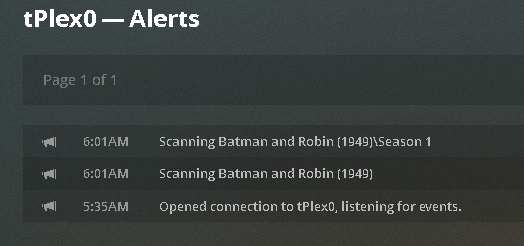
NOTE: sometime it can takes minutes to run depending on what is going on with PMS, you can monitor it by watching the Alerts from the Web client. It must be run against the TOP level directory/folder for the single movie, not the file, and the same for the series. Plex Scanner uses the directory/folder name to preform the scan, for shows the alert screen will show each season it scans through. and when it finds the new episode that was added it will show created in the Web client alert screen.
OK you have created the files whats next…
first double click the “C:\Users\plex\MyScript1.reg”
you will get the standard registry warnings…
when it’s completed, takes only seconds, you should be able to right click any directory/folder and see the “Run Plex Scanner” listed,
“DOING SO ON ANY DIRECTORY/FOLDER OTHER THEN A MOVIE OR SERIES THAT IS ATTACHED TO PLEX WILL HAVE UNKNOWN RESULTS”
“DO NOT SELECT MORE THEN ONE DIRECTORY/FOLDER ITS NOT SET TO HANDLE IT”
USE:
Open a Web Client alert window for monitoring the process, and using the Windows Explorer on the PMS system select a movie folder from your movie library directory/folder and right click and click Run Plex Scanner, a CMD window should open and the process should start. It may take a few minutes. its completed the process when press any key message appears. it’s done and Plex should be doing it’s job on the selected directory/folder.
If anyone would like to add, streamline the process etc… feel free…
I hacked this together to fill a need that plex was lacking…
it’s great when that episode your waiting for is finally available, right click the show and get it added to Plex…