@MowMdown - yes and yes! It has worked for ages and appears to still work sending video to my GPU according to nvidia-smi, despite Plex not recognizing it…
If you have the same configuration, mind seeing if nvidia-smi within the container shows anything while transcoding? In the container console, no transcodes show up, in my unraid console, they show up as expected (as well as other dockers doing transcodes)
My Plex install is behaving the same way with only Auto showing in the dropdown but HW transcodes very much working. It’s not in docker though, it’s in an LXC container on Proxmox 7.4. Running nvidia-smi on the host shows the transcodes, but running it inside the container does not. I’m also running a fairly old nvidia driver, 470.74, Linux Kernel is 5.15.131 if that matters too.
The issue occurs exclusively with this build and only when a movie exists in two versions (not separated) and needs to be transcoded.
No, this is a new issue. Whether subtitles are enabled or not makes no difference. In any case, the file cannot be played. It doesn’t result in an endless loading animation, but instead shows an error message: An error occurred while attempting to play the video. Please check your connection and try again.
nvidia-smi won’t do anything inside the plex container because it’s not installed there.
When you’re in the plex transcoder settings, your GPU should show up as a selectable option when you click the drop-down menu. Auto is default but if you click on it, your GPU should be the second option. Is “Auto” the only option available?
It’s just weird to me why your GPU isn’t an option in plex, if you passed it through properly it should show up.
Sorry it’s actually a 7zip file which I renamed because the zip was too large to upload
Can you change the change the extension to .7z ?
I temporarily rolled back to version 1.41.0.8992 for testing, and the issue is now occurring there as well. I’m confused.
Fixed it for me and my Quadro P1000
Do the following:
If you use this way of mounting the Nvidia GPU to the container it won’t work for HEVC:
deploy:
resources:
reservations:
devices:
- driver: nvidia
device_ids: [‘0’]
capabilities: [gpu]
Do this instead and remove that other part:
Add the following Environment Variables:
- NVIDIA_VISIBLE_DEVICES=all (You can also specify specific GPUs, follow the official guideline for that)
- NVIDIA_DRIVER_CAPABILITIES=all
The important thing is NVIDIA_DRIVER_CAPABILITIES=all
I’ve attached my docker-compose.yml for easy of use so that you can compare it to your own
docker-compose.txt (1.0 KB)
Thanks @Darthsternie, adding this in fixed the problem. GPU and experimental options are now available. @chris_decker08 you can mark this as resolved, but I think that maybe adding to the announcement post that this needs to be added in for docker containers could solve some headaches for people. I think that a lot of people use the LSIO container and they specifically say that you don’t need to add the driver capabilities variable.
Back in the day when hardware transcoding started, I used to used the variable, however, LSIO added
ENV NVIDIA_DRIVER_CAPABILITIES="compute,video,utility"
to their dockerfile as an env var and told people that " There is no need to utilise the NVIDIA_DRIVER_CAPABILITIES parameter any more. This is handled by our container." on their unraid support post. I’ll hit them up on discord to see if they would consider updating in light of this.
Now it’s working - time to do some testing!
Thanks!
@damo_w15 - try changing this variable to all instead. Worked for me.
Yes, confirming this works. Can now select the new settings and see my GPU. Only thing is now my clients can only select 320p or 480p, a bit strange. Will need to play with this at home after work…
I think HEVC is heavy enough to warrant more fine-grained control on the server side. My GPU seems to do 1080p@12Mb/s just fine but the video stutters at 2160p@20Mb/s. I don’t know if it’s the resolution or the bitrate (probably the former as I can to multiple 1080p@12Mb/s) or even the player itself but I think it makes sense to define a maximum that the server then advertises to the clients.
Responding to myself here after looking into this for Live TV & DVR.
Seems that not being able to add an additional EPG location after setup is not necessarily an issue for this build. When I reviewed the support article for Live TV & DVR the screenshots show the same (when you first set up the mapping you have the opportunity to add an additional EPG location but once you finish set-up, there is no such option when managing the channels).
From the guide - During setup:
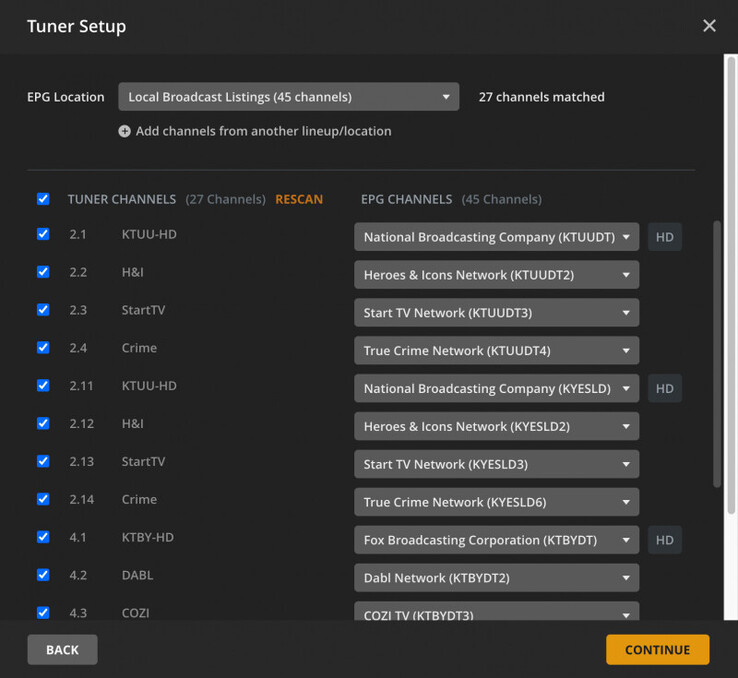
From the guide - Managing channels after setup:

Is there a technical reason for this? Intentional? An oversight? Don’t really want to delete my tuner and add it in again and lose the mappings I have in there.
(sorry for being off topic, just noticed this while I was poking around with the new features)
I wish they would just allow us to map channels without being tied to a zip code or a guide.
Thank you so I have to buy a better nas now. Do you prefer one and have a good sugesstion?
A suggestion: split up your nas and applications into separate devices instead. That way you can buy a cheap small factor nuc or something for plex, transcoding, etc, and keep your nas just sharing your media files. Then when the time comes for upgrading transcoding capabilities again to something like the new AV1 codec you still won’t have to upgrade your nas, just your nuc.
Working great for me here on Windows 11, with a 4070.
My only wish is that now that the more efficient HEVC can be used we get the option to maintain 4k resolution in transcodes at lower bitrates than currently.
I noticed that there are server releases for ARM v7/v8, does that mean that HW transcoding will now be supported on devices such as the ROCKCHIP RK3588.
maybe a good idea or I will buy a nas with intel cpu or not and not arm.
While these do exist, they are quite pricy.
And when it comes to upgrading them again, you will save quite some money if you only upgrade some small form factor PC, instead of an Intel NAS.
Maybe look at https://www.plex.tv/blog/plex-pro-week-24-does-your-server-suck-energy/
or https://www.plex.tv/blog/plex-pro-week-24-set-up-a-super-affordable-server-with-linux/
