I have 4 users including me and am confused about why the “Home” users have different (much worse) streaming quality at home.
Plex is installed on a synology NAS (918+ 8MB RAM, running DSM 7), which according to the compatibility list, it seems should cope with most content, including 4k at 1080p:
The content is played primarily on one of two 4k LG TVs in the same home network, entirely ethernet CAT6 through a synology router and ‘gigabit’ switch. If I plug in a PC instead of the TV, and LAN speed text shows 825 Mbps read and 760 write:
The LG TV App is set for “wired network” under ‘Local’.
Logged in as admin or the “Managed” user the streaming is generally OK, although anything 4k tends to stop and buffer (spinning circle) quite often (e.g. 5 times per hour).
We have two other user accounts that were created as plex accounts and then connected as “Home” users. If we log in at home and try to stream anything above 720p 2Mbps the streaming is unwatchable (buffers for 1 minute every 1-3 minutes).
There is obviously something not quite optimal with my setup. Could somebody please help me understand :
why the streaming is worse with “Home” users than “Managed” users (Nothing about quality is mentioned here)
what in my settings would make streaming at home quite poor relative to what others here seem to experience:
Current Settings:
Network
Enable server support for IPv6: off
Secure connections: Preferred
Preferred network interface: synology NAS IP
Strict TLS configuration: off
Enable local network discovery (GDM): on
Remote streams allowed per user: 2
LAN Networks: 192.168.1.0
Terminate Sessions Paused for Longer Than: 0
Treat WAN IP As LAN Bandwidth: on
Enable Relay: off
Webhooks: on

Transcoding
Transcoder quality: Automatic
Transcoder temporary directory:blank
Transcoder default throttle buffer: 60
Background transcoding x264 preset: Very fast
Enable HDR tone mapping:on
Disable video stream transcoding:off
Use hardware acceleration when available:on
Use hardware-accelerated video encoding:on
Maximum simultaneous video transcode: 3


Quality
Automatically adjust quality (Beta): on
Internet Streaming Video quality: 2 Mbps, 720p
Play smaller videos at original quality:on
Home Streaming Use recommended settings:on
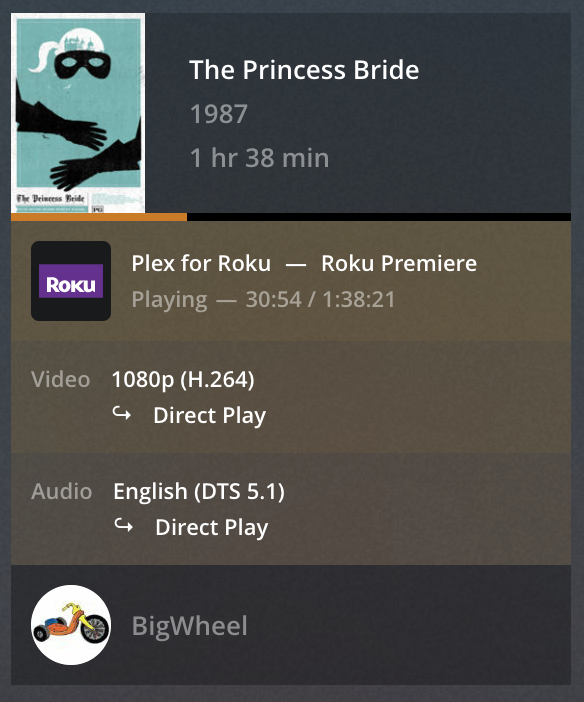
Can you check the “now playing” tile on the server dashboard while one of those users is streaming a video?
It sounds like their stream is considered remote and therefore adjusted to a reduced quality (that or they have configured the app to use a lower quality stream).
Focus points:
is the stream indicated as local, remote or indirect?
is there any transcoding going on for those videos? if so… is it actually using the hw-acceleration?
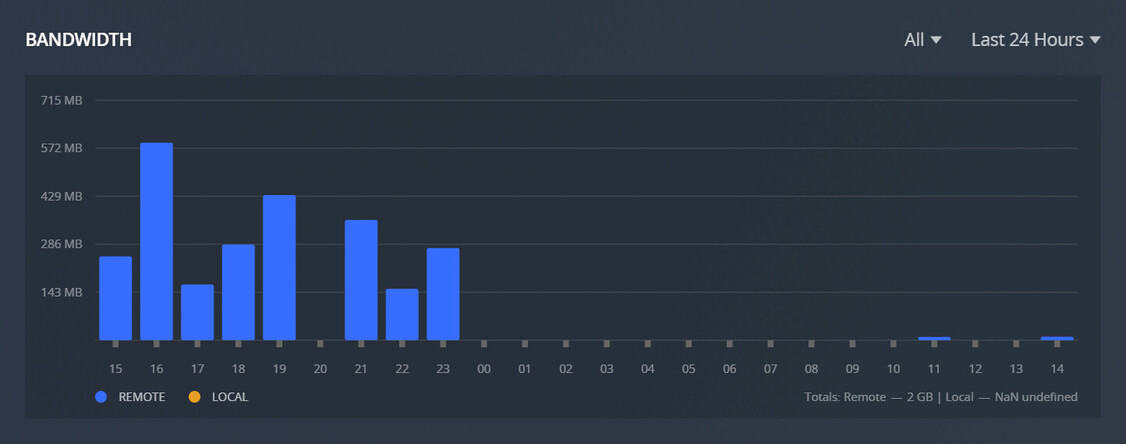
Hello thanks for your reply. Nobody is playing anything right now, but if I look at the last 24 hours for example, the colour coding implies that the playback was indeed remote (even though it wasn’t)
If you have this in there, it will produce unexpected results.
You need to provide a network address if you want your whole local network to be considered “local”.
This would most likely be 192.168.1.0/24 (if your router actually hands out addresses in that range)
I never set that - it was there by default. Is it better to change it to 192.168.1.0/24 or delete it (blank)?
The note underneath the setting says
Comma separated list of IP addresses or IP/netmask entries for networks that will be considered to be on the local network when enforcing bandwidth restrictions. If set, all other IP addresses will be considered to be on the external network and will be subject to external network bandwidth restrictions. If left blank, only the server’s subnet is considered to be on the local network.
I don’t have experience with your brand of NAS.
It might be better to actually supply the network address of your local network, instead of leaving it blank.
I am having issues with streaming inside my home as well. Everything shows up as “relayed” and the bandwidth is capped. This problem only started a couple of weeks ago and is creating huge issues.
It’s expressing a network segment / subnet.
It means the 1st 24 bits of the given IP are specifying the network prefix while the remaining bits (8) are used for host addressing. It basically means that your local network consists of all local IPs from 192.168.1.0 to 192.168.1.255 (giving you 256 possible devices to be addressed).
In your configuration you only specified a single IP address (192.168.1.0) to be the scope of your LAN. By specifying the entire network range (192.168.1.0/24), you’re telling Plex that all devices connecting from that range (192.168.1.0-192.168.1.255) are considered to be part of your local network.
Thanks. That seems to be effectively the same as making it blank if I understand the note correctly. I’m surprised it would default to the IP address without the /24 if that was a wrong setting. Anyway I have changed it to 192.168.1.0/24, as suggested.
Should that alone make the streams now appear in yellow (“Local”) vs blue (“Remote”), or do I need to change something else?