How to mount rclone with gdrive - to Synology NAS?

Hi all .

I have created a Googledrive folder on my Synology NAS via Control panel and Share folders with my main admin account user with read write access.

My rclone is located at /bin/rclone
Rclone config located at my admin user account /volume1/homes/username/.config/rclone/rclone.conf

When I run a script created at /volume1/username/script.sh:

/usr/bin/rclone mount Googlecrypt:/ /volume1/Googledrive --config=/volume1/homes/username/.config/rclone/rclone.conf --allow-other &

I see that the folder I have created is now gone.

I simply don’t know what’s going wrong . I even tried to add --allow-non-empty. Both without success.

No matter what I try - I cant see the content from gdrive , or I either get the info from Synology that this user dont have the proper access etc.

Any takers how I solve this? :slight_smile:

Happy New Year

Morphy

If you run this command just in a shell without the & (ampersand) it should display some debugging info. Does that show any problems?

(It will tie up the shell window and to stop you will need to use ctrl-c, but that will close the rclone mount, so I would have 2 ssh windows open to your nas.)

After running the command, then In the other shell window what do you see if you enter:

cd /volume1/Googledrive
then
ls

Hi :slight_smile:

I get this:

username@HomeServer : /volume1/Googledrive $ /usr/bin/rclone mount -vv Googlecrypt:/ /volume1/Googledrive --config=/volume1/homes/username/.config/rclone/rclone.conf --allow-other

2020/12/31 12:45:37 DEBUG : rclone: Version “v1.53.3” starting with parameters [“/usr/bin/rclone” “mount” “-vv” “Googlecrypt:/” “/volume1/Googledrive” “–config=/volume1/homes/username/.config/rclone/rclone.conf” “–allow-other”]

2020/12/31 12:45:37 DEBUG : Creating backend with remote “Googlecrypt:/”

2020/12/31 12:45:37 DEBUG : Using config file from “/volume1/homes/username/.config/rclone/rclone.conf”

2020/12/31 12:45:37 DEBUG : Creating backend with remote “Google:Private”

2020/12/31 12:45:39 DEBUG : Encrypted drive ‘Googlecrypt:/’: Mounting on “/volume1/Googledrive”

2020/12/31 12:45:39 DEBUG : : Root:

2020/12/31 12:45:39 DEBUG : : >Root: node=/, err=

2020/12/31 12:45:56 DEBUG : /: Attr:

2020/12/31 12:45:56 DEBUG : /: >Attr: attr=valid=1s ino=0 size=0 mode=drwxr-xr-x, err=

2020/12/31 12:45:57 DEBUG : /: ReadDirAll:

2020/12/31 12:45:57 DEBUG : /: >ReadDirAll: item=0, err=

2020/12/31 12:45:59 DEBUG : /: Attr:

2020/12/31 12:45:59 DEBUG : /: >Attr: attr=valid=1s ino=0 size=0 mode=drwxr-xr-x, err=

2020/12/31 12:46:01 DEBUG : /: Attr:

2020/12/31 12:46:01 DEBUG : /: >Attr: attr=valid=1s ino=0 size=0 mode=drwxr-xr-x, err=

2020/12/31 12:46:03 DEBUG : /: Lookup: name=“la”

2020/12/31 12:46:03 DEBUG : /: >Lookup: node=, err=no such file or directory

2020/12/31 12:46:03 DEBUG : /: Lookup: name=“la”

2020/12/31 12:46:03 DEBUG : /: >Lookup: node=, err=no such file or directory

2020/12/31 12:46:08 DEBUG : /: ReadDirAll:

2020/12/31 12:46:08 DEBUG : /: >ReadDirAll: item=0, err=

And folder is empty :confused:

And if I add allow-none-empty it shows this error:

2020/12/31 12:49:46 DEBUG : Creating backend with remote “Googlecrypt:/”

2020/12/31 12:49:46 DEBUG : Using config file from “/volume1/homes/username/.config/rclone/rclone.conf”

2020/12/31 12:49:46 DEBUG : Creating backend with remote “Google:Private”

2020/12/31 12:49:47 DEBUG : Encrypted drive ‘Googlecrypt:/’: Mounting on “/volume1/Googledrive”

2020/12/31 12:49:47 mount helper error: fusermount: failed to access mountpoint /volume1/Googledrive: Transport endpoint is not connected

2020/12/31 12:49:47 Fatal error: failed to mount FUSE fs: fusermount: exit status 1

Cat /etc/fuse.conf

Set the maximum number of FUSE mounts allowed to non-root users.

The default is 1000.

mount_max = -1

Allow non-root users to specify the ‘allow_other’ or ‘allow_root’

mount options.

user_allow_other

hmm, so that all kind of looks ok.

fuse.conf is the same as mine

# Set the maximum number of FUSE mounts allowed to non-root users.
# The default is 1000.
#
mount_max = -1

# Allow non-root users to specify the 'allow_other' or 'allow_root'
# mount options.
#
user_allow_other

is your drive listed if you just run
mount

if it is un mount it with
fusermount -uz /volume1/Googledrive

Now let’s go back to basics.

can you try these 2 commands
 do they both show the folders in your encypted drive?

/usr/bin/rclone --config=/volume1/homes/username/.config/rclone/rclone.conf lsd Googlecrypt:
/usr/bin/rclone --config=/volume1/homes/username/.config/rclone/rclone.conf lsd Googlecrypt:/

(I do not have a forward slash on my encrypted mount command)

If i just run that command - everything is working fine. The problem is that I cant mount it .

Seems and looks like its a problem with rights from the system. :confused:

I also tried with and without forward slash - dont make any difference .

Just checking, are you still running synology DSM6 (or have you updated to the DSM7 beta)

If I look at my mountpoint when not mounted via the terminal (ssh) then I see permissions:

drwxrwxrwx+ 1 nasadmin users 0 Aug 17 2019 gSuite2-enc

In that it is owned by my user and has full permissions.

Edit

and have just updated my DSM to DSM 6.2.3-25426 Update 3

and my mounts are still working.

Hi mate , thanks for assisting :slight_smile:

Im still running DSM 6.x not 7 beta .

Can you post your mount script and how to you do it?

Are you executing script in ssh, or how do you do it?

Please post your setup :slight_smile:

Thanks

I have a bash script that mounts a load of team drives.

But before using that I make sure the mounts all work just by running the mount commands in the shell (ssh)

my current mount command for my encypted drive is this:

/volume1/homes/nasadmin/bin/rclone mount GDenc:/ /volume1/media/_mounts/gSuiteEnc \
--allow-other \
--drive-server-side-across-configs \
--vfs-cache-mode writes \
--vfs-cache-max-size 100G \
--vfs-cache-max-age 1h \
--dir-cache-time 1000h \
--cache-dir=/volume1/homes/nasadmin/_caches/rclone/gSuiteEnc \
--log-level INFO \
--log-file /volume1/homes/nasadmin/_logs/rclone/gSuiteEnc/gSuiteEnc.log \
--poll-interval 15s \
--umask 002 \
--user-agent nas-gs2 \
--use-mmap \
--config="/var/services/homes/nasadmin/.config/rclone/rclone.conf"  &

A guide I did a while ago is here:

Cheers mate . I see that your rclone is located in your homes. Havent tried that out.
But I dont think that it would change anything for me.

Will try some settings of yours. Will report back tomorrow evening :slight_smile:

Thanks

yeb tbh, I would not have thought it matters where rclone is.

That’s why I am bit puzzled why yours is not working.

Your config is working :slight_smile:

So have you just made a mount.sh script and then execute at start up? :slight_smile:

yay :slight_smile: although I still wonder why your one did not seem to work.
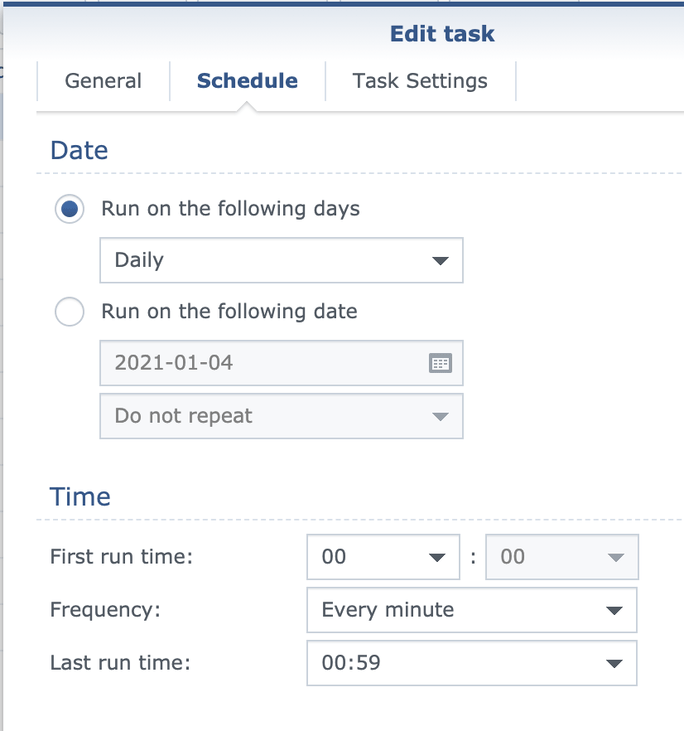
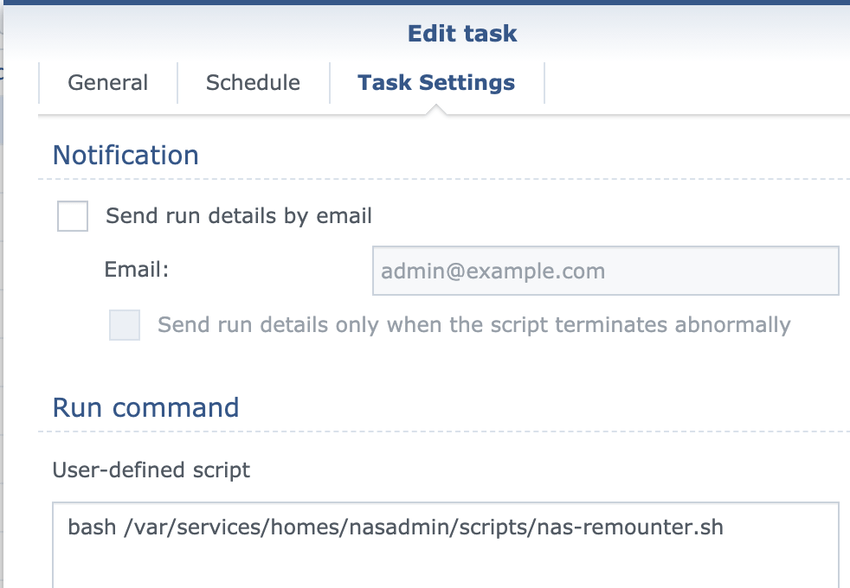
Sort of, I have a script that runs every minute and checks for a folder in the mount.

If it does not find the directory/folder it runs an unmount command (just to make sure it is unmounted and not stuck in limbo) followed by the mount command

my script is called:
nas-remouter.sh

Which is just this

#!/bin/bash
# Make script executable with: chmod a+x

if [ -d '/volume1/media/_mounts/gSuiteEnc/testdir' ]
then
	echo "Rclone Drive Mounted"
else
	echo "Rclone Drive Not Mounted"
	/bin/fusermount -uz /volume1/media/_mounts/gSuiteEnc
	# Remount 
/volume1/homes/nasadmin/bin/rclone mount GDenc: /volume1/media/_mounts/gSuiteEnc \
--allow-other \
--drive-server-side-across-configs \
--vfs-cache-mode writes \
--vfs-cache-max-size 100G \
--vfs-cache-max-age 1h \
--dir-cache-time 1000h \
--cache-dir=/volume1/homes/nasadmin/_caches/rclone/gSuiteEnc \
--log-level INFO \
--log-file /volume1/homes/nasadmin/_logs/rclone/gSuiteEnc/gSuiteEnc.log \
--poll-interval 15s \
--umask 002 \
--user-agent nas-gs2 \
--use-mmap 
--config="/var/services/homes/nasadmin/.config/rclone/rclone.conf"  &

fi

and in task scheduler I have a scheduled task:

1 Like

COOL that was a nice thing remount checker :slight_smile:
I have a similar version for an Ubuntu server I have. Here its checking if the file is located on the mount, if not, the system assume its disconnected and will remount :slight_smile:

rclone-mount-check.sh

By the way - can you use Filemanager to copy files from the mount folder to a local folder in Synology DSM? I get an error every time I try.

Would be awesome to control your copying in DSM instead of SSH.
Will look into your script as well :slight_smile:

tbh I have not tried. (just did try and yes I see an error too)

Not sure why that would be, as I have the drive mounted on my iMac with a similar mount command and can copy files from the mounted drive to my Desktop (or to my nas)

Edit: I looked at my config on the nas, and mine is actually set to read only,
I think I did that to stop the DSM from writing those damm @eaDir folders all over it

Edit 2:
But even if it is read only I should still be able to copy from it.
So I see, I can copy from it using terminal/ssh, but not using the DSM file manager. weird

I guess it must be a limitation of the DSM file manager. (not something I use much tho)

1 Like

Thats for sharing :slight_smile:

Well tbh its easier to select what to copy or not from your drive instead of typing in ssh .

What do you use to do your copy?

Will test this tomorrow , trying to add

–allow-root

EDIT: Didnt work - just read some dude posting same issue in rclone forum, but didnt work at all. :frowning:

hmm, there’s another thread here:

but that’ll cost 3.99 US Bucks to find out if it works

I just mount my Drive on my Mac and copy using the Mac’s finder to either My Mac or to My Nas

EDIT:

Another thing I just tried was I connected to my mounted drive on the nas over the network in the Mac finder and successfully copied a file from my mounted gDrive to my home directory on the nas (But I am not sure if that pulled it down to my iMac first)
