Server Version#: 1.25.1.5286-34f965be8
Player Version#: 7.25 (1615)
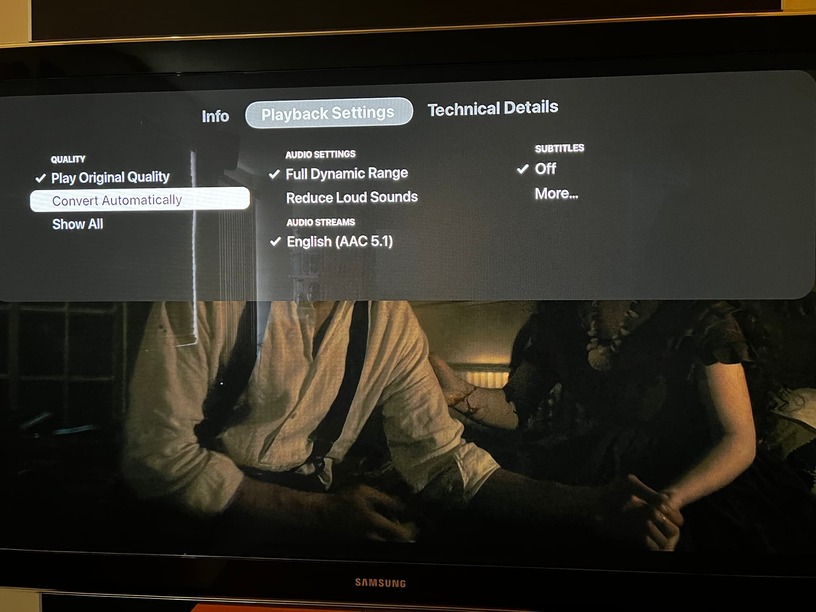
How can I set the player on AppleTV Plex to always set Playback Setting > Quality to “convert automatically”? …this is setting that open with swipe from top during playback.
Background… With Playback Setting > Quality set to “Play Original Quality” HEVC X.265 content with lots of movement on screen tends to play jagged (almost like a quickly moving slideshow). If I turn switch Playback Setting > Quality “Convert Automatically” the content plays back smoothly.
I see this option in App settings (below), but I don’t think it’s the same thing.. this adjusts quality based on connection speed.. and if I switch to on it doesn’t turn the setting to on for all videos. I think the other settings is “converting” to a format and quality suitable for my AppleTV (non-4K) as it also fixes audio issues e.g. multi-channel audio being played on BT headphones sometimes pick the wrong channels, but Playback settings > Quality > Convert automatically converts to stereo and picks the right channels.. not so with the
App setting
The synonymous App level setting is actually Setting > Advanced > Allow direct play > Off this does the same thing as Playback settings > Quality > Convert automatically… converts the media into a standard, compatible format rather than the player trying to play non-standard formats directly… sometimes it works and sometimes doesn’t… also plays almost immediately!
The naming of this functionality should be standardized in some way… they do the same thing, EXCEPT one on an individual file basis and the other on an app level. In one place it’s name refers to what it allows and in the other it refers to a different implication of the same settings!
I.e.
On file level… “convert file automatically” and don’t allow direct play… guess turn off and override it if on at app level too
On app level “Allow direct play” and don’t convert automatically ON/OFF
IMO… the string in 1) should be changed to something like “Direct play off/Auto-convert” to associate the two controls and give a better indication of their implications…