What do you mean Shield App? Do you mean the Plex App on the Shield?
By the way, I checked two of my Roku TVs today. on one, all libraries loaded fine. On the other, all libraries were ok besides “Shows” – same issue as on my Shield (No Content)
What do you mean Shield App? Do you mean the Plex App on the Shield?
By the way, I checked two of my Roku TVs today. on one, all libraries loaded fine. On the other, all libraries were ok besides “Shows” – same issue as on my Shield (No Content)
I just looked at your account.
I see a TVS-1282T and
02 [SHIELD Android TV]
Plex for Android (TV)
Android 8.16.2.24953
aca0f062a737fcbb-com-plexapp-android
Sun, 15 Mar 2020 20:24:26 +0000
What I find confusing is the IP address of the TVS-1282T is 64.xxx.xxx.xxx
while the IP address of the Shield is 104.xxx.xxx.xxx.
Looking further into the server, I do see a '*31 Guests" Managed User account.
Is this correct ?
If that’s correct then it looks like the shield player -or- the server can’t cope with being a Managed User.
Have you tried this with a regular user account for the shield ? (perhaps your main Plex account)
yes, the Qnap server is at my studio and the Shield is at my home. A setup that works quite well.
The Roku TVs are in various places in my office. Yes, those TVs used managed accounts.
I’ve tried both users on the Shield. To be clear, the system as a whole works fine. I can stream movies perfectly whether at home or at the office. It’s just the that “Shows” library shows no content on various TVs (since the Server firmware update)
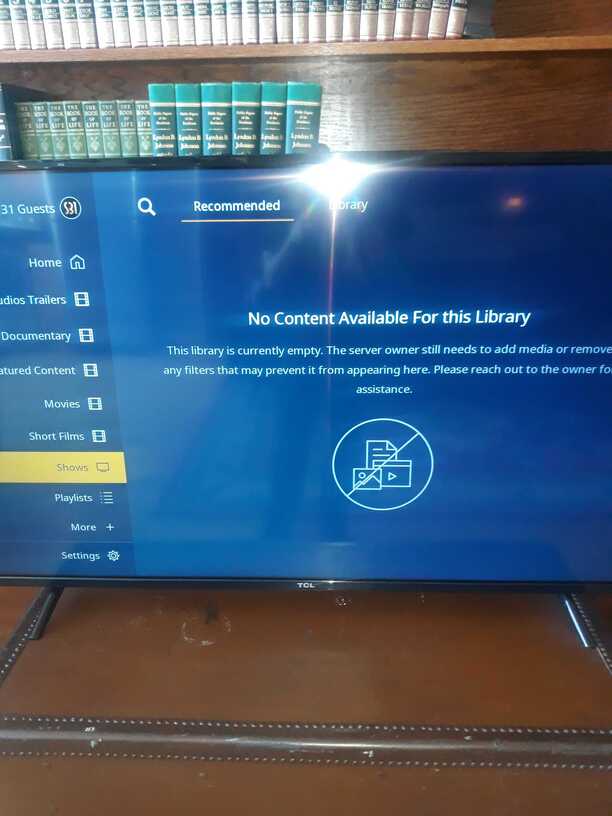
Hello. I finally got around to uninstalling Plex and reinstalling. Everything else was fine, but when I loaded the “Shows” library is shows “no content is available for this library” (see picture 2 posts above) … this is certainly content in that library. It can be seen on most devices and the web app.
Please grab the DEBUG logs ZIP for me before the scanning activity is gone.
If in doubt, have it scan the files again and then download fresh when done.
I fully expect a mount / permissions problem here.
I experienced a similar issue as the one reported in this thread by @Colors-Studios and I may have found an explanation / solution that may (or not) help.
Long story short, I had to reinitialize my Nvidia Shield TV to its factory settings and, since I run Plex Media Server on the Shield TV itself, I also had to reconfigure it from scratch. Not a big deal since I only have a relatively small movie a tv shows collection.
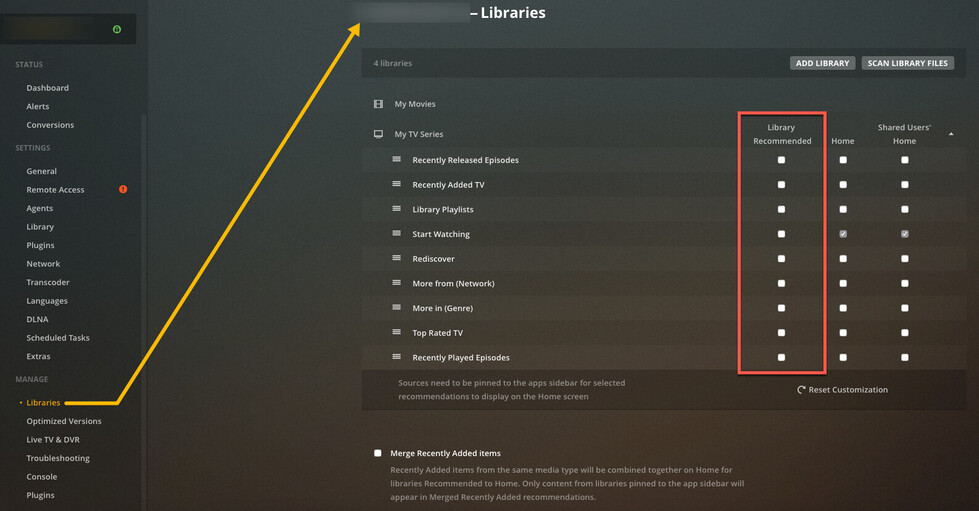
What seems to have happened is that, when I recreated and configured my libraries through the Plex web app / client, I also removed all the checkmarks that appear by default under the “Library Recommended” settings for my tv shows library (called My TV Series in the screen capture below) :
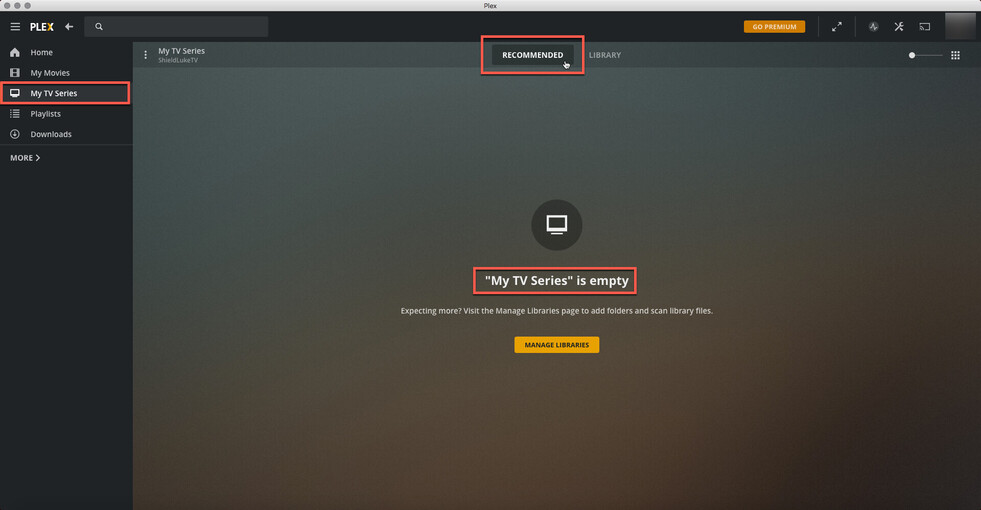
This controls what should and shouldn’t appear under the Recommended tab / section for the selected library and in this specific case, nothing would be shown (the library will appear EMPTY even though it is not…) :
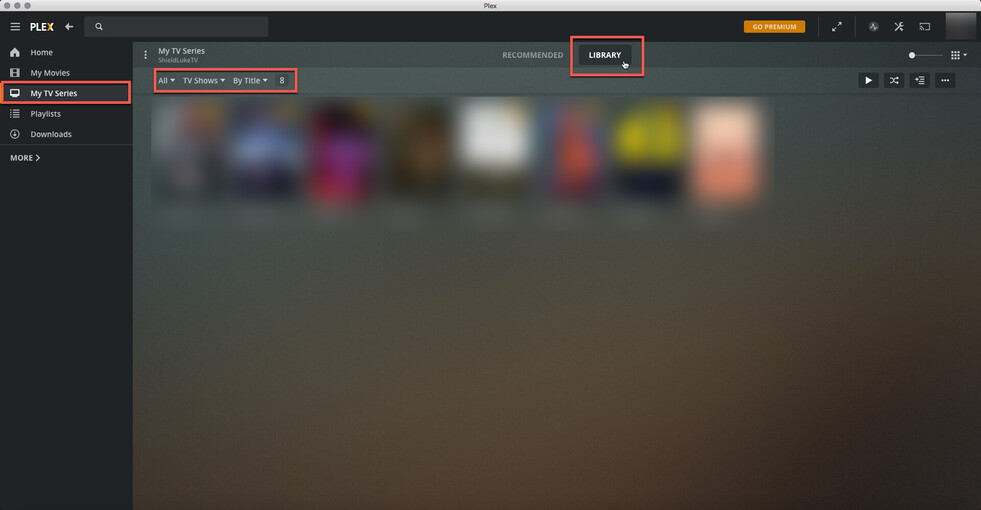
Obviously, once I click on the Library tab / section instead, then I could see the contents of my tv shows library :
Now, this situation isn’t a big issue on most Plex client apps because even when the Recommended tab / section is empty, you’re still being presented with the option to click on the Library tab / section to get access to your media.
The Plex client app that runs on the Nvidia Shield TV (and probably most other devices running on Android TV), however, doesn’t give you the option to click on / switch to the Library tab / section when the Recommended tab / section is completely empty, and therefore you get stuck with what appears to be an empty or non functional library…
To resolve my issue, I simply checked one of the options under the “Library Recommended” settings for my tv shows library (I chose to enable the “Recently Added TV” option) and I could then finally see both the Recommended and Library tabs / sections for my tv shows library from my Plex client app running on my Nvidia Shield TV.
I’m not completely sure this will help you resolve your specific issue @Colors-Studios, as from the picture you’ve posted both the Recommended and Library tabs / sections are visible on the screen, but just in case you missed it… I would definitely try to click on the Library tab first to see if you can actually see your media under that tab / section and then check the settings (Settings > MANAGE > Libraries…) for your library named “shows”.
Hope this will help someone. Even if the solution is quite simple and quite obvious when you know where / what to look for, it still took me a while to figure it all out…
Cheers,
SkyLukeQc
This did it! Thanks so much!!
This topic was automatically closed 90 days after the last reply. New replies are no longer allowed.