j_HeKe
1
Model: Synology DS920+
Server Version#: DSM 6.2.3-25426 Update 2
Player Version#: 1.18.5.2309
Step to reproduce:
- Go to package center, search for Plex and installed the latest version
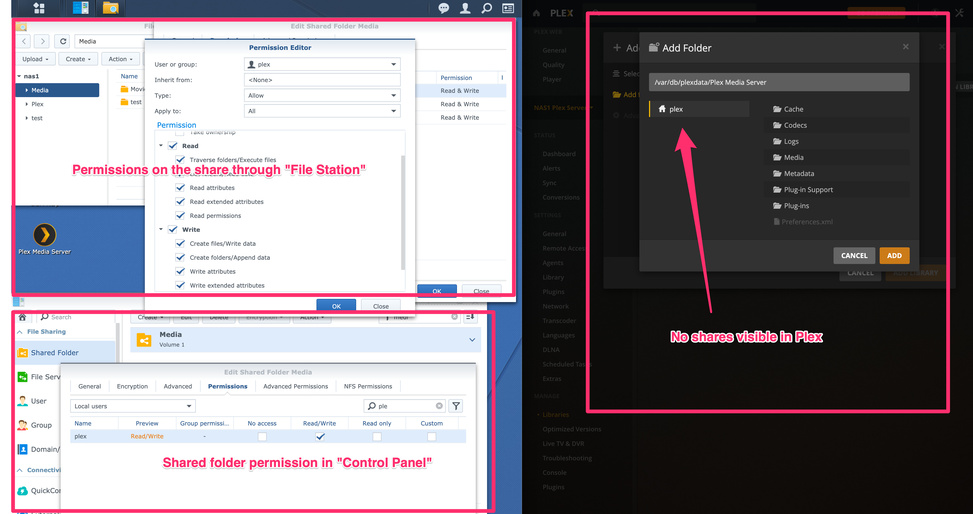
- Go to “Control Panel” → “Shared Folder” and create a new folder named “Media”
- Give the user “plex” read/write permission to the “Media” folder
- Go to “File Station” → create folders “Movies” and “TV Shows” in the “Media” share.
- Go to Plex → Manage “Libraries”
- Add Library → “Browse for media folders”
Expected result:
The created share will appear in the browse folder list
Actual result:
I don’t see the shared folder.
Here’s a screenshot from my setup and issue.
j_HeKe
4
Actually I installed Plex through the Synology Package Center and not via SSH.
I’ll try to:
- Stop Plex and uninstall it from my Synology
- Delete the shared folder
- Delete the user plex and user group video
- Read your link to the guide and follow it step-by-step
Will get back to you with the result. 
@j_HeKe
Do not delete group “video”. Doing so will have adverse effects on Dsm.
Don’t delete any groups.
Plex uses the existing users and video group because that’s the access Synology has granted us.
j_HeKe
6
I followed the guide. I downloaded the newest version of Plex directly from https://www.plex.tv/media-server-downloads/?lang=
I downloaded the “PlexMediaServer-1.20.3.3437-f1f08d65b-x86_64.spk”
Everything went fine until I came to the section “Adding media files - Creating library sections”
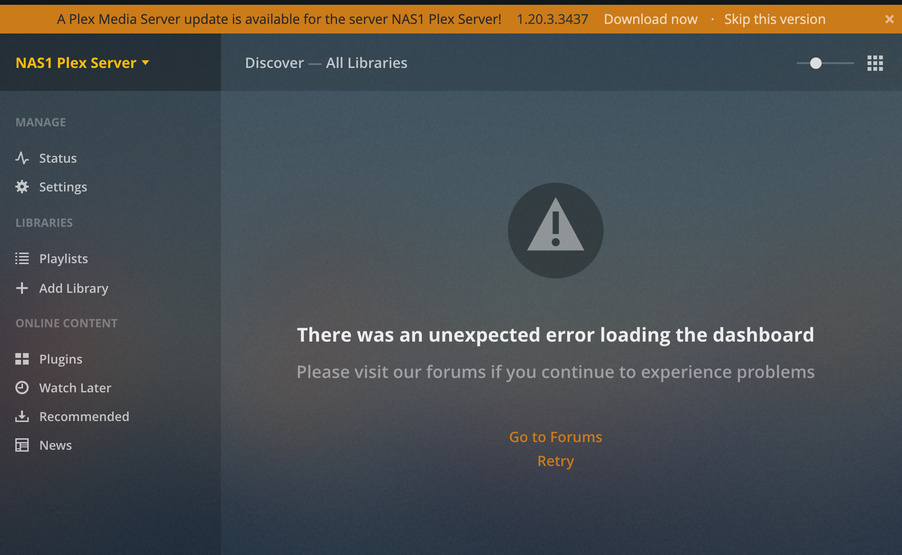
I logged in to Plex and no first-time-guided tour appeared. Just this screen:
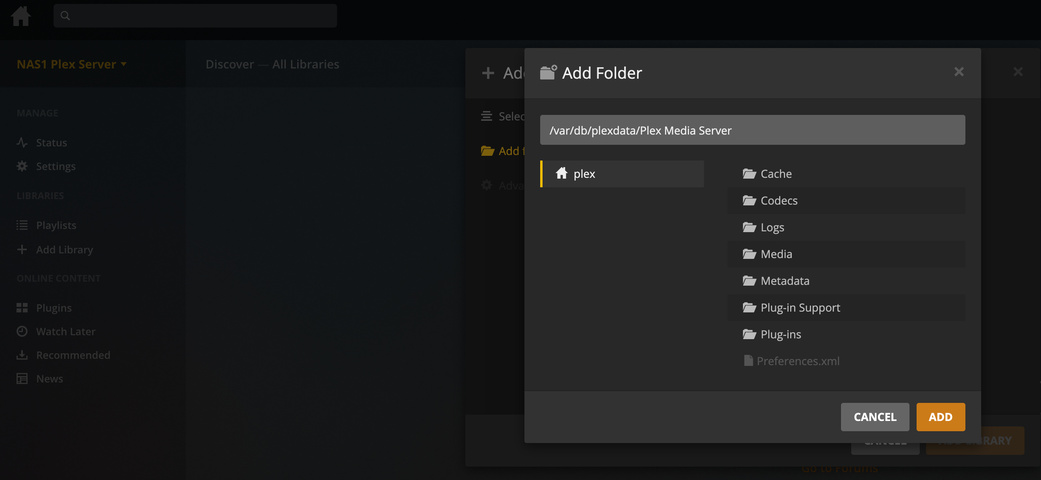
I tried to add the folder through the menu since the guide didn’t appear. No success, same issue with no shares visable.
Any suggeestions?
Go to Control Panel - Shared Folders
Highlight the share containing your media.
EDIT it
Go to the Permissions tab.
Add user Plex.
(this is in the Setup Guide)
j_HeKe
8
Too late. I already deleted the group “video”. But it seems like it was created again when I installed the new Plex package.
Though without any permissions.
j_HeKe
9
Yep it was in the guide and that I also did set like this:
ChuckPa
10
That’s good.
Now, If you’ve used FileStation to change individual file permissions,
You will need to go back and grant plex permission inside the share again too.
It will look something like this, except your names, when it’s ready.
Don’t forget “Apply to this folder, sub-foldres, and files”
j_HeKe
12
I finally solved it. After I realised my NAS wasn’t on the same broadcast domain the initial setup didn’t work probably.
What I did was:
- Delete the
Preferences.xml in the folder /Plex/Library/Application Support/Plex Media Server
- Activate SSH on the Synology
- SSH to it and set
AllowTcpForwarding and GatewayPorts to yes in the file /etc/ssh/sshd_config
- Reboot the Synology
- Made a tunnel from my Mac to the Synology
ssh admin@[server.local.ip.address -L 8888:localhost:32400
- Opened a browser window and entered
http://server.local.ip.address:32400/web into the address bar
- Follow the setup guide
All works now. Thank you for your time.
system
Closed
13
This topic was automatically closed 90 days after the last reply. New replies are no longer allowed.