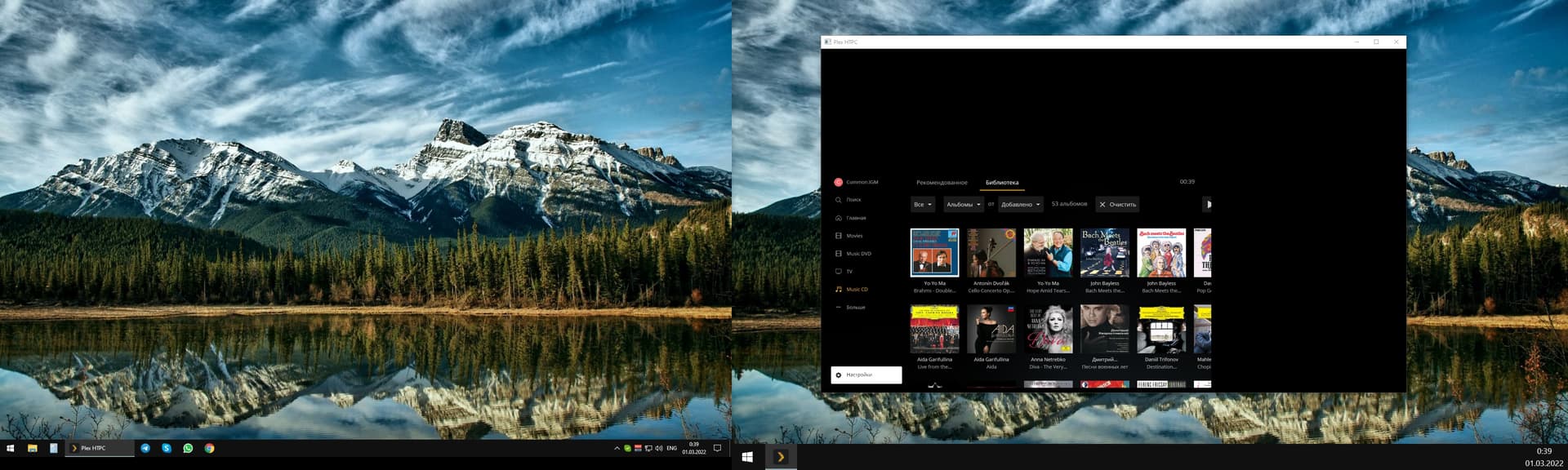
Version 1.12 has been released (see first post for links if you need them)
HDR (on Windows)
The big news: This new version adds support for gpu-context=d3d11.
You will need to add this to your mpv.conf for now (will change in an upcoming version). Currently the app defaults to angle but we are looking at changing that depending on your experiences. You can confirm which you are using by bringing up the debug overlay and looking at the hardware decoding. If you see mention of egl then it is using ANGLE.
Do note that we have noticed than ANGLE performs better with the certain scalers and D3D11 performs better with others. We conducted some tests on an Intel integrated GPU scaling 720p->1080p and saw that ANGLE performs better on spline16, spline36, spline64, bicubic, bcspline, sinc, and lanczos where as D3D11 performs better on ewa_lanczos, haasnsoft, ewa_ginseng, and jinc. Given that ANGLE is only performing better on the lighter scalers, it is likely only those on really low-end or old hardware would want to stick to ANGLE for performance reasons. For that reason we may combine the selection of ANGLE/D3D11 with the quality settings.
I’ve got agree it is pretty consistent for me too. I’ve just upgraded to v1.12.0.2884 and the problem still exists even with the guide changes in this version:
The bizarre thing, when this happens, is the cursor keys still work on the new guide heading such as Entertainment, Movies, Reality, News + Opinion, Kids + Family but as soon as I navigate to the channels they stop working.
Press backspace to navigate back to the headings and they work again. Press the down arrow to return to scroll through the channels and they stop again - most odd
Do you have different scaling factors for the two displays? The other instance of this reported in this thread has 100% and 125% on the two displays and I’m wondering if that’s the factor at play here.
Awesome stuff!
Just to help forgetful numptys like myself can you remind us how to bring up the debug overlay?
Also how do we know we know what scaler we are currently using? Is it related to quality setting?
The quality setting will set them as in this post: Plex HTPC feedback - #1107 by gbooker02 Additionally, you can override these in the mpv.conf so if you’ve done that those values persist over the quality setting.
oh, so this is for each version and not the app as a whole?
What’s new in HTPC
What’s new in Plex HTPC?
Support for lots of newer features, including:
Skip intro
Live TV & DVR grid-style program guide
Tracks from movies and TV episodes
Free on-demand movies and TV shows from Plex
Free live TV channels from Plex
More screen saver options: media artwork and photos
The app is designed to be run in fullscreen on a TV or projector. It has a fixed 16:9 aspect ratio, and you can choose between 1280x720 (720p), 1920x1080 (1080p), and 3840x2160 (4K) in settings.
Updated some input mappings. A few Plex Media Player input mappings are no longer available in Plex HTPC (complete list here ). Inputs and mappings can be customized similar to Plex Media Player (more details here ).
Updated Bluetooth gamepad mappings for DualShock 4 and Xbox One on macOS and Windows. DualSense and Xbox Series X are only supported on macOS for now. The app only responds to gamepad input when it’s focused.
Updated the player engine. We’d love lots of feedback around the playback experience. How is 1080p and 4K playback working compared to PMP?
Updated CEC integration. If you use CEC in your setup, please try this out and let us know how it goes!
Was initially looking for a log, which as the name implies saves history for version numbers.
Missed it.
Dolby Vision is proprietary closed source stuff from Dolby, so the answer is probably no. (even if dolby releases the code to the public mpv has to implement it first)
The mpv.conf (containing gpu-context=d3d11) needs to be placed where the mpv.conf.md is located. (C:\Users\XXXX\AppData\Local\Plex HTPC) Then it should work. You can also check the logs. With the mpv.conf in place, you should find these lines that say