That view of the L column of my Plex windows client does not show my custom server name which had been visible the minute before I changed my password on 31 october. It does show my custom computer name which is BensHQ. I appreciate you are trying to save my libraries. They were all visible the minute before changing password 31 october. We seem to be considering that changing password destroys libraries? My library audio files are still visible in Explorer and my video files are there inside of BeMyCloPR4100. I assumed that is the name of my “server.” Screenshot of my video files. My audio files are much more voluminous.
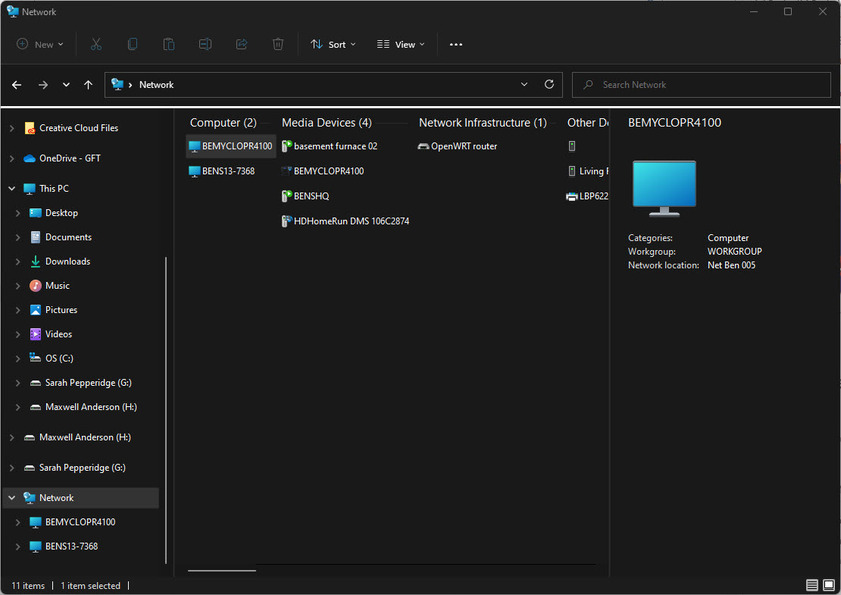

It is not. Here, things get a bit more complex. The NAS computer itself has a computer name, which you seem to have called BEMYCLOPR4100. You can use \\BEMYCLOPR4100 in an explorer window to see the contents of the NAS. It’s basically just a hard drive, but you access the contents of it through the computer’s name, rather than a local Drive Letter (such as F:\)
Computers have names, and can be accessed by typing in their name. Plex, however, is a program that runs on top of your NAS (or on top of Windows. All programs that you can run on computers are generally described as “running on top” of the computer or OS). Programs don’t have “names” the same as computers do. Plex is a complicated program that you can have running on multiple computers. To help keep track of them, the Plex app lets you give the program “running on top of” your NAS, but - and here’s the funny bit - this name does NOT have to be the same name as that of the NAS itself. I think by default Plex will try to use the same name, but there is no guarantee that this is the case.
Either way, all the above was just to say that it MIGHT be the right name, but you are not looking at the right spot. Let’s start over. In a browser window, type in (or just click) on the following link:
http://192.168.1.140:32400/web
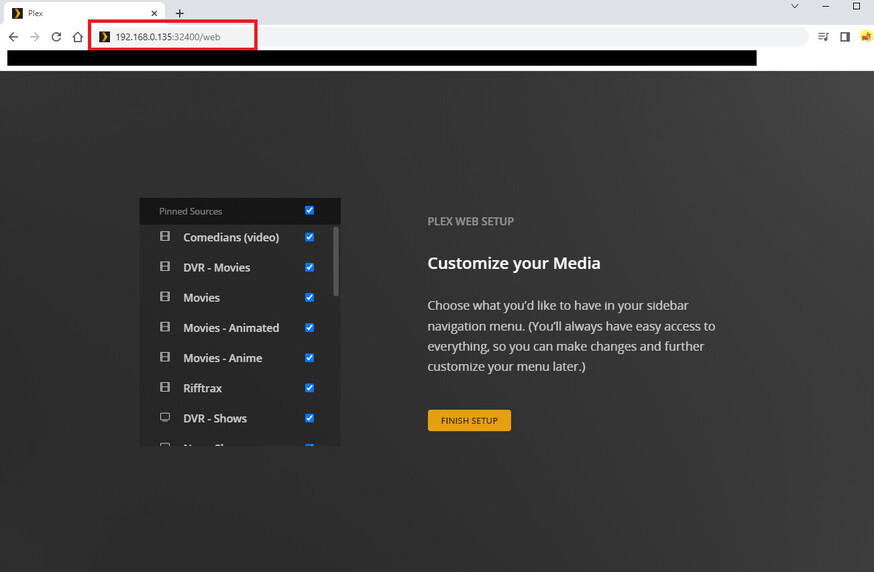
This should open up the Plex server running on your NAS. Could you provide me with a screenshot of the VERY first thing you see when you load that up? I hope it’s asking you to “customize” your server. If you see the below pic, just click “Finish Setup”
If you can get past that screen above, or if it never came up, show me a screenshot of the home screen. It should hopefully look like this. I blanked out my movies, you might not see anything on the right, plus I don’t want you to see them  :
:

If the left-hand side is empty, there should be a “More >” button at the bottom of the list, as I asked you to go to earlier:

Please show me a screenshot of the screen after you clicked on “More >”

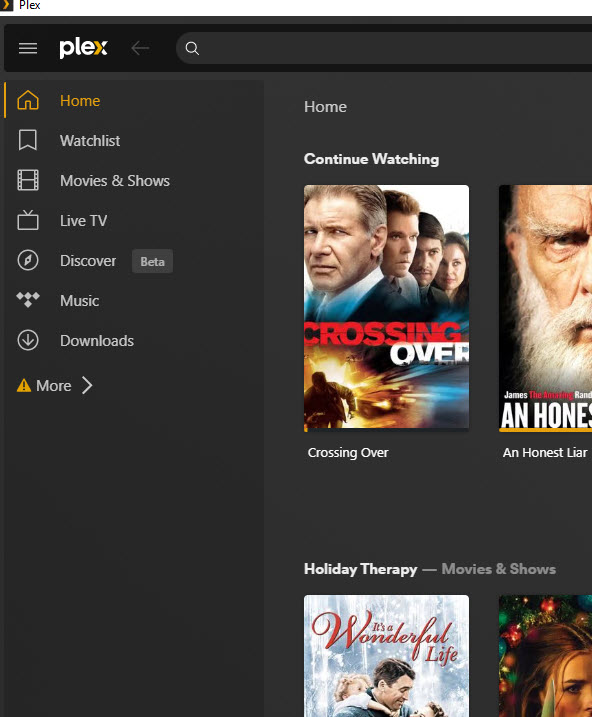
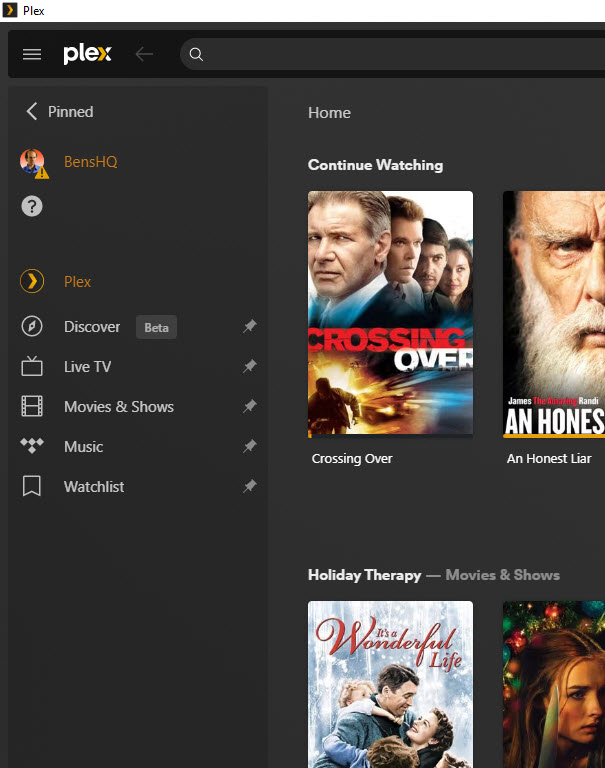

Ok… Interesting. In your chrome window, you don’t have a “More >” option, but you do have a “+ Your Media” button. What does the window look like when you click that?
Question: Is “BensHQ” the name of your computer? If the Plex media server on your windows computer is running right now (look for a “Plex” icon near the clock on your Windows taskbar in the lower right), then I think the Windows Plex player is connecting to it automatically. It’s offering for you to “claim” this server. You can claim it, but I doubt it will yield any good results.
Back to the chrome link I had you click. Can you click on the wrench icon in the upper right corner for me (marked and circled by the number 1)? Then, I want you to tell me if there is anything in the left-hand side menu here (marked and circled by the number 2)?
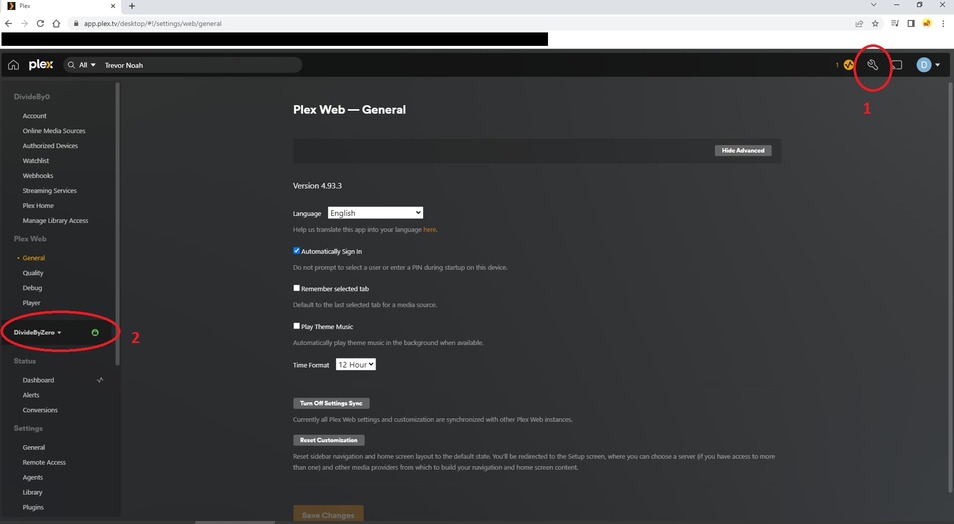
clicking Your Media (through chrome) shows a screen that says Add Your Media to Plex and Get Plex Media Server. … Yes BensHQ is the name I gave my computer before I ever got Plex. I exited the Plex icon in bottom R. I closed and reopened my Plex windows client in start menu. Then my Plex consumer screen does not include BensHQ in L column. I would rather not claim server software in desktop computer. Instead I prefer the software in the NAS. If I choose desktop computer, does that require that I leave computer on when I leave the house in order to access my content remotely? My audio library was built by making folders for every mp3 file. It is complicated to build an audio library. Common windows MP3 Players automatically create good tag systems. But Plex does not see and sort my audios as conveniently. Plex requires carefully building audio folders for all albums. It is not automatic. Presently all my audios are in the NAS in the many folders that I built for my Plex audio library. It had been named by me in my former Plex setup something like BensThirdAudio. I created it through Plex settings. It showed in my L column. It was not near or in my Plex Music folder. It seems that now I have the option of creating a new BensThirdAudio … what is it, a database? It is a library. I should be able to ask Plex to see all my folders and then my audio library can be brought back alive. I do not want endeavor to do that until we make sure the Plex media server software that I commit to is in my NAS instead of my computer … I captured the screen through chrome after clicking that Wrench
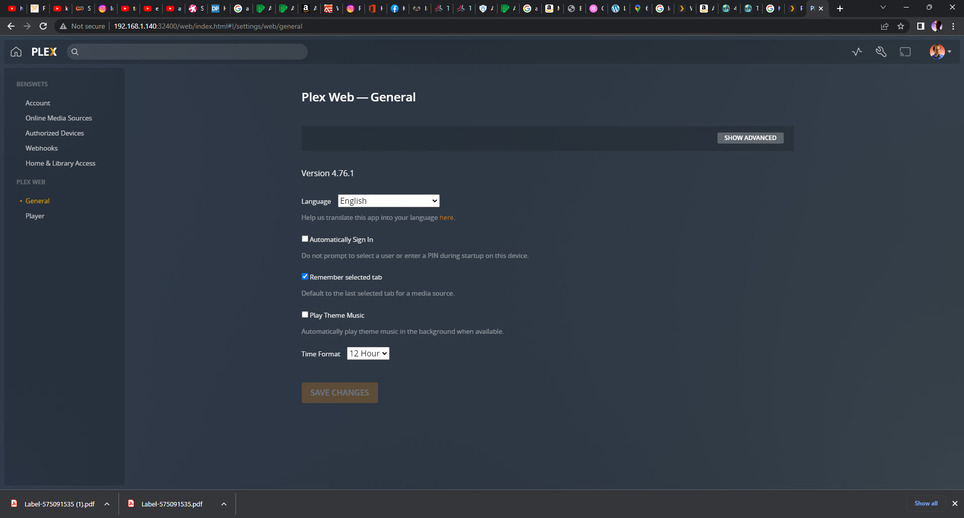
Ok, I am now 99% sure that you do not want or care about the Plex server on your windows machine.
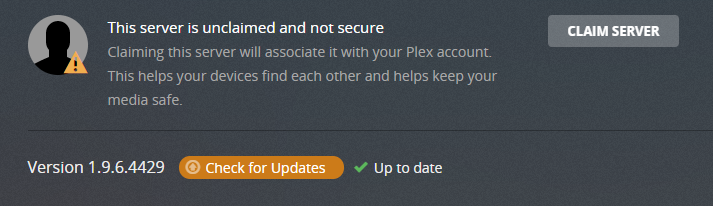
If you “claim” the server on your own computer, it does not mean you HAVE to use that instead of the NAS. It just means you would have two servers. That can be ok for some people, but you obviously would not want to do that.
I just reviewed the WD MY Cloud article that Plex provides for setting up and running Plex on the NAS. From the sound and/or look of things, I think your Plex NAS server is either “claimed” by a different account, or not claimed by your account. So to fix this, we need to claim it.
Take a look at the link I gave up above. You need to get to your NAS management console. I see back in post 20 that you shows us a screenshot of the NAS console, so you know how to do that. Go back to the page seen here

and click “Configure”. I hope the steps are understandable, as I do not have a myCloud to test out myself, so I cannot walk you through it unless you want to screenshot every page and ask me what to choose. (I am willing to help if that is what you want, but it’ll take AGES at forums speeds ).
I HOPE HOPE HOPE that this resolves the issue.
- If it claims the server and your pre-made libraries appear, then success.
- If it claims the server, but your libraries have been lost.
(This is likely, since disabling the Plex server on the NAS DELETES the server data (not your media, just the server))
We’d have to re-create the library, but at least your media is still safe. - If it is already claimed, but it’s not logged in as your Plex Pass account (someone else? a hacker?), you will have to log the SERVER ITSELF in on your account. That ought to “claim” it for you.
Does anyone else reading this have experience with WD MyCloud Plex servers?
I clicked configure. It took me to the Plex consumer home screen the same as clicking the link you gave me in post 41. Does that step qualify as claiming? My libraries do not appear. It acknowledges that I have a Plex Pass. It has my identity photo. It includes my “Tablet 002” as an authorized device. If I was starting over with a new account, would we expect this to be known? It does not include my phone, which I commonly used in the past. It says my tablet was last used 4 days ago which was right before I changed my password and lost my libraries. When I click Your Media it suggests getting Plex Media Server which I clicked. It took me to this screen
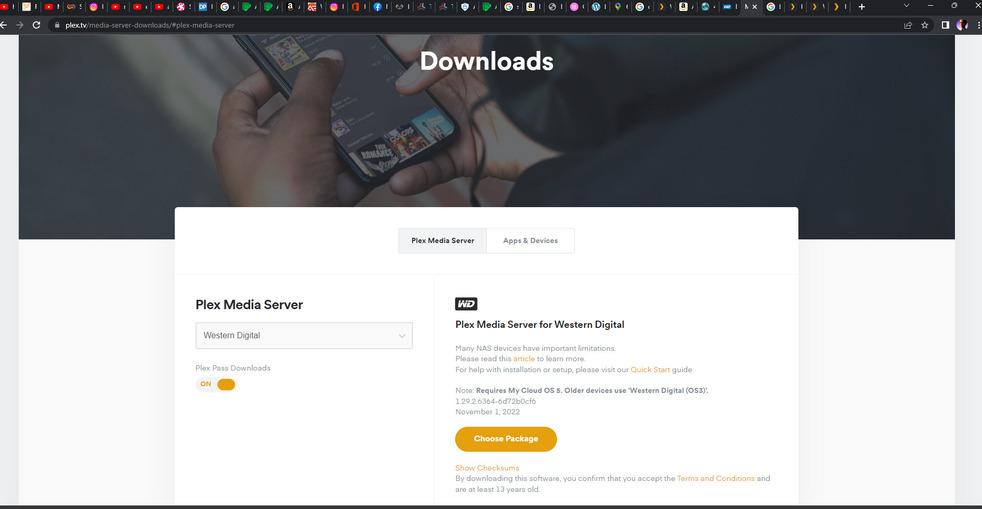
Hmmm, no, you shouldn’t have to install (or pretend to install) the server again. What you see is just a bit of mis-communication between the “+ Your Media” button and the already-installed server. The latter is not informing the former that you already have it installed.
If you were to create a brand-new account (for testing), and log into it on any client in the world, you could still use Plex’s free video streaming movies. At that point, your new test account has no server to provide media, but since there is still stuff to see in the free online stuff, you are able to use the client program. But as soon as you try to click the “+ Your Media” button, it suggests to you that you need to install the server program SOMEWHERE and interact with that to get media. Once you have a server on the account, the “+ Your Media” button would change to “More >” as I see it, allowing you to see your stuff.
Ok, so let’s back up to… Step “Configure.” What I mean is, go to this page you were at earlier in a browser one more time and click configure:
Yes, you have already been here, and it looks the same as other times you’ve been here, but bear with me. Click the wrench  icon in the upper right, and… Here I may have to be a bit vague. I am unsure what you may see, but you need to get to the server settings page. There should be a button somewhere offering for you to claim the server you just reached. In particular, I hope you see something like this:
Please look at the following support article:
https://support.plex.tv/articles/218136308-why-is-there-an-unclaimed-media-server-on-my-network
The article should hopefully provide some hints as to what to click on. You MAY be asked to sign in again when you try to claim the server, that is fine (I expect it should, which would be good).
If all the above went well, then you should be back to where you were at before the password change. I hope the libraries are still there and working. But we’ll see what’s hatched before I count my chickens.
I thought that the NAS server at http://192.168.1.140:32400/identity was claimed?
Double check that. If it says that the server on the NAS is claimed but you are still locked out of your server settings, continue reading. If it isn’t claimed yet, then continue with the directions Divideby0 gave.
I’m pretty sure the Windows server isn’t claimed because you deleted the
-
PlexOnlineHome
-
PlexOnlineMail
-
PlexOnlineToken
-
PlexOnlineUsername
These are the steps you take for “Why am I locked out of Server Settings and how do I get in”
That leaves the server in an unclaimed state
Before you do anything shut the Plex server down on your NAS

I believe you were on the right track, you just did it for the wrong server.
The screen shot you posted above was the directions for a Windows server. You need to go back to this tutorial and follow the directions for Linux and do the same thing for your NAS this time
https://support.plex.tv/articles/204281528-why-am-i-locked-out-of-server-settings-and-how-do-i-get-in/
Personally, I would delete the Windows server completely. It’s not doing anything now except causing confusion
All evidence points to the fact that the Windows server was installed by mistake, probably while trying to download Plex for Windows
On Windows go to start → settings → apps
Scroll down until you see NOT PLEX but Plex Media Server
UNINSTALL

After you edit the Preferences.xml file on the NAS, that will again leave your server in an unclaimed state
You will have to go back to http://192.168.1.140:32400/web after you’re done and reclaim the server the way Divideby0 is describing in his last post
You may have to also sign out and back in to any devices or apps you use to access Plex
i.e., Plex for Windows, your phone ect…
When I went to your first link in this post it said claimed =“1” … I turned off the NAS Run App switch. I uninstalled the Plex Media Server on my computer. Now I am going to study your recommendation to edit the Preferences.xml file via the Linux instructions. … The instructions are: Linux > In Linux, the Preferences.xml file in the main Plex Media Server data directory contains the corresponding settings. < My question: Is the Main Plex Media Server data directory a folder in my Win 11 registry?
Your NAS is secretly a Linux computer. So if you want to manipulate the installed Plex Server program on it, you need to find the location of where Plex is installed on the NAS. Thus the need to follow the instructions on how to fix the Plex Server for Linux.
I searched and searched, and found a page that lists two locations for where Plex is installed, depending on what kind of WD My Cloud device you have. One is for WD My Passport, which I think is a smaller more mobile kind (I think I might even have it somewhere). I can provide the location of Plex for that, but I think it is the wrong device, so I’m going to skip that for now.
For all other WD devices, Plex is installed in /mnt/HD/HD_a2/plex_conf/Plex Media Server/. There should be two ways to get to this folder:
- Windows Explorer. You can type \\192.168.1.140 into an explorer window. This will take you to your NAS shares. However, I don’t know where the shares are mounted, and I HIGHLY doubt that they’d be as far down as the /mnt folder. But look around, and see if you can find this location.
- More likely, you will need to use the web interface to find the file in a browser. In the same location you went to turn the Plex media server on or off in your browser, instead you need to find a way to “explore” the device’s contents. Looking at this pic:
Now, if this was my Synology NAS, I need to install and run a kind of “File Explorer” app to look at my files. WD might have one built in, and if so, it’d either be under: -
Storage
This might list your drives and allow you to see their contents, but it’s probably going to just list your installed hard drives and allow options for formatting them (DANGEROUS, DO NOT DO THAT) -
Shares
This is where you enable access to the drive contents for view via Windows File Explorer. If you were unable to find the file location by going to \\192.168.1.140 earlier, then it’s unlikely to work here. -
Apps
You need to look for an app that allows you to “explore” the actual operating system files. If you can even get to these files, it can be a scary place. The folder names make little sense, and making any mistake here can be bad (which is why I suspect you won’t find an app letting you in here). -
SSH
This is… the most scary option, and I hope we won’t need to do this.
@BigWheel Sorry to bother you, but do you know how to access the preferences.xml file in this user’s WD My Cloud? We think we need to edit the file to reclaim the server.
I don’t know what type of cloud, but you might recognize it from the one or two screenshots of the interface shared previously.
Is this a pr4100 or one of the my cloud Homes?
This is a tool that @ChuckPa made to help claim servers on linux boxes GitHub - ChuckPa/UserCredentialReset: User Credential Reset utility for Plex
Mine is PR4100. should I make several screen captures of various screens in my NAS interface? I could show all my apps. I glanced everywhere. No evident access to any administrative view.
This does seem to be about my problem
I don’t think the reset utility is an option unless this documentation is outdated from the GitHub download page

I think it would be a good idea to ping ChuckPa later when you’re around, and have time for him to walk you through doing this manually. He’s excellent at giving step by step instructions for things like this
“MyCloud” and “MyCloud Home” are different series.
correct. My PR4100 is MyCloud not Mycloud Home
I am confused by the tool. You suggest I ask ChuckPa for help. Could you please confirm that this is a credible way to describe my goal and my confusion? Plex Media Server is not convenient to install on my WD NAS PR4100 perhaps because I clumsily installed it on my Win 11 computer. Claiming seems impossible. PMS may be on my WD NAS but is not recognized. The Plex consumer screen recurringly recommends that I obtain what I already have. It seems I need to manipulate some hidden files that are in my WD NAS Public folder. On the page of the tool in the Download and Extraction department there is an instruction number 2 for owners of Windows computers which I must ignore, correct? I must attend to instruction number 1 above for Linux. Also I wonder how to Ping ChuckPa.
