I’m using make MKV to rip DVDs and Blu-Rays. This should rip them at their native resolution (720 for DVDs, 1080 for BRs). Yet the movies are importing into Plex at only 480i. There was a 2014 thread on this, but I couldn’t follow it. What do I need to do?
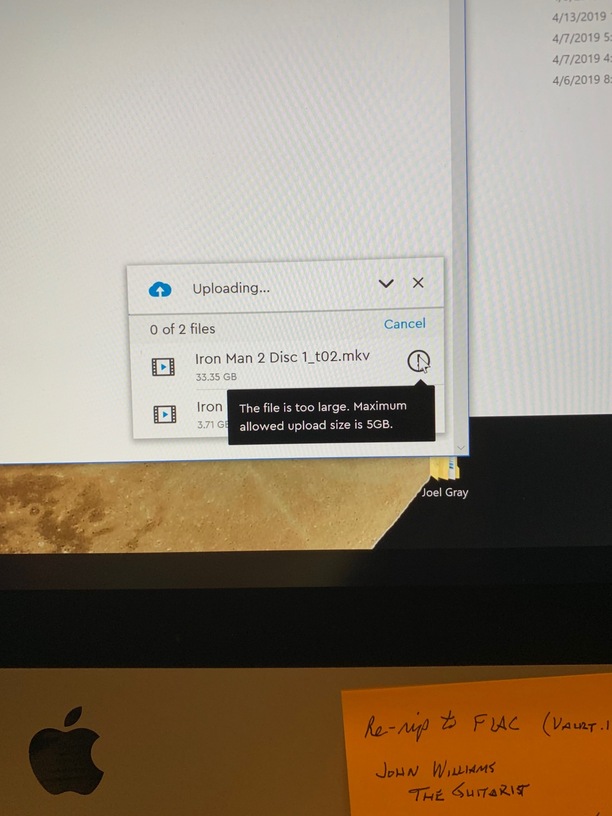
Plex will not let me import movies over 5 gb. Obviously, this is not allow me to import MKV rips of Blu-Rays. Is this a limitation of the free program? (Website shows both free and pay versions allow 4K streaming, so I’m below this with plain Blu-Rays.) How do I get Plex to recognize larger file movies?
Big Wheel— Thanks for your reply. My naming method is identical for all my movies, those that import and those that do not. The 5 go limitation that you say does not exist is the error code I consistently get whenever I try to import a larger file (greater than DVD length\quality. So I’m still at a loss as to what is going on. Also, I still don’t know why my movies are only saving at 480 rather than 720 or 1080. Any other suggestions?
what is that method? What is an example of one that does not and one that does.
What does the error message/code say exactly? can you take a screen shot or get log.
I’m not really sure whet you mean here. Where are you looking to see this.? It analyzes the file uses that info if it needs it for transcoding or whatever. It doesn’t edit the actual file. You can reanalyze manually for any file from the options menu for that item.
Opps–my bad. I thought DVDs had 720 lines of resolution. If they are only 480 that explains my “problem” with DVD quality. I guess I’m getting full resolution (though it looks worse on my 4K TV than using the actual DVD in an attached player, hence my concern). Thanks for setting me straight.
It looks like you are using Microsoft Onedrive, and the free basic version has a 5Gb limit that can be uploaded. This is not an issue with Plex but a Onedrive restriction. https://onedrive.live.com/about/en-us/plans/
Thanks, but I’m still not completely following. Guess I’m more a newbie than I thought.
The movie files are already on my Western Digital NAS drive under a movies folder. When I drag and drop them to the Plex Files page, the error arises. If it’s a Onedrive problem (honestly, I’m not sure what onedrive even is), is there a way to bypass it? (At this point, I’m hesitant to throw any more money into this; after buying a couple hard drives, I basically still don’t have a working solution; if there’s a freebie way to do this, that’s my choice as I’d like to save remaining funds to purchase the full Plex program if I can ever get the free one working.)
Thanks again.
As the movie files are already on my NAS (mycloud/public/movies), is there a way to direct Plex to search and use the already established directory? I’ve not found how to do this if the option exists.
Thanks again.
My mistake, it looks like the Onedrive icon, the Western Digital icon is very similar and fooled me. It is not Onedrive. I notice that you are trying to upload a 33.35Gb file, only certain file system will allow you to create a file this size. What are you trying to upload it to? I have used WD NAS’s before but don’t currently use one, so hopefully, someone who has one of these can help?
The upload issue looks like some auto backup feature. That you put your file somewhere and it backs it up to your cloud drive in a particular folder. I don’t have files that large but don’t have any issue taking my file and placing it in the proper folder for movies, tv shows etc that Plex points to.
I have both a Plex Server running on a windows 10 PC and Nvidia Shield both using the WD MyCloud NAS.
Ensure you have the following:
Static IP setup for both the machine that has the server running and the NAS.
Verify port forwarding is setup correctly.
For poor resolution issue, ensure you don’t have any limit on the server and client side. Also ensure the clients are set to play Direct Play and original if possible. Also when you play a file, verify what it shows on the dashboard.
Is the issue only when you play in your network, away from home or both?
I’ve played DVD rips on 1080p TVs and they look great.
Thanks for your reply.
This is kind of where I’m lost. I have Plex installed on my 8 tb WD MyCloud Home. The movie files are already on that drive, in a folder called (appropriately enough) Movies. It’s when I try to drag and drop the movie files onto the Plex files screen that I get the 5 gb limitation error message. As an example, I have the following file: Iron Man 2/Iron Man 2.mkv ripped from a Blu-Ray. It’s 33.3 gb in size and I can’t move it over to the Plex folder, nor have I figured out how to get Plex to use my own Movie folder as the default storage folder. I have no issues playing movies, either at home or on the road; the single DVD (<5 gb in size) I imported into Plex plays fine.
Trotter 999–Thanks for replying. The 33.3 gb file is already on my WD NAS; I imported it without problem from a local hard drive. I’m unable to drag and drop the file onto the Plex files screen that’s the problem. The movie itself is already on the drive Plex is installed.