I’ve been having some trouble with Plex for the last two months. ANY help is appreciated. I’ve tried checked the router and all other remedies on the website and forum. I figured posting my logs would be best.
I’m using a Netgear R6250 router. It was working seamlessly and then it just became a problem. What other information can I share to help potentially identify the issue?
Oh that sounds like a buzzkill. I wish I was an expert in remote access. People suggest that website whatsmyip or something that tests if their router is correctly working for that port 32400. Have you tried that?
I’ll have a look at the logs. I immediately saw some extra network interfaces you might not have in a standard PMS install. We should have you uncheck so it is disabled:
Settings - Show Advanced - Network - Enable server support for IPV6
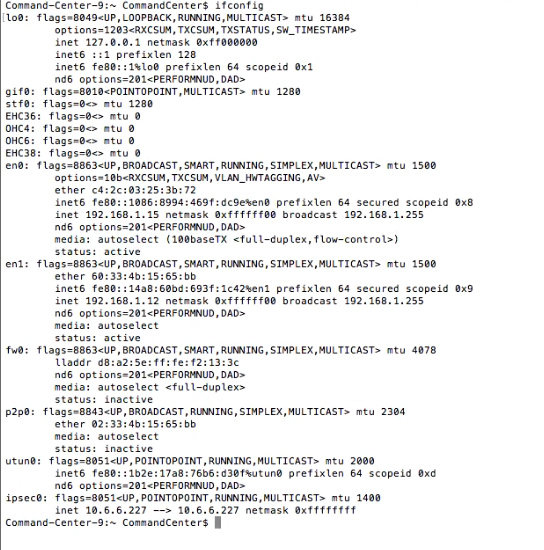
then restart the Mac, and give us more information about why there’s an en1 interface on the private network. I don’t recall Macs having two NICs.
I had the same ‘error’ appear after upgrading my PMS to the latest version. But, as others stated earlier it does not affect functionality - I am still able to access all content from a client not on the network. So, maybe check functionality before spending too much time trying to ‘fix’ it.
Good points @eking34au. On the newer iMac I noticed it was casually persisting the WiFi even when I clicked disable on the menu bar.
After opening my gears, I saw that the only way to disable the WiFi was in there, not on the status bar anymore. That WiFi is the en1 listed, and it’s not bad as you say. Again a very good point I shouldn’t overlook, but the OP’s remote access is dropping after being green.
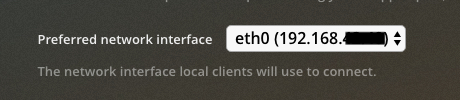
@lacy1987 You’re on the latest PMS. Go into Settings - Show Advanced - Network - Preferred Network Interface
Yes it could. Would you tell us if you use static IP for the Plex Server, and please screenshot the router settings so we can see what’s going on. You can redact anything you want ofc, but it’ll make it slightly harder.
We’re all here on the same spinning rock. No question there
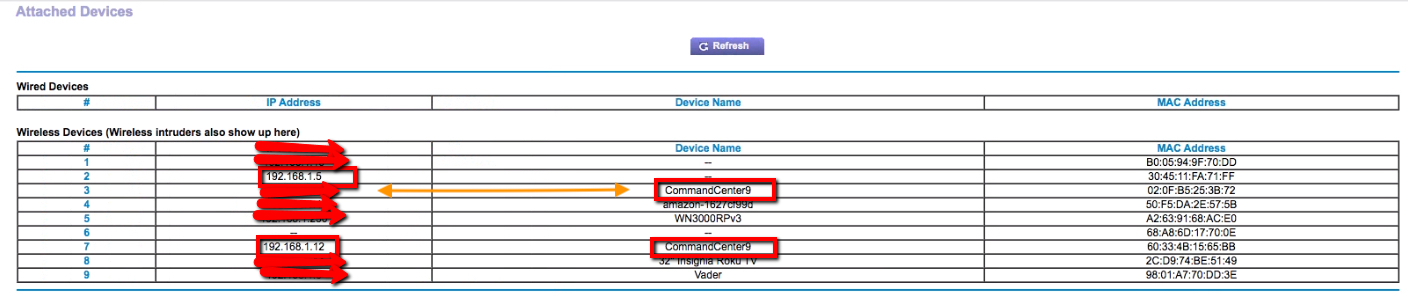
As far as your router goes, you inadvertently pictured things on different lines.
I added an arrow.
So it’s maybe the next line down on the left side you were looking at?
As far as having two devices listed with the same name, that would
probably be the the two interfaces, wired and wireless, en0 and en1.
On a Mac terminal, run this command to list the Mac network config, then
paste the output into a text file, zip it and attach it too.
ifconfig
We will then be able to see what the MAC addresses are for the wired and wireless.
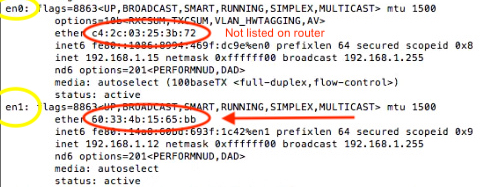
We can then match that up to what we see in the router config. You can do this all
yourself if you want and skip uploading it. You’re looking for the ether fields. e.g
en0: flags=8863<UP,BROADCAST,SMART,RUNNING,SIMPLEX,MULTICAST> mtu 1500
	options=b<RXCSUM,TXCSUM,VLAN_HWTAGGING>
	ether 51:11:11:ff:ff:ff
	inet 192.168.2.12 netmask 0xffffff00 broadcast 192.168.2.255
	media: autoselect (1000baseT <full-duplex>)
	status: active
en1: flags=8823<UP,BROADCAST,SMART,SIMPLEX,MULTICAST> mtu 1500
	ether 23:30:62:5f:98:2e
Okay @lacy1987 we can see from your router screenshot that
your router only knows about wireless devices and that it’s talking with
your Mac over WiFi. The reason I say “only” is because the screenshot
is divided into two halves. The upper half is Wired Devices and is empty.
The lower half is Wireless Devices and that’s where we find your Mac’s WiFi
listed. I circled the two halves in yellow in the first picture.
From your ifconfig output we can see both en0 and en1 are Active and listed as UP. But we can’t see the wired device listed in your router screenshot. It would be listed by it’s MAC address in the top half.
Things look reasonable so far. We will proceed by doing three things:
Determine if your goal is to use a wired connection for the Mac.
Check which interface is currently your default interface and what your gateway is.
Check your Mac’s System Preferences app in the Network thingy for which interface has priority. I’m guessing the WiFi has priority over ethernet. We can adjust that if needed.
Part 1
So your Mac has WiFi and Wired connections. Choose one from the list below
a) you want to use the wired only and disable the WiFi
b) you want to use the Wired primarily and the WiFi secondarily (for whatever reason)
c) you want to use the WiFi only and disable the Wired.
d) you want to use the WiFi primarily and the Wired as a backup.
Part 2
Let’s see the output of this command on your Mac please:.
I’m using a network extender with my Mac that is plugged in. Could that be a reason for my issues? In the meantime, I will follow your instructions and post shortly.
Yeah it looks like you have NORD VPN, and all your traffic is being routed through them, using what’s called IPSEC.
The wifi extender is probably a sub-issue.
Most servers want to be on wired ethernet, and use a static IP address for that.
Your list shows ethernet as first on the list, meaning it has the priority over WiFi. Good.
Be careful following this advice. Test each step. If your computer loses connection
to the internet, back off that step and restart the Mac. Tell us if so.
Your ethernet shows Using DHCP when it should be a static ip assigned by you.
Make it use a static one, and choose an address not in the DHCP pool your router uses.
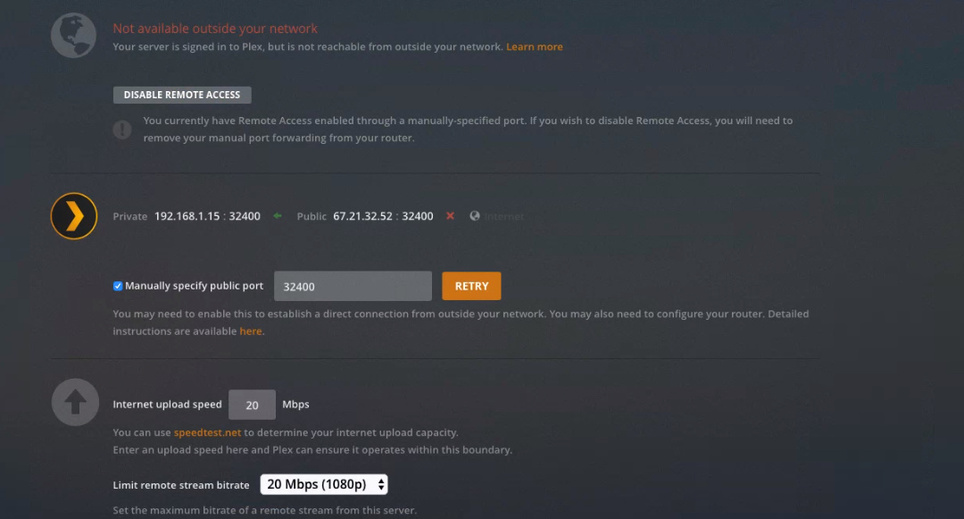
And in your router set up a port forwarding rule from the router’s port 32400 to your new Static IP address on port 32400 that you just chose and assigned in the step above.
Then in PMS Settings - Show Advanced - Remote Access set it to find the external port automatically.
That is the standard configuration for Plex that should work for you and does for most people.
I’ve changed the the option to Using DHCP with manual address. By what you just said, I can’t choose the original IP address of my machine. How do I know which IP address to choose?
Yeah I lowered the IP range and selected an IP address below that range so I know it wouldn’t conflict. I port forwarded and disabled NordVPN services. I feel the last part was the biggest. I’m good to go know. Remote access restored. I just need to remember to turn off NordVPN when I need access outside of my network.