Running the latest server and player version as of tonight.
I’m trying to limit what the Plex player shows. On my Windows desktop system, it automatically integrated all local files from the laptop. Is there I way I can setup, either on the server or on the client, to only show items available on the server? Thanks!
The Plex clients will show the media of your server as well as libraries shared with you. If your server shows data from places on your storage you don’t want to see in Plex, you need to adjust which folders are linked to your libraries.
(side note… if the server shows “all files”, you seem to have added a top-level drive letter as path to one of your libraries – Plex doesn’t do that automatically)
If you don’t want to see shared libraries an app, simply unpin them – this way they won’t show in the main navigation (while remaining accessible via More if you want to look something up anyway)
Thanks for the reply. It’s not pulling from any libraries, it’s just scanning my local drive and showing everything under the relevant plex category - movies, music, etc… I’d like it to only show content that is on the server.
Hover over a library in the main navigation in Plex Web for which you experience this
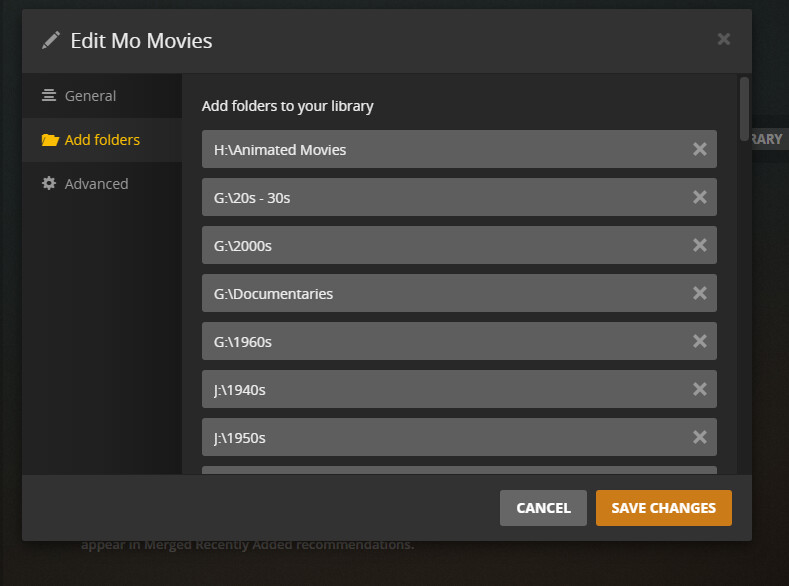
Click ⋮ > Manage Library > Edit...
Check which folders are linked to that library
Side note… I have a feeling there’s more nuances to “on the server” vs. “my local drive” – could you elaborate on that in case the above doesn’t solve why you see “the wrong files”?
On the server side I only see my one Movies directory set.
On the client machine using the Plex app, I see every video file ever, in every directory when I go to Movies and then click the Library option at the top. I don’t see any interesting options in the “Edit” area to change that.
Apologies… I’m lost / not following.
Where exactly do you see “every video file ever” and in which Plex app is that (e.g. Plex Web, Plex for Windows, Plex Media Player, Plex HTPC…)?
Is that the same library or does the app show libraries not visible when you access your server via the browser?
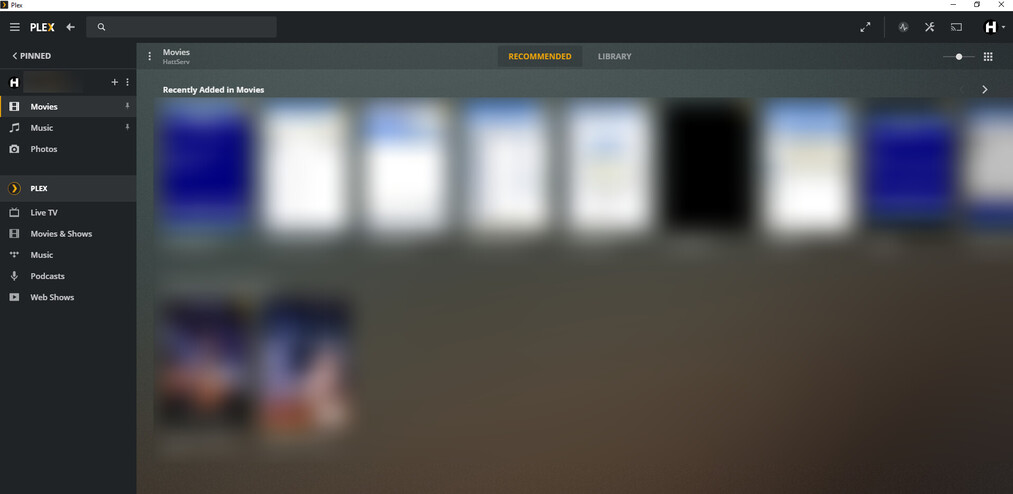
Maybe a screenshot will help to resolve some of the mystery
So in that screenshot, all the files listed under “recently added” are actually things Plesk has just detected on my local machine. They are not present on the computer that is the server. If you switch over to the “Library” tab, it’s every movie file on my local computer.
The files do show up when accessing through the browser, but only on the specific computer in question. Accessing from other machines doesn’t show them…as they are only local to this system.
I don’t want it to try and manage or show any local stuff - just display the files on the server only.
After that, if Plex is still showing undesirable selections - your folder path has items in it that Plex is seeing. The ONLY way for that to happen is if that material is in the file structure. Plex can’t go find stuff on your system that’s not in a valid library file path.
Note:
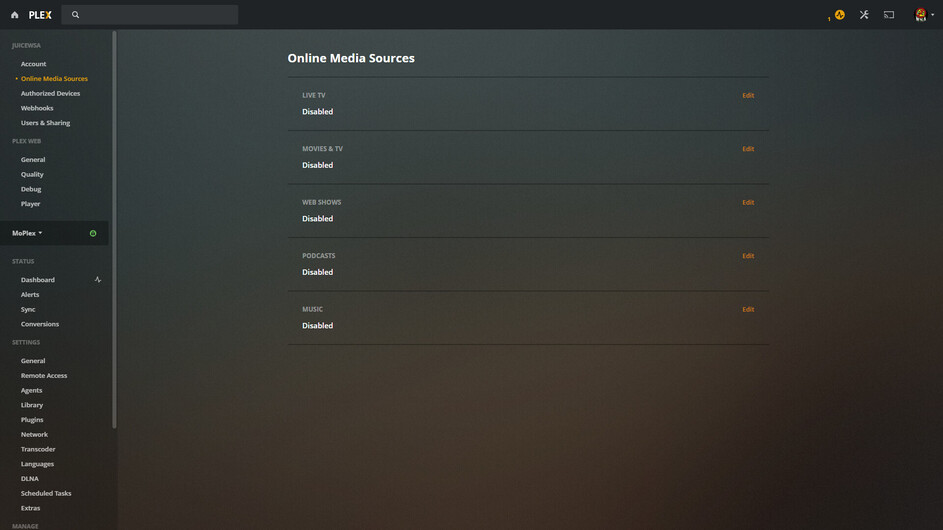
Disabling the Plex Online Media Sources ONLY works for your account. It doesn’t work for your shared users. They must disable the content on their own accounts the same way you did.
Typically you use the “More” screen to pin shared sections or Plex Sections to your home screen sidebar. Then you view your ‘Pinned Items’. ‘More’ isn’t used for normal, everyday viewing. Currently you ONLY have Movies and Music Pinned. Those are the only thing you’ll see on your Home Screen - AFTER you disable Plex Online Media Sources.
Which version of Plex for Windows do you have installed on your machine that’s showing this behavior?
According to everything I know, Plex will only show media from your libraries (except for the Plex section pointed out by JuiceWSA).
The only actual change coming to mind is how Plex is handling the home section. In the past you were able to manage the hubs showing on the home section individually but libraries of the same type were automatically merged per type (e.g. Recently added Movies). In a recent change, Plex have introduced an approach for the server owner to configure which hubs to show in that section (see Manage Recommendations). This will by default show the Recently Added hubs per library instead of by media type (though there’s an option to merge them again).
However… unless the screenshot is cleverly hiding some other shared servers… that shouldn’t impact what media is showing on your home section or the Recommended tab of that library.
TL;DR:
please share what version of Plex for Windows and Plex Media Server you’re currently using
just to triple-confirm: the blurred media from your screenshot is only on the machine running the Plex for Windows client – not the server?
Those videos are not on the server machine, the server has no access to them and the server is e.g. not pointing to some share/drive containing those videos)?
@JuiceWSA - it’s not Plex content, it’s definitely stuff from my local hard drive.
@tom80H - Version 1.31.1.2262-74fdc6b7. And yes, triple confirming the media is only present on the specific machine running the plex client and is not present on the server. No weird shared network drives or SANs or anything like that.
@OttoKerner - it’s showing the E: drive, which is the media drive on the server. The local machine has no E: drive.
If the root is the library - everything on the drive is… confusing Plex.
I may have some Goat Pron on one of these drives - I don’t want Plex to reveal my tendancies to those I share with…lol
You can have as many Library Content Folders as you want, located anywhere, just make sure the content you want listed is in one of them.
When you use the root - hidden files, system files, everything is up for grabs - and it makes a mess of things.
Okay - I think there is part user error and part maybe a bug - you guys can tell me what you think.
I think the user error is that I’m using the same username/access on the server in the web tab as on my laptop, so some settings I edited were server side and not client side, which weirded me out. However, if I changed the library path on the server to specifically use E:/Movies instead of just E:, that fixed the issue on the client side.
I’m wondering if there is a bug where if it is just set to a drive root like “E:” that it picks up data from the local machine as well, as I know the files with 100% certainty were only on this one computer and not the server.
You have no library media on the root now?
You just have ALL your movies in that folder, yes?
You have one path - the one you indicated above in Add Folders?
That’s fine.
Where are your TV Shows? Don’t have any?
You can’t put Shows and Movies in the same Library - just so you know that.
What I would do now is:
Refresh Metadata for the entire Movie Library.
Empty Trash
Clean Bundles.
Optimize Database