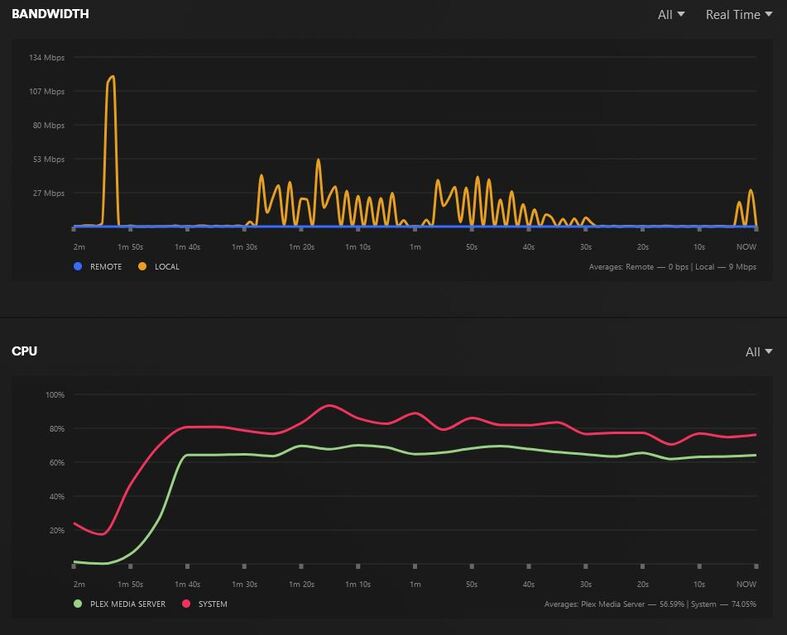
I built an new desktop to use as Plex server. I have a Plex pass subscription. I have multiple users watching my library simultaneously maybe as many as 4 at once. Running windows 11 pro. Motherboard is Asus prime z790-v-ax. CPU is Intel i9-12900k. Gpu is gtx 3060, 12gb. All media is stored on a internal nas HDD, 18 TB. Currently used almost 50% of nas storage. Nas storage is separate from the 1tb m.2 operating system SSD. 32 gigs ram installed. PC is is hardwired via Ethernet on a 1200 GB download speed.
From in network(when I am watching from inside my home), I frequently get buffering, skipping or a message telling me it can not play media because my Internet is too slow. Sometimes the videos won’t load. Almost every device I play from is a Roku device. Occasionally from an android tablet.
I am looking for some help/feedback on what settings or how to set the Plex server up for best performance and to be able to play multiple 4k movies. Any help would be greatly appreciated as I don’t even understand most of the settings options in the Plex server and what they do or what option to set them on
Regarding watching things over LAN, are the clients connected via WiFi or ethernet? Are you direct playing or transcoding? What containers (.mkv .mp4, etc.) are the files in? Are the files direct rips (high bitrate) from 4K disks or have they been run through Handbrake to compress? What Roku models are you using?
All of the players are Roku devices connected via wifi. Some are Roku TVs roughly 3 years old. Some are the newest Roku ultra 4k boxes. It doesn’t seem to matter which one I’m playing on. As far as transcoding, I have to transcode because Roku won’t do 4k direct, it will always transcode. All of movies are large files, direct rip .mkv format. I had tried to run them thru another program to make them smaller but it seems to degrade the quality. I haven’t used handbrake in a long time
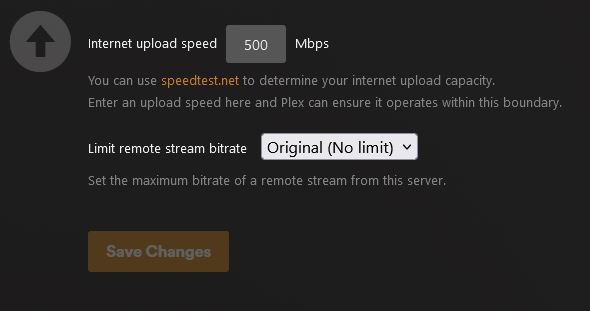
Under Plex Server settings → Remote Access do you have a limit set to upload or remote bitrate? Upload speed should match your internet upload and my personal opinion is that remote bitrate should be set to “Original”.
I can’t speak a lot about transcoding issues, maybe someone else will chime in about that. I’m really sure transcoding multiple 4K streams is a lot to ask of any server, no matter how much CPU and or GPU you have.
I have an FX-8320 and a GTX 970 (one of these days I’m going to build something new), which should not be transcoding anything, let alone 4K content. Therefore I’ve spent an insane amount of time running every rip through handbrake (actually ripping and then through Handbrake multiple times over the years as I’ve learned more) to avoid this exact situation. A drop in quality for every file to play 99.999% of the time is well worth it to me. If I need the maximum 4K experience I can dig out the disk.
It is not 4.something. That is the version of the Plex Web app. Scroll down.
PC Network Settings
If the PC also has a Wi-Fi connection, make sure it is disabled. The Ethernet port should be the only active network connection.
In Windows, make sure the Ethernet network interface is private, not public.
Windows 10: Settings → Network & Internet → Status → Properties.
Windows 11 should be similar (my PC is Win10).
If you change the network setting, reboot the PC.
Streaming Test
Now stream something using one of the Roku Ultras.
While it is playing, pull up the Plex Dashboard → Now Playing + Expanded View (see @MarkV1320’s example for Dune: Part Two above).
Take a screenshot of the Now Playing section and attach it to the thread (drag it into the window).
Need to know if the connection is Local, Remote, or Indirect.
Hopefully i am answering the questions properly and I want to thank you both for your help so far.
My Roku Speed shows good(189 mbps)
Plex server settings: No upload speed is set and Limit remote stream is set to original
On my Roku Plex app settings: it matches your screenshot above with the exception of “burn subtitles” is set to only image formats. In your screen shot you didnt show the setting for “allow mpeg2” but mine is not checked.
Pc does have wifi and it is disabled. Connection is set as private as well.
Audio transcoding is nothing to worry about in my book. So that shouldn’t be causing an issue.
If your settings match mine I don’t know else I can contribute in regards to local issues. I just don’t have experience in high bitrate movies (for this exact reason). All of my 4K content is encoded in HEVC (H.265) and 1080P and below at AVC (H.264), with a max file bitrate of 15.3 Mbps and 23.2 Mbps respectively.
Make sure your remote clients have remote quality set to unlimited or max (assuming their network can handle it) whatever it is on their app. That way your server isn’t transcoding because of that.