Transfer PMS from Old Synology NAS to New Synology NAS

PMS Version#: 1.42.1.10060-700010060
I’m upgrading from a 2-Bay Synology NAS to a 4-Bay Synology NAS. Both are running Synology DSM 7.1.1-42962 Update 9.

Can you provide the steps to migrate the core Plex app, database, configuration, etc., and steps to migrate the data?

Thank you.

Before providing steps, I need ask the intent of the HDDs currently in the 2 bay unit.

Are you planning on keeping them in the older Syno ?
-or-
Are you going to completely retire the older Syno and move those drives to the new machine ?

Hi Chuck, thank you for following up!

The plan is to keep the old NAS, reformat the HDDs for maximum storage and configure as a backup NAS.

Additional detail:

Old NAS is (2) 12TB HDDs configured as SHR with 1 drive fault tolerance = 10.9TB total storage @ 75% capacity. Will change RAID to maximum storage.

New NAS is (4) 12TB HDDs, haven’t configured yet but will likely use SHR with maximum fault tolerance.

One last question -

Do you have the NAS units configured so they can see each other ?
( E.g. New NAS can mount folders from the older NAS)

If it’s configured this way, it will make things easier

Yes, I’m able to mount the old NAS folders on the new NAS as CIFS.

I would like you to Enable the NFS service on both machines
(NFS is native to linux and far better for this than CIFS)

On the existing PMS server (server 1)

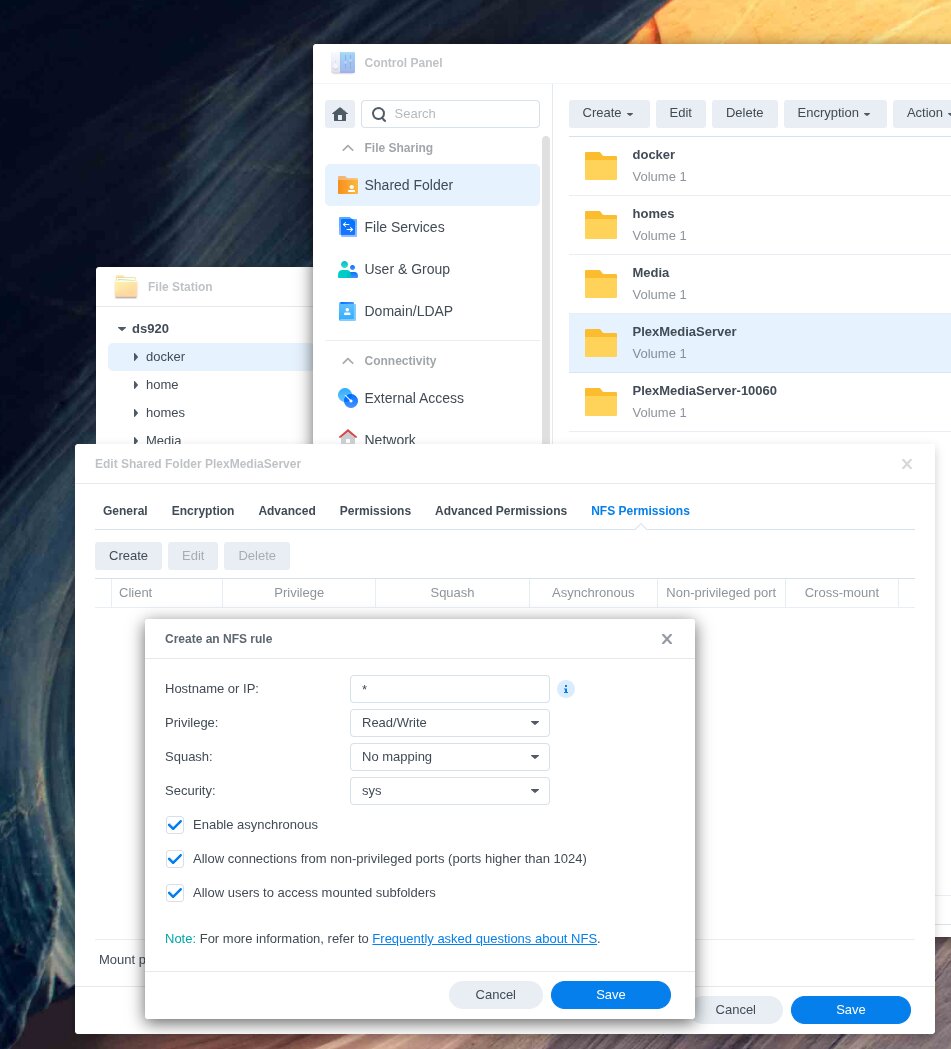
  1. Control Panel - Shared Folders - EDIT the PlexMediaServer shared folder

  2. NFS tab

  3. CREATE a rule to allow all permissions as shown here

  4. SAVE - SAVE

  5. Control Panel - File Services - Enable NFS (4.1)

Now we’re ready to go to the new machine (Server 2) and make the mount

  1. Control Panel - File Services - Enable NFS (just as you did for the other)

  2. Pick a shared folder / location where we can mount the other machine

  3. FileStation - Highlight the shared folder / folder where you will mount Server 1

  4. Tools - Nount Remote Folder - NFS Shared Folder

  5. In my example I’m mounting the PlexMediaServer shared folder and having it appear in /chuck/NAS/PlexMediaServer (fix volume / paths as needed)

  6. You’ll get this when mounted correctly.

  7. Control Panel - Shared Folders - EDIT PlexMediaServer
    (this is a temporary permission setting)

  8. Grant your username R/W to the PlexMediaServer shared folder

  9. Now it gets easy

  10. Open two filestation windows
    – One in each PlexMediaServer shared folder

  11. Server 2 (new machine) create a “NewAppData” folder

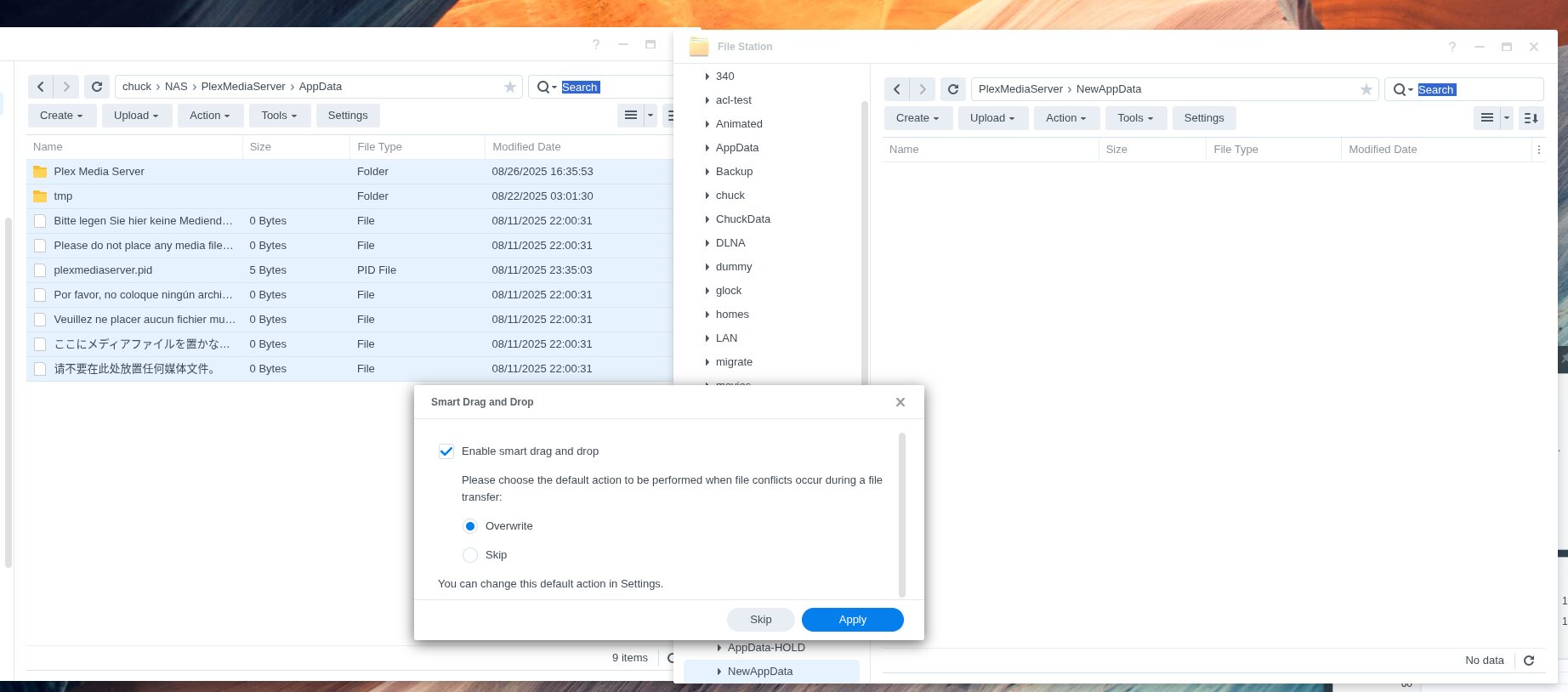
  12. Now COPY the entire contents of AppData from old machine to NewAppData folder

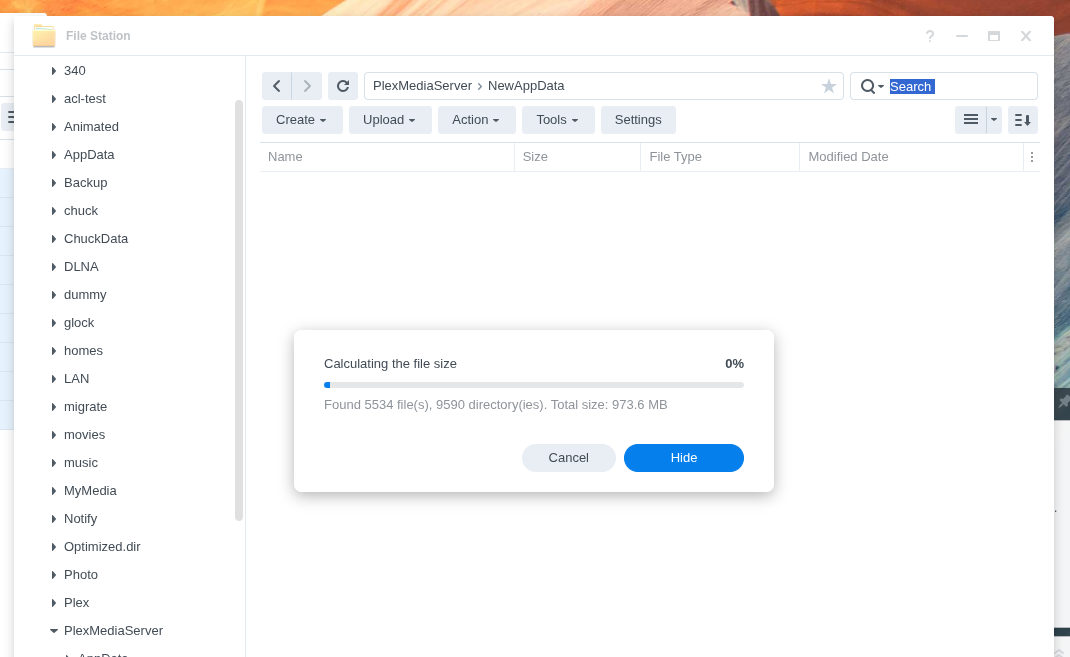
  13. This will take time. One last thing after the copy completes.

Should I install the latest Plex Media Server on the new NAS before starting these steps?

I got through the steps for the old NAS (server 1), but got confused on Step 10, 11, 12 and 13 because I only have one PlexMediaFolder on the new NAS (server 2) which is the old NAS (server 1) mount.

Yes, Install PMS on the new unit.

After installing, do not run it (we’re going to erase the empty db anyway)

Without having PMS installed on the new NAS, it is completely understandable why you got confused at step 10 (you were missing the other side of the puzzle)

When installing the Plex Media Server on the new NAS (server 2) I received the message “Installation Type; Normal installation or Install using Plex Claim Token (new or lost servers only)”.

Which Installation Type should I use?

Normal installation for the new NAS.

We will be transferring PMS so we don’t care what happens.
We want only functional code and system configuration.

Plex installed on new NAS (server 2) and not running. AppData on old NAS (server 1) copying to NewAppData on new NAS (server 2).

What’s next after this step is complete?

Step 1 – Set PlexMediaServer shared folder and contents permissions

  1. Open FileStation
  2. Left Panel - Right click PlexMediaServer
  3. Permissions tab
  4. Ensure the following permissions are set
    (PlexMediaServer is a ‘system internal user’. You might need to add it using the ‘create’ button
  5. (MUST) Apply to this folder, sub-folders, and files.

When it’s complete, start PMS.

Ok, permissions set /volume1/PlexMediaServer folder on new NAS (server 2).

Before starting PMS on new NAS, all my media files are still on the old NAS under /volume1/Storage. Should I copy these files to the new NAS, using the same path?

And how do the AppData folders work on the new NAS? /volume1/PlexMediaServer/AppData and /volume1/PlexMediaServer/NewAppData?

How does PMS know which folder to use?

Is the PMS database stored in the AppData folder?

Apologies, for leaving that step out of the instructions

  1. With Plex stopped
  2. Rename AppDataAppData-unused
  3. Rename NewAppDataAppData

After it’s up and running, you can safely remove AppData-unused

Thank you for that last step. I’m currently using rsync to copy the files from old NAS (server 1) to new NAS (server 2), which will likely take a few days.

Should I wait until the copy is complete before starting PMS on the new NAS (server 2)?

Hi Chuck, the data migration is complete. Before starting PMS on the new NAS (server 2), I noticed there is no “plex” user on this NAS. Plex Media Server is installed but hasn’t run yet. Should there be a “plex”user on the new NAS or will that user be created when PMS is run for the first time?

I also need to change the NAS IP address. For example, the old NAS (server 1) is 192.168.0.5 and the new NAS (server 2) is 192.168.0.6. To preserve complicated port forwarding rules, etc., I’d like to change the old NAS to 192.168.0.7 and new NAS to 192.168.0.5. Then change the old NAS to 192.168.0.,6 and use old NAS as a backup location.

On Synology NAS running DSM 7, Plex uses the PlexMediaServer system internal user.

If the username plex exists on your old NAS, it is a holdover from when it was running DSM 6. It is no longer used by Plex Media Server. If you are not using it for other purposes, then it can be deleted from the system.

  1. Using Synology Package Center, stop Plex Media Server on both NAS.

  2. Perform the address shuffle and restart both NAS.
    Plex Media Server should not start on either NAS.

  3. Start Plex Media Server on the new NAS.
    Make sure it functioning correctly before starting PMS on the old NAS (check both local and remote streaming).

  4. On the old NAS, rename preferences.xml to preferences.xml.old (or delete it).
    This ensures both Plex servers have unique IDs at plex.tv.

  5. Start Plex Media Server on the old NAS.

  6. Re-claim Plex Media Server on the old NAS.
    Make sure it does not have the same name as PMS on the new NAS
    Settings → server_name → General → Friendly Name.
Hello, thank you all for helping. The new NAS is up and running with Plex and all is working as expected.

Thanks again for your help!

This topic was automatically closed 90 days after the last reply. New replies are no longer allowed.