How to use multiple (split) shares for optimized media
This How-To is applicable to any Linux-based system. It is being demonstrated using both Synology and QNAP (does the CPU crunching) for expediency in creating the optimized files necessary. This having been stated, the only difference between performing this task on QNAP versus performing on Synology is the top level folder name. On QNAP, it is /share while on Synology it’s /volume1 for most users.
Two parts will be demonstrated here:
- Storing optimized media in a R/W share
- Moving existing optimized media to a share so the source media can be made Read-Only.
This How-To will show both Synology and then show how it looks on QNAP.
A. Preparation
-
Create a new share which will be Read-Write for user Plex. The name Optimized is used in this How-To
-
In this share, it makes sense to create a folder for each Library section we will be using. This means if you have Movies, Movies-HD, Movies-BluRay, and Television, it makes sense to make 4 top level folders. For the sake of brevity, movies will be created and shown.
-
Edit the Library folder list for each corresponding library. As you do this, it will look like this:

-
Save this change.
-
Preparation for this Library section is now complete.
At this point, you may
-
Direct an optimization to the Read/Write folder
-
Move existing optimized media to the Read/Write folder
Direct an optimization to the Read/Write folder
Directing an optimization task to the new Read/Write folder is as simple as selecting it when the task is queued. Upon completion, Plex will place the optimized version in this location and properly identify it.
This process is one additional step at the start of optimization:
- Select the Optimized/Movies folder as the destination.
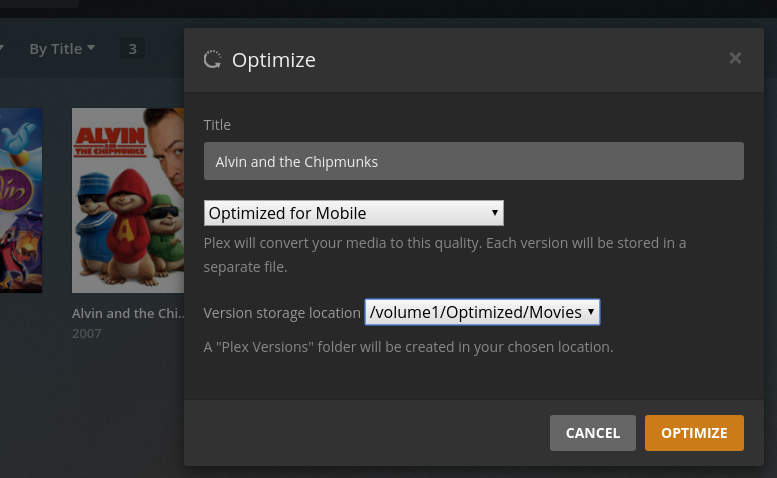
- When optimization is complete, Plex will put the optimized version of the media there.
Moving previously optimized media to the Read/Write folder
Moving previous optimized media requires work at the file system level with the file manager for each media item we are moving
We drag and drop (move) the existing Plex Versions directory under the media item to it’s location in the optimized share.
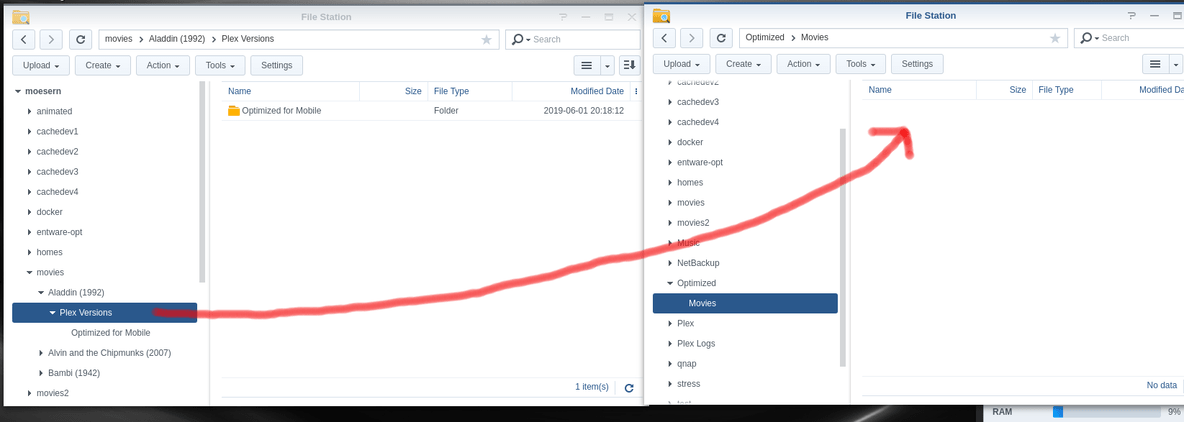
-
We drag each “Plex Versions” directory into the top of the Optimized/Movies folder. The file manager will warn us above the folder but there
-
For each subsequent move, we drag and drop to anywhere in the White Space in the window. Do Not drag onto the “Plex Versions” folder as this will cause them to nest
-
The file manager will want to “Move and Replace” or “Skip” , select Move and Replace.
Selecting this avoids the need to cleanup the source directory structure.

Examine the Optimized/Movies/Plex Versions directory structure. You will now see the next addition to the folder.

Inspect the metadata to confirm:


In the two movies shown above, one had lost its association as an optimized version.
Below is how to restore that association.
Repairing broken associations.
Repairing broken associations between main media files and the optimized versions is very simple.
The original structure must be recreated in the new Optimized share.
On Synology, for movies, this would look like:
/volume1
  movies/
    Plex Versions/
      Optimized for Mobile/
         Movie A (year).mp4
         Movie B (year).mp4
      Optimized for TV
         Movie C (year).mp4
      Custom_ Universal TV 88/
On QNAP, the process is the same


