Video won't play via my Synology NAS, but plays fine on my laptop?

Server Version#: 4.108.0
Player Version#:
<If providing server logs please do NOT turn on verbose logging, only debug logging should be enabled>

I’ve noticed that I have several videos, mainly TV shows, that will play fine directly on my laptop, yet will either stutter or not play at all via Plex on my Synology NAS (DS918+). I have made sure to correctly name the files (e.g. TV Show Name - SxxExx - TV Show Episode Name).

I have tried playing these videos on several different devices (Xbox, Smart TV, Phone), as well as the Plex Web app.

Could someone assist with this? This has been an ongoing problem for a while now. THank you in advance.

Once the file is scanned/added to your library, the file name won’t impact your playback.

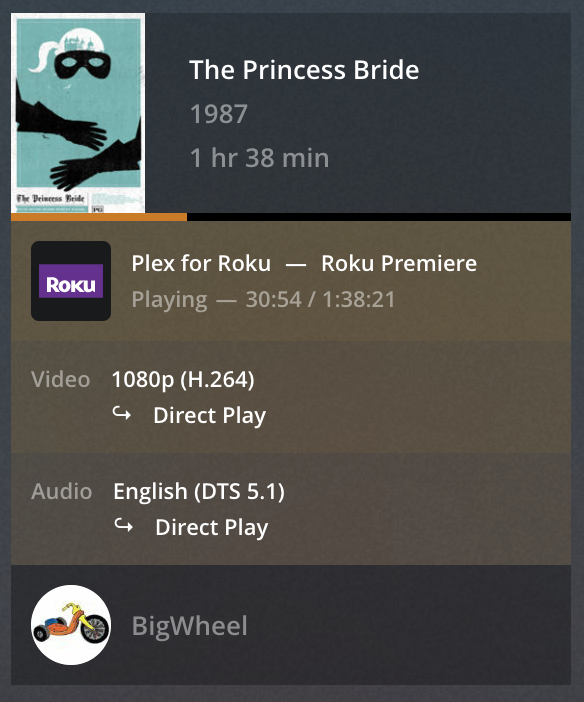
What information is showing in the “now playing” tile for that playback on the Plex server dashboard? — specifically: is the stream displaying as local/remote/indirect and is there any transcoding?
Exemplary screenshot from the "now playing" section
https://support.plex.tv/articles/200871837-status-and-dashboard/

No direct play, but there is transcoding (hw). Not sure what that means in regards to the transcoding.
Screen Shot 2023-11-16 at 1.22.20 PM

You cropped off the Plex client information.

You are probably running into the limitations of various Plex clients and the limitations of running Plex on systems with low power CPUs.

Example:

Plex Web does not support direct playing VOBSUB subtitles due to the limitations of web browsers.

With Plex Web, when playing a video with VOBSUB subtitles, Plex Media Server must transcode the video and burn the subtitles into the video stream (burn = adding the subtitles to the video frame).

The burning process uses the CPU, even when the video is transcoded using the GPU. Furthermore, the process is single threaded, so it cannot take advantage of multiple CPU cores.

The Celeron J3455 in the DS918+ is not strong enough to burn subtitles in real time for all video resolutions. It can do so for 480p & 720p, but will fail for some 1080p video.

As a result, playback will frequently pause (buffer) while the client waits for the CPU to catch up and process additional video frames.


With respect to Plex Web, if you are using a Windows, Mac, or Linux system, consider using Plex Desktop instead. It will direct play most audio/video/subtitle formats, negating the need Plex Media Server to transcode the video and burn subtitles.


Unfortunately, Plex Dashboard does not show when subtitle burning is occurring.

Consider using Tautulli. It has a dashboard similar to Plex’s, but it displays additional information, including when subtitle burning is occurring.

Tautulli Dashboard: Showing subtitle burning when using VOBSUB subtitles in Plex Web
burn

Tautulli Dashboard: Same video, same client, no subtitles.
noburn

Tautulli Dashboard: Same video, using Plex Desktop instead of Plex Web
desktop

1 Like

I apologize for the late reply.

Thank you so much for this. The VOBSUB subtitles were the issue.

In the past week, though, I am now having an issue of frequent stuttering with most TV shows I am currently watching. I checked and there are no frames lost. I’ve realized that if I exit the video, then resume playing again after a second or two, it solves the issue (temporarily).

I haven’t been able to find an answer anywhere else, so I am coming here in hopes you may have one!

Just to note, I have recently cleaned my Synology NAS of all particles and dust.

If I may whisper here? :sunglasses:

Subtitles (PGS, VOBSUB, DVDRIP – any image based) are major problems for NAS systems.

We have a solution for that coming (after the holidays).

I can’t say more until I see what my evil counterpart :smiling_imp: has actually come up with but when he says he solved it then I know it’s solved.

Are subtitles enabled? Wondering if this is a new problem or the same subtitle burning problem.

If a new issue, suggest you open a new thread. It will have better visibility.

If the same problem (i.e. subtitle related), re-create it, then provide a set of server log files from the same time period.

Great! I’ll be patiently waiting!

New problem. I will make a new post. Thank you.

This topic was automatically closed 90 days after the last reply. New replies are no longer allowed.