Server Version#: 1.40.1.8227
Player Version#: 4.125.1
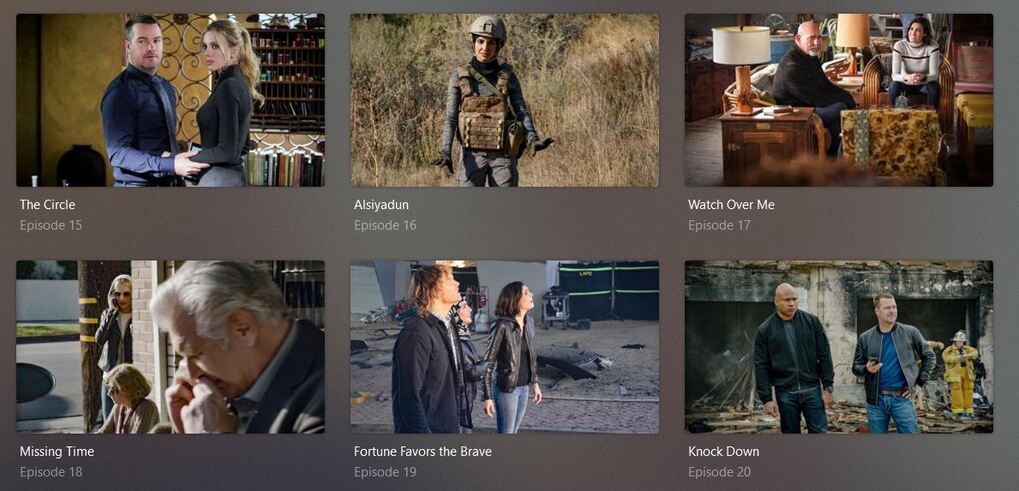
I just upgraded to PMS v1.40.1.8227 and now my episodes no longer show which ones are watched and which ones aren’t. They used to show a little orange circle in the corner if they were unwatched. Now, they show nothing.
For example, in the episodes shown below, how can I tell which ones are watched and which ones aren’t?:
4 are watched, 2 are not but I can’t tell which is which.
I’ve tried with Chrome and two versions of Firefox. Same result.
I see the green check on my Roku, and I see the orange circles on an older “RasPlex” system, but in the newer web gui I don’t see green checks or orange circles. Nothing whatsoever to show something has been watched.
I tried backing down to the initial 1.40 release and had the same behavior. If I back down to the latest 1.32 release, the orange triangles appear as they should to indicate unwatched episodes. It looks like whatever broke, broke with 1.40 right out of the gate.
I’m not sure how to troubleshoot this. It seems to only affect the web gui..
I have no idea how to troubleshoot this. It’s the same on every browser I have tried. Any help would be appreciated,
I found the problem…
The green checks only appear if you are logged into plex central in the web browser. If you are not logged in, the check marks do not appear. This can be easily reproduced by connecting to your plex server in a private window, or a completely different browser and not logging in.
Even if you are logged in, it wasn’t until I manually checked an episode as “watched” in the web gui that things started to change. Manually changing the watch status caused a pop-up to appear asking me to approve sharing watch data with Plex central. A yes or no answer there causes the green check to appear.
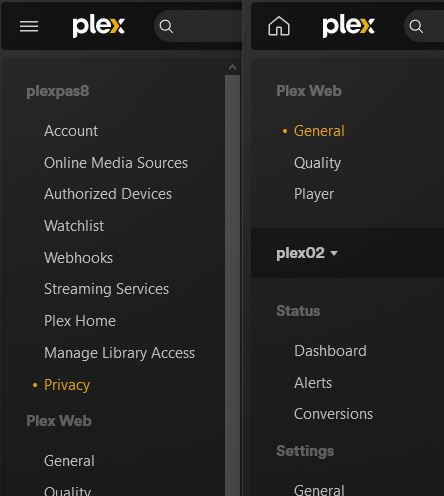
The green check appears to be controlled in the Privacy section of the plex account that’s logged in. But, if you aren’t logged in, the privacy section doesn’t appear at all and no check marks are displayed.
This reveals two problems. …
-
There is no documentation or first-time browser dialog that tells you that you need to “trigger” the privacy pop-up by manually setting an episode as watched in the web gui. Nor that you need to go to the privacy settings to make an initial configuration of the sharing option in order to get the green checks.
-
If you are on a server that is not connected to plex, or on one that is but you aren’t logged into plex central via the browser, you don’t even have the option to get the green check.
I certainly hope this is a bug rather than an intentional decision by plex that requires us to login in order to see watch history. I use plex at a vacation home without internet and sometimes on the road for the kids, also without internet.
Here’s a picture of the two different settings menus:
How do I report a bug in plex?
You just did  . Thank you for reporting. Some recent updates to the Web client that eventually made their way to the bundled Web app with PMS seems to be showing some not so great issues when users are accessing PMS without authentication. I’ve filed your finding internally and raising it to the dev team.
This will require a Web client fix but the fix will likely not show up until PMS bumps the bundled Web app to whatever Web release has the fix. The fix will likely be listed in the PMS release notes and not the Web release notes, since the issue only applies when using the bundled Web app.  I know…
Again, thank you for reporting.
I can totally confirm this behavior here on my installation with
Server Version#: 1.40.1.8227
Player Version#: 4.125.1
on a Linux System, which I already recognized some versions before.
Once logged in, the green “watched” symbols appear. If I’m logged out, they completely disappear from everywhere.
The second thing, which is not working beside the green check symbol is the “three dot” menu in the lower right corner if you’re navigating in the main overview of movies and tv shows.
Once logged in, the menu is popping up.
Thanks for posting this. Same problem. I use local IP and not Plex.tv. I also block non-local js (so plex.tv) if that helps. I can still tell if they are watched or unwatched by going to each episode and looking at the check box.