Hi there,
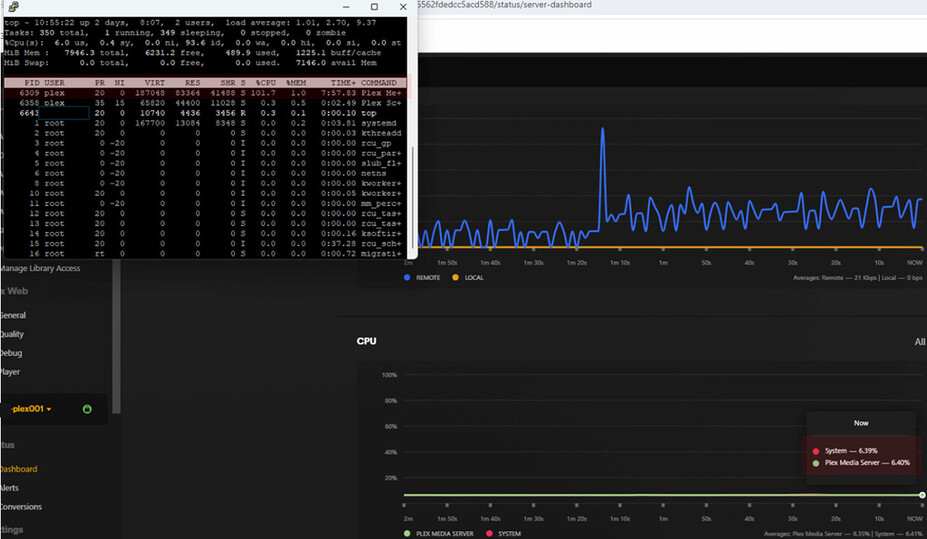
I’m running Plex server on a Ubuntu VM. Any idea why the CPU usage in the Plex dashboard would remain pretty low whilst the CPU load shows 100% for Plex when checking the processes using the [top] utility. This happens even when there is no playback ongoing and I cannot see anything weird in the logs. Restarting the Plex service only helps for several minutes, before the CPU load increases again to 100%.
Any idea why this discrepancy? Any clue about the root cause?
Thanks!
Server Version#: 4.116.1
Client Version#: AppleTV version v8.35 (8302)
How many cores does your CPU have?
How many did you assign to the VM with Plex in it?
Are you aware that top shows 100% when just one of many CPU cores is fully loaded? and over 100% when there is more than one core in your CPU loaded?
(e.g. if your CPU has 4 cores, and they are all fully loaded, you’d see the number 400% in top)
The display in Plex shows 100% when all cores are fully loaded – just like any other operating system or load indicator would.
Also, your top screenshot is showing your system as 93.6% idle (93.6 id in the screenshot). In top, press ‘t’ and then ‘4’ to see a view of all your CPUs’ utilizations.
No, I did not know that, thanks for the info. I’ll check again!
Thanks for the tip. I’ll check that!
So this was a combination:
- I was indeed reading
top incorrectly. Pressing ‘t’ and 4 helped. I also found toggling between Irix and Solaris modes (shift + i) convenient.
- the Plex service was still around 60% CPU usage when idle. It turned out that the partition became too small. I resized it and it is now below 8% when idle.
Thanks again!
Be very careful to not run into such a situation again. If the Plex data folder runs out of space, it can lead to database corruption. The nasty thing about that is, that it doesn’t necessarily show immediately. You can end running for weeks, months, or even years with a damaged database. Which almost inevitably leads to data loss eventually if it remains undetected.
So be on the lookout.
Assign a lot more drive space than what it seems to require. Particularly during server upgrades, which is when there might be more space required for DB schema updates.
Perform a DB health check from time to time.
Keep an eye out for the DB backups. They appear beside the working copy of theDB file(s). If they don’t, or if they have a file date which is several weeks or older, do a repair and hope it can restore the DB.
Great piece of advice! I’ve more than doubled the partition, and I’ll definitely keep an eye on the DB. Thanks again!